How to Define Bonded Interactions in SOLIDWORKS Simulation: A Practical Case Study

BLOG

How to Define Bonded Interactions in SOLIDWORKS Simulation: A Practical Case Study

Are you wondering which interaction type should be used in SOLIDWORKS Simulation to represent a weld or to attach two bodies so they do not separate during the analysis?

Think about a bracket supporting critical components of a product. What must be done to ensure that the simulation accurately represents the real behavior before running the analysis?

After reading this blog, you will be familiar with the key steps required to properly define bonded interactions in SOLIDWORKS Simulation. 
Representation of the bonded interaction

In SOLIDWORKS Simulation, a bonded interaction is used to connect two or more bodies so that no relative motion is allowed at their interface. A typical example is welding a bracket to another component to reinforce a structure and reduce stress in critical areas.

A bonded interaction is equivalent to merging bodies while still allowing each part to retain its own material properties. Once defined, the connected bodies are assumed to never separate during the analysis. This represents an idealized, perfectly rigid weld. While such a condition does not exist in reality, it is often a reasonable and efficient assumption when a near-perfect weld behavior is expected.

A bonded interaction should not be used to represent a contact condition (formerly called No Penetration) or any situation where sliding between components is expected.

In some cases, however, it may be acceptable to use a bonded interaction instead of defining multiple contact conditions in order to simplify the analysis. An example is a threaded rod, where detailed local behavior is not required and where the objective is to capture the global structural response rather than local stresses.

Mesh refinement plays a key role in obtaining accurate results near bonded interaction regions. Adjusting the global mesh parameters or applying local mesh controls can significantly improve mesh consistency at the interface and help ensure reliable and meaningful results.

Modeling Assumptions: Using Bonded Interactions in a Welded Structure

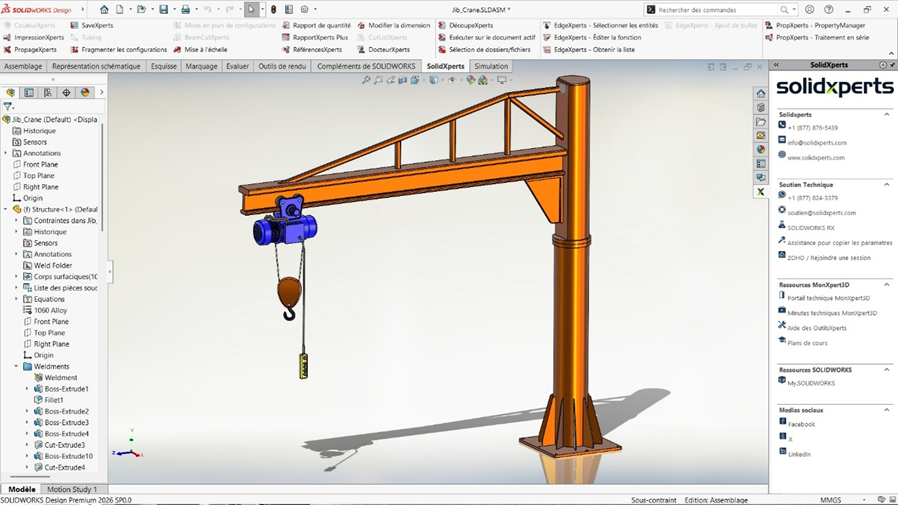
We are going to consider the following case study to illustrate the bonded interaction application. See the image below:
Jib crane case study highlighting potential bonded interaction locations

In this jib crane case study, the gusset parts are welded to the column and base plate to increase the overall resistance of the local area. Because of the nature of the problem, we make the assumption that the parts are tied together and that there is no relative motion between them. Therefore, we can apply a bonded interaction at this location to represent multiple welding interactions.

Please note that it is not necessary to model the weld as a separate part or body in SOLIDWORKS. This simplifies both the model and the analyst’s work while requiring only minimal additional information.
As with any modeling assumption, the use of bonded interactions should always be aligned with the objectives of the analysis and the level of accuracy required.

Global vs Local Bonded Interactions: Setup and Best Practices

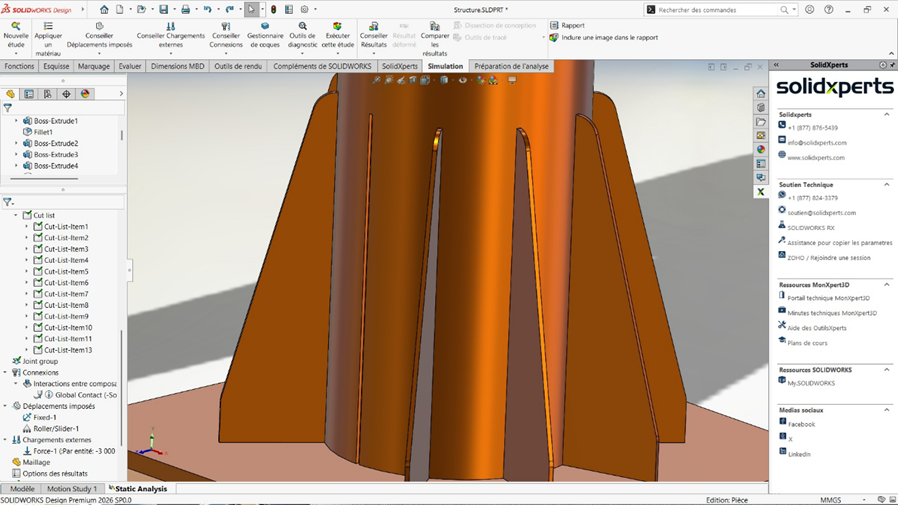
Here we are, the most sought after section of this blog on how to define the bonded interaction. There are several ways to define bonded interactions in SOLIDWORKS Simulation. The good news is that the default option when creating a stress analysis with SOLIDWORKS Simulation is set to apply a bonded interaction at a global level. This means that for coincident solid bodies, no additional interaction definition is required as long as the global interaction type is set to Bonded. The global bonded interaction can be found in the Simulation Tree in the Connections folder, under Component Interactions. Additional options can be set to take into account a gap between the bodies. The following image shows a case where a bonded interaction already defined by default could already be sufficient, meaning that there is no additional required step:
 Alternative jib crane design where the gussets fit into slotted holes
Alternative jib crane design where the gussets fit into slotted holes

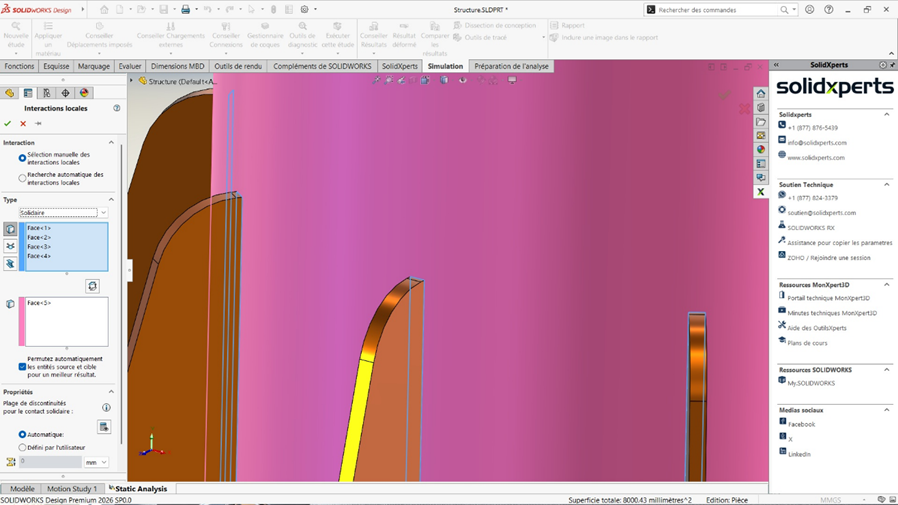
In some specific cases, a bonded interaction must be defined at a local level which requires a definition in the software. It could be the case of parts with different mesh types or geometry inconsistencies. Let’s consider the case study where there is a small gap between the gusset and the column where a bonded interaction is needed to represent a welding.

To define a local bonded interaction:

  1. In the Simulation Tree, right-click Connections and select Local Interaction.

  1. In Type, choose Bonded.

  1. In the blue selection box, select the first entity (ideally the smaller one).

  1. In the pink selection box, select the second entity (ideally the larger one).

  1. Multiple entities can be selected if required.

  1. If necessary, define additional options such as the gap tolerance.

Local bonded interaction definition

Interpreting Results When Using Bonded Interactions

When the calculations complete and that we are at the step of validating the results, it is very important to understand how they should be interpreted. Adding unnecessary bonded interactions tends to artificially increase the stiffness of the structure. This can make the model appear stronger than it actually is, resulting in a non-conservative analysis. Therefore, it is important to keep that in mind and make sure that the analysis represents the real case study appropriately. An animation of the results is an excellent way to determine whether or not the structure behaves as it should be. Expect stress concentrations near edges with bonded interactions and pay attention to stress singularities. If necessary, plot the reaction forces and compare them with the applied loads. If the results don’t make sense, it is important to consider reviewing the analysis setup and rerunning the analysis.

Key Takeaways on Bonded Interactions in SOLIDWORKS Simulation

In this blog, we explored the application of bonded interactions to better understand their meaning and areas of use.

Through the lifting jib crane case study, we illustrated the creation of both global and local bonded interactions. In Finite Element Analysis (FEA), the quality of results depends primarily on the relevance of your modeling assumptions and choices.

Beyond interactions, there are other features that must be used properly to produce reliable simulations tailored to your objectives. If you wish to deepen your knowledge of SOLIDWORKS Simulation, several resources are available to support your progress.

You can visit our website to read our other technical blogs and learn more: https://www.solidxperts.com/en/blog/


Chung Ping Lu, eng.

Chung Ping Lu, eng.

Senior Technical Representative

X_green_halo

Any questions? Need help? Ask one of our experts.

Whether you’re ready to get started or just have a few more questions, you can contact us toll-free:

    3DEXPERIENCE World 2026: Big Ideas, Real Innovation, and a Community That Inspires

    BLOG

    3DEXPERIENCE World 2026: Big Ideas, Real Innovation, and a Community That Inspires

    This year’s 3DEXPERIENCE World 2026 in Houston brought together the global SOLIDWORKS community. Designers, engineers, students, educators, makers, and executives from all over the world gathered for three days of inspiration, learning, and connection. From powerful keynotes to cutting-edge tech announcements, here’s a highlight reel you’ll want to read.

    Day One: Vision, AI, and the Future of Engineering

    Day One kicked off with a high-energy General Session that set the tone for the entire event: innovation powered by people and amplified by the right tools. Thousands of attendees gathered to hear leadership from the industry share bold perspectives on where product development is heading.

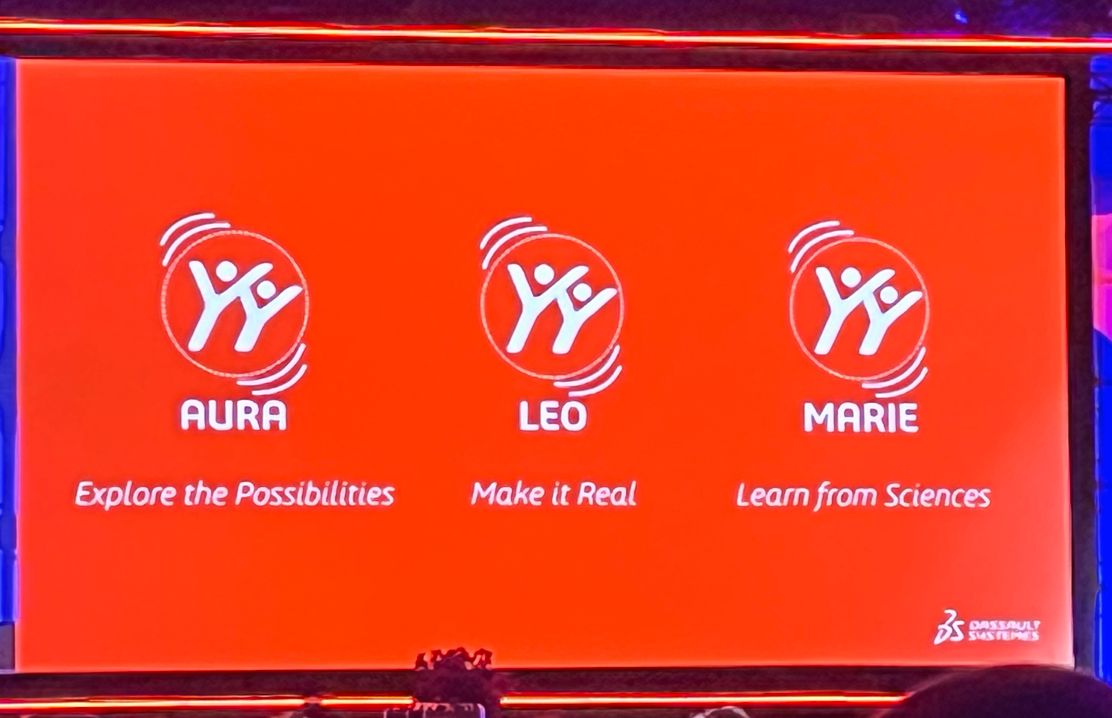
    A major theme throughout the day was artificial intelligence (AI). SOLIDWORKS leadership made it clear that AI isn’t a gimmick, it’s already reshaping workflows and helping teams accelerate insight, design, and validation. We saw a live demo of new AI assistants: Aura, Leo, and Marie. Three virtual companions that work together to streamline everything from knowledge context and engineering reasoning to scientific rigor.

    • Aura orchestrates requirements, projects, and changes.

    • Leo brings engineering reasoning to life (mechanics, motion, simulation), think Leonardo da Vinci.

    • Marie applies scientific and regulatory insight, think Marie Curie.

    These assistants are designed as companions, not autopilots. They’re tools that let engineers stay in control and design with confidence rather than guesswork.

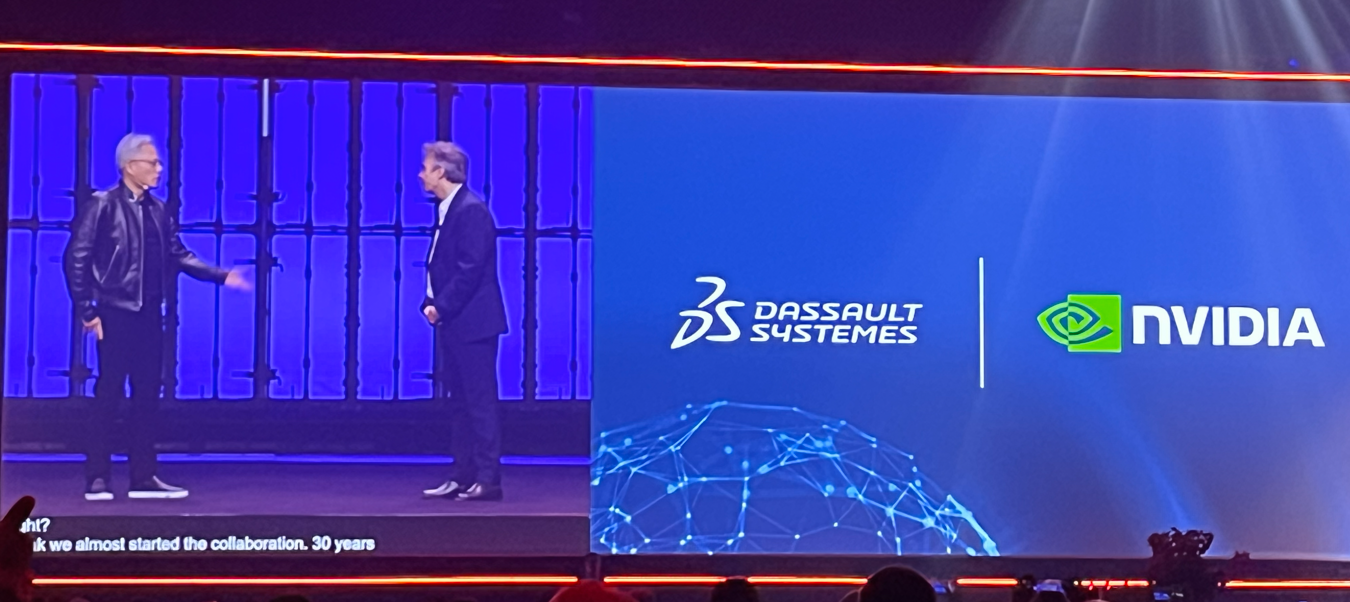
    3DXWorld 2026 - Day 1

    Later, attendees heard from Pascal Daloz and Gian Paolo Bassi on how a combination of human creativity and connected technology fuels progress faster than ever. One standout message? “Success shouldn’t be judged by speed alone, but by time to value”, meaning design outcomes that are reliable, meaningful, and innovative.

    Day One wrapped with a keynote from futurist Pablos Holman, reminding us that the real power of technology lies in solving real world problems, from healthcare to space exploration. His message was forward-looking, inspiring, and grounded in practical impact.

    Day Two: Engineering Partnerships and AI in Action

    Day Two turned the spotlight to how industry partnerships and technology collaboration are reshaping the way we work. The session opened with Dassault Systèmes CEO Pascal Daloz discussing how a strong engineering community combined with strategic technology partnerships creates innovation that scales.

    We heard from Jensen Huang, Founder and CEO of NVIDIA, about the long-standing collaboration between NVIDIA and Dassault Systèmes. Their work emphasizes science-driven AI and virtual twins, paired with high-performance computing to give engineers tools that can handle truly complex systems in simulation and design at scale.

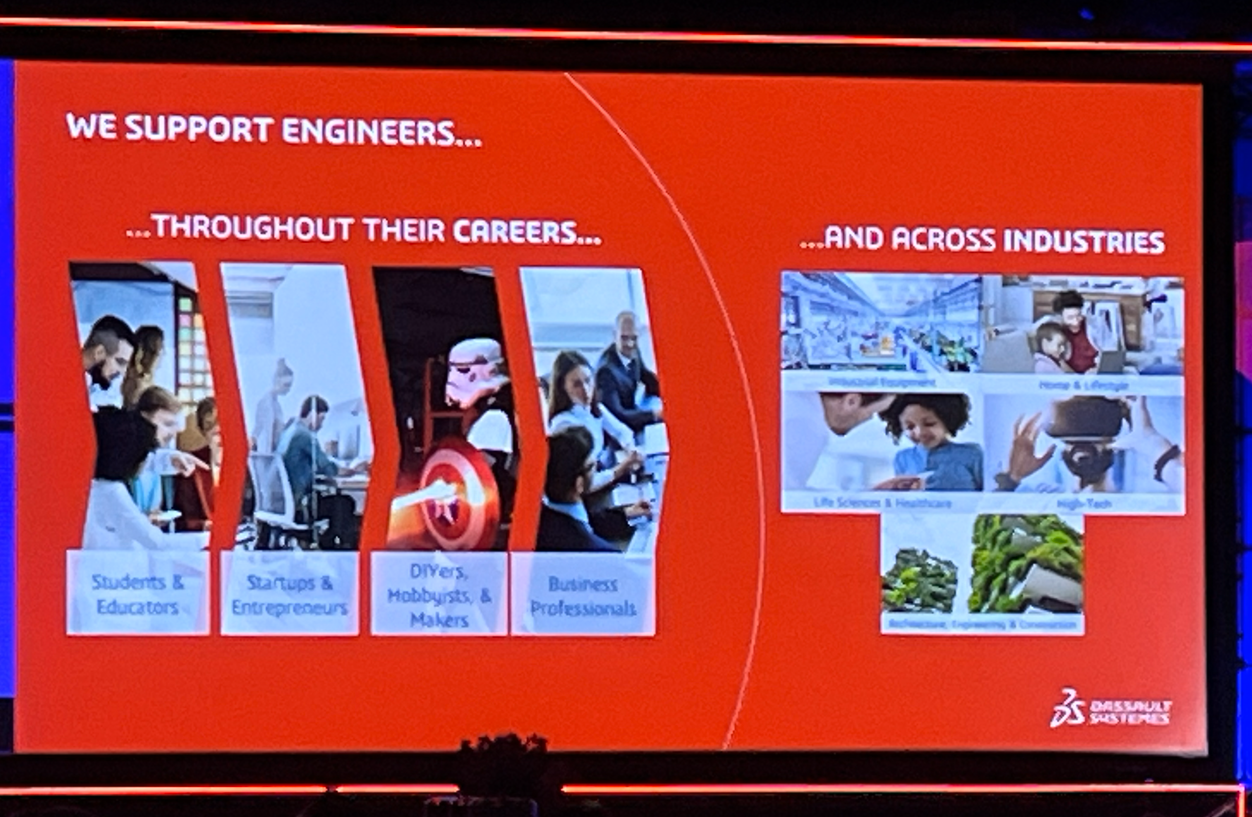
    3DXWorld 2026 - Day 2

    SOLIDWORKS CEO Manish Kumar also joined the stage to outline how AI is being embedded into real design workflows, not as a theory, but as a practical productivity boost. This includes contextual AI tools that help reduce repetitive tasks, free up time for innovation, and bring deeper insight into design decisions.

    One of the most exciting themes of Day Two was this: “AI isn’t here to replace engineers; it exists to empower them.” By putting smart tools into your hands, you get faster iteration cycles, fewer errors, and a stronger connection between your design intent and your final product.

    Day Three: Community Celebration and the Next Generation

    The final day of 3DEXPERIENCE World 2026 was all about community, the people who make this ecosystem special. Whether you’re a seasoned pro, an educator, a student, or a maker, this day celebrated the connections that make innovation possible.

    Suchit Jain, VP of Strategy and Business Development, kicked things off by highlighting how collaboration across industry, education, and local innovation hubs builds the workforce of tomorrow. There were strong messages about supporting emerging talent, integrating real-world problem solving into education, and making sure SOLIDWORKS continues to be accessible to innovators of all backgrounds.

    3DXWorld 2026 - Day 3

    Day Three also spotlighted how regional and global communities are using SOLIDWORKS tools to solve real problems, whether that’s in manufacturing, healthcare, education, or startup growth. It was a reminder that technology only reaches its potential when it’s put to work by passionate people.

    The final sessions included inspiring competition recaps, community-driven breakout sessions, and previews of what’s coming next, including early looks at SOLIDWORKS 2027 features that continue the theme of smarter workflows and tighter collaboration between design, simulation, and data.

    What This Means for You

    Across all three days of 3DEXPERIENCE World 2026, a few themes stood out loud and clear:

    1. Innovation grows when humans and tools work together.
      AI companions are here, but they’re companions. They help you work smarter, not replace your expertise. AND the best part, they come with SOLIDWORKS with Cloud Services.

    2. Connected ecosystems :  partnerships + community to accelerate progress.
      Whether it’s NVIDIA, startups, educators, or global manufacturers, connection drives insight at scale.

    3. The next generation of designers is in focus.
      Programs, hubs, and community efforts are investing in future creators, ensuring SOLIDWORKS tools remain integral to how engineering gets done in the years ahead.

    3DEXPERIENCE World 2026 wasn’t just a conference, it was a reminder of why we design, why we connect, and why we build communities around shared purpose, problem solving, and progress.

    We’re already looking forward to 3DEXPERIENCE World 2027!

    3DX World 2027 - Save the date

    If you want to know more about how SOLIDWORKS users can begin to leverage AI in 2026, call us, or visit at 2650 Avenue Marie-Curie, QC.


    Michael Habrich

    3DEXPERIENCE Specialist

    X_green_halo

    Any questions? Need help? Ask one of our experts.

    Whether you’re ready to get started or just have a few more questions, you can contact us toll-free:

      Updated Instructions for Adding the Thumbnail Column in the 3DEXPERIENCE Platform

      BLOG

      Updated Instructions for Adding the Thumbnail Column in the 3DEXPERIENCE Platform

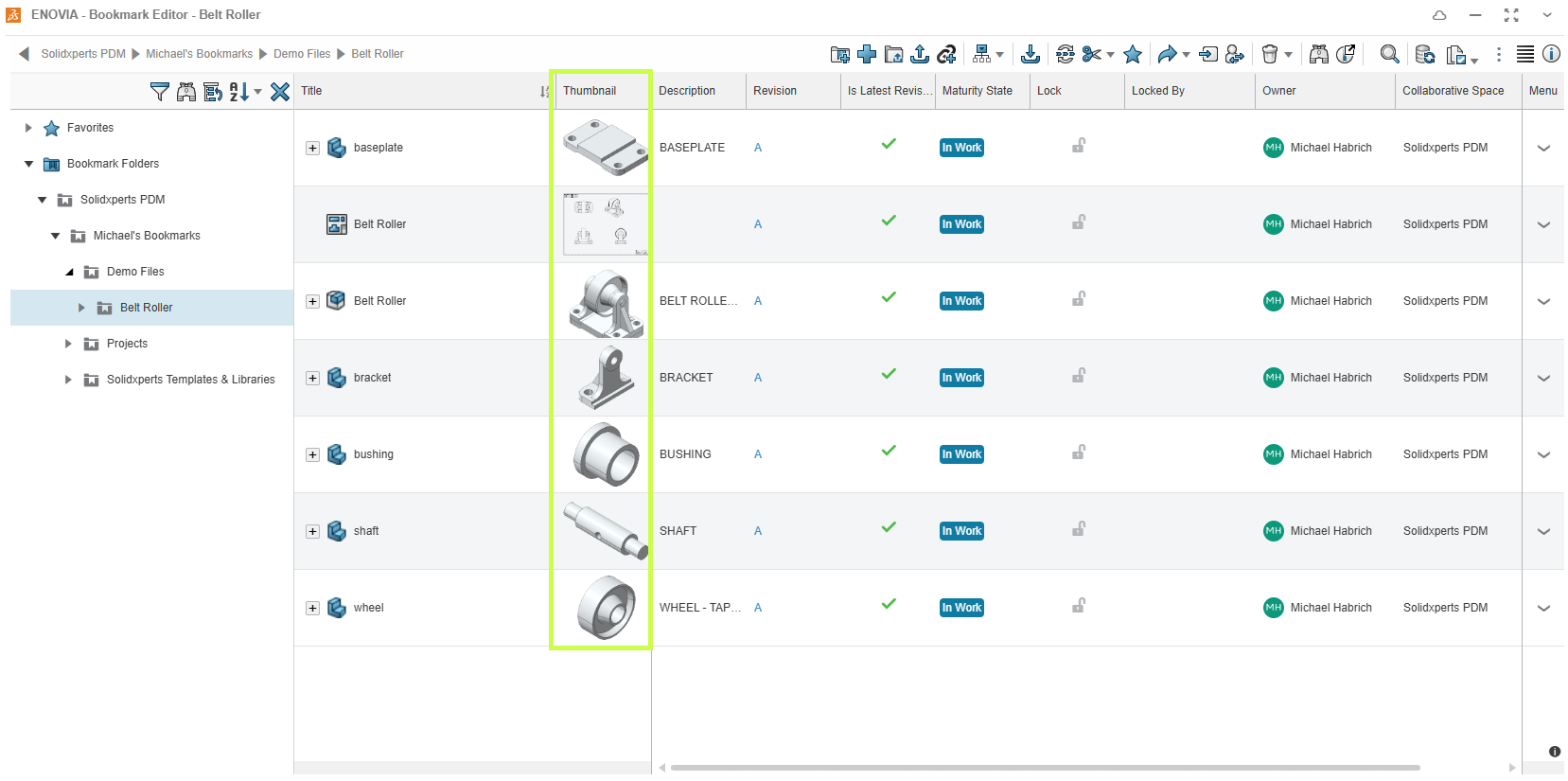
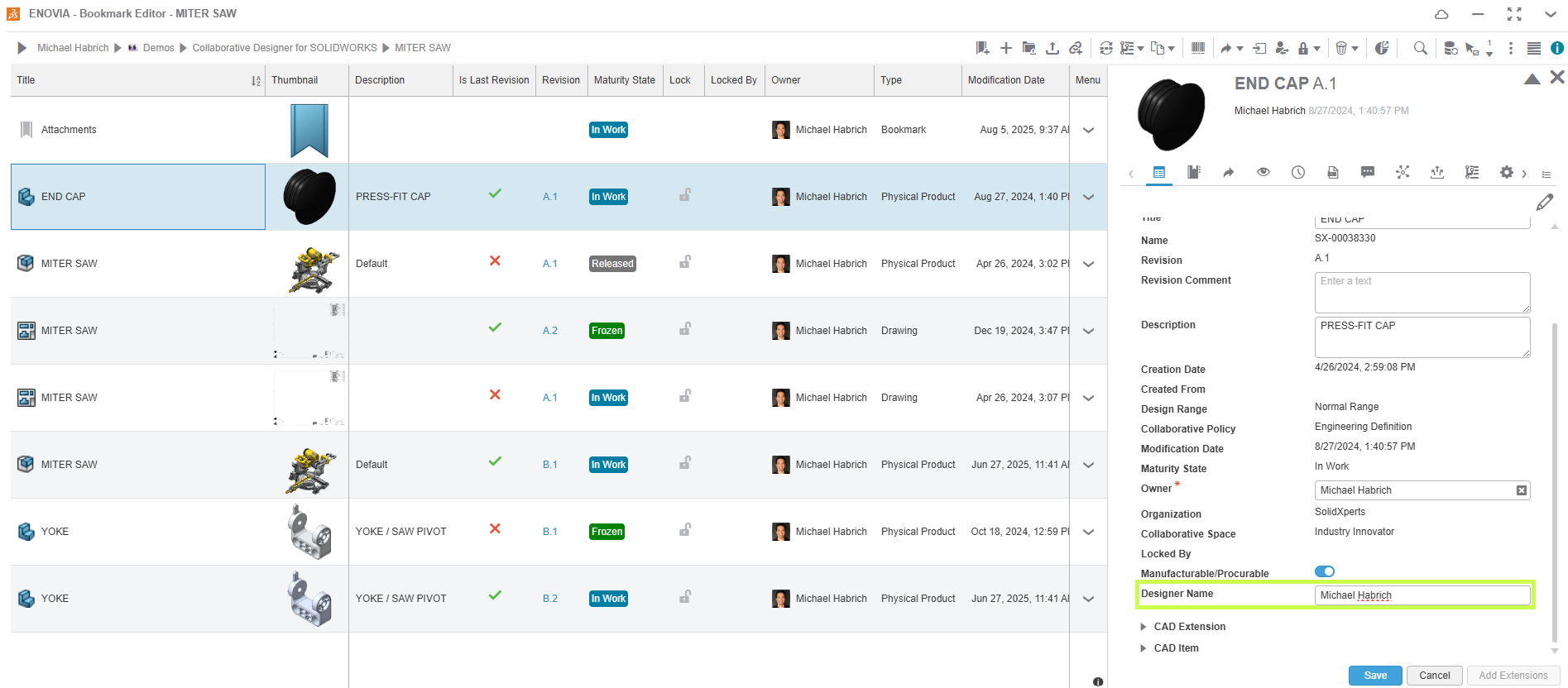
      If you use the Bookmark Editor inside the 3DEXPERIENCE platform, the Thumbnail column can be a great way to quickly recognize your content without digging through details. With the July 2025 update, the way you add this column (and a few others) has changed a little. No worries, we will walk you through it.

      Bookmark Editor

      Creating a Custom View

      To add the Thumbnail column, you’ll now need to work with a custom column view instead of the default one.

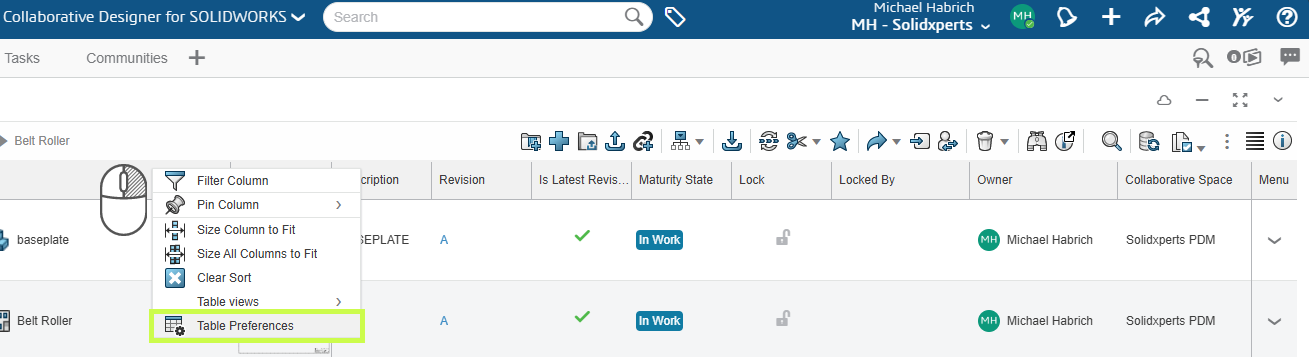
      • Right-click any column header in Bookmark Editor.
      • Select Table Preferences.

      Table Preferences in the 3DEXPERIENCE platform

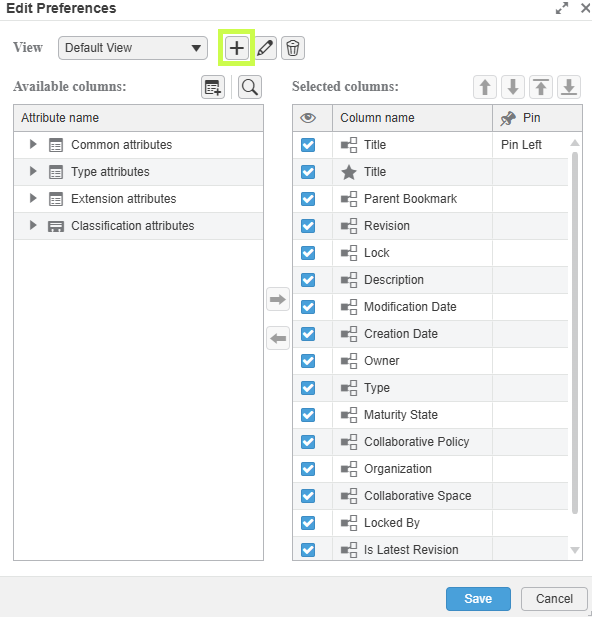
      You’ll see a dropdown at the top. Most users will currently be using Default.

      • Click the + icon to create your own view.
        • The platform will call it Copy of Default view by default.

      Edit Preferences

      • Rename it to something meaningful, maybe “My Thumbnail View”,and click the checkmark to confirm.

      Adding the Thumbnail Column

      You’ll now see two panels: Available Columns and Selected Columns.

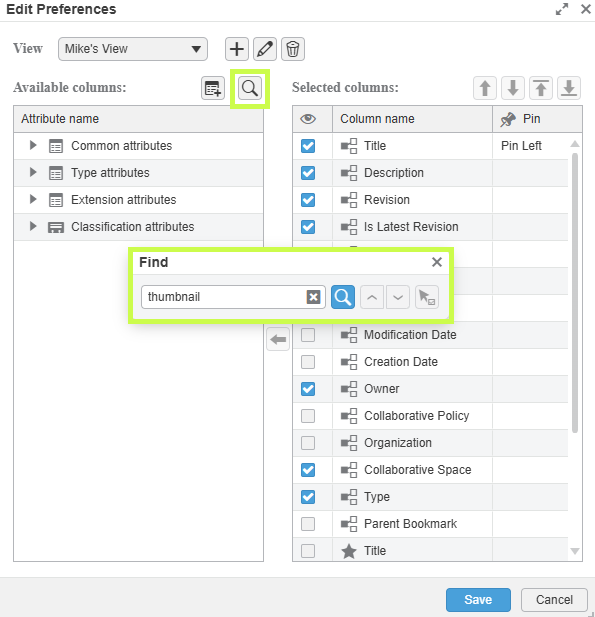
      • Use the search bar or browse the list to find Thumbnail.
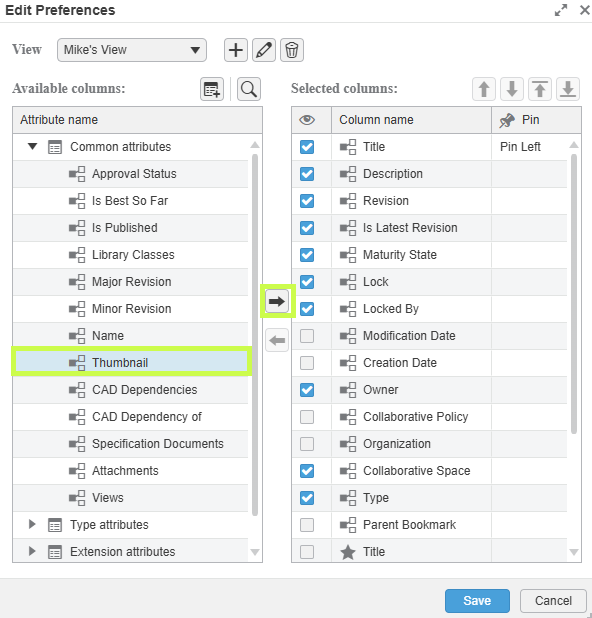
      • The Thumbnail column is located under Common Attributes.
      • Select it, then click the right-arrow to add it to your selected list.

      Adding the Thumbnail Column

      Adding the Thumbnail Column in the 3DEXPERIENCE platform

      Once it’s added:

      • Drag and drop the column to adjust its position, or
      • Use the up/down arrows to move it into place.

      If you’d like it to stay visible while scrolling, use Pin Left.

      Click Save when you’re done.

      Switching Between Views

      If you create more than one custom layout (or want to go back to the original):

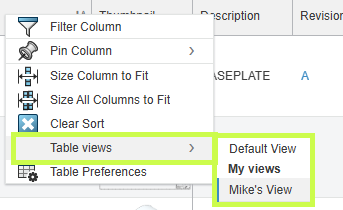
      • Right-click any column header
      • Go to Table Views
      • Choose the view you’d like to use

      Switching Between Views

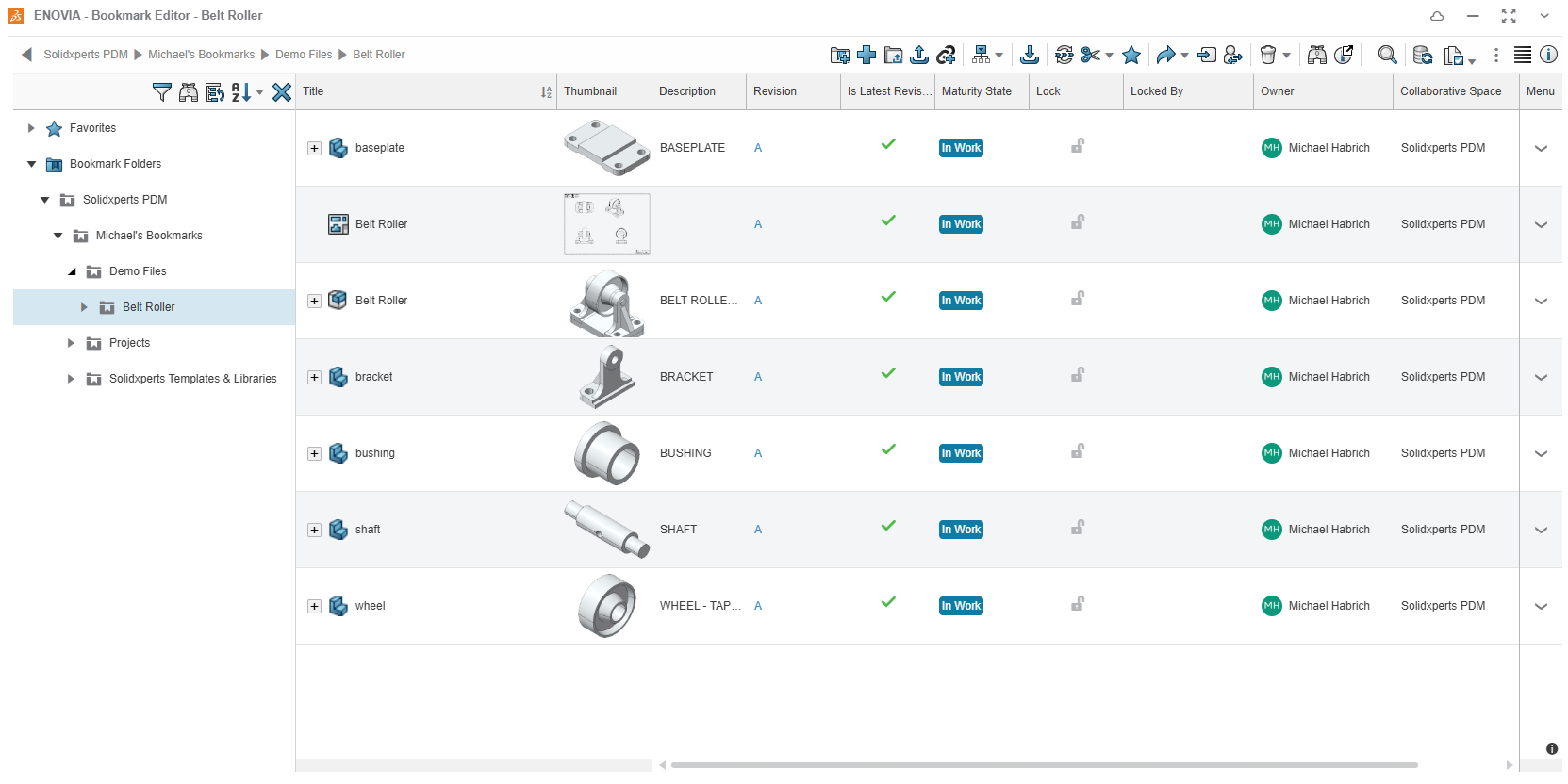
      Done! Your Bookmark Editor now includes visual thumbnails, making it easier to browse, recognize, and manage your data at a glance.

      Your Bookmark Editor now includes visual thumbnails

      Want More 3DEXPERIENCE  Platform Tips?

      We love helping teams get the most out of their tools.
      If you’d like to go a bit further:

      • Explore more tutorials on our YouTube channel;
      • Join a training;
      • Or reach out! We are always happy to share best practices and workflows.

      Your platform should feel like it’s working for you. And we’re here to make sure it does!


      Michael Habrich

      3DEXPERIENCE Specialist

      X_green_halo

      Any questions? Need help? Ask one of our experts.

      Whether you’re ready to get started or just have a few more questions, you can contact us toll-free:

        Creating Custom Attributes in 3DEXPERIENCE

        BLOG

        Creating Custom Attributes in 3DEXPERIENCE

        Sometimes the standard attributes in 3DEXPERIENCE just aren’t enough. Maybe you need a custom field to track a project code, client name, or any other detail that’s specific to your workflow. The good news? You can create your own attributes in just a few steps — and we’ll show you how.

        Before You Start

        To build custom attributes, you’ll need:

        • Administrative privileges on your platform

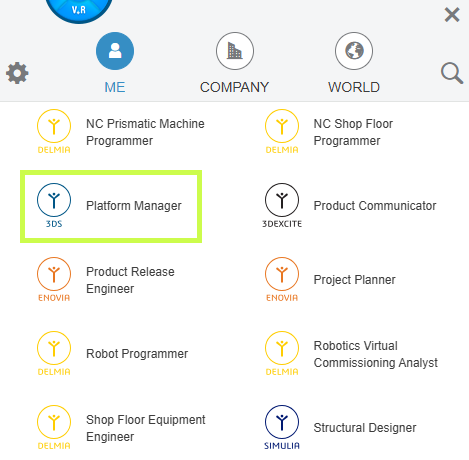
        • The Platform Manager role assigned to your profile

        Platform Manager

        Once that’s in place, you’re ready to go.

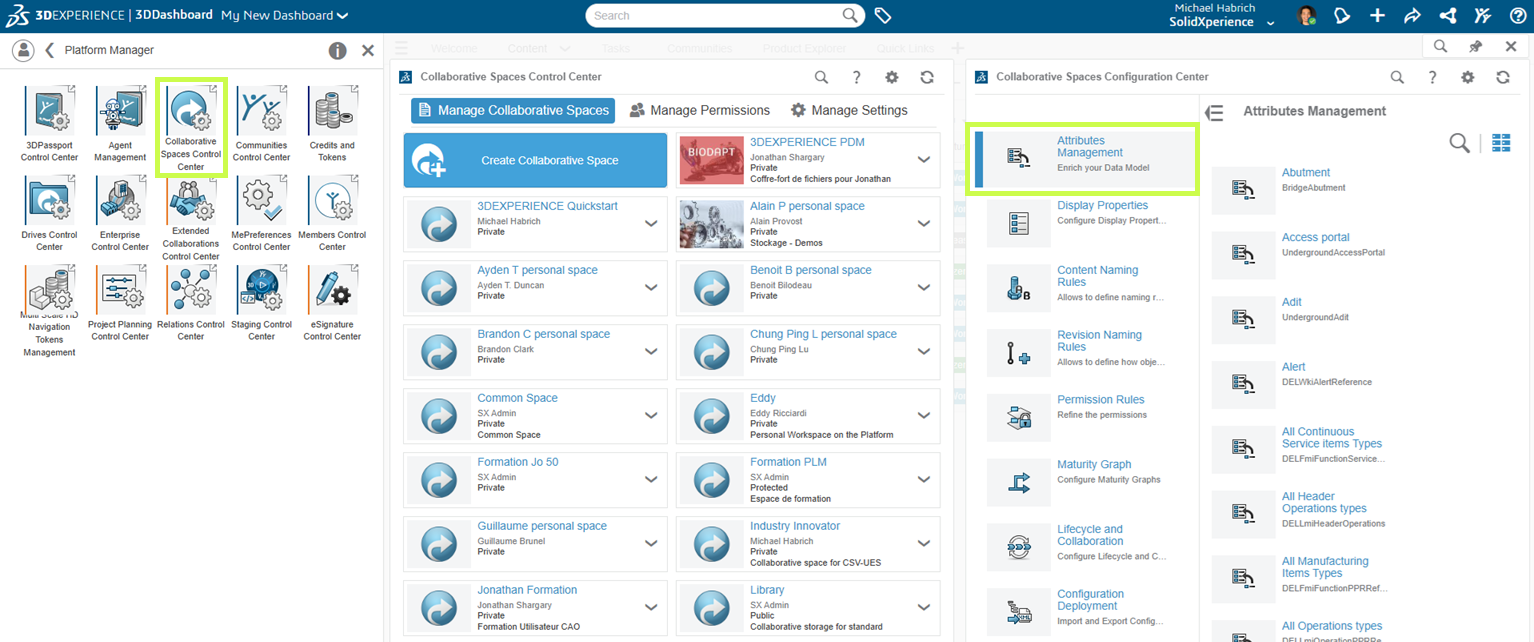
        Step 1: Open Attributes Management

        1. Select the Platform Management role.

        2. Head into the Collaborative Spaces Control Center.

        3. From there, choose Attributes Management.

        Create a Collaborative Space

        C’est ici que toute la personnalisation prend forme.

        This is where all the customization magic happens.

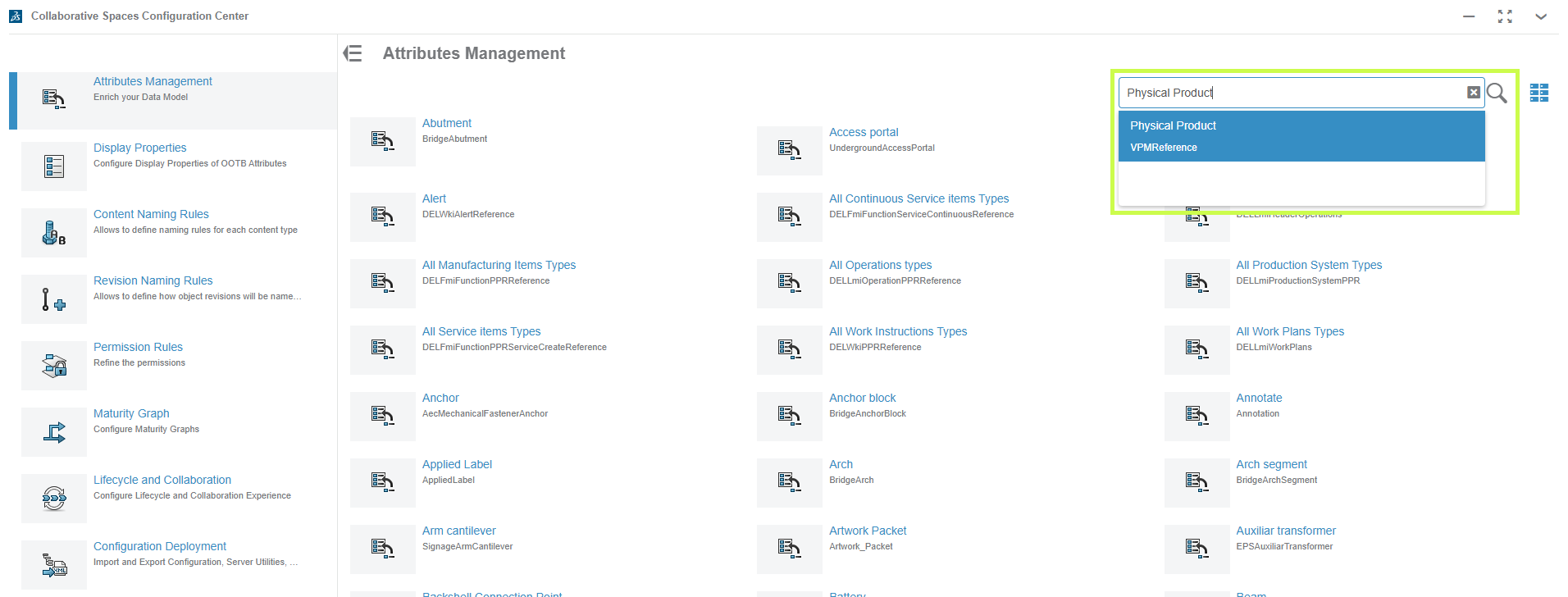
        Step 2: Find Physical Product

        In the search bar (click the little magnifying glass), type Physical Product.
        This is the object type where most custom attributes live, alongside built-ins like Material or Weight.

        Attribute - Physical Product

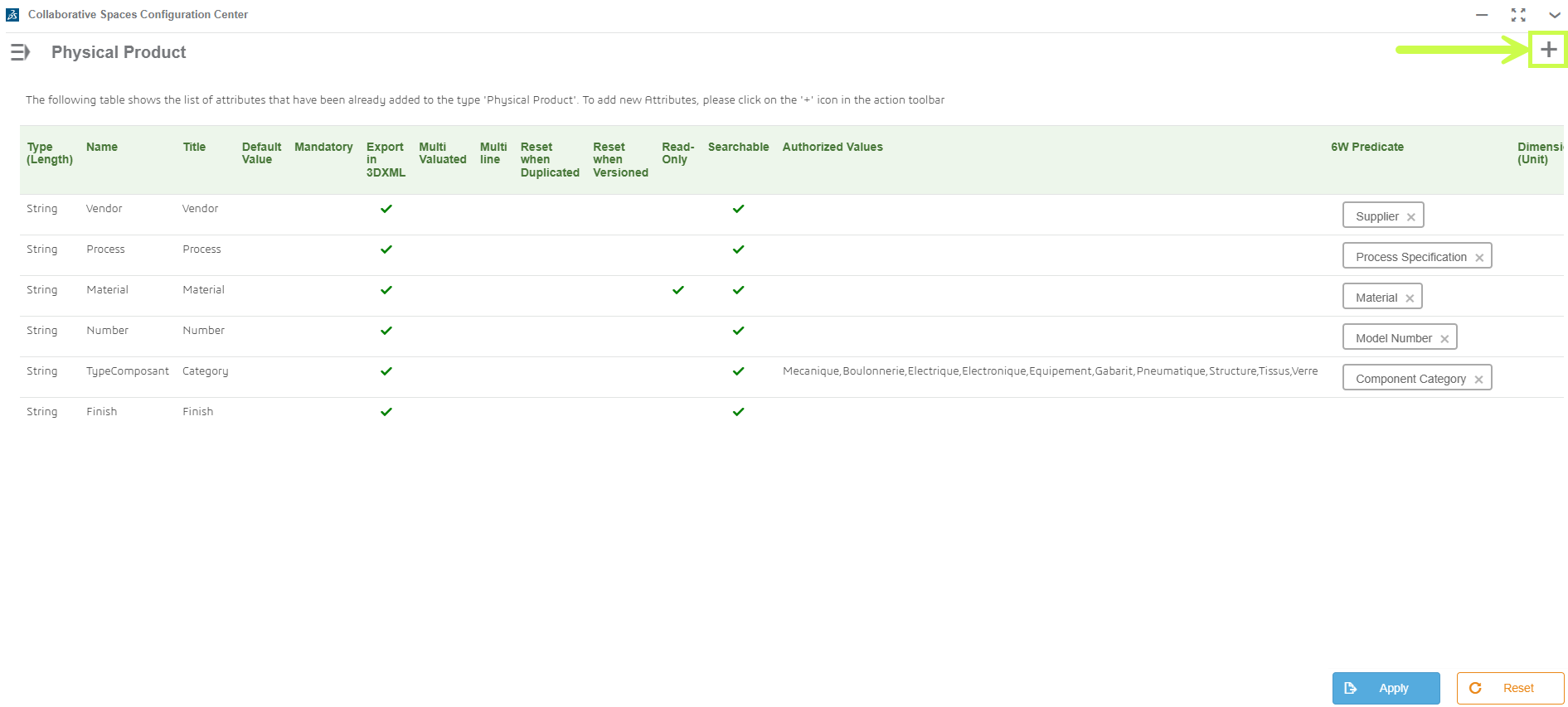
        Step 3: Create Your Attribute

        1. Click the plus sign in the top-right corner.

        Create your attribute in the 3DEXPERIENCE platform

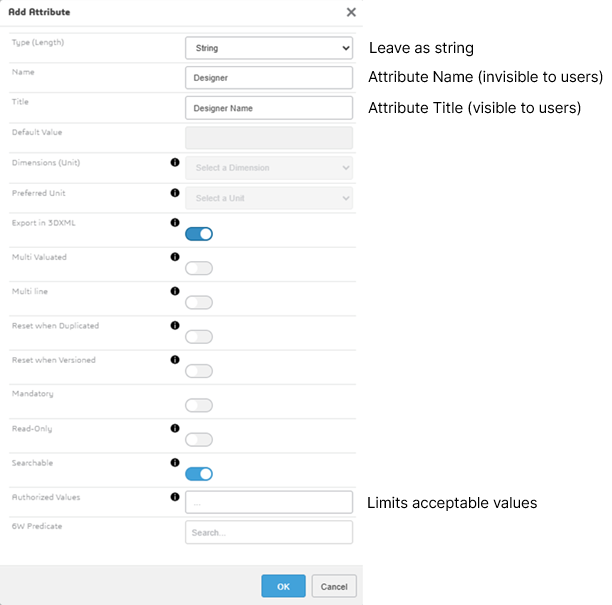
        1. Choose a unique name (no duplicates, no special characters).

        Choose a unique name

        1. Hit OK — and your new attribute will appear at the bottom of the Physical Product page.

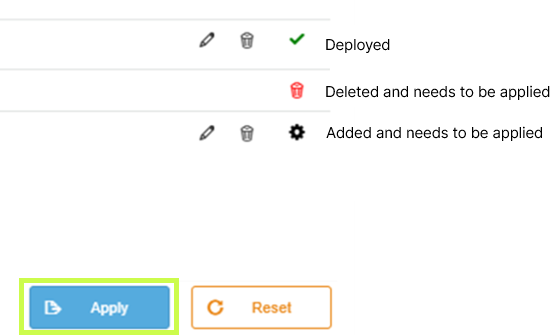
        Apply

        👉 Pro tip: if you don’t see the green check mark, it means the attribute hasn’t been activated yet.

        Step 4: Activate and Deploy

        To make your new attribute usable:

        1. Click Apply.

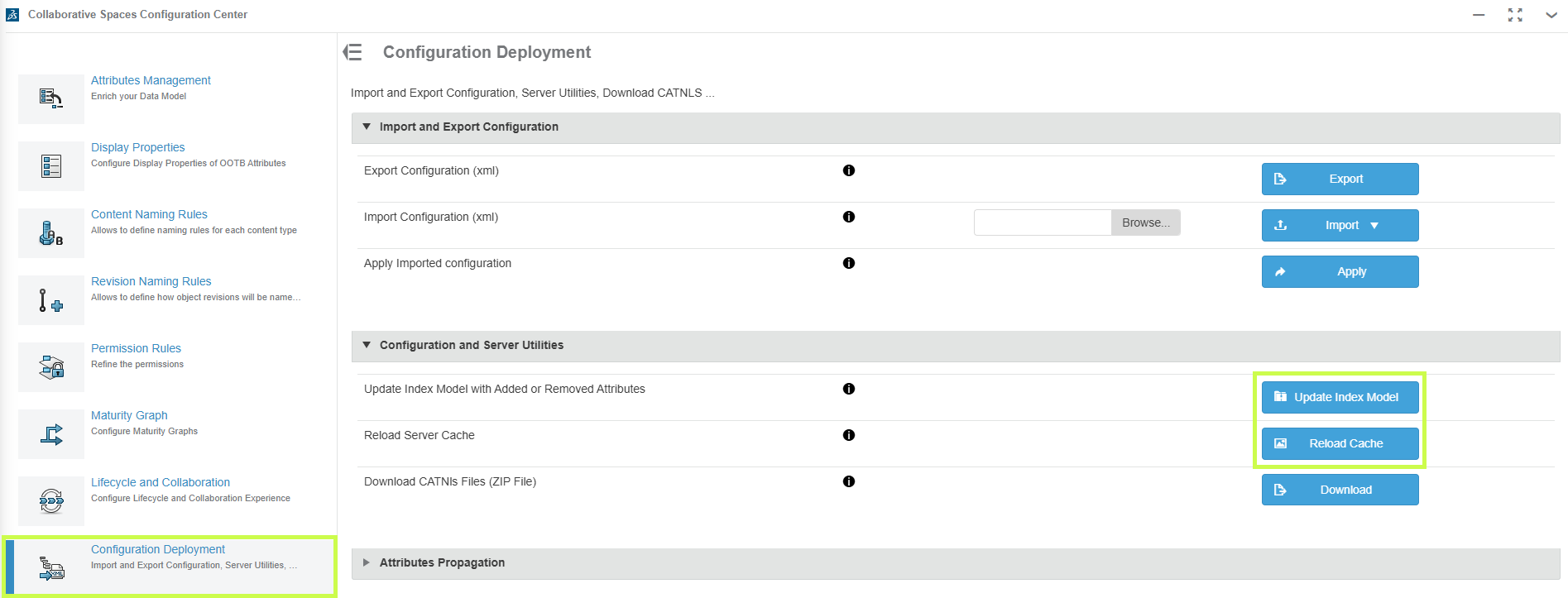
        2. Go to the Collaborative Spaces Configuration Center.

        3. Run Update Index Model and Reload Cache.

        Active and Deploy in the 3DEXPERIENCE platform

        ⚠️ Heads-up: this part may take a few minutes. Be patient while the platform updates.

        Step 5: Test It Out

        Open any saved 3D part, click the down arrow > Information, and scroll down. Your new custom attribute should now be visible and ready to use. Add a value to confirm everything’s working as expected.

        Test it out in the 3DEXPERIENCE Platform

        Why Custom Attributes Matter

        By creating custom attributes, you’re tailoring 3DEXPERIENCE to fit your business. That means:

        • Better search results

        • Smarter organization

        • Easier categorization of your data

        At Solidxperts, we’re all about helping you get the most out of your tools. Custom attributes are just one way to make your 3DEXPERIENCE platform work harder for you.

        Need a hand setting them up? Our team can walk you through it and make sure your environment is optimized for your exact workflow.


        Michael Habrich

        3DEXPERIENCE Specialist

        X_green_halo

        Any questions? Need help? Ask one of our experts.

        Whether you’re ready to get started or just have a few more questions, you can contact us toll-free:

          Managing Your 3DEXPERIENCE Cache: Keep Your Files Clean and Up to Date

          BLOG

          Managing Your 3DEXPERIENCE Cache: Keep Your Files Clean and Up to Date

          One of the biggest advantages of the 3DEXPERIENCE platform is having your files stored securely in the cloud. You can access your designs anytime, anywhere, and collaborate with teammates without worrying about version control.

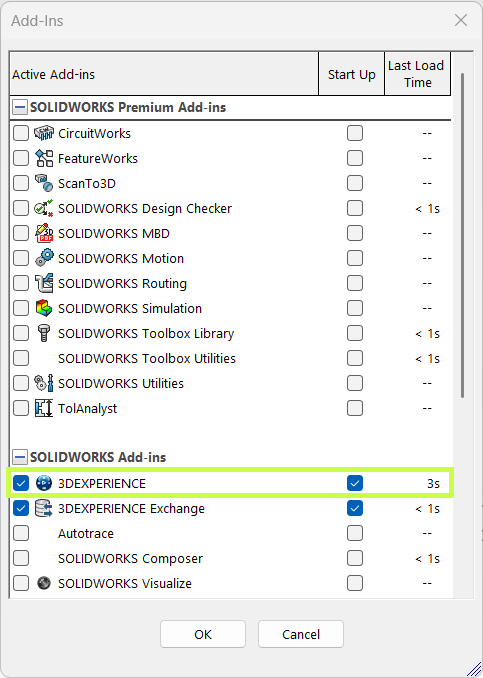
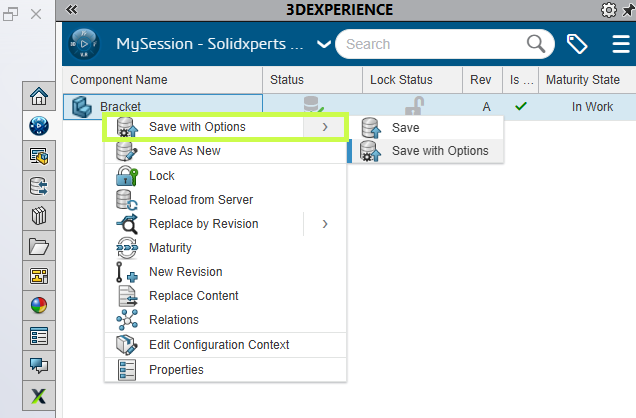
          Behind the scenes, SOLIDWORKS uses a local cache, a folder on your computer where files are temporarily stored while you work. These cached files are then synced with the 3DEXPERIENCE servers when you save or refresh.

          Managing this cache is key to keeping your designs current, preventing confusion, and saving disk space. Let’s take a closer look.

          Where to Find the 3DEXPERIENCE Cache

          Think of 6W Tags as smart labels that make it easy to filter, sort, and find your files in 3DSpace or 3DDrive.

          Your cache shows up both in SOLIDWORKS (via the 3DEXPERIENCE add-in) and in Windows Explorer. While you can browse the cache folders directly, we don’t recommend managing them that way. Instead, stick to the tools built into SOLIDWORKS.

          Here are the default folder locations:

          • SOLIDWORKS Desktop with the 3DEXPERIENCE add-in:
            C:\3DEXPERIENCE

          • SOLIDWORKS Connected:
            C:\Users\<username>\AppData\Local\DassaultSystemes\3DEXPERIENCE

          Managing the Cache Inside SOLIDWORKS

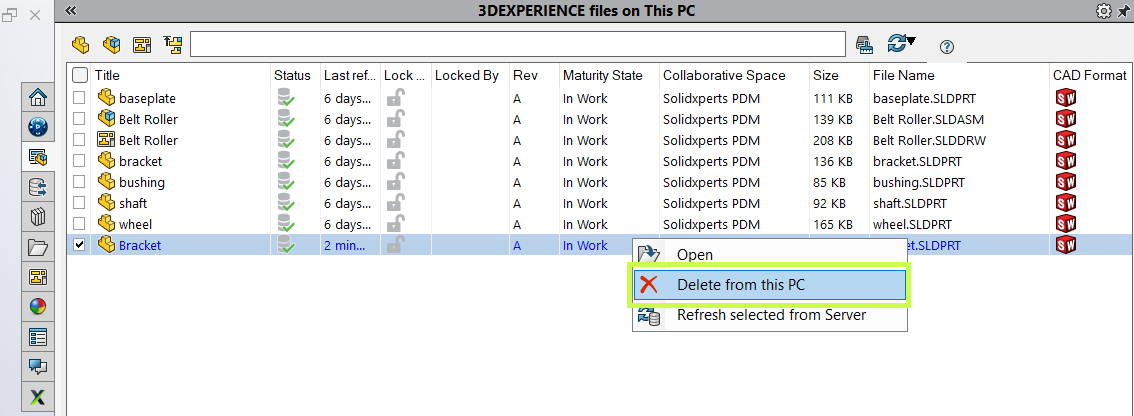
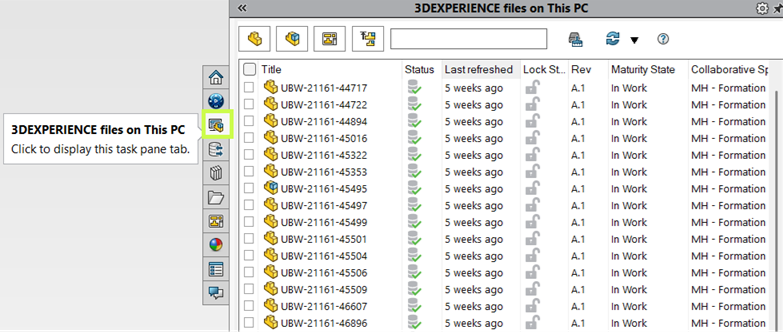
          When you enable the “3DEXPERIENCE Files on This PC” add-in, you’ll see a dedicated tab in the Task Pane. This view shows you all cached files with helpful details like:

          • Status

          • Lock Status

          • Maturity State

          ub / Managing Your 3DEXPERIENCE Cache

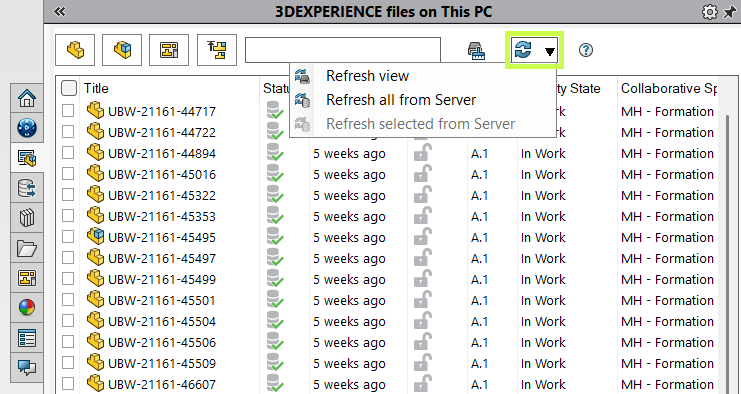
          From here, you can quickly refresh your cache to make sure you’re always working with the latest version.

          • Refresh View updates the local cache for selected files.

          • Refresh from Server checks for changes made by other users and downloads the latest copy if needed.

          • Starting a new SOLIDWORKS session automatically refreshes files in the background.

          ub / Managing Your 3DEXPERIENCE Cache - 2

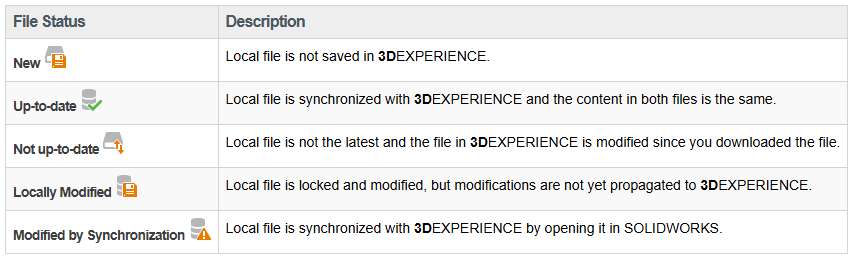
          Understanding Cache Status Icons

          The status icons make it easy to tell if your local files are current, out-of-date, or waiting to be uploaded. They also warn you if refreshing would overwrite changes you’ve made locally.

          ub / Managing Your 3DEXPERIENCE Cache - Icons

          Pro tip: Always double-check before reloading from the server. Unsaved local edits will be lost.

          Cleaning Up the 3DEXPERIENCE Cache

          Over time, cached files can pile up and take up space. To keep things tidy (and ensure you’re pulling the latest versions from the cloud), it’s a good idea to clean your cache periodically.

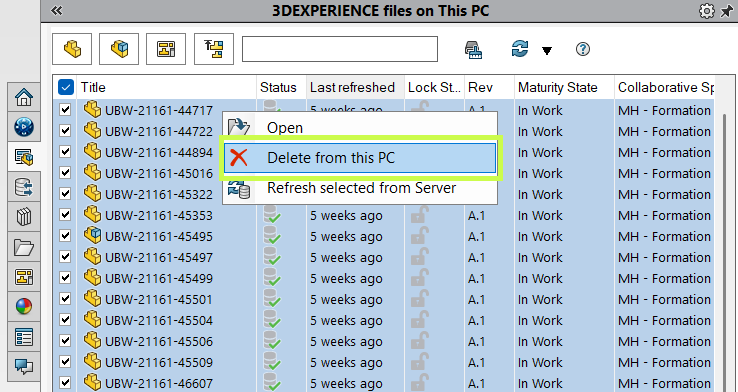
          Here’s how:

          1. In the Task Pane, select individual files, or use the top-left checkbox to select all.

          2. Right-click and choose Delete from this PC.”

          ub / Managing Your 3DEXPERIENCE Cache - Delete

          This only removes files from your local cache. Your data stays safe in the 3DEXPERIENCE platform.

          You can also use:

          • Filters to find specific file types.

          • The search box to locate files quickly.

          And before you delete, always confirm your files are saved and synced to the platform.

          Automating Cache Clean-Up

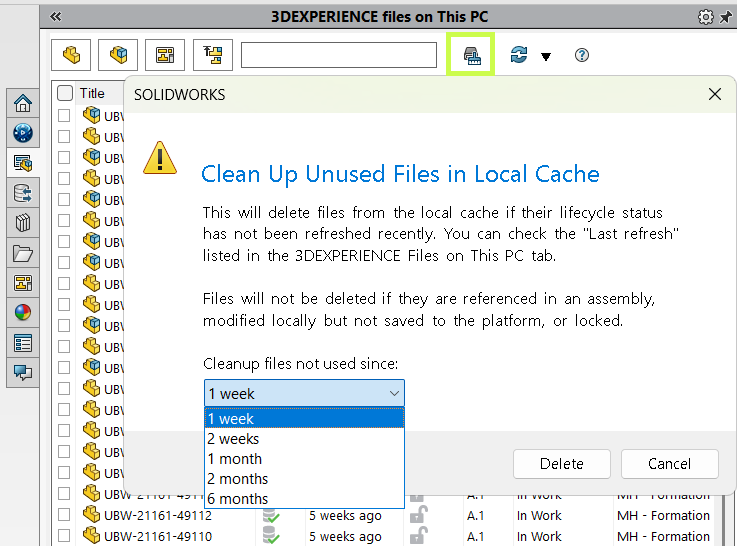
          Don’t want to do it manually? The Clean Up command takes care of it for you.

          • By default, it removes unchanged files older than one week.

          • Locked or modified files won’t be touched.

          • If you open an assembly later, any missing references are automatically redownloaded from the server.

          ub / Managing Your 3DEXPERIENCE Cache - Automation

          If disk space isn’t a concern, you can extend the timeframe to reduce how often files get cleared. It is especially useful if your internet connection is slow.

          A Simple Habit for Staying Up to Date

          The local 3DEXPERIENCE cache is like a bridge between your desktop and the cloud. Keep it clean, refresh it often, and you’ll always know you’re working with the latest designs.

          Want to get even more out of your 3DEXPERIENCE platform? Our training sessions are designed to help you and your team take full advantage of its powerful tools.


          Michael Habrich

          3DEXPERIENCE Specialist

          LinkedIn

          X_green_halo

          Any questions? Need help? Ask one of our experts.

          Whether you’re ready to get started or just have a few more questions, you can contact us toll-free:

            Make Your Data Work for You with 6W Tags on the 3DEXPERIENCE Platform

            BLOG

            Make Your Data Work for You with 6W Tags on the 3DEXPERIENCE Platform

            The 3DEXPERIENCE platform isn’t just about CAD in the cloud. It’s your all-in-one workspace where design, data management, and collaboration come together. Whether you’re sketching with xShape, modeling in xDesign, or connecting to SOLIDWORKS, the platform helps keep everything, and everyone, in sync.
            But let’s be honest: every engineering project generates mountains of data. 3D models, drawings, BOMs, simulations, even invoices and Word docs. It all piles up. The good news? The platform makes it easy to organize and navigate this information with a powerful tool called 6W Tags.

            What Are 6W Tags?

            Think of 6W Tags as smart labels that make it easy to filter, sort, and find your files in 3DSpace or 3DDrive.

            6W Tags in SOLIDWORKS

            And it’s not just CAD data. Office documents, simulation results, and more can all benefit from tagging.

            Here’s how the 6Ws break down:

            • What: Type of content (CAD models, documents, simulations, tasks, etc.)
            • Who: The person who uploaded, edited, revised, or owns the data
            • When: Date or time range
            • Where: Geolocation or data source
            • How: Manufacturing method (made in-house or purchased)
            • Why: Links to project or task management

            Out of the box, the system automatically fills in basics like owner, location, and save date. But the real power comes when your team adds custom tags. For example, you can include project numbers, material types, or vendor names so searches are tailored to your company’s workflow.

            How to Use 6W Tags

            Let’s say you search for “bolt” in 3DEXPERIENCE. Without filters, you might get hundreds (if not thousands) of results. That’s where 6W Tags shine.

            Search bar for 6W Tags in SOLIDWORKS

            Click the tag icon next to the search bar, then start narrowing your results. For example:

            • Under What, choose Physical Product (to exclude tasks or documents).
            • Add a Material filter for Stainless Steel.

            By stacking filters, your results go from overwhelming to precise in just a few clicks.

            Real-World Examples

            In one test, a simple search brought back over 1,000 results. But after filtering with 6W Tags for “Physical Product” and “Plain Carbon Steel,” the number of results dropped down to two digits. That’s the power of smart filtering.

            Beyond search, 6W Tags can be used visually inside apps. For example, parts can be color-coded by material in the graphics area, giving you an instant overview of your design.

            From Data Overload to Data Control

            Data shouldn’t slow you down and with 6W Tags, it won’t. Whether you’re hunting down a single file or organizing entire projects, the 3DEXPERIENCE platform helps you stay in control.

            Want to learn more tips like this? Our experts at Solidxperts can help you get the most out of your 3DEXPERIENCE environment. Reach out anytime or join one of our training sessions!


            Michael Habrich

            3DEXPERIENCE Specialist

            LinkedIn

            X_green_halo

            Any questions? Need help? Ask one of our experts.

            Whether you’re ready to get started or just have a few more questions, you can contact us toll-free:

              Organizing and Managing Your SOLIDWORKS Libraries in 3DEXPERIENCE

              BLOG

              Organizing and Managing Your SOLIDWORKS Libraries in 3DEXPERIENCE

              One of the biggest strengths of the 3DEXPERIENCE platform is how it brings your team together. With SOLIDWORKS Cloud Services, you get built-in data management, making it simple to collaborate with colleagues, keep projects organized, and even access your designs on the go.

              Whether you’re working in SOLIDWORKS Connected or traditional SOLIDWORKS combined with Collaborative Designer for SOLIDWORKS, you have a direct link to the 3DEXPERIENCE platform, so opening, saving, and managing your model data feels seamless.

              But here’s the thing: design work goes beyond just parts and assemblies. You also rely on libraries, weldment profiles, sheet metal gauge tables, templates, routing components, and more. Keeping those libraries in sync across your team is just as important as managing your models. And with 3DEXPERIENCE, you can centralize those libraries too.

              Step 1: Create Your Library Structure

              Start in the Bookmark Editor app (in your web browser). Create a clean folder structure for your templates and libraries, with subfolders for each type. Then, simply drag and drop your files into place.

              This way, your team has one organized hub for all shared resources.

              Step 2: Set Up Weldment Profiles

              For weldments, it’s best to stick with a consistent naming convention: Standard → Type → Size.

              We also recommend customizing your standard names to keep them separate from the defaults SOLIDWORKS provides. For example, you might create a standard called “Xperts – ANSI Inch”.

              Once you’ve named things properly, drag your weldment profile files (or entire folders) from Windows File Explorer directly into your 3DEXPERIENCE bookmark. Quick, easy, and ready to use.

              Step 3: Connect Libraries to SOLIDWORKS

              Inside SOLIDWORKS, go to System Options → File Locations. When you add a new location, choose “Select from 3DEXPERIENCE”.

              This links SOLIDWORKS to your bookmarks, syncing the content down to your local cache (usually found at C:\Users\Public\Documents\SOLIDWORKS). You’ll notice the linked locations show up in brackets, confirming they’re tied to the platform.

              To make sure you’re always up to date, just click Update. SOLIDWORKS will pull the latest versions from 3DEXPERIENCE, keeping your whole team in sync.

              Step 4: Keep Your Libraries Updated

              Need to update a file? Head back into the Bookmark Editor in your browser, right-click the file, and select Update. Browse for the new version locally, and the platform will take care of the rest.

              Once it’s updated in 3DEXPERIENCE, users just need to hit Update in their SOLIDWORKS options to refresh their local cache. Simple, controlled, and consistent.

              Why This Matters

              Storing your libraries and templates alongside your design data gives you the same benefits: revision control, lifecycle management, and a single source of truth for your team.

              We focused on weldment profiles here, but the same approach works for routing components, sheet metal gauge tables, and more. With SOLIDWORKS Cloud Services + 3DEXPERIENCE, you’re not just managing files. You’re creating a smarter, more connected workflow for your entire team.

              At Solidxperts, we love helping teams get the most out of their tools. Setting up your libraries in 3DEXPERIENCE is a small step that makes a big impact on collaboration, efficiency, and design quality.


              Michael Habrich

              3DEXPERIENCE Specialist

              LinkedIn

              X_green_halo

              Any questions? Need help? Ask one of our experts.

              Whether you’re ready to get started or just have a few more questions, you can contact us toll-free:

                Creating Custom Attributes in the 3DEXPERIENCE platform

                BLOG

                Creating Custom Attributes in the 3DEXPERIENCE platform

                Sometimes the standard attributes in the 3DEXPERIENCE platform just aren’t enough. Maybe you need a custom field to track a project code, client name, or any other detail that’s specific to your workflow. The good news? You can create your own attributes in just a few steps and we’ll show you how.

                Before You Start

                To build custom attributes, you’ll need:

                • Administrative privileges on your platform

                • The Platform Manager role assigned to your profile

                Platform Manager

                Once that’s in place, you’re ready to go.

                Step 1: Open Attributes Management

                1. Select the Platform Management role.

                2. Head into the Collaborative Spaces Control Center.

                3. From there, choose Attributes Management.

                Create a Collaborative Space

                This is where all the customization magic happens.

                Step 2: Find Physical Product

                In the search bar (click the little magnifying glass), type Physical Product.

                This is the object type where most custom attributes live, alongside built-ins like Material or Weight.

                Attribute - Physical Product

                Step 3: Create Your Attribute

                1. Click the plus sign in the top-right corner.

                Create your attribute in the 3DEXPERIENCE platform

                1. Choose a unique name (no duplicates, no special characters).

                Choose a unique name

                1. Hit OK and your new attribute will appear at the bottom of the Physical Product page.

                Apply

                Pro tip: if you don’t see the green check mark, it means the attribute hasn’t been activated yet.

                Step 4: Activate and Deploy

                To make your new attribute usable:

                1. Click Apply.

                2. Go to the Collaborative Spaces Configuration Center.

                3. Run Update Index Model and Reload Cache.

                Active and Deploy in the 3DEXPERIENCE platform

                Heads-up: this part may take a few minutes. Be patient while the platform updates.

                Step 5: Test It Out

                Open any saved 3D part, click the down arrow > Information, and scroll down. Your new custom attribute should now be visible and ready to use. Add a value to confirm everything’s working as expected.

                Test it out in the 3DEXPERIENCE Platform

                Why Custom Attributes Matter

                By creating custom attributes, you’re tailoring the 3DEXPERIENCE platform to fit your business. That means:

                • Better search results

                • Smarter organization

                • Easier categorization of your data

                At Solidxperts, we’re all about helping you get the most out of your tools. Custom attributes are just one way to make your 3DEXPERIENCE platform work harder for you.

                Need a hand setting them up? Our team can walk you through it and make sure your environment is optimized for your exact workflow.


                Michael Habrich

                3DEXPERIENCE Specialist

                LinkedIn

                X_green_halo

                Any questions? Need help? Ask one of our experts.

                Whether you’re ready to get started or just have a few more questions, you can contact us toll-free:

                  How to Back Up Your 3DEXPERIENCE Data

                  BLOG

                  How to Back Up Your 3DEXPERIENCE Data

                  Backing up your data is always a smart move. The good news is that the 3DEXPERIENCE platform already includes secure cloud storage, but sometimes you may want to create a local, on-site backup as well.

                  To help you do that, this guide walks you through two options:

                  1. Exporting one project at a time (top-level assembly in its own .zip file)

                  2. Exporting everything together (all data in a single .zip file)

                  Option 1: Export a Single Project

                  This method is perfect if you only need to back up a specific assembly or project.

                  1.Use the search field at the top of your session (or the Bookmark Editor, if you’ve bookmarked the file) to locate your top-level assembly.

                  2. Select the assembly (it will highlight in blue when chosen).

                  3. Click the chevron (arrow) to the right of the file.

                  4. Choose Export As.

                  Choose Export As.

                  5. Continue with the export steps outlined in the final section of this guide.

                  Option 2: Export Everything at Once

                  Heads up: If you have a large dataset, this method can produce a very large zip file. For performance reasons, we often recommend Option 1,  exporting project by project.

                  But if you do want the full export, here’s how:

                  1.Open the Bookmark Editor app.

                  • Create a new bookmark called something intuitive, like Export All Data.
                  • Leave Bookmark Editor open with your new bookmark selected.

                  Open the Bookmark Editor app

                  2. In the search bar, type “prd” (default naming convention).

                  • If your company uses a different convention, use the keyword that applies to your setup (e.g. SX- for Solidxperts).

                  In the search bar, type “prd”

                  3. Optionally, refine results with 6W Tags (Who, What, Where, etc.).

                  4. Select all search results.

                  • Use the checkbox at the top of the list.
                  • Double-check the counter to ensure all items are selected. (If numbers don’t match, scroll to the bottom and re-select.)

                  Select all search results

                  5. Drag the selected files into your export bookmark.

                  • This applies the bookmark to all selected items.
                  • If you have a lot of files, give the system time to process.

                  6. Back in Bookmark Editor, group-select the files you want to export (Ctrl+A for all).

                  7. Click the 3 dots (⋮) in the upper right → choose Export As.

                  Click the 3 dots (⋮) in the upper right → choose Export As

                  8. In the Export As dialog:

                  • Give your .zip file a clear title.
                  • Optionally, check Include Drawing.
                  • Confirm the item count. If it looks low, scroll to the bottom of Bookmark Editor to refresh, then try again.
                  • Review any exclusions in red . These could be xApp-created files (like xDesign) that aren’t currently exportable.

                  9. The system creates an export job.

                  • You can monitor large jobs in the CAD Data Processor Monitoring app.
                  • Smaller jobs often finish before they appear there.

                  The system creates an export job.

                  10. Once complete, you’ll see a notification in the 3DNotification Center.

                  Once complete, you’ll see a notification in the 3DNotification Center.

                  11. Click the notification, then hit Download to retrieve your .zip file.

                  Click the notification, then hit Download to retrieve your .zip file.

                  Pro tip: Test the process with a small dataset first so you’re comfortable before running a full export.

                  Wrapping Up

                  Ultimately, with just a few steps, you can create local backups of your 3DEXPERIENCE projects, whether it’s one assembly at a time or your entire dataset.

                  Beyond the backup process, at Solidxperts, we help teams like yours work more confidently with 3DEXPERIENCE every day. If you’d like hands-on training or tailored backup strategies, our experts are here to guide you.


                  Michael Habrich

                  3DEXPERIENCE Specialist

                  LinkedIn

                  X_green_halo

                  Any questions? Need help? Ask one of our experts.

                  Whether you’re ready to get started or just have a few more questions, you can contact us toll-free:

                    Staying Secure with Two-Factor Authentication (2FA) in the DSx System

                    BLOG

                    Staying Secure with Two-Factor Authentication (2FA) in the DSx System

                    At Dassault Systèmes, keeping your account secure is a top priority. That’s why two-factor authentication (2FA) is now required when you access the DSx Client system.

                    What does this mean for you? In short: an extra layer of protection for sensitive data like user information and serial numbers. It also means a quick setup process the first time you log in and after that, peace of mind knowing your account is more secure.

                    This guide will walk you through:

                    1. How to set up 2FA on your phone (most common method).

                    2. How to set up 2FA on your computer using KeePassXC if you prefer not to use a mobile device.

                    Option 1: Setting Up 2FA on Your Phone

                    1. Download an Authenticator App

                    If you don’t already have one, install an authenticator app such as Google Authenticator, Microsoft Authenticator, or Okta.

                    Phone - Download an Authenticator App


                    2. Log in to Your DS Account

                    Sign in with your DS username and password.

                    Log in to Your DS Account

                    3. Open the 2FA Setup Wizard

                    From your account, click My Profile > 2-Factor Authentication.

                    Open the 2FA Setup Wizard

                    4. Activate 2FA

                    Select Activate to begin setup.

                    Activate 2FA

                    5. Set Recovery Options

                    Answer the required security questions. These will be used if you ever lose access to your 2FA device.

                    Set Recovery Options

                    6. Connect Your Authenticator

                    In your authenticator app, choose Scan a QR Code (or Enter a setup key if your phone has no camera). Scan the code provided by Dassault Systèmes.

                    Connect Your Authenticator

                    7. Test and Confirm

                    Your authenticator will display a 6-digit code. Enter it into DSx Client to confirm setup. Once successful, you’ll see a confirmation window — 2FA is now enabled! 🎉

                    Test and Confirm

                    Going forward: Every time you log into DSx Client, you’ll be asked for a code from your authenticator app.

                    Option 2: Setting Up 2FA on Your Computer (KeePassXC)

                    Prefer not to use your phone? No problem. You can configure 2FA directly on your computer with KeePassXC, a secure, open-source password manager.

                    1. Download and Install KeePassXC

                    Available for Windows, macOS, and Linux at KeePassXC’s website. Default installation options work fine.

                    Download and Install KeePassXC

                    2.Create a Database

                    This is where your passwords and tokens are stored. Set a strong master password and keep it in a safe place.

                    Create a Database

                    3.Add a DSx Client Entry

                    Create a new entry with:

                    • Title: DSx Client
                    • Username, Password
                    • URL: https://dsxclient.3ds.com

                    Add a DSx Client Entry

                    4. Set Up the 2FA Key

                    Right-click your new entry > Setup TOTP. Enter the secret key provided in DSx Client (same as in the phone setup).

                    5. Test and Confirm

                    Click the clock icon next to your entry to generate a 6-digit code. Enter it in DSx Client. Once confirmed, your 2FA is ready to go.

                    Wrapping Up

                    That’s it! You’ve now secured your DSx Client account with two-factor authentication. Whether you chose to set it up on your phone or on your computer, you’re adding an important layer of protection to your Dassault Systèmes tools.

                    And remember, if you hit a bump along the way, the Solidxperts team is always here to help. Reach out to us, and we’ll make sure your account stays safe and your workflow stays smooth.


                    Michael Habrich

                    3DEXPERIENCE Specialist

                    LinkedIn

                    X_green_halo

                    Any questions? Need help? Ask one of our experts.

                    Whether you’re ready to get started or just have a few more questions, you can contact us toll-free:

                        Download

                          Download

                            Download

                            All search results