Backing up your data is always a smart move. The good news is that the 3DEXPERIENCE platform already includes secure cloud storage, but sometimes you may want to create a local, on-site backup as well.
To help you do that, this guide walks you through two options:
1. Exporting one project at a time (top-level assembly in its own .zip file)
2. Exporting everything together (all data in a single .zip file)
Option 1: Export a Single Project
This method is perfect if you only need to back up a specific assembly or project.
1.Use the search field at the top of your session (or the Bookmark Editor, if you’ve bookmarked the file) to locate your top-level assembly.
2. Select the assembly (it will highlight in blue when chosen).
3. Click the chevron (arrow) to the right of the file.
4. Choose Export As.
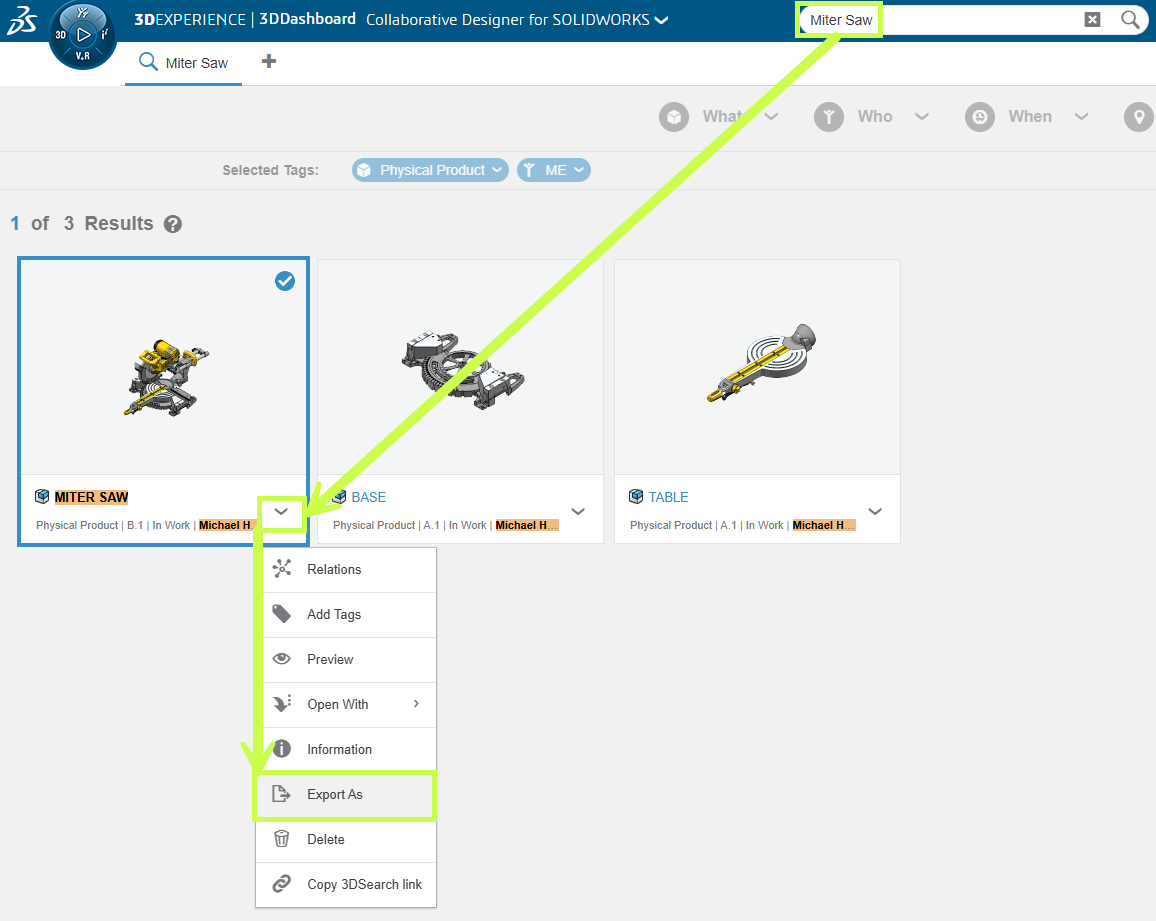
5. Continue with the export steps outlined in the final section of this guide.
Option 2: Export Everything at Once
Heads up: If you have a large dataset, this method can produce a very large zip file. For performance reasons, we often recommend Option 1, exporting project by project.
But if you do want the full export, here’s how:
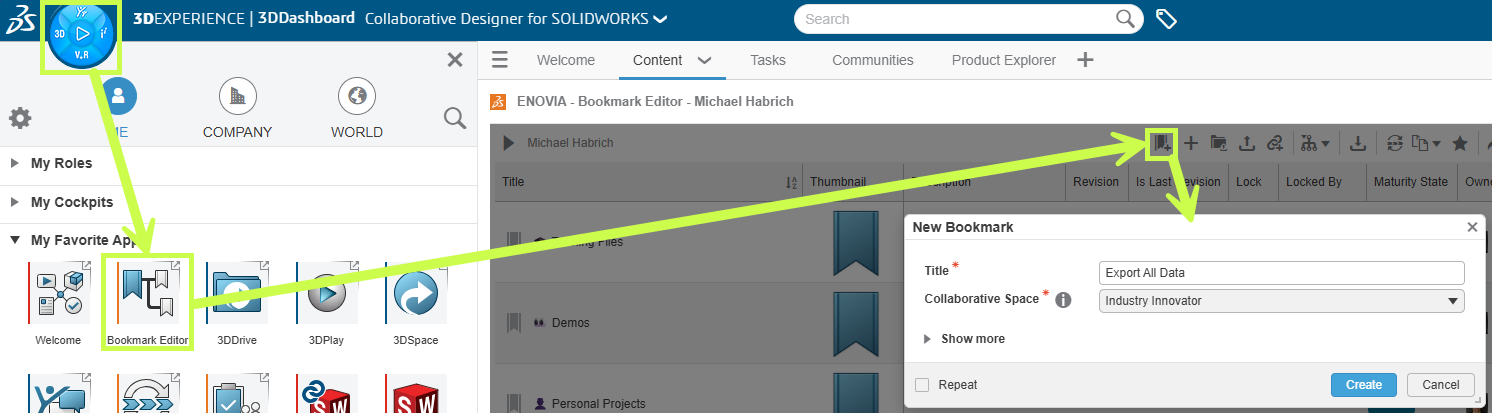
1.Open the Bookmark Editor app.
- Create a new bookmark called something intuitive, like Export All Data.
- Leave Bookmark Editor open with your new bookmark selected.
2. In the search bar, type “prd” (default naming convention).
- If your company uses a different convention, use the keyword that applies to your setup (e.g. SX- for Solidxperts).
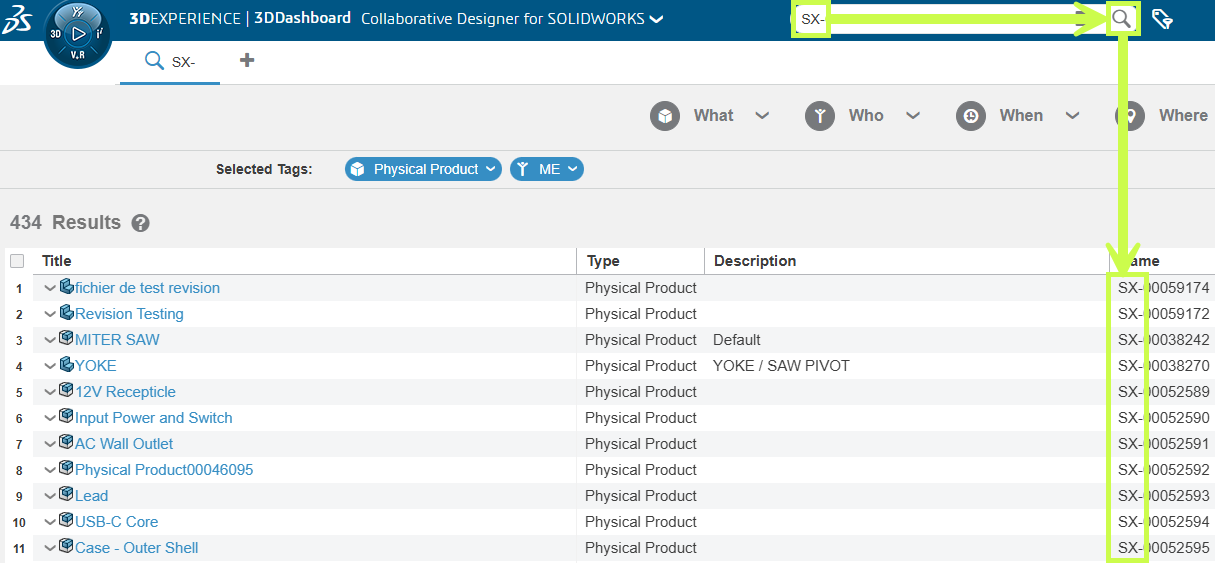
3. Optionally, refine results with 6W Tags (Who, What, Where, etc.).
4. Select all search results.
- Use the checkbox at the top of the list.
- Double-check the counter to ensure all items are selected. (If numbers don’t match, scroll to the bottom and re-select.)
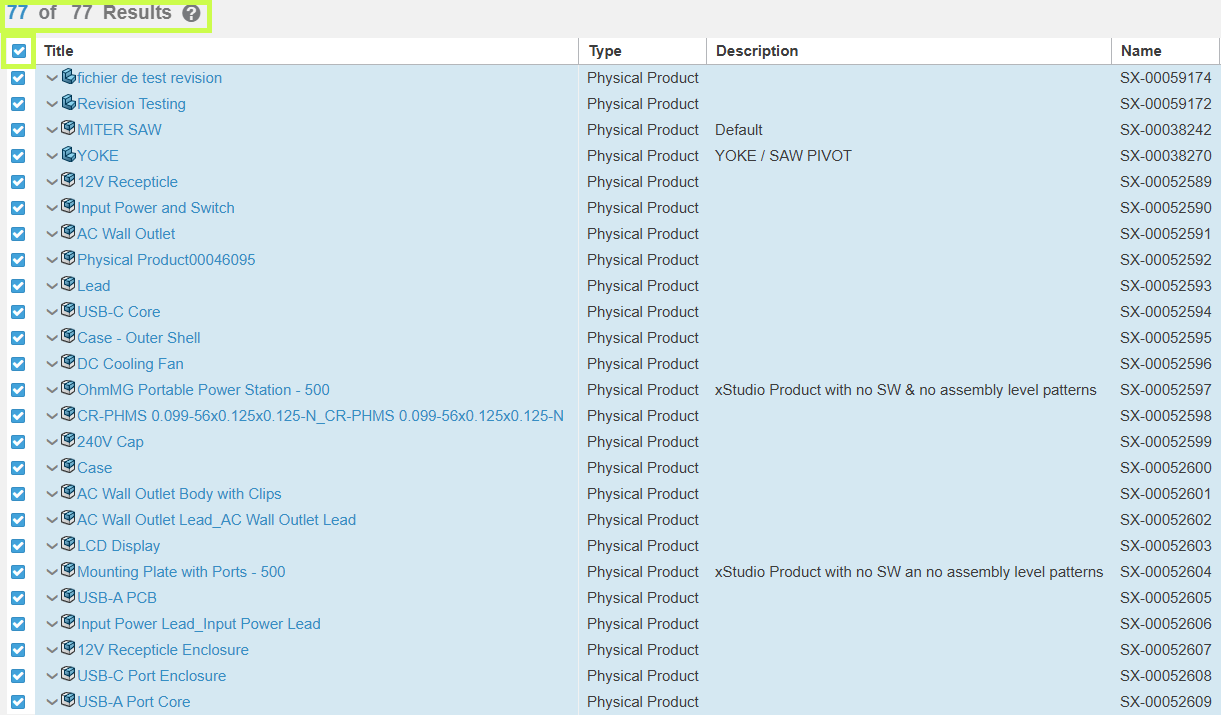
5. Drag the selected files into your export bookmark.
- This applies the bookmark to all selected items.
- If you have a lot of files, give the system time to process.
6. Back in Bookmark Editor, group-select the files you want to export (Ctrl+A for all).
7. Click the 3 dots (⋮) in the upper right → choose Export As.
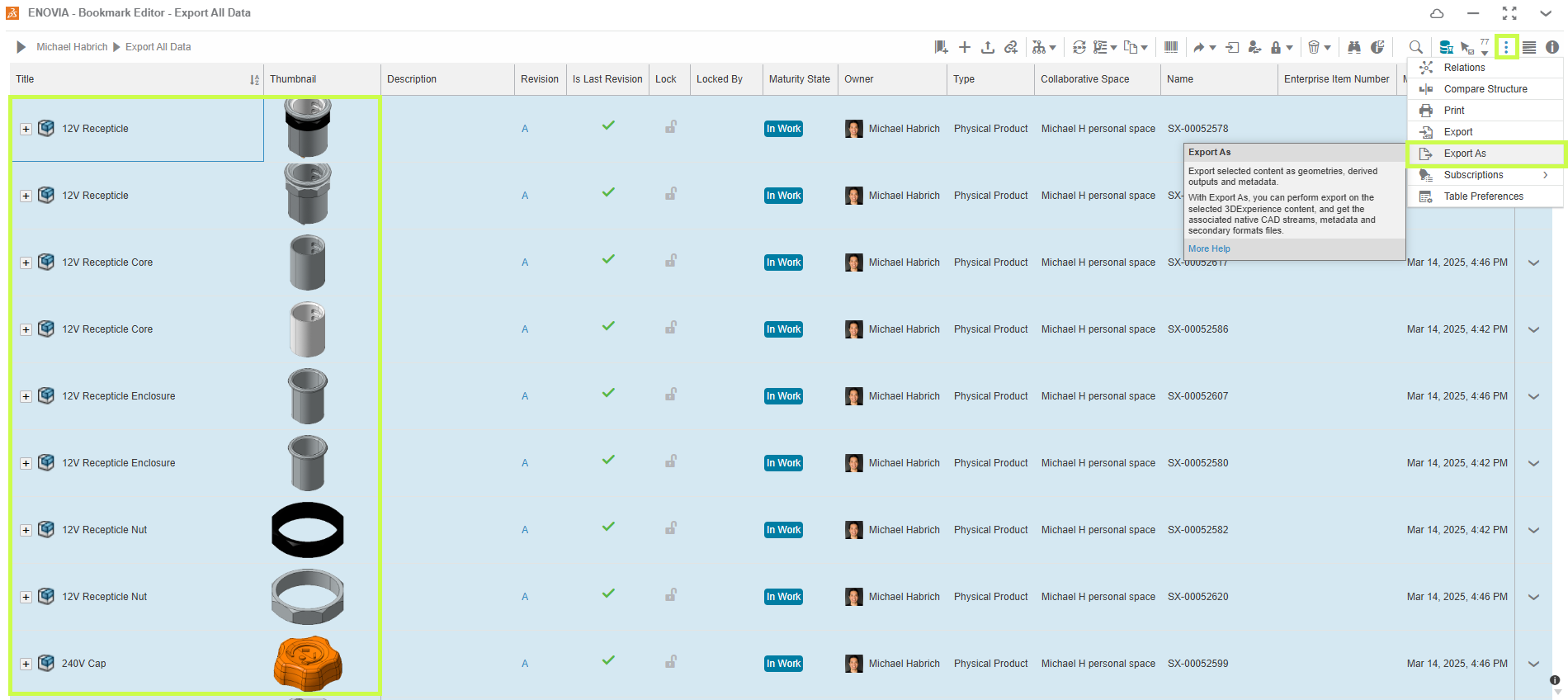
8. In the Export As dialog:
- Give your .zip file a clear title.
- Optionally, check Include Drawing.
- Confirm the item count. If it looks low, scroll to the bottom of Bookmark Editor to refresh, then try again.
- Review any exclusions in red . These could be xApp-created files (like xDesign) that aren’t currently exportable.
9. The system creates an export job.
- You can monitor large jobs in the CAD Data Processor Monitoring app.
- Smaller jobs often finish before they appear there.

10. Once complete, you’ll see a notification in the 3DNotification Center.
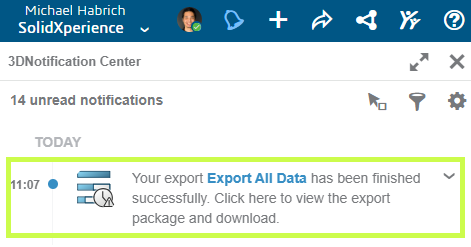
11. Click the notification, then hit Download to retrieve your .zip file.

Pro tip: Test the process with a small dataset first so you’re comfortable before running a full export.
Wrapping Up
Ultimately, with just a few steps, you can create local backups of your 3DEXPERIENCE projects, whether it’s one assembly at a time or your entire dataset.
Beyond the backup process, at Solidxperts, we help teams like yours work more confidently with 3DEXPERIENCE every day. If you’d like hands-on training or tailored backup strategies, our experts are here to guide you.