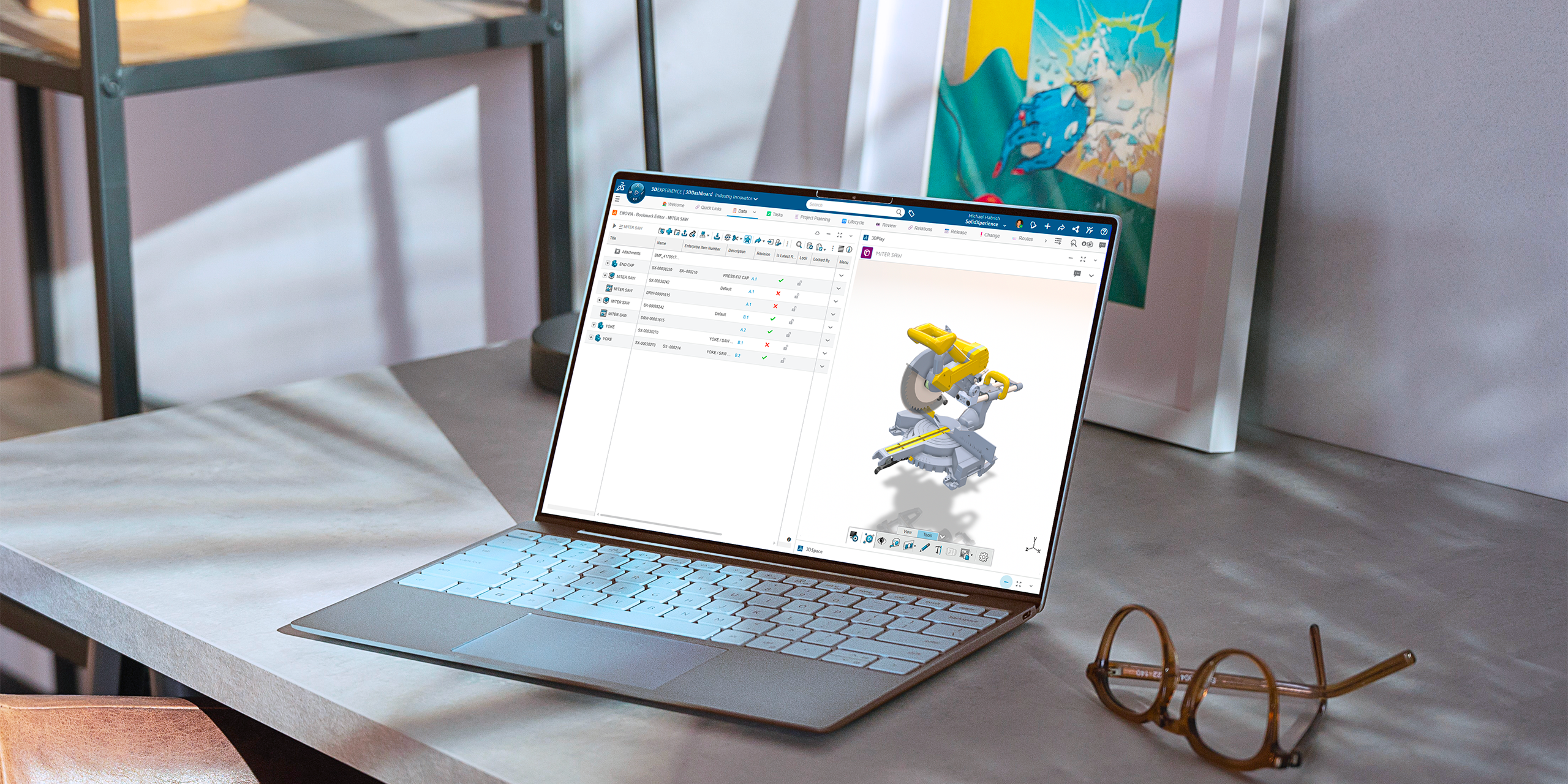
Keeping your data organized in the 3DEXPERIENCE platform starts with one key detail: how your models are named. The platform gives you several ways to make sure every piece of data has a unique identifier from simple manual titles to powerful, automated numbering systems.
Let’s walk through the options and how they fit into your workflow.
What is the Difference Between Titles and File Names?
When you first save a model to the platform, you’ll assign it a title. This title is stored as an attribute, which makes it easy to search and organize your content later.
But here’s the important part:
-
The title is flexible. You can rename it anytime without breaking file references.
-
The filename (the one in your local cache) stays static to preserve references between files.
Think of the title as the friendly label you see in the 3DEXPERIENCE platform, while the filename is the behind-the-scenes anchor.
Auto-Name: Let the System Do the Work
If you’d rather not type in titles manually every time, the 3DEXPERIENCE platform has you covered with Auto-Name.
In the Collaborative Spaces Configuration Center app, you can enable auto-naming under:
CAD Collaboration > SOLIDWORKS > Settings > Auto-name.
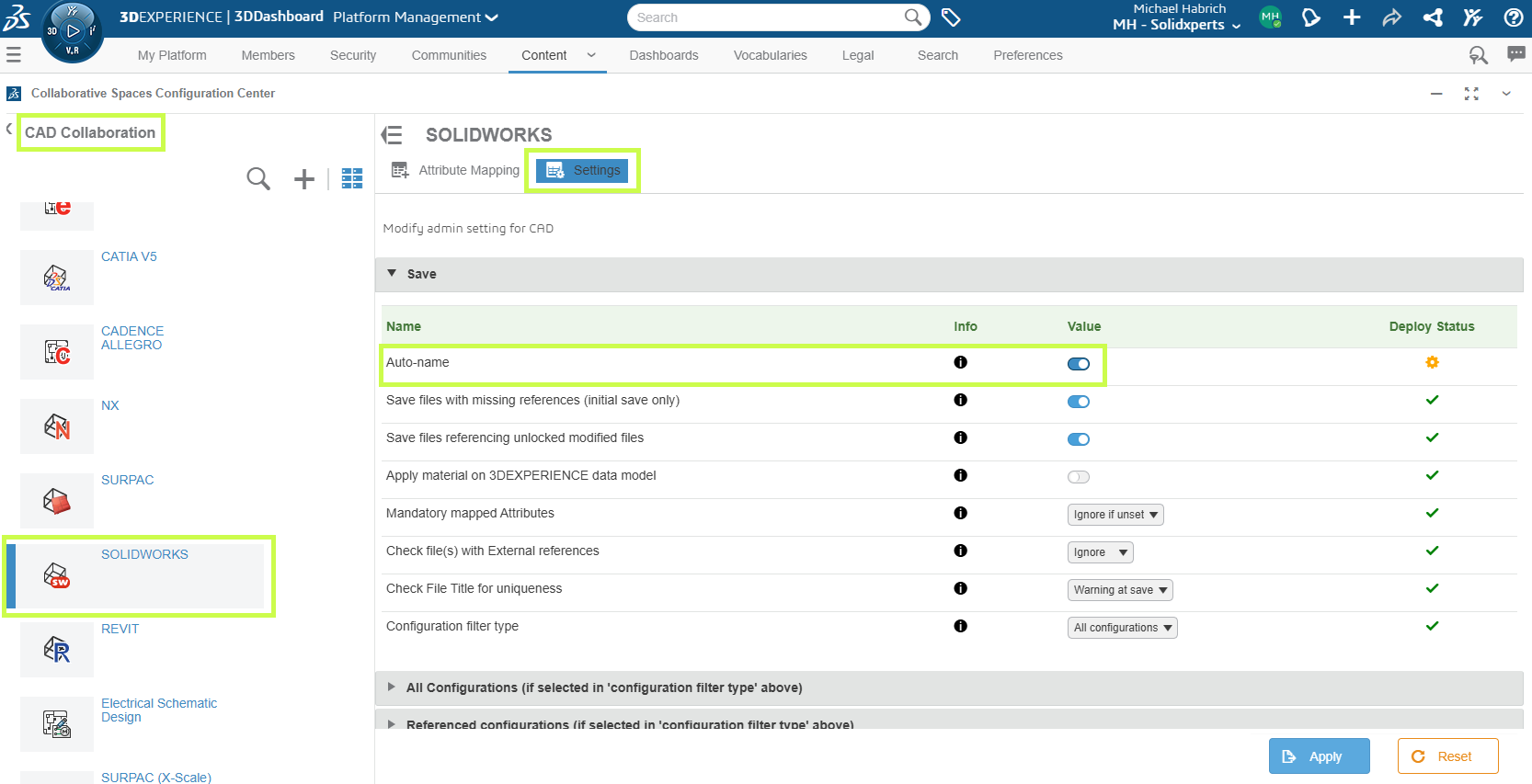
Here’s what it does:
-
Uses a counter system to generate sequential titles.
-
Lets you define rules with a prefix, suffix, interfix, and separator.
-
Keeps numbering consistent across all content types you choose.
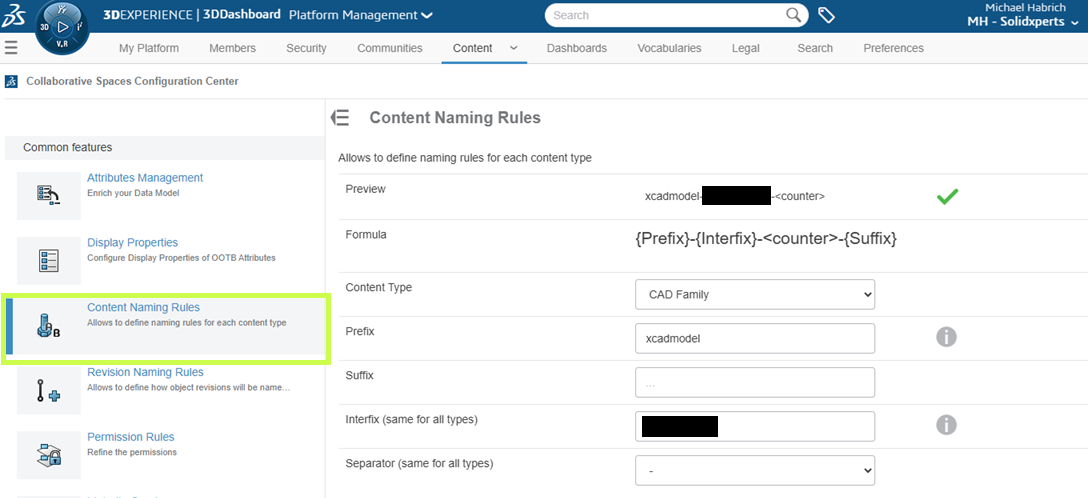
This is perfect for standardizing your naming structure across projects without needing everyone on your team to remember the rules.
Enterprise Item Numbers (EIN): Taking Control
For more complex projects, you may want something stronger than auto-names: Enterprise Item Numbers (EINs).
An EIN is:
-
A unique identifier separate from the title or filename.
-
Ideal for linking into Bills of Materials (BOMs) or other downstream processes.
-
Flexible. You can build EINs from static text, attributes, user inputs, and counters.
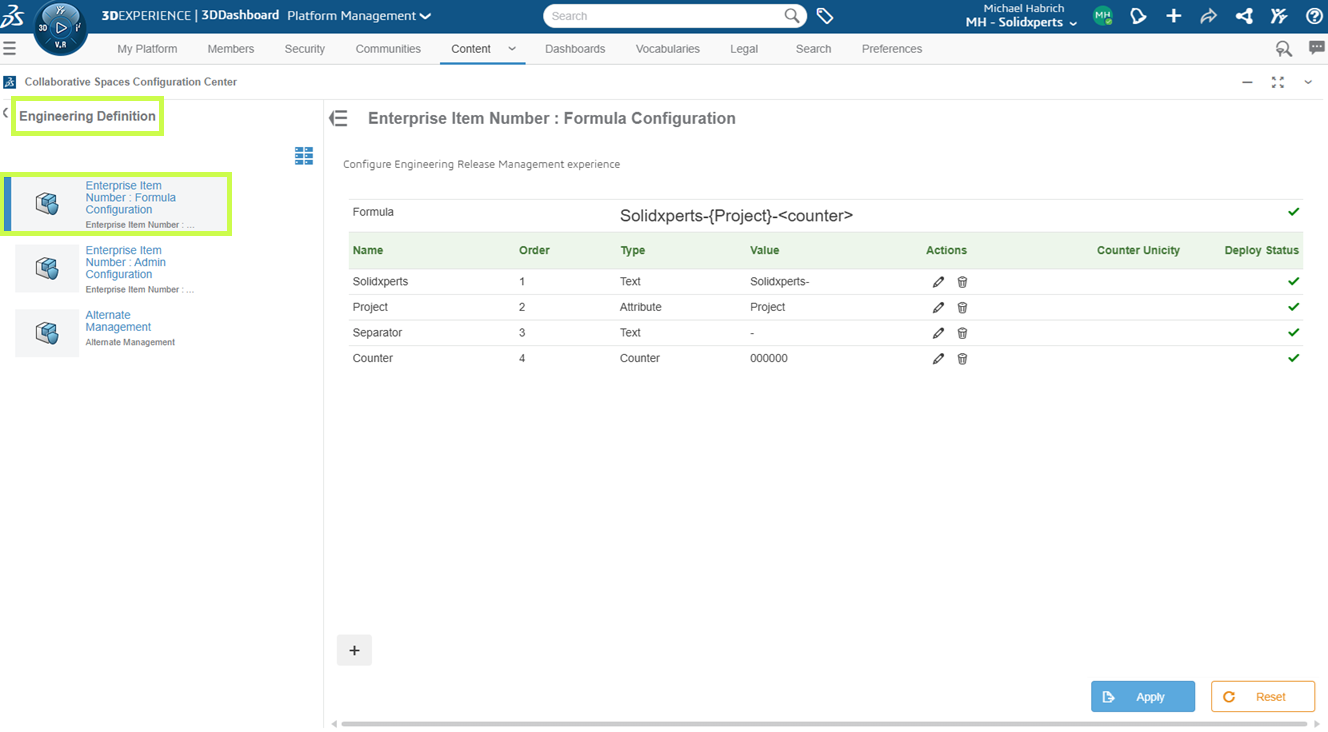
Setup happens in the Collaborative Spaces Configuration Center under:
Engineering Definition > Enterprise Item Number: Formula Configuration.
Example: You could define a Project attribute (linked to a SOLIDWORKS custom property) and combine it with a counter. Each project gets its own numbering sequence, so Project AB123 and Project XY456 start fresh with independent counters.
Assigning EINs in SOLIDWORKS
Once you’ve defined your formula, assigning an EIN is simple:
-
Select one or more components in the MySession pane.
-
Go to Tools > Set Enterprise Number > Request New Enterprise Item Number.
If your component already has a custom property linked to a project attribute, the 3DEXPERIENCE platform will pull that value automatically when generating the EIN.
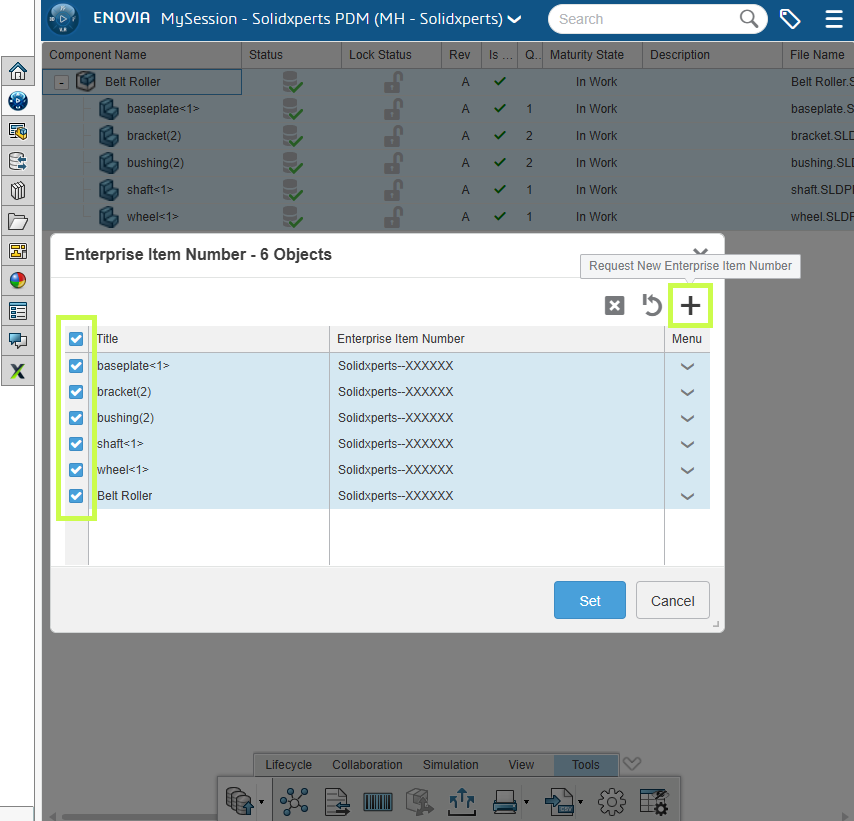
With the Product Release Engineer role, you can even assign EINs directly from a web browser using the Engineering Release app.
Viewing and Using EINs
EINs are stored in the 3DEXPERIENCE platform Properties and visible in both SOLIDWORKS and the browser.
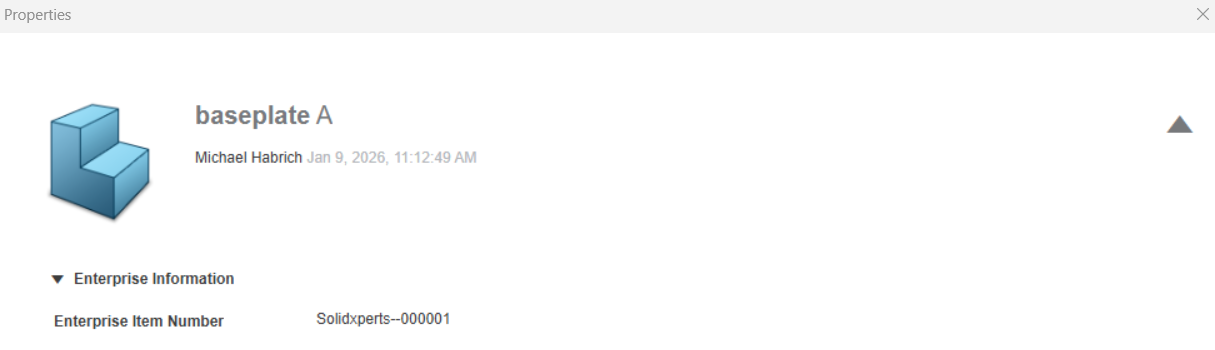
They can be mapped back into SOLIDWORKS properties for use in BOMs or other downstream applications.
In SOLIDWORKS, you can customize your design tree display to show the EIN instead of the title or even combine it with revision, description, or configuration details.
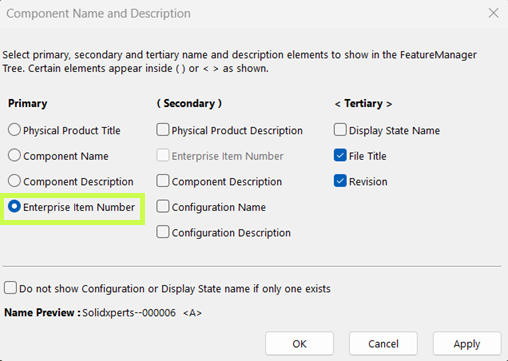
This way, your team always sees the most relevant identifiers at a glance.
Wrapping Up
From quick titles to auto-generated numbers to fully customized EINs, 3DEXPERIENCE gives you the flexibility to organize your designs in a way that fits your team.
At Solidxperts, we help you strike the right balance between simplicity and control, making sure your data is easy to manage today and reliable for tomorrow’s projects.
Need help setting up naming rules or Enterprise Item Numbers in your environment? Reach out to our team, we’ll make sure your system works as smoothly as your designs.