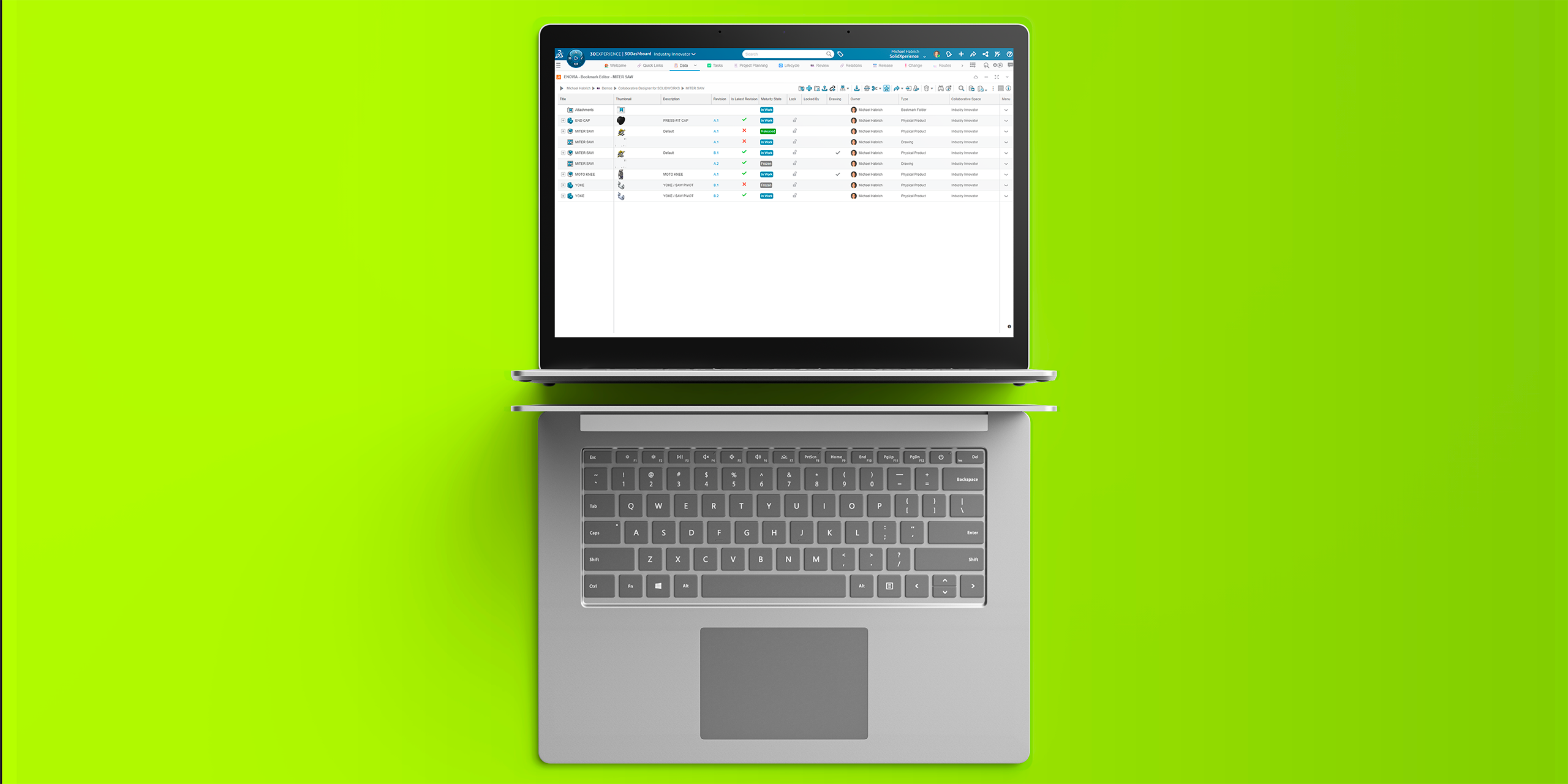
If you use the Bookmark Editor inside the 3DEXPERIENCE platform, the Thumbnail column can be a great way to quickly recognize your content without digging through details. With the July 2025 update, the way you add this column (and a few others) has changed a little. No worries, we will walk you through it.
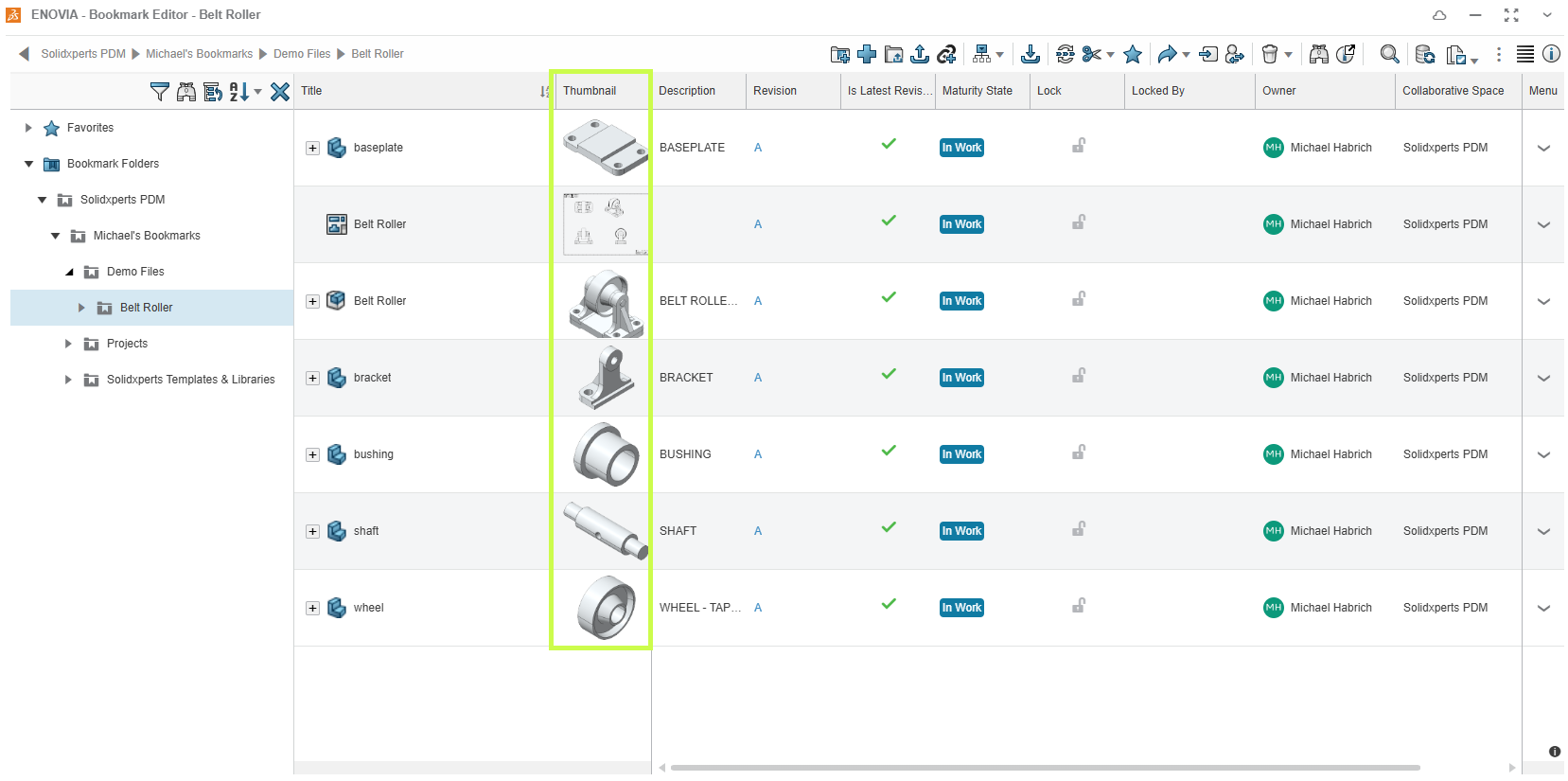
Creating a Custom View
To add the Thumbnail column, you’ll now need to work with a custom column view instead of the default one.
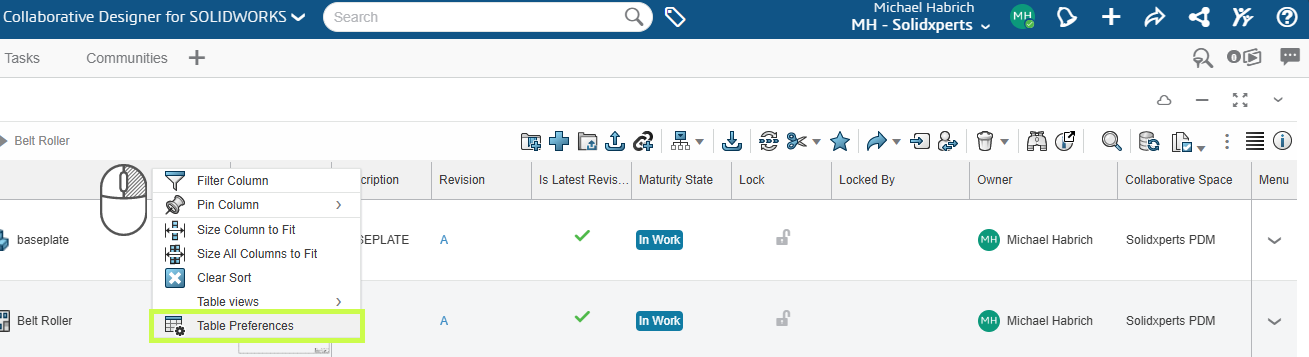
- Right-click any column header in Bookmark Editor.
- Select Table Preferences.
You’ll see a dropdown at the top. Most users will currently be using Default.
- Click the + icon to create your own view.
- The platform will call it Copy of Default view by default.
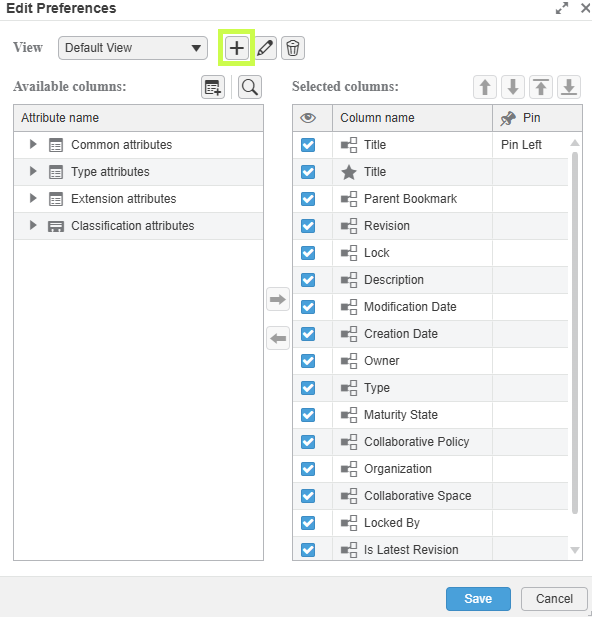
- Rename it to something meaningful, maybe “My Thumbnail View”,and click the checkmark to confirm.
Adding the Thumbnail Column
You’ll now see two panels: Available Columns and Selected Columns.
- Use the search bar or browse the list to find Thumbnail.
- The Thumbnail column is located under Common Attributes.
- Select it, then click the right-arrow to add it to your selected list.
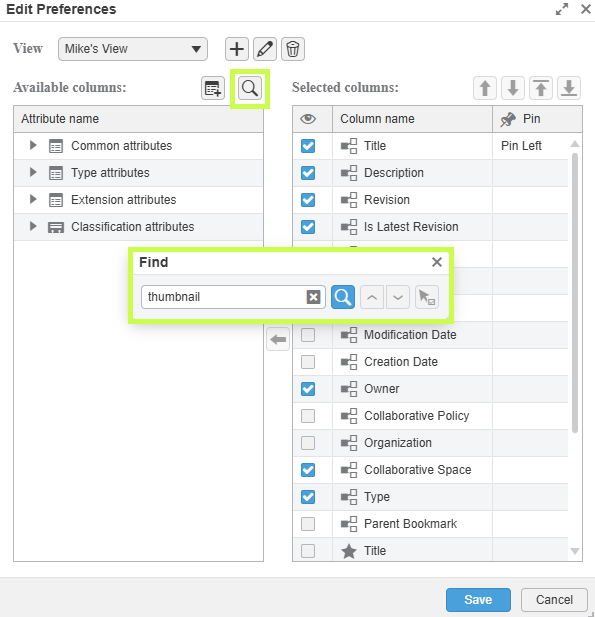
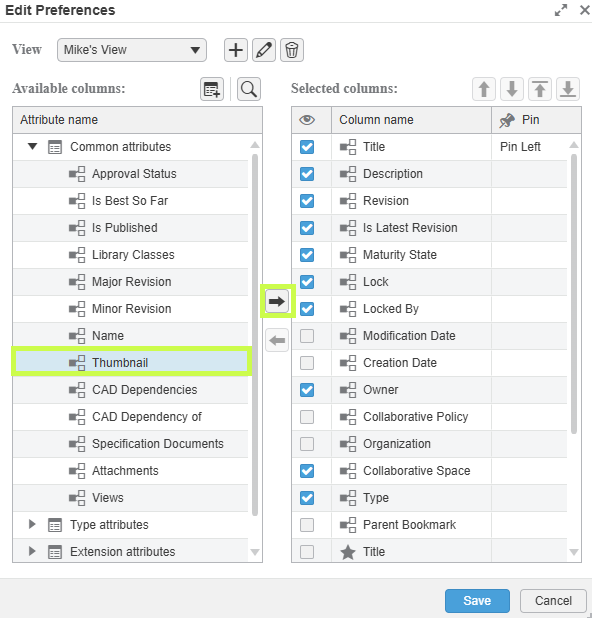
Once it’s added:
- Drag and drop the column to adjust its position, or
- Use the up/down arrows to move it into place.
If you’d like it to stay visible while scrolling, use Pin Left.
Click Save when you’re done.
Switching Between Views
If you create more than one custom layout (or want to go back to the original):
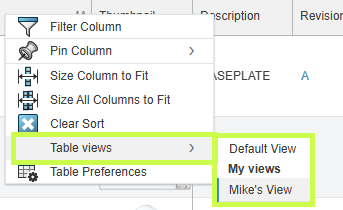
- Right-click any column header
- Go to Table Views
- Choose the view you’d like to use
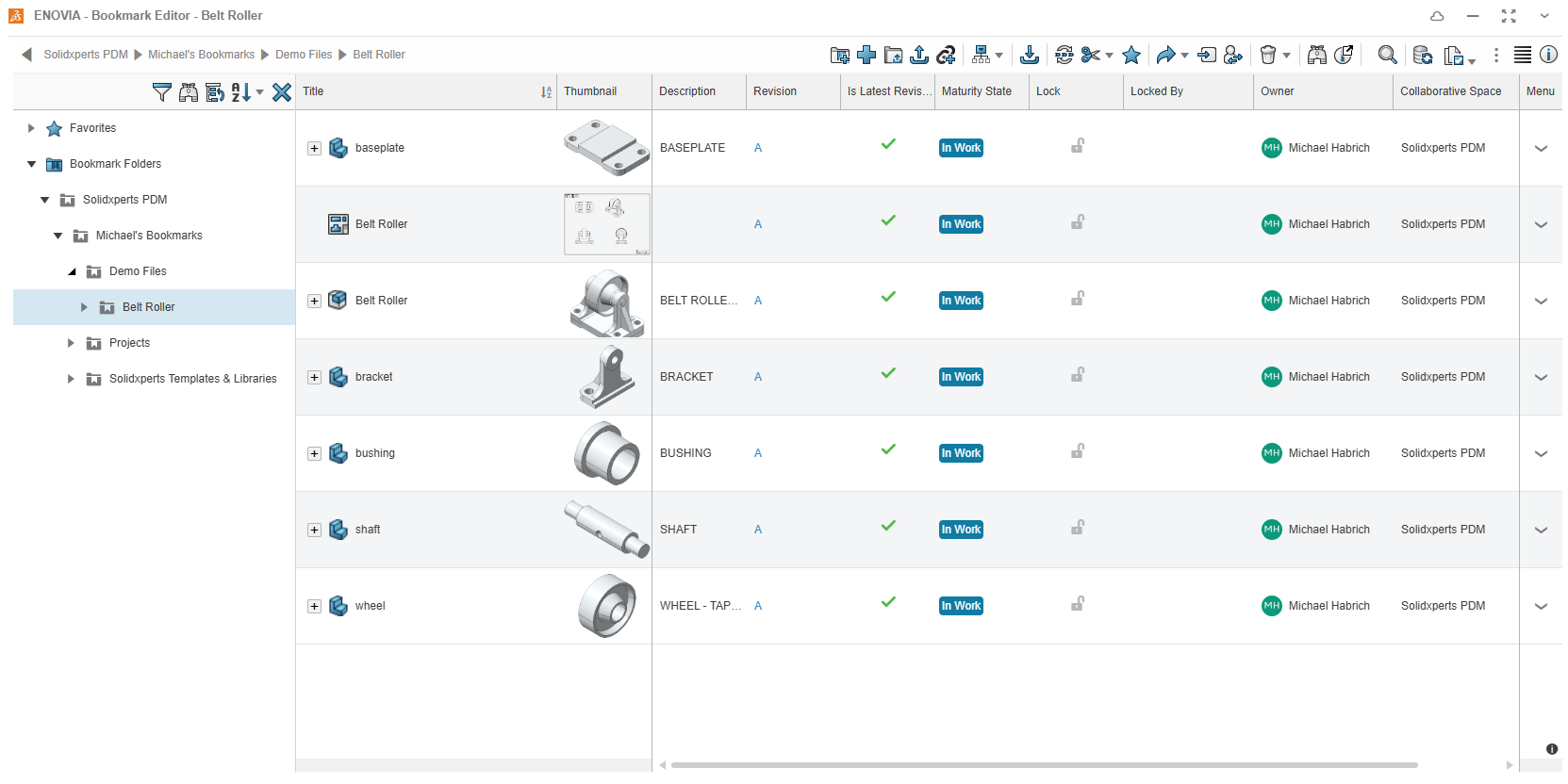
Done! Your Bookmark Editor now includes visual thumbnails, making it easier to browse, recognize, and manage your data at a glance.
Want More 3DEXPERIENCE Platform Tips?
We love helping teams get the most out of their tools.
If you’d like to go a bit further:
- Explore more tutorials on our YouTube channel;
- Join a training;
- Or reach out! We are always happy to share best practices and workflows.
Your platform should feel like it’s working for you. And we’re here to make sure it does!