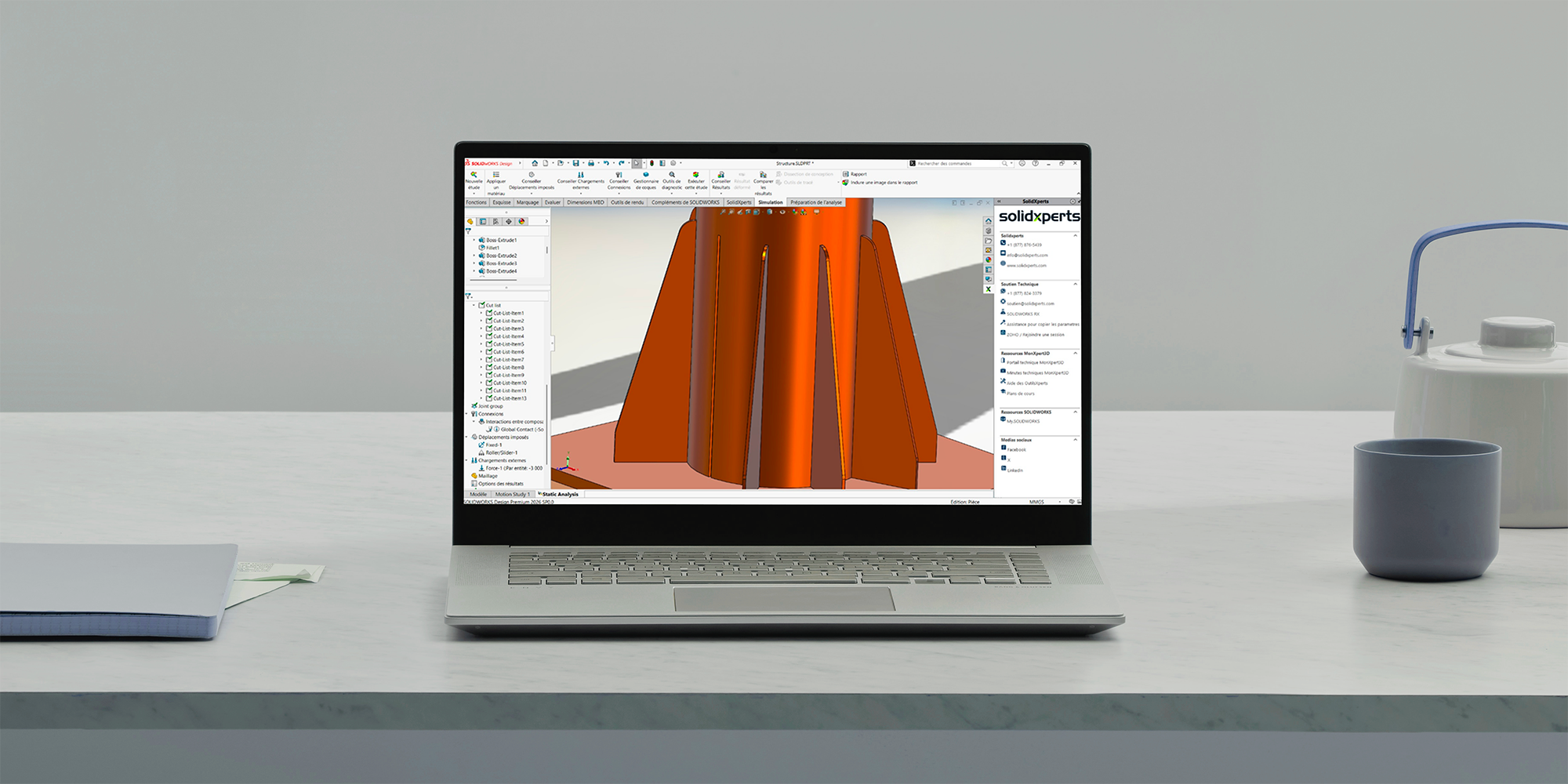
Are you wondering which interaction type should be used in SOLIDWORKS Simulation to represent a weld or to attach two bodies so they do not separate during the analysis?
Think about a bracket supporting critical components of a product. What must be done to ensure that the simulation accurately represents the real behavior before running the analysis?
After reading this blog, you will be familiar with the key steps required to properly define bonded interactions in SOLIDWORKS Simulation.
Representation of the bonded interaction
In SOLIDWORKS Simulation, a bonded interaction is used to connect two or more bodies so that no relative motion is allowed at their interface. A typical example is welding a bracket to another component to reinforce a structure and reduce stress in critical areas.
A bonded interaction is equivalent to merging bodies while still allowing each part to retain its own material properties. Once defined, the connected bodies are assumed to never separate during the analysis. This represents an idealized, perfectly rigid weld. While such a condition does not exist in reality, it is often a reasonable and efficient assumption when a near-perfect weld behavior is expected.
A bonded interaction should not be used to represent a contact condition (formerly called No Penetration) or any situation where sliding between components is expected.
In some cases, however, it may be acceptable to use a bonded interaction instead of defining multiple contact conditions in order to simplify the analysis. An example is a threaded rod, where detailed local behavior is not required and where the objective is to capture the global structural response rather than local stresses.
Mesh refinement plays a key role in obtaining accurate results near bonded interaction regions. Adjusting the global mesh parameters or applying local mesh controls can significantly improve mesh consistency at the interface and help ensure reliable and meaningful results.
Modeling Assumptions: Using Bonded Interactions in a Welded Structure
We are going to consider the following case study to illustrate the bonded interaction application. See the image below:
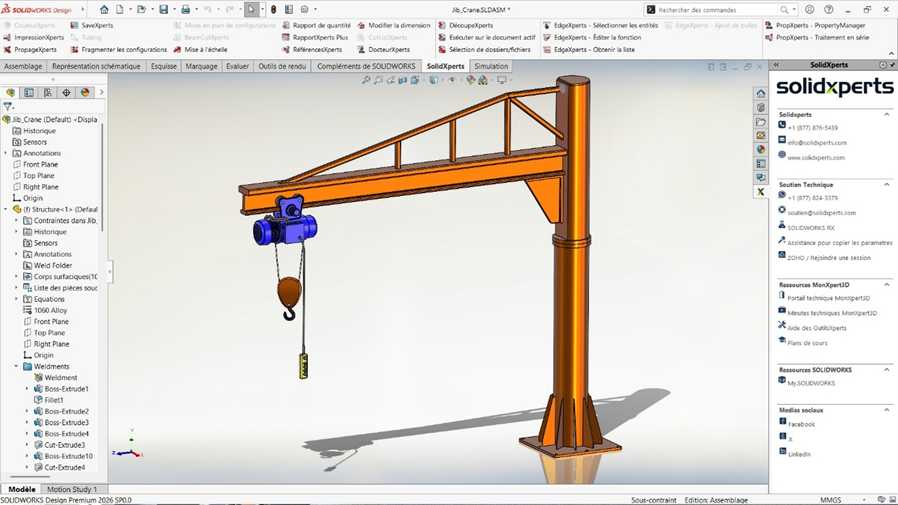
In this jib crane case study, the gusset parts are welded to the column and base plate to increase the overall resistance of the local area. Because of the nature of the problem, we make the assumption that the parts are tied together and that there is no relative motion between them. Therefore, we can apply a bonded interaction at this location to represent multiple welding interactions.
Please note that it is not necessary to model the weld as a separate part or body in SOLIDWORKS. This simplifies both the model and the analyst’s work while requiring only minimal additional information.
As with any modeling assumption, the use of bonded interactions should always be aligned with the objectives of the analysis and the level of accuracy required.
Global vs Local Bonded Interactions: Setup and Best Practices
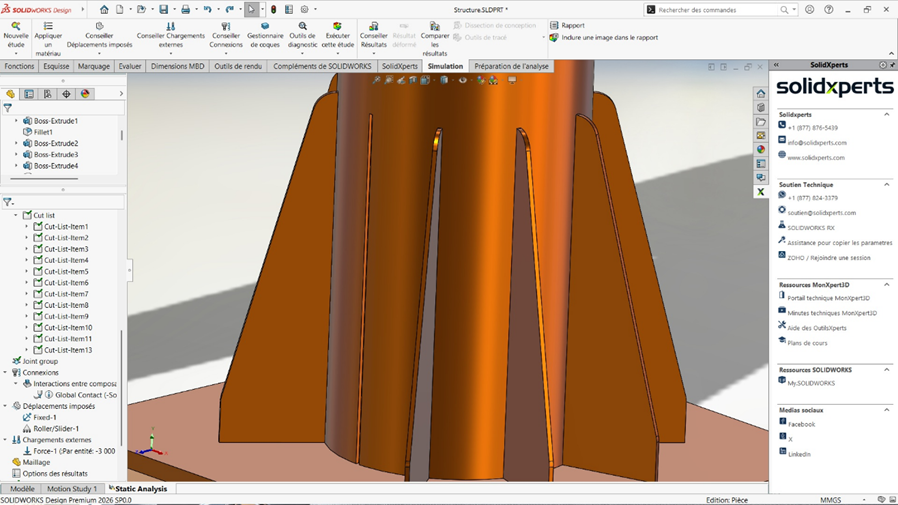
Here we are, the most sought after section of this blog on how to define the bonded interaction. There are several ways to define bonded interactions in SOLIDWORKS Simulation. The good news is that the default option when creating a stress analysis with SOLIDWORKS Simulation is set to apply a bonded interaction at a global level. This means that for coincident solid bodies, no additional interaction definition is required as long as the global interaction type is set to Bonded. The global bonded interaction can be found in the Simulation Tree in the Connections folder, under Component Interactions. Additional options can be set to take into account a gap between the bodies. The following image shows a case where a bonded interaction already defined by default could already be sufficient, meaning that there is no additional required step:
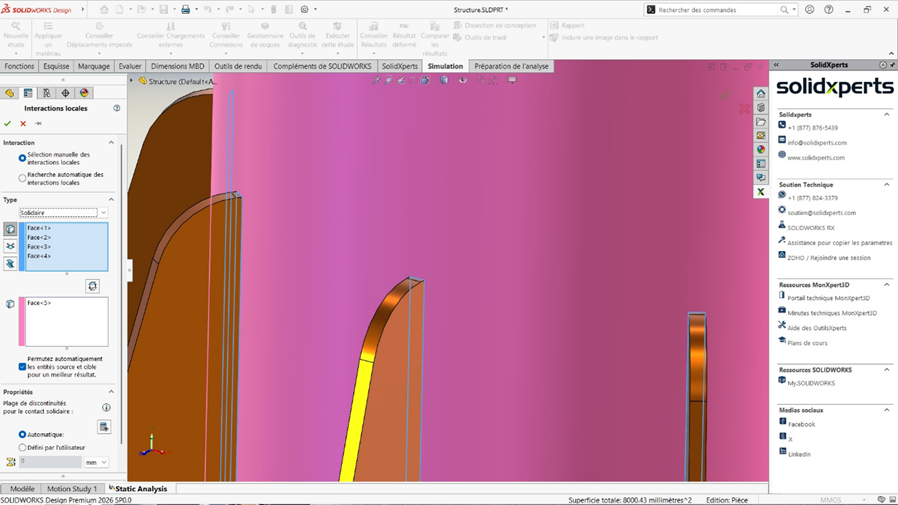
In some specific cases, a bonded interaction must be defined at a local level which requires a definition in the software. It could be the case of parts with different mesh types or geometry inconsistencies. Let’s consider the case study where there is a small gap between the gusset and the column where a bonded interaction is needed to represent a welding.
To define a local bonded interaction:
-
In the Simulation Tree, right-click Connections and select Local Interaction.
-
In Type, choose Bonded.
-
In the blue selection box, select the first entity (ideally the smaller one).
-
In the pink selection box, select the second entity (ideally the larger one).
-
Multiple entities can be selected if required.
-
If necessary, define additional options such as the gap tolerance.
Interpreting Results When Using Bonded Interactions
When the calculations complete and that we are at the step of validating the results, it is very important to understand how they should be interpreted. Adding unnecessary bonded interactions tends to artificially increase the stiffness of the structure. This can make the model appear stronger than it actually is, resulting in a non-conservative analysis. Therefore, it is important to keep that in mind and make sure that the analysis represents the real case study appropriately. An animation of the results is an excellent way to determine whether or not the structure behaves as it should be. Expect stress concentrations near edges with bonded interactions and pay attention to stress singularities. If necessary, plot the reaction forces and compare them with the applied loads. If the results don’t make sense, it is important to consider reviewing the analysis setup and rerunning the analysis.
Key Takeaways on Bonded Interactions in SOLIDWORKS Simulation
In this blog, we explored the application of bonded interactions to better understand their meaning and areas of use.
Through the lifting jib crane case study, we illustrated the creation of both global and local bonded interactions. In Finite Element Analysis (FEA), the quality of results depends primarily on the relevance of your modeling assumptions and choices.
Beyond interactions, there are other features that must be used properly to produce reliable simulations tailored to your objectives. If you wish to deepen your knowledge of SOLIDWORKS Simulation, several resources are available to support your progress.
You can visit our website to read our other technical blogs and learn more: https://www.solidxperts.com/en/blog/