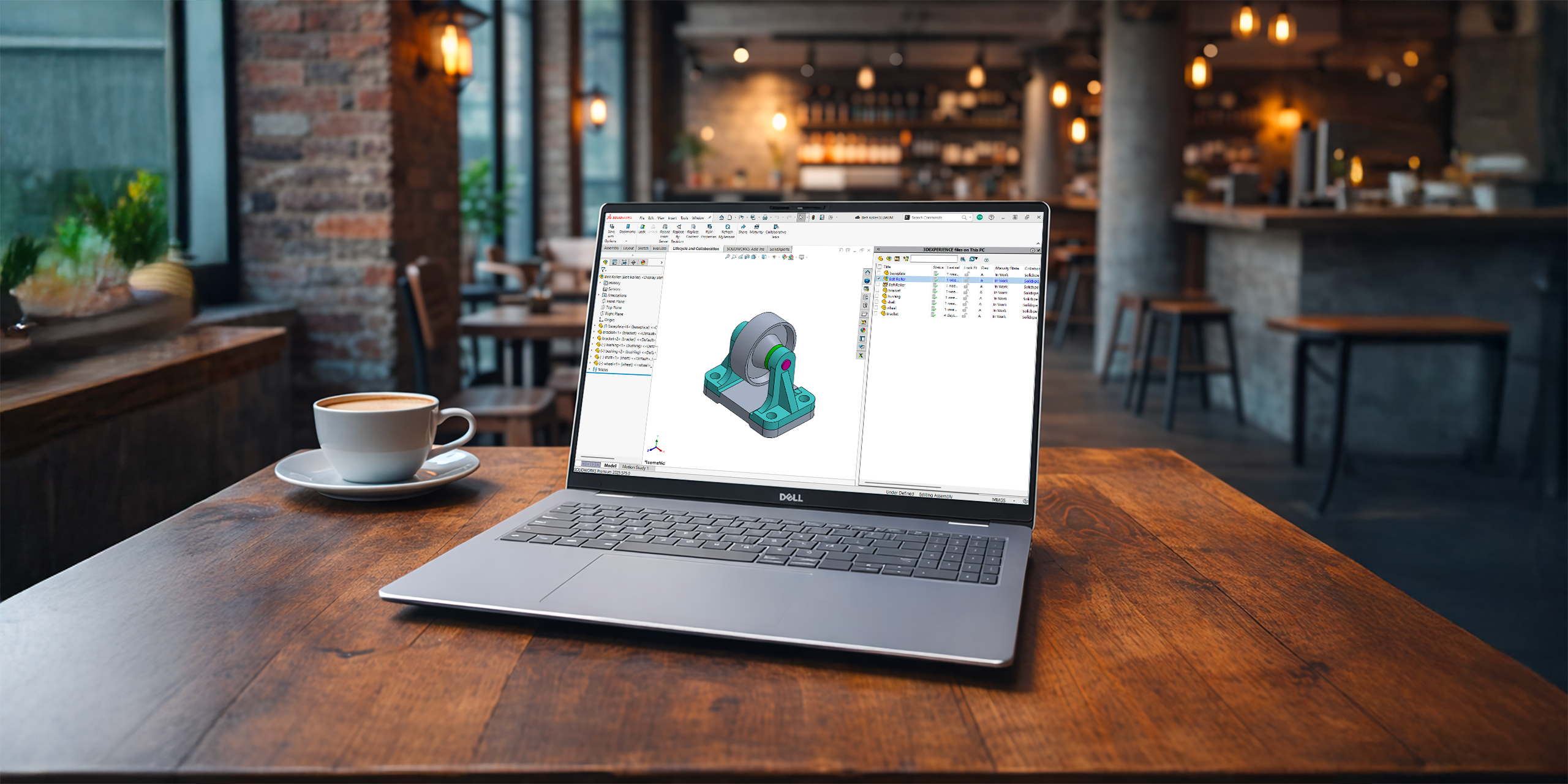
One of the biggest advantages of the 3DEXPERIENCE platform is having your files stored securely in the cloud. You can access your designs anytime, anywhere, and collaborate with teammates without worrying about version control.
Behind the scenes, SOLIDWORKS uses a local cache, a folder on your computer where files are temporarily stored while you work. These cached files are then synced with the 3DEXPERIENCE servers when you save or refresh.
Managing this cache is key to keeping your designs current, preventing confusion, and saving disk space. Let’s take a closer look.
Where to Find the 3DEXPERIENCE Cache
Think of 6W Tags as smart labels that make it easy to filter, sort, and find your files in 3DSpace or 3DDrive.
Your cache shows up both in SOLIDWORKS (via the 3DEXPERIENCE add-in) and in Windows Explorer. While you can browse the cache folders directly, we don’t recommend managing them that way. Instead, stick to the tools built into SOLIDWORKS.
Here are the default folder locations:
-
SOLIDWORKS Desktop with the 3DEXPERIENCE add-in:
C:\3DEXPERIENCE -
SOLIDWORKS Connected:
C:\Users\<username>\AppData\Local\DassaultSystemes\3DEXPERIENCE
Managing the Cache Inside SOLIDWORKS
When you enable the “3DEXPERIENCE Files on This PC” add-in, you’ll see a dedicated tab in the Task Pane. This view shows you all cached files with helpful details like:
-
Status
-
Lock Status
-
Maturity State
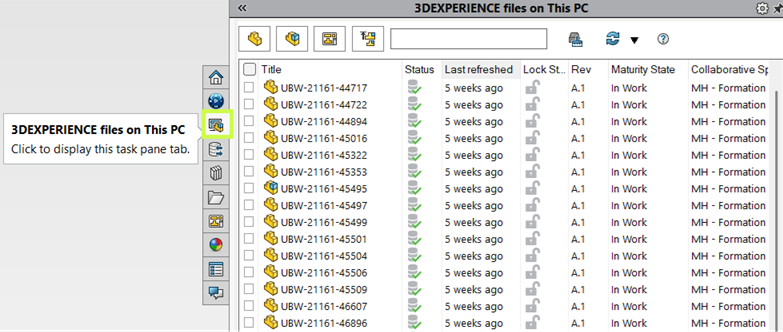
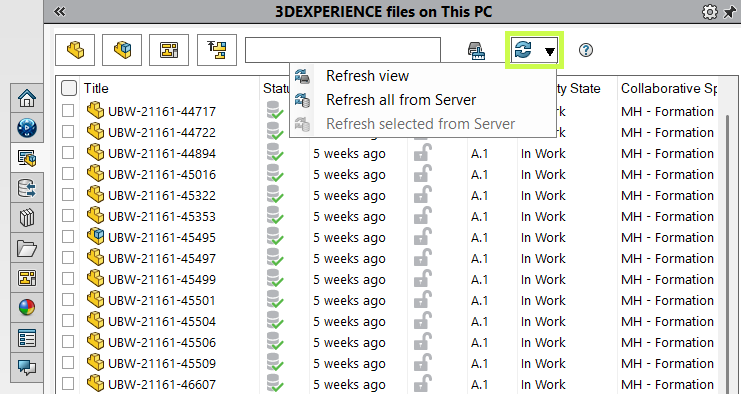
From here, you can quickly refresh your cache to make sure you’re always working with the latest version.
-
Refresh View updates the local cache for selected files.
-
Refresh from Server checks for changes made by other users and downloads the latest copy if needed.
-
Starting a new SOLIDWORKS session automatically refreshes files in the background.
Understanding Cache Status Icons
The status icons make it easy to tell if your local files are current, out-of-date, or waiting to be uploaded. They also warn you if refreshing would overwrite changes you’ve made locally.
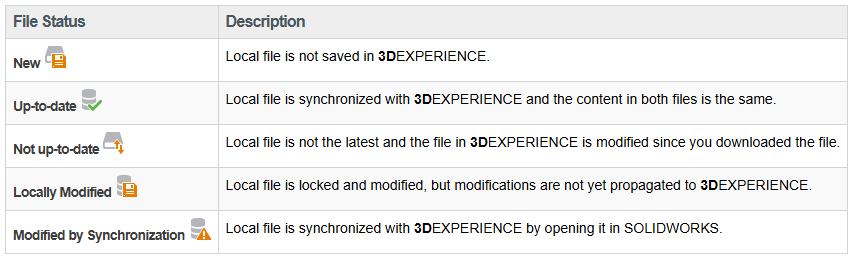
Pro tip: Always double-check before reloading from the server. Unsaved local edits will be lost.
Cleaning Up the 3DEXPERIENCE Cache
Over time, cached files can pile up and take up space. To keep things tidy (and ensure you’re pulling the latest versions from the cloud), it’s a good idea to clean your cache periodically.
Here’s how:
-
In the Task Pane, select individual files, or use the top-left checkbox to select all.
-
Right-click and choose “Delete from this PC.”
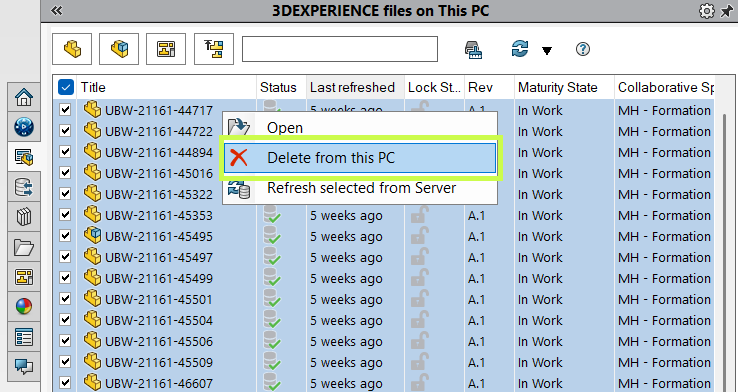
This only removes files from your local cache. Your data stays safe in the 3DEXPERIENCE platform.
You can also use:
-
Filters to find specific file types.
-
The search box to locate files quickly.
And before you delete, always confirm your files are saved and synced to the platform.
Automating Cache Clean-Up
Don’t want to do it manually? The Clean Up command takes care of it for you.
-
By default, it removes unchanged files older than one week.
-
Locked or modified files won’t be touched.
-
If you open an assembly later, any missing references are automatically redownloaded from the server.
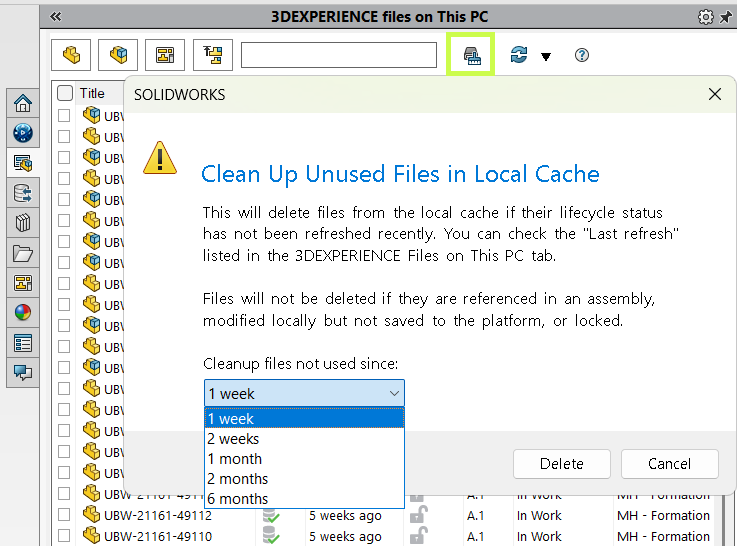
If disk space isn’t a concern, you can extend the timeframe to reduce how often files get cleared. It is especially useful if your internet connection is slow.
A Simple Habit for Staying Up to Date
The local 3DEXPERIENCE cache is like a bridge between your desktop and the cloud. Keep it clean, refresh it often, and you’ll always know you’re working with the latest designs.
Want to get even more out of your 3DEXPERIENCE platform? Our training sessions are designed to help you and your team take full advantage of its powerful tools.