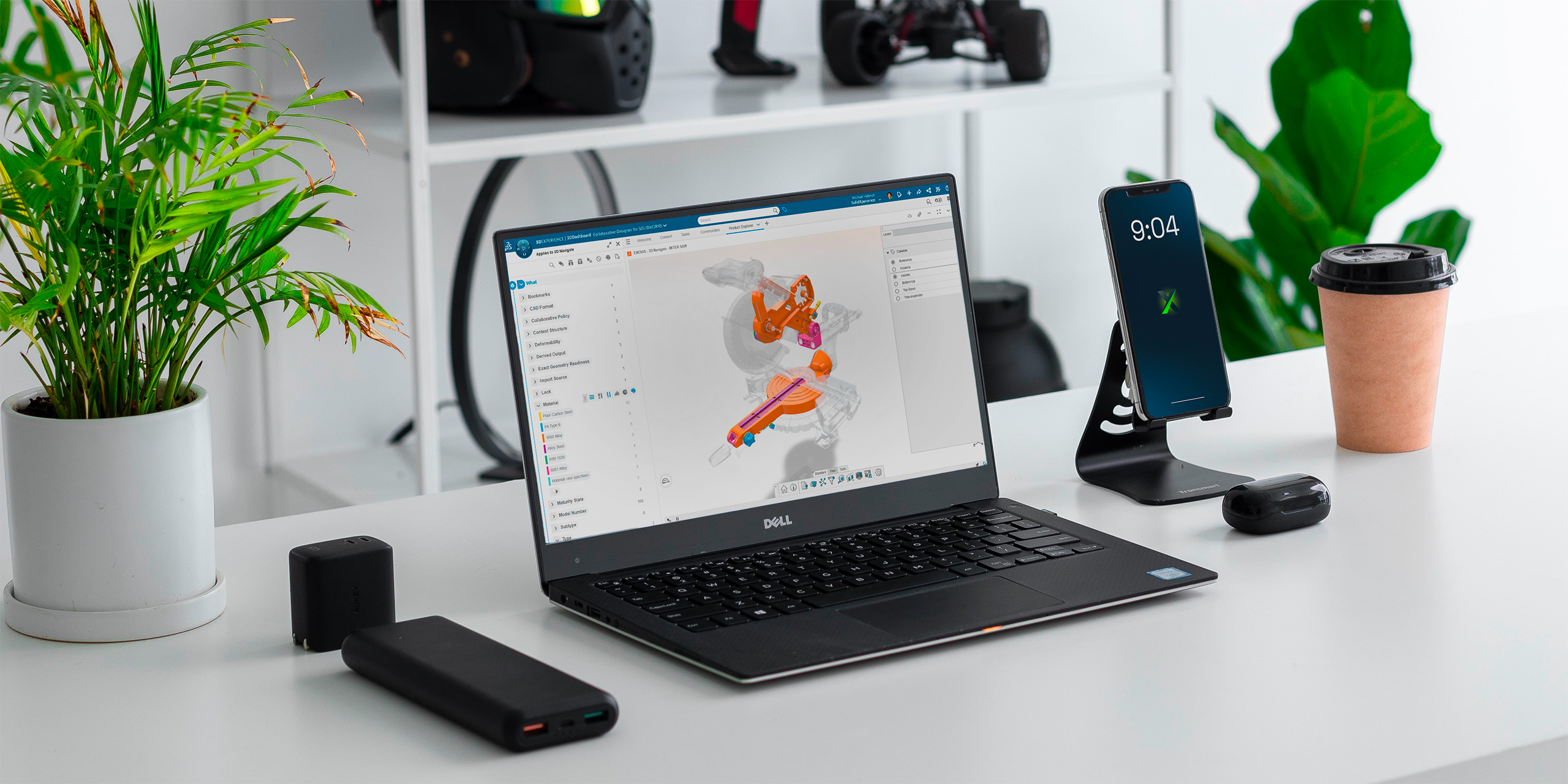
The 3DEXPERIENCE platform isn’t just about CAD in the cloud. It’s your all-in-one workspace where design, data management, and collaboration come together. Whether you’re sketching with xShape, modeling in xDesign, or connecting to SOLIDWORKS, the platform helps keep everything, and everyone, in sync.
But let’s be honest: every engineering project generates mountains of data. 3D models, drawings, BOMs, simulations, even invoices and Word docs. It all piles up. The good news? The platform makes it easy to organize and navigate this information with a powerful tool called 6W Tags.
What Are 6W Tags?
Think of 6W Tags as smart labels that make it easy to filter, sort, and find your files in 3DSpace or 3DDrive.

And it’s not just CAD data. Office documents, simulation results, and more can all benefit from tagging.
Here’s how the 6Ws break down:
- What: Type of content (CAD models, documents, simulations, tasks, etc.)
- Who: The person who uploaded, edited, revised, or owns the data
- When: Date or time range
- Where: Geolocation or data source
- How: Manufacturing method (made in-house or purchased)
- Why: Links to project or task management
Out of the box, the system automatically fills in basics like owner, location, and save date. But the real power comes when your team adds custom tags. For example, you can include project numbers, material types, or vendor names so searches are tailored to your company’s workflow.
How to Use 6W Tags
Let’s say you search for “bolt” in 3DEXPERIENCE. Without filters, you might get hundreds (if not thousands) of results. That’s where 6W Tags shine.

Click the tag icon next to the search bar, then start narrowing your results. For example:
- Under What, choose Physical Product (to exclude tasks or documents).
- Add a Material filter for Stainless Steel.
By stacking filters, your results go from overwhelming to precise in just a few clicks.
Real-World Examples
In one test, a simple search brought back over 1,000 results. But after filtering with 6W Tags for “Physical Product” and “Plain Carbon Steel,” the number of results dropped down to two digits. That’s the power of smart filtering.
Beyond search, 6W Tags can be used visually inside apps. For example, parts can be color-coded by material in the graphics area, giving you an instant overview of your design.
From Data Overload to Data Control
Data shouldn’t slow you down and with 6W Tags, it won’t. Whether you’re hunting down a single file or organizing entire projects, the 3DEXPERIENCE platform helps you stay in control.
Want to learn more tips like this? Our experts at Solidxperts can help you get the most out of your 3DEXPERIENCE environment. Reach out anytime or join one of our training sessions!