SOLIDWORKS PDM is a powerful tool for managing product data, but like any system, it is only as good as its implementation. Missteps in setup, usage, or governance can result in lost time, confused teams, or even corrupted data. Let’s break down the top five mistakes users and administrators make with SOLIDWORKS PDM and provide expert-backed solutions to fix them.
1. Don’t Let Permissions Kill Productivity
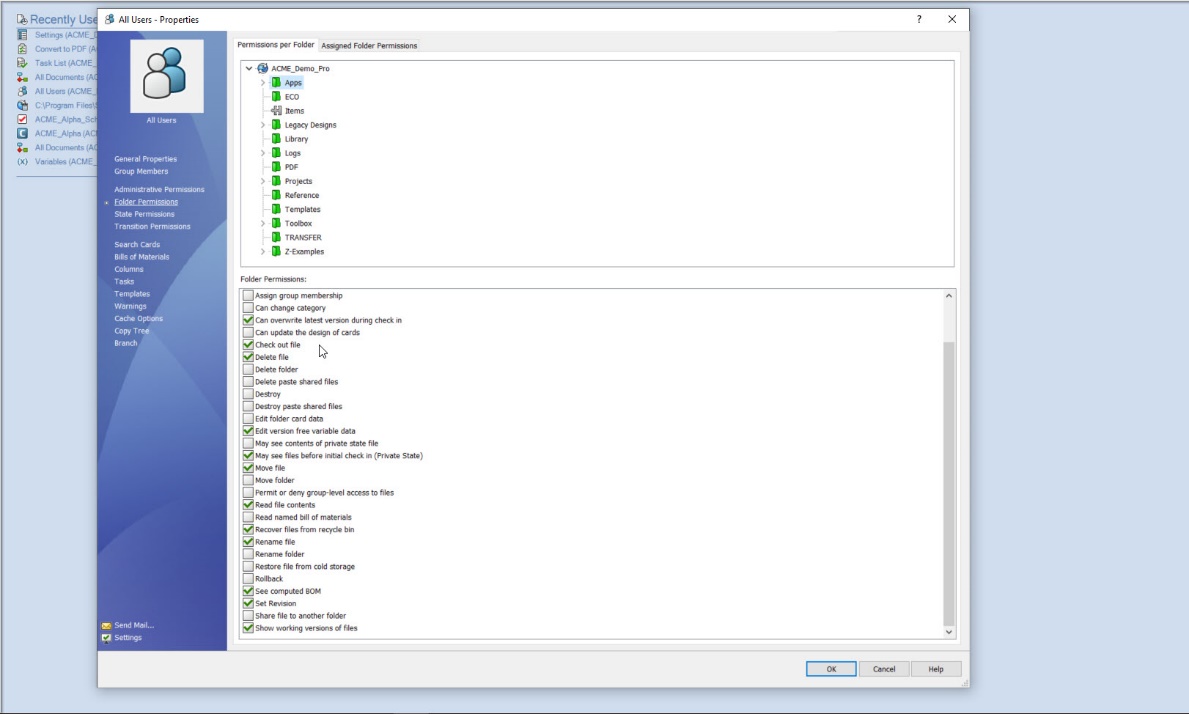
The Pitfall: Confusing or Dangerous Access Rights
One of the most frequent and damaging mistakes in any PDM setup is mismanaging user permissions. When permissions are too strict, users waste time trying to access files or wait for someone with higher access to help. On the flip side, overly broad access can result in accidental overwrites, deletions, or unauthorized changes.
For example, an engineer could accidentally releases a work-in-progress drawing because they were mistakenly given access to the “Released” state transition. This leads to procurement ordering incorrect parts based on an outdated design.
The Fix: Implement Role-Based Access Control (RBAC)
Instead of managing individual user permissions, create user groups such as:
-
Designers
-
Engineers
-
Quality Control
-
Project Managers
-
Manufacturing
Assigning permissions at the group level simplifies administration but also ensures consistency. If someone’s role changes, you just move them between groups.
Best Practices:
-
Use the Permissions tool in PDM Admin to verify access levels
-
Restrict access to critical lifecycle transitions (e.g., “Approve,” “Release”)
-
Re-audit access rights quarterly, especially after organizational changes
-
Keep a changelog of all admin updates to permission groups
Why it matters:
Tight control over permissions protects data integrity, reduces user frustration, and limits the risk of human error.
2. Are Your Workflows Helping or Hindering?
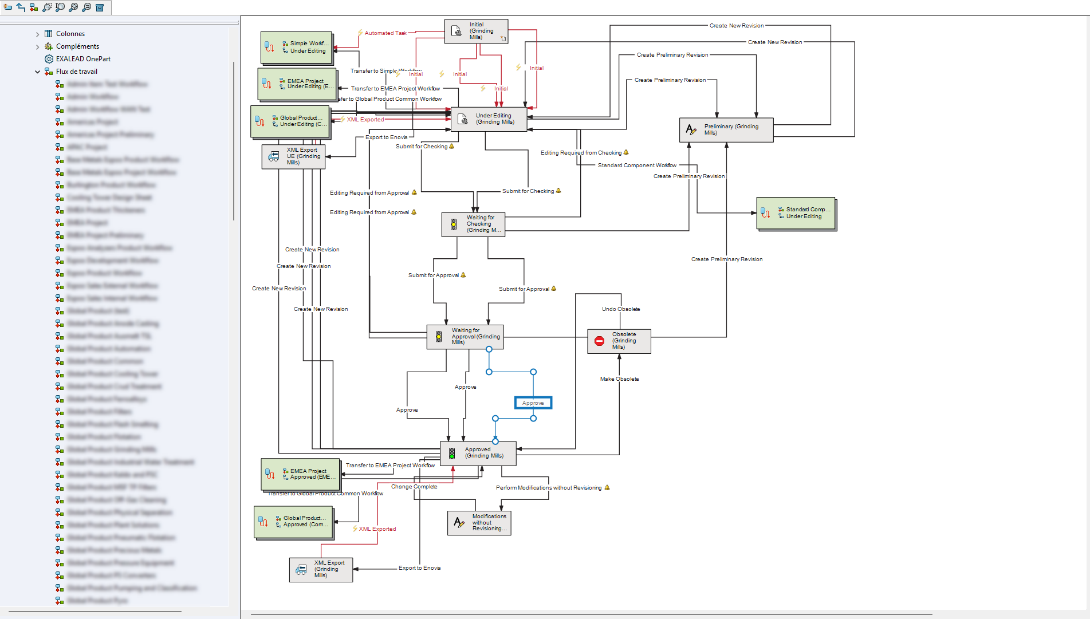
The Pitfall: Workflows That Don’t Reflect Real-Life Processes
Another common issue is poorly designed workflows. Often, workflows are either overly simplistic and fail to enforce proper checks or overly complicated, leading to user confusion and delays.
For example, a workflow without a design review stage results in errors reaching production. Alternatively, a workflow with too many approval loops creates a bottleneck that delays time-to-market.
The Fix: Design Smart, Flexible Workflows
Good workflows reflect how your team actually works. Start by mapping out real-world processes on paper. Then replicate those with SolidWorks PDM using tools like:
-
Conditional Transitions
-
Automatic Status Changes
-
Notifications (via Dispatch or Task Add-ins)
Pro Tips:
-
Include mandatory review steps before “Release”
-
Create a sandbox or test vault to trial new workflows without disrupting production
-
Practice using screen recordings or internal guides to walk through common workflows. Even the best workflow cannot help if users don’t understand it.
3. Stop the Chaos: Fix Your Revision Control
The Pitfall: Manual File Naming and Confused Versioning
Few things frustrate engineers more than working on the wrong version of a file. Common issues include:
-
Duplicate files with suffixes like _final, _v2, _approved
-
Broken references from renamed assemblies
-
No clear revision history when questions arise
For example, a supplier receives an outdated drawing marked “FINAL_v3,” but the design team had already created “FINAL_v4” in a separate folder. Which results in countless dollars wasted and scrap material.
The Fix: Use PDM’s Automated Version and Revision Tools
SOLIDWORKS PDM is built to manage versions and revisions intelligently when used properly. By integrating revision control into your workflow transitions, you can track every change and automatically increment revisions when files pass certain gates such as “Approve.”
Steps to Implement:
-
Set up lifecycle states (e.g., Under Review → Approved → Released)
-
Configure transitions to increment revisions automatically
-
Use the built-in History tab to track who made what changes and when
-
Apply revision tables linked to metadata to eliminate manual edits on drawings
Important Tips:
-
Disable file renaming at the user level
-
Avoid copying files outside PDM to test changes; instead, use sandbox folders within the vault
-
Regularly purge obsolete versions to avoid clutter
Result:
Accurate, tamper-proof versioning builds trust across design, QA, and manufacturing teams.
4. Organize or Agonize: Clean Up That Vault
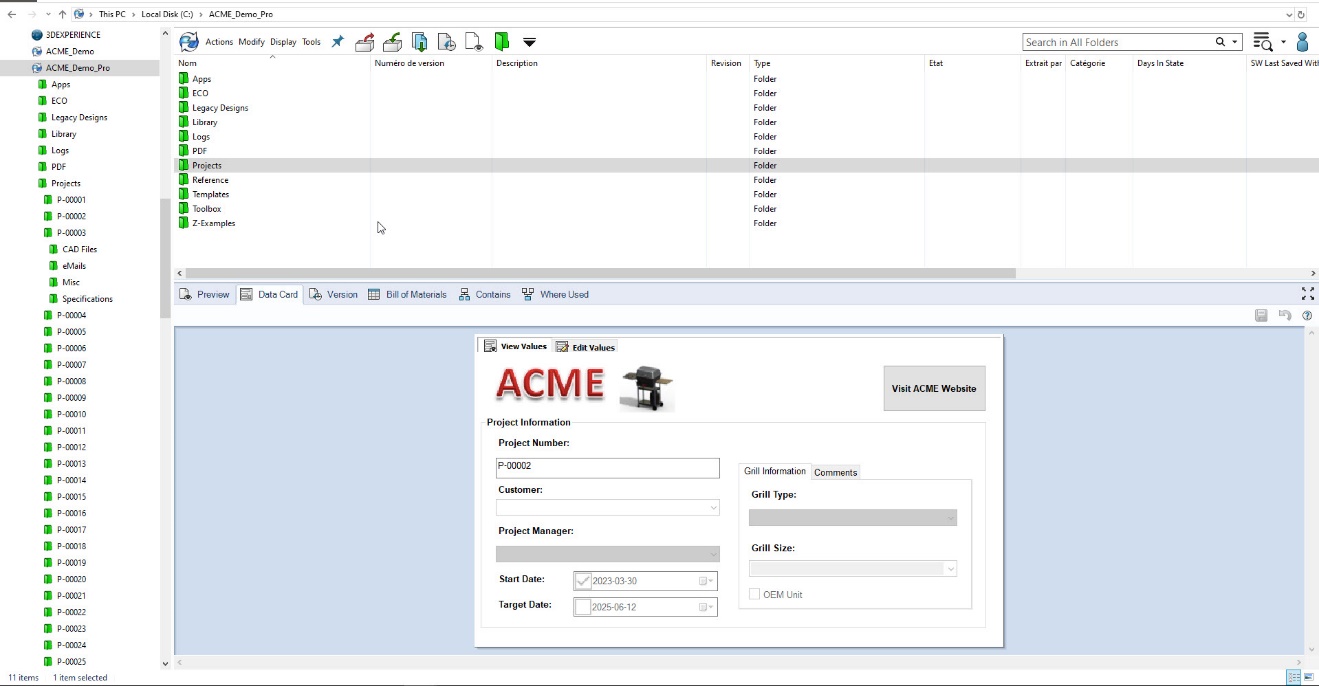
The Pitfall: Messy Folders, Inconsistent File Names, and Confusing Structures
Without naming conventions or a logical file system, even experienced users can spend hours hunting for the right file or, worse, use the wrong one.
For example, a project folder contains new_final, revA_drawing, Drawing1, and final_FINAL. No one knows which to use, and a new engineer duplicates the wrong one for a new design.
The Fix: Standardize File Naming and Folder Structures
Consistency is key to finding and managing data efficiently. Develop a file naming convention that reflects your project hierarchy and revision status.
Sample Naming Structure:
-
PRJ2025_ClampBracket_REV_B.SLDPRT
-
DWN1001_ClampBracket_REV_B.SLDDRW
Tips to Maintain Order:
-
Enforce naming rules with Data Cards
-
Use “Copy Tree” for project duplication to auto-rename and preserve links
-
Document your structure in an internal wiki or onboarding guide
Bonus:
Create folder templates tied to project types (e.g., Customer Jobs, R&D, Internal Use) to speed up setup and reduce human error.
5. One Crash Away: The Backup Plan You Wish You Had
The Pitfall: No Backup or Worse, Unusable Backups
It is easy to assume your IT team has your back until a vault crash or server failure proves otherwise. Even if backups exist, they may be incomplete, outdated, or impossible to restore.
For example, your server crashes on a Friday night. IT discovers that the last backup was from three weeks ago and only covers the SQL database, not the archive files.
The Fix: Build a Complete, Tested Backup and Recovery Plan
A proper backup strategy must cover all components of SOLIDWORKS PDM:
-
SQL Database
-
Archive Server
-
Vault Settings (via the Admin tool)
Checklist for Backup Success:
-
Back up daily using Windows Task Scheduler or enterprise tools
-
Store backups off-site or in the cloud for disaster recovery
-
Simulate a full restore every quarter and document the steps
Disaster Recovery Plan Should Include:
-
Contact info for key stakeholders
-
Timeline for each recovery step
-
Inventory of hardware and software requirements
-
A change log for vault structure
Crucial Question:
-
If a critical client asks, “How quickly can you restore if the vault crashes?” do you have an answer you trust?
Bonus Mistake: Skipping Training and Internal Communication
Even the best-configured PDM system will not deliver value if users do not understand how to use it. Inconsistent user behavior leads to data quality issues, broken workflows, and user frustration.
Fix it with:
-
Scheduled team-wide PDM refresher sessions
-
A living document library of video walkthroughs and SOPs
-
Feedback loops such as a Slack or Teams channel for PDM issues
Pro Tip:
-
Use anonymous surveys to surface pain points or confusion that might not come up in meetings.
Stop Mistakes Before They Start
SOLIDWORKS PDM is not just a file storage system. It is the foundation of your product development lifecycle. Like any foundation, it requires care, structure, and proactive management. By recognizing and correcting the most common PDM mistakes, whether it is permissions, workflows, revisions, organization, or backup planning, you set your team up for success.
Takeaway Checklist:
-
Role-based permissions
-
Streamlined, mapped workflows
-
Automated revision control
-
Standardized file and folder naming
-
Complete, tested backup plan
-
Ongoing user training
Each of these practices improves traceability, compliance, and efficiency. Saving you time, money, and stress in the long run.