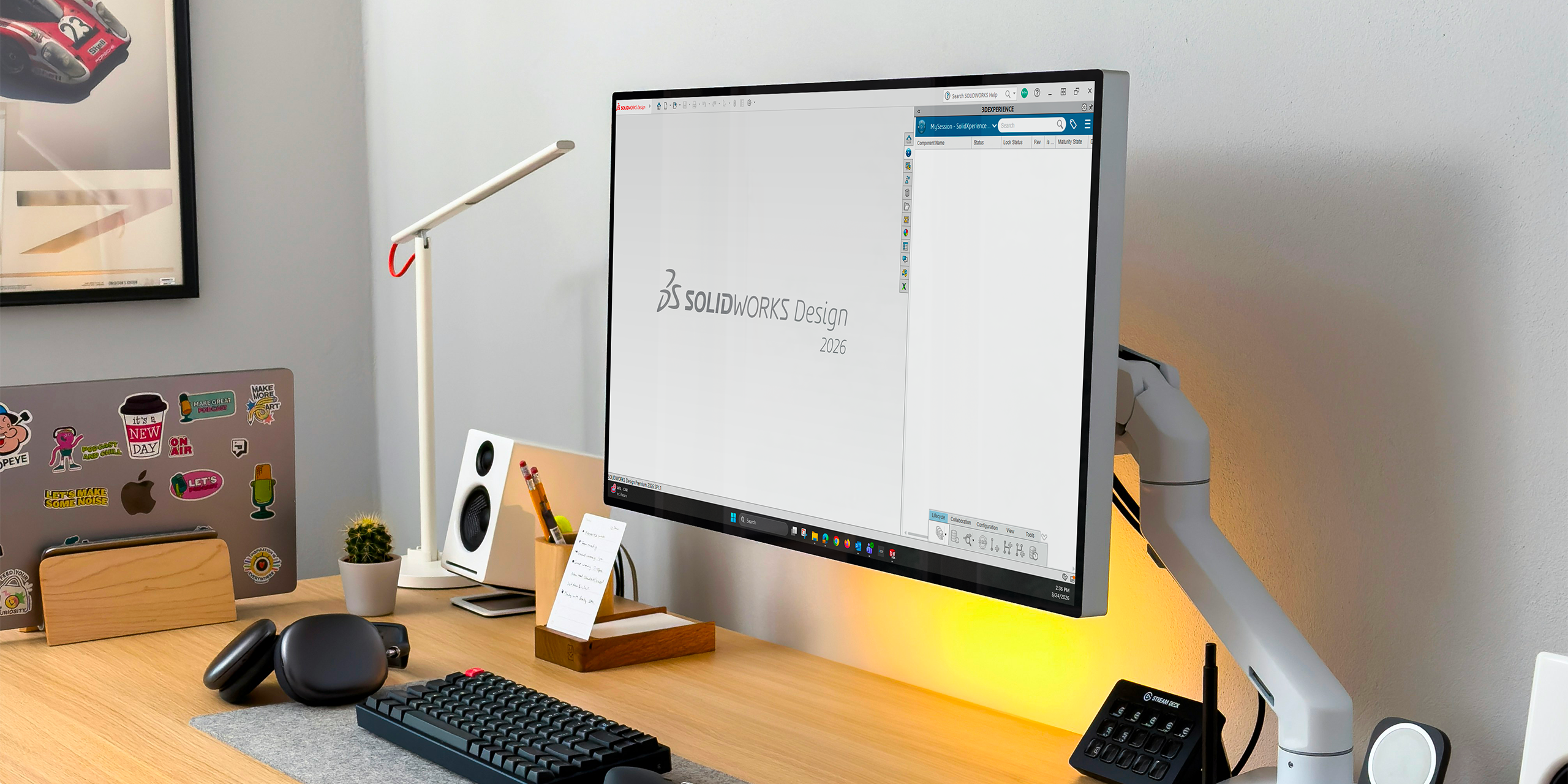
The 3DEXPERIENCE platform includes a wide range of powerful, web-based apps, but many teams prefer to continue designing in the familiar SOLIDWORKS desktop environment. The good news? You don’t have to choose one or the other.
By combining SOLIDWORKS desktop with the Design with SOLIDWORKS connector, you can keep your existing workflows and interface while taking full advantage of cloud-based file storage, sharing, and collaboration.
In this article, we’ll walk through:
-
Installing the Design with SOLIDWORKS connector
-
Launching SOLIDWORKS with the 3DEXPERIENCE connection enabled
-
Saving files directly to the platform
-
Managing your local cache for best performance
Installing Design with SOLIDWORKS
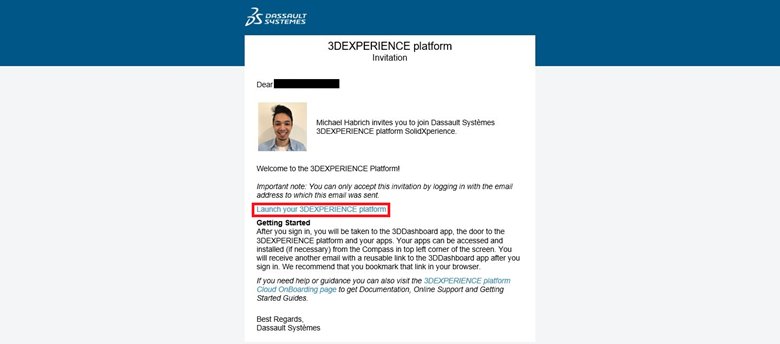
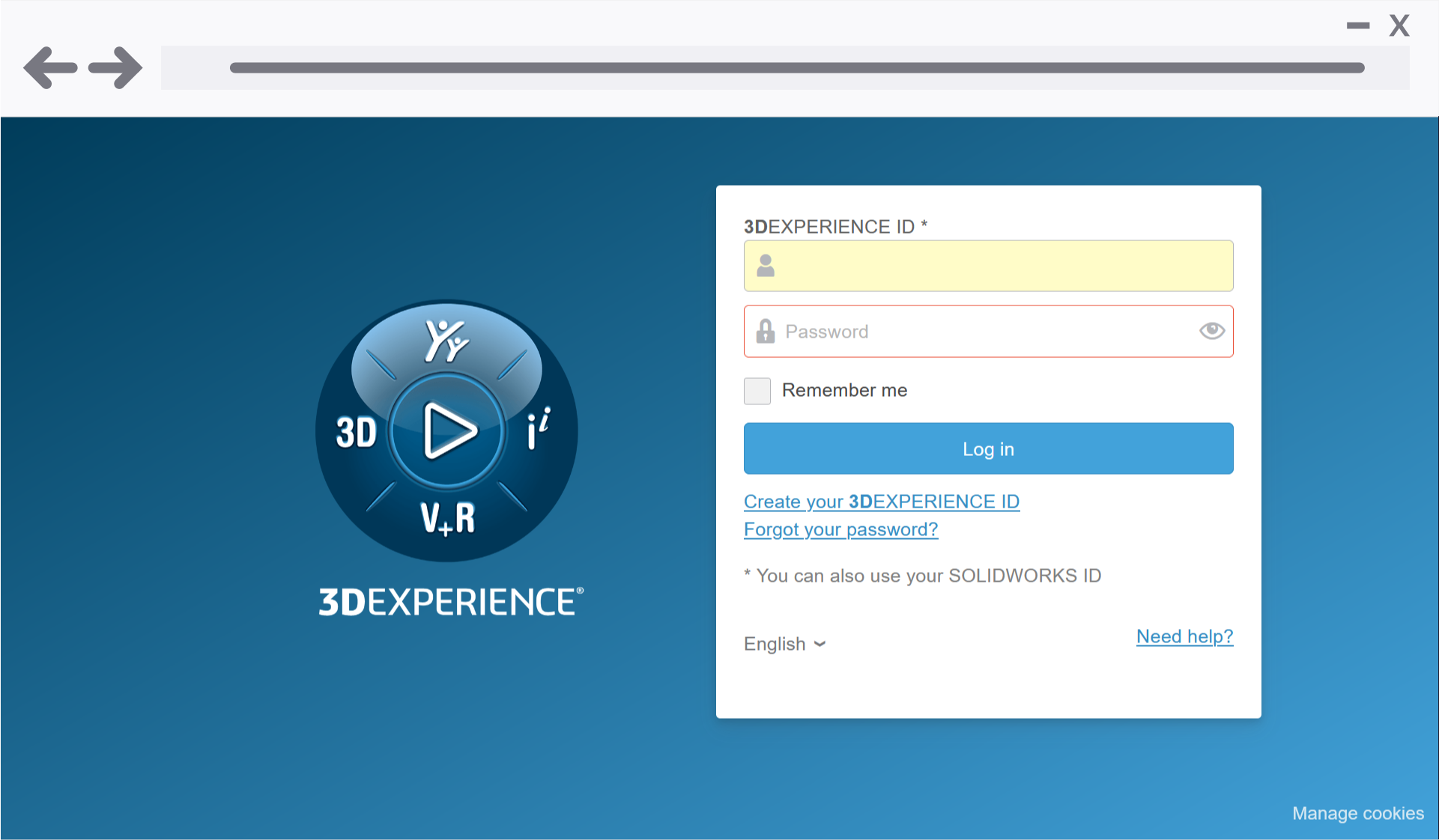
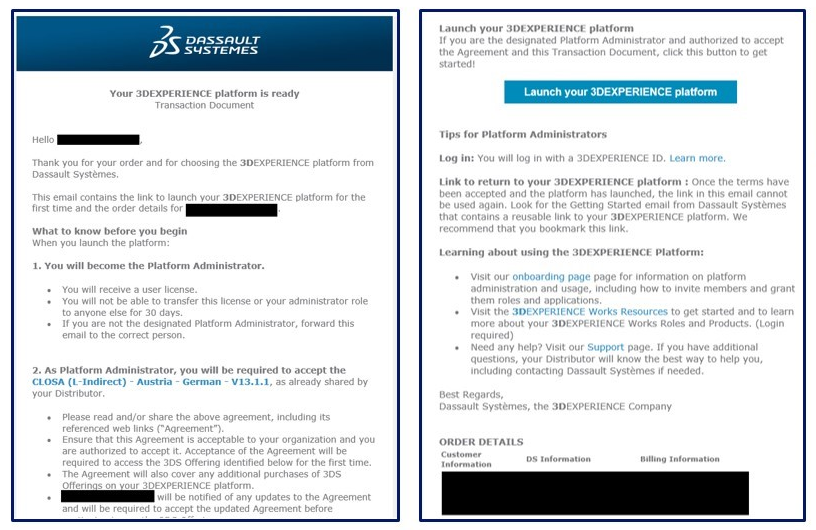
First, once your 3DEXPERIENCE tenant is activated, or you’ve been invited to an existing one , linking SOLIDWORKS desktop to the platform is quick and straightforward.
-
In the 3DEXPERIENCE interface, click the Compass icon in the upper-left corner.
-
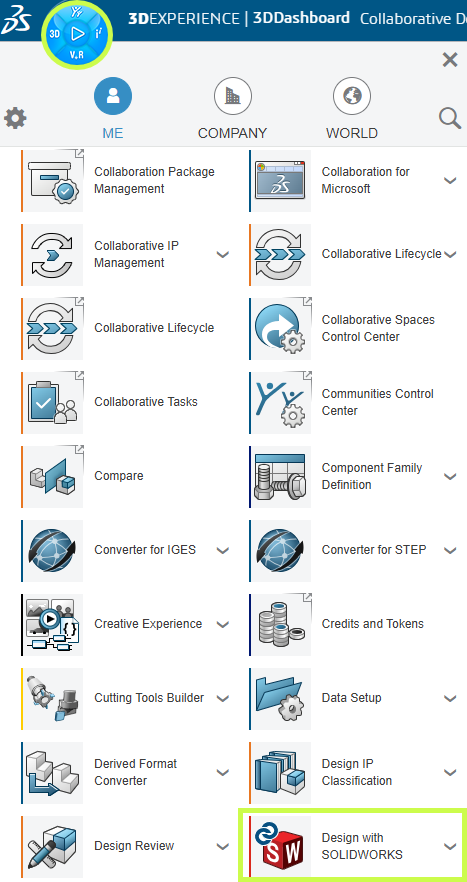
Scroll down to My Apps and locate Design with SOLIDWORKS.
-
Select the app to begin the installation.
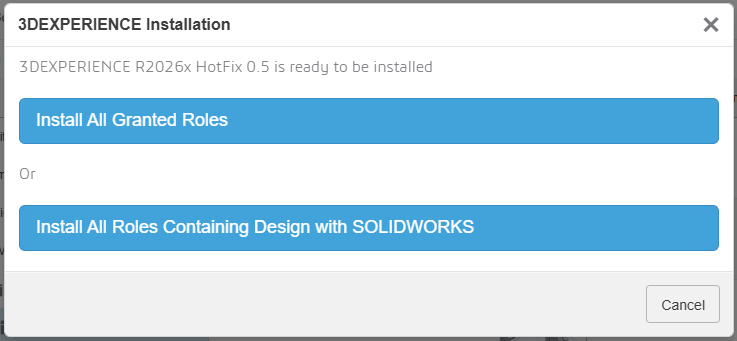
During installation, you’ll be prompted to:
-
Install all granted roles, or
-
Install only the roles required for the Design with SOLIDWORKS connector
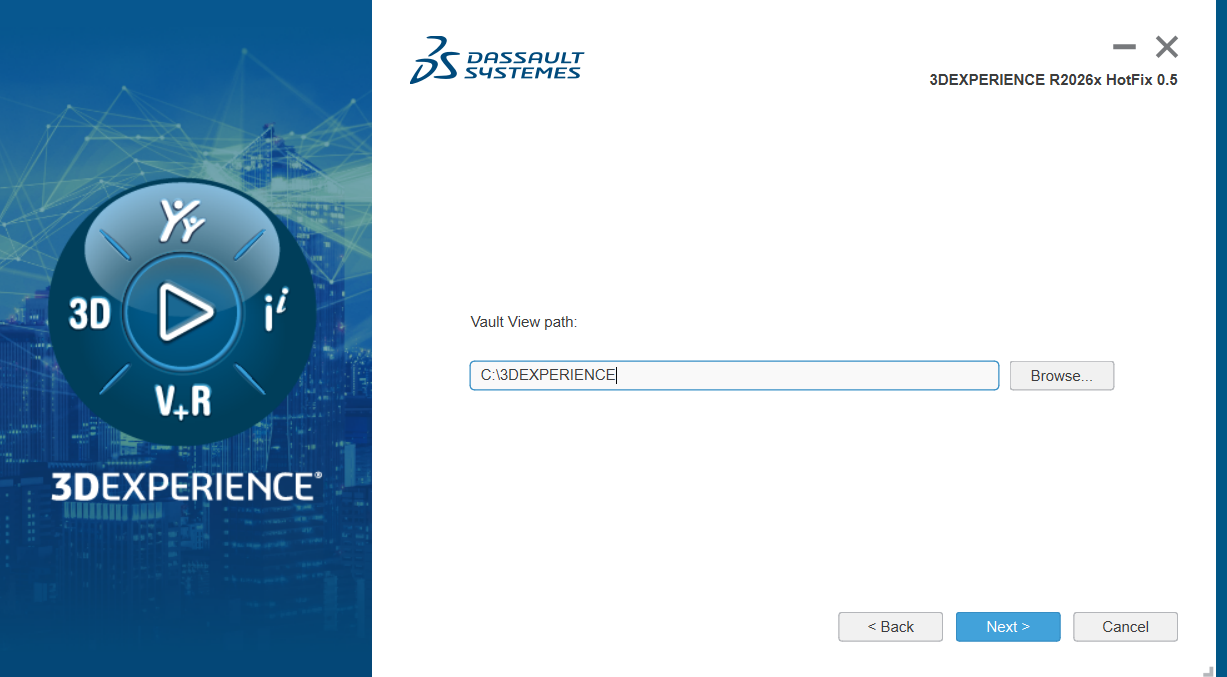
The installer will then allow you to choose:
-
The installation directory
-
The location of your 3DEXPERIENCE cache
By default, the cache is stored in C:\3DEXPERIENCE. Since the cache is managed directly from within SOLIDWORKS, you typically won’t need to access this folder manually.
Once installation is complete, the connector is added to your system.
Enabling the 3DEXPERIENCE Add-In in SOLIDWORKS
Before using the connector, take a moment to confirm the 3DEXPERIENCE add-in is enabled in SOLIDWORKS.
-
Launch SOLIDWORKS.
-
Go to Settings > Add-Ins.
-
Verify that the 3DEXPERIENCE add-in is installed and checked.
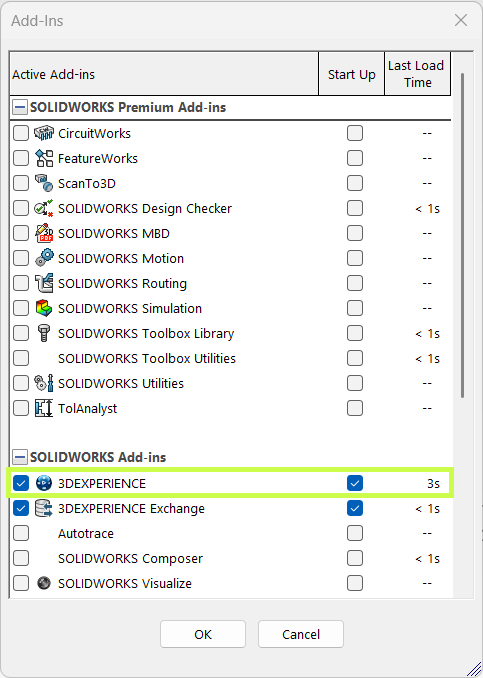
This ensures SOLIDWORKS can communicate properly with the platform.
Launching SOLIDWORKS with the Connector
One important workflow change to be aware of is how you launch SOLIDWORKS.
-
Launching SOLIDWORKS from a desktop shortcut or system search opens the standard desktop version without the 3DEXPERIENCE connection.
-
To use the connector, launch Design with SOLIDWORKS instead.
This starts SOLIDWORKS with full 3DEXPERIENCE functionality enabled.
You can also:
-
Use the dropdown next to Design with SOLIDWORKS to check for updates or uninstall
-
Create a dedicated desktop shortcut for Design with SOLIDWORKS, allowing you to access cloud functionality without opening a web browser

Saving Files to the 3DEXPERIENCE Platform
Once connected, saving files to the cloud is seamless.
You can:
-
Use Save to 3DEXPERIENCE from the File menu (alongside Save and Save As), or
-
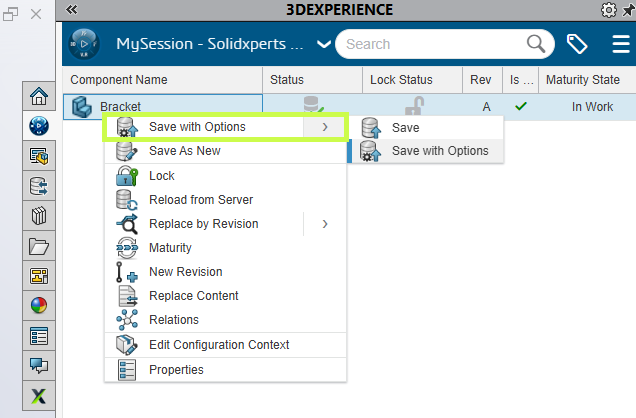
Use the 3DEXPERIENCE Task Pane, added by the add-in
The task pane lets you:
-
Browse your tenant
-
Search for existing data
-
Right-click and save files directly to the platform
And if needed, you can still save files locally, the connector doesn’t force you into a cloud-only workflow.
Managing the 3DEXPERIENCE Cache
When you open or edit files stored on the platform, they’re downloaded locally to your 3DEXPERIENCE cache. Keeping this cache clean can significantly improve performance.
The 3DEXPERIENCE add-in makes cache management easy:
-
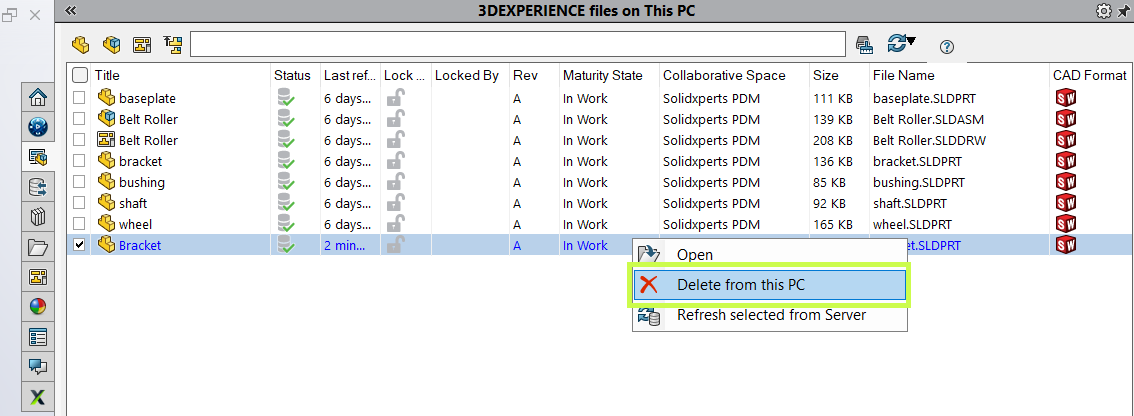
Delete individual cached files
-
Use the cleanup tool to remove files older than a specified date
The cleanup utility is smart. It automatically skips:
-
Files referenced by assemblies
-
Files not yet saved to the platform
-
Files that are currently locked
This helps you clear space without risking your data.
Final Thoughts
The Design with SOLIDWORKS connector bridges the gap between SOLIDWORKS desktop and the 3DEXPERIENCE platform, giving you the best of both worlds. You get cloud-based collaboration and data management without changing how you design.
If you need help installing the connector, optimizing your workflow, or rolling this out to your team, your Solidxperts team is here to help.
Looking to learn more?
-
Explore additional articles and tutorials
-
Connect with other users and experts
-
Or reach out to us! We’re always happy to help you get the most out of your tools