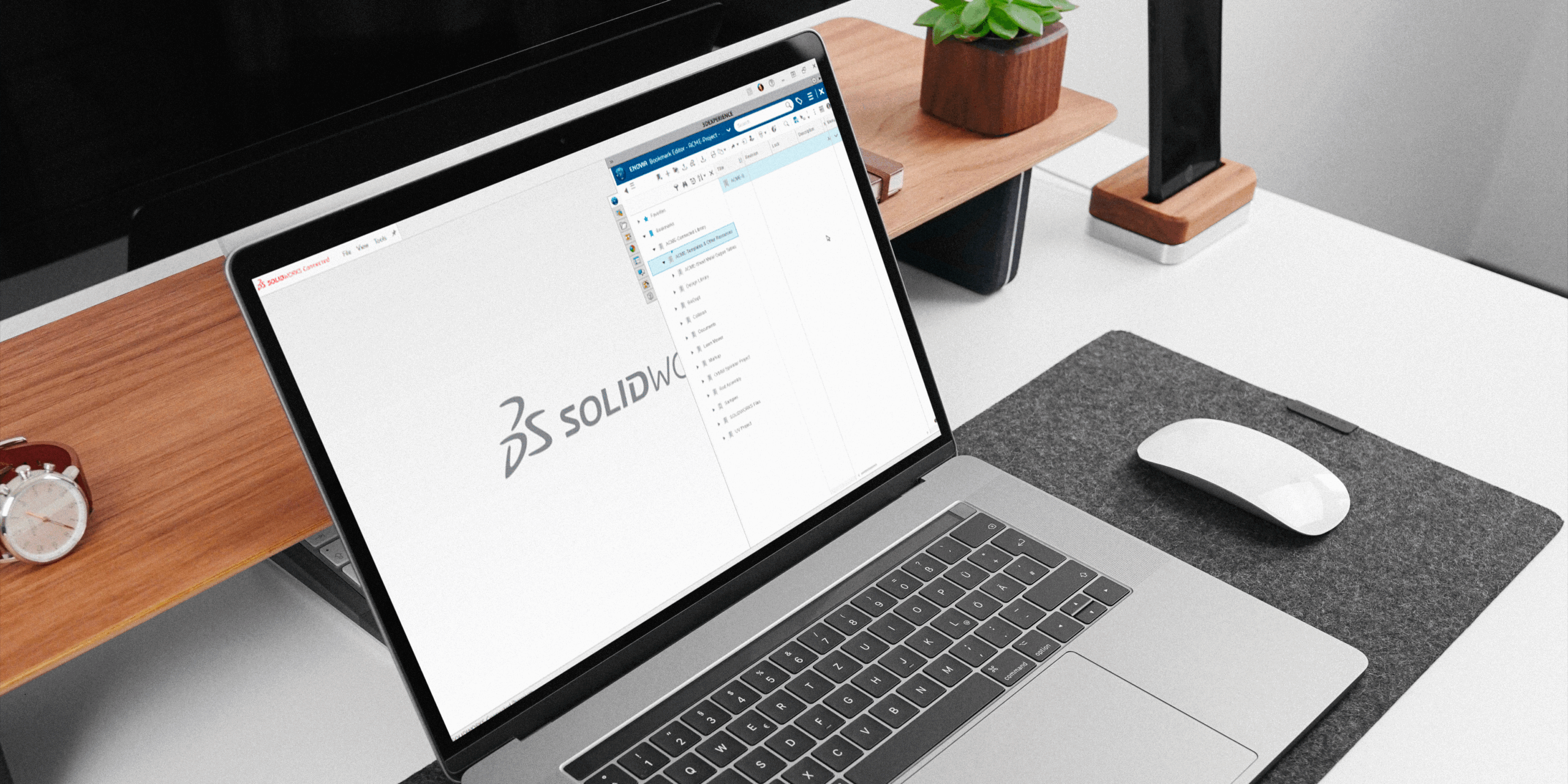
One of the biggest strengths of the 3DEXPERIENCE platform is how it brings your team together. With SOLIDWORKS Cloud Services, you get built-in data management, making it simple to collaborate with colleagues, keep projects organized, and even access your designs on the go.
Whether you’re working in SOLIDWORKS Connected or traditional SOLIDWORKS combined with Collaborative Designer for SOLIDWORKS, you have a direct link to the 3DEXPERIENCE platform, so opening, saving, and managing your model data feels seamless.
But here’s the thing: design work goes beyond just parts and assemblies. You also rely on libraries, weldment profiles, sheet metal gauge tables, templates, routing components, and more. Keeping those libraries in sync across your team is just as important as managing your models. And with 3DEXPERIENCE, you can centralize those libraries too.
Step 1: Create Your Library Structure
Start in the Bookmark Editor app (in your web browser). Create a clean folder structure for your templates and libraries, with subfolders for each type. Then, simply drag and drop your files into place.
This way, your team has one organized hub for all shared resources.
Step 2: Set Up Weldment Profiles
For weldments, it’s best to stick with a consistent naming convention: Standard → Type → Size.
We also recommend customizing your standard names to keep them separate from the defaults SOLIDWORKS provides. For example, you might create a standard called “Xperts – ANSI Inch”.
Once you’ve named things properly, drag your weldment profile files (or entire folders) from Windows File Explorer directly into your 3DEXPERIENCE bookmark. Quick, easy, and ready to use.
Step 3: Connect Libraries to SOLIDWORKS
Inside SOLIDWORKS, go to System Options → File Locations. When you add a new location, choose “Select from 3DEXPERIENCE”.
This links SOLIDWORKS to your bookmarks, syncing the content down to your local cache (usually found at C:\Users\Public\Documents\SOLIDWORKS). You’ll notice the linked locations show up in brackets, confirming they’re tied to the platform.
To make sure you’re always up to date, just click Update. SOLIDWORKS will pull the latest versions from 3DEXPERIENCE, keeping your whole team in sync.
Step 4: Keep Your Libraries Updated
Need to update a file? Head back into the Bookmark Editor in your browser, right-click the file, and select Update. Browse for the new version locally, and the platform will take care of the rest.
Once it’s updated in 3DEXPERIENCE, users just need to hit Update in their SOLIDWORKS options to refresh their local cache. Simple, controlled, and consistent.
Why This Matters
Storing your libraries and templates alongside your design data gives you the same benefits: revision control, lifecycle management, and a single source of truth for your team.
We focused on weldment profiles here, but the same approach works for routing components, sheet metal gauge tables, and more. With SOLIDWORKS Cloud Services + 3DEXPERIENCE, you’re not just managing files. You’re creating a smarter, more connected workflow for your entire team.
At Solidxperts, we love helping teams get the most out of their tools. Setting up your libraries in 3DEXPERIENCE is a small step that makes a big impact on collaboration, efficiency, and design quality.