At Dassault Systèmes, keeping your account secure is a top priority. That’s why two-factor authentication (2FA) is now required when you access the DSx Client system.
What does this mean for you? In short: an extra layer of protection for sensitive data like user information and serial numbers. It also means a quick setup process the first time you log in and after that, peace of mind knowing your account is more secure.
This guide will walk you through:
-
How to set up 2FA on your phone (most common method).
-
How to set up 2FA on your computer using KeePassXC if you prefer not to use a mobile device.
Option 1: Setting Up 2FA on Your Phone
1. Download an Authenticator App
If you don’t already have one, install an authenticator app such as Google Authenticator, Microsoft Authenticator, or Okta.

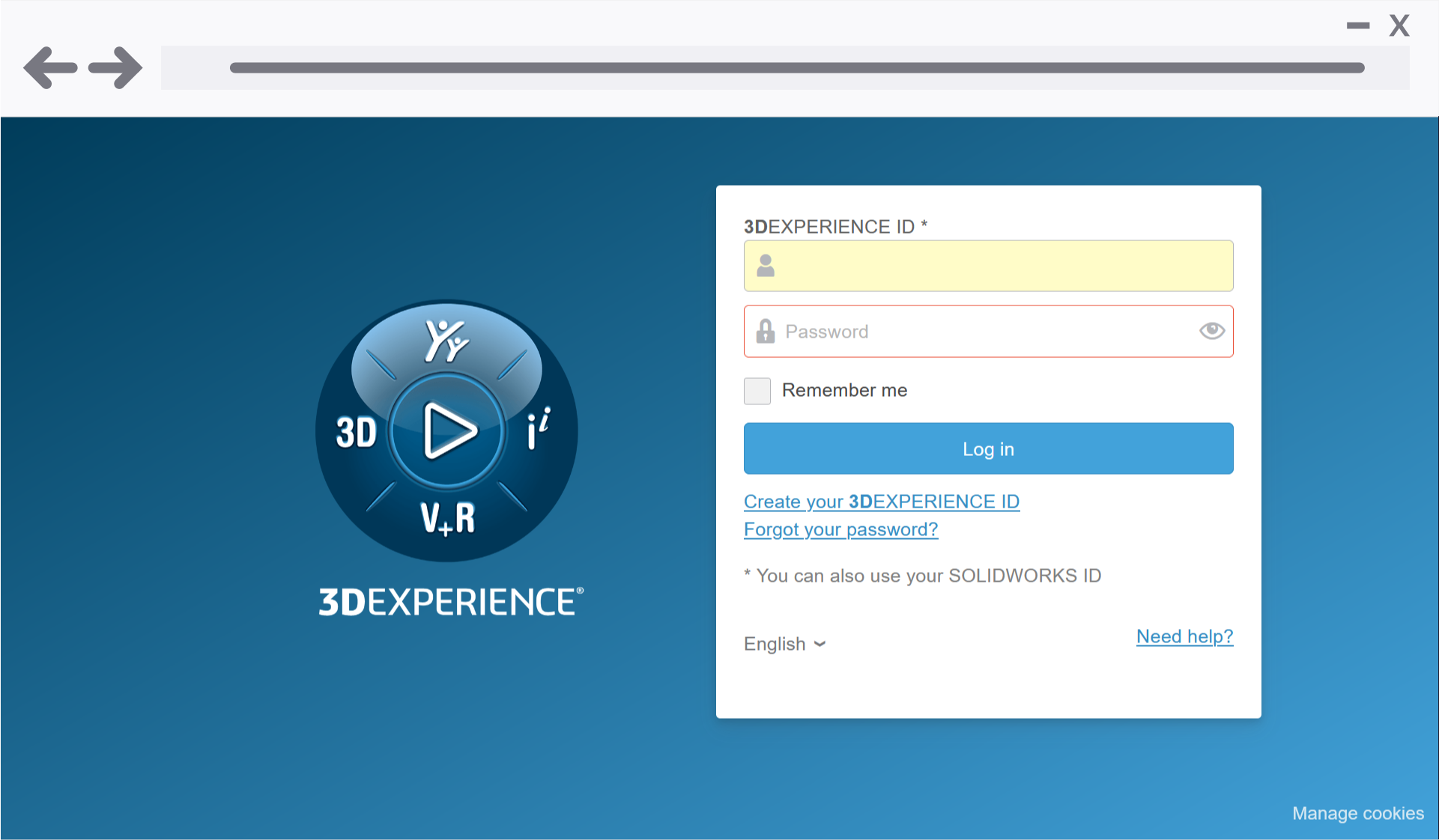
2. Log in to Your DS Account
Sign in with your DS username and password.

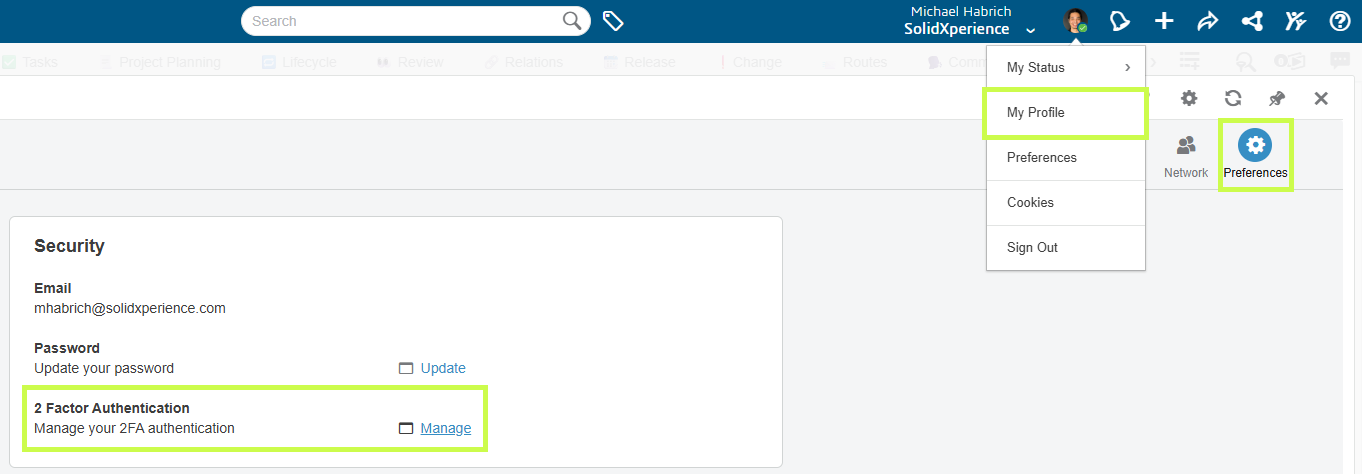
3. Open the 2FA Setup Wizard
From your account, click My Profile > 2-Factor Authentication.
4. Activate 2FA
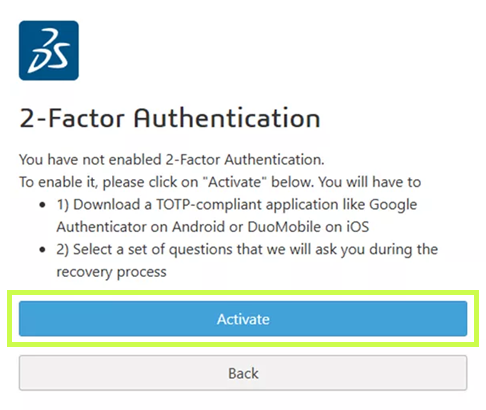
Select Activate to begin setup.
5. Set Recovery Options
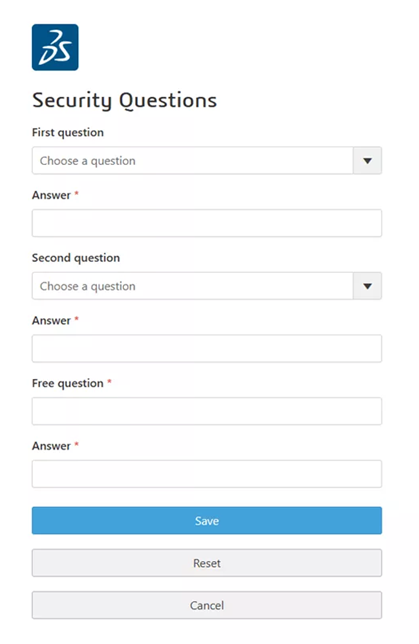
Answer the required security questions. These will be used if you ever lose access to your 2FA device.
6. Connect Your Authenticator
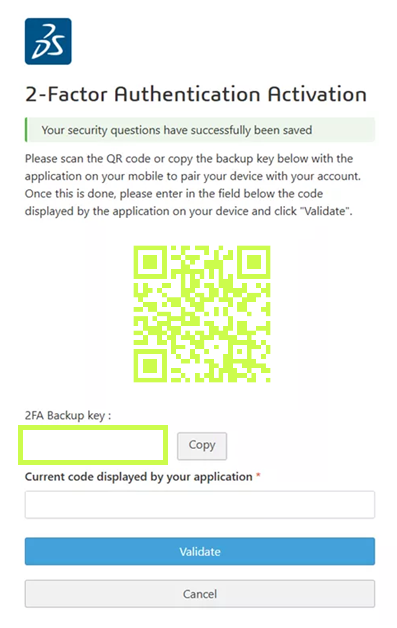
In your authenticator app, choose Scan a QR Code (or Enter a setup key if your phone has no camera). Scan the code provided by Dassault Systèmes.
7. Test and Confirm
Your authenticator will display a 6-digit code. Enter it into DSx Client to confirm setup. Once successful, you’ll see a confirmation window — 2FA is now enabled! 🎉
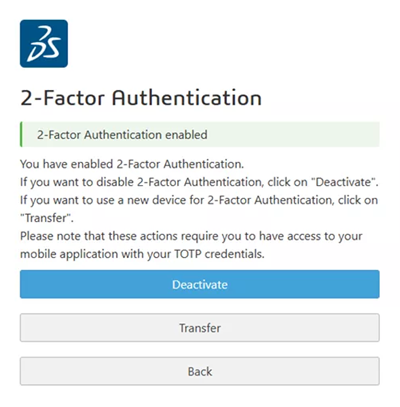
Going forward: Every time you log into DSx Client, you’ll be asked for a code from your authenticator app.
Option 2: Setting Up 2FA on Your Computer (KeePassXC)
Prefer not to use your phone? No problem. You can configure 2FA directly on your computer with KeePassXC, a secure, open-source password manager.
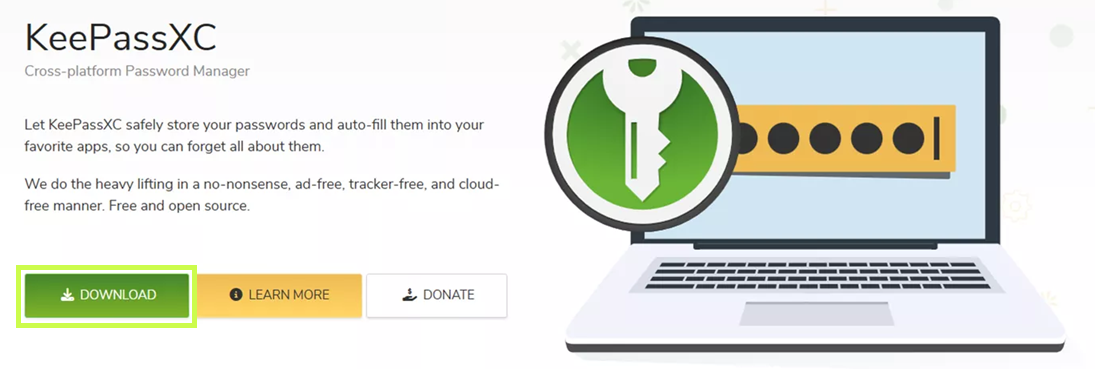
1. Download and Install KeePassXC
Available for Windows, macOS, and Linux at KeePassXC’s website. Default installation options work fine.
2.Create a Database
This is where your passwords and tokens are stored. Set a strong master password and keep it in a safe place.

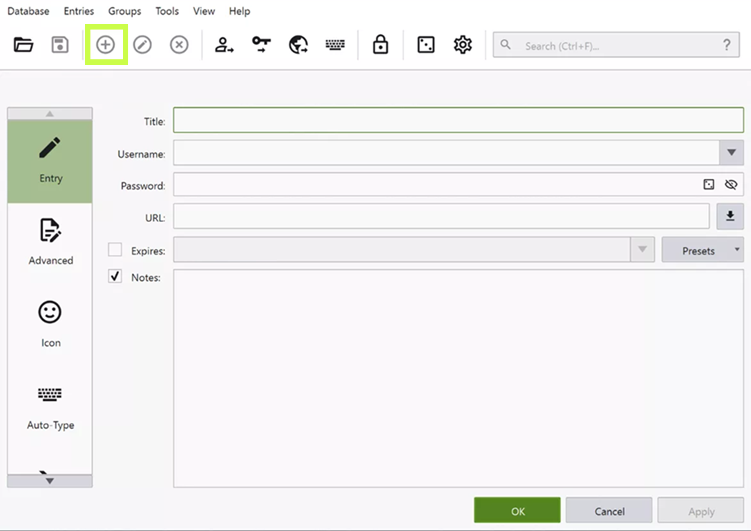
3.Add a DSx Client Entry
Create a new entry with:
- Title: DSx Client
- Username, Password
- URL:
https://dsxclient.3ds.com
4. Set Up the 2FA Key
Right-click your new entry > Setup TOTP. Enter the secret key provided in DSx Client (same as in the phone setup).
5. Test and Confirm
Click the clock icon next to your entry to generate a 6-digit code. Enter it in DSx Client. Once confirmed, your 2FA is ready to go.
Wrapping Up
That’s it! You’ve now secured your DSx Client account with two-factor authentication. Whether you chose to set it up on your phone or on your computer, you’re adding an important layer of protection to your Dassault Systèmes tools.
And remember, if you hit a bump along the way, the Solidxperts team is always here to help. Reach out to us, and we’ll make sure your account stays safe and your workflow stays smooth.