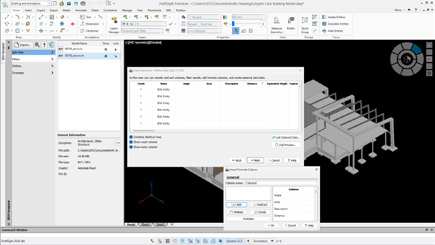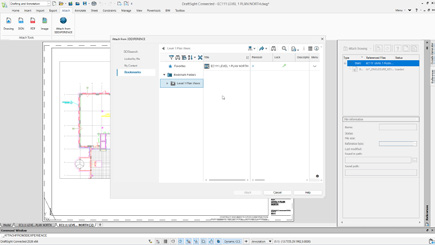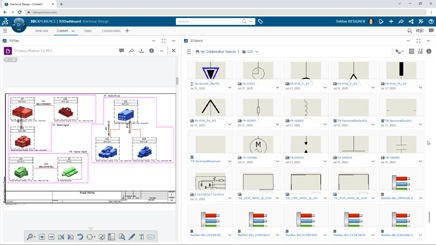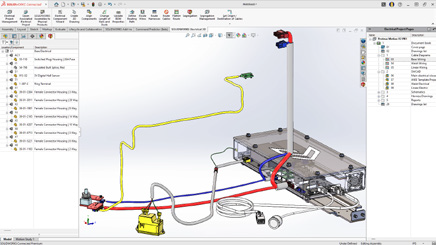
If you’re new to the 3DEXPERIENCE platform, you’ve probably run into questions about Collaborative Spaces such as how they work, how visible they are, and who gets access. You’re not alone! At first glance, visibility settings and permissions can feel a little tricky, but once you understand the basics, managing Collaborative Spaces becomes much simpler. Let’s break it down together.
What Exactly Is a Collaborative Space?
Think of a Collaborative Space as a secure vault for your data. It’s not just where files live. It’s also how you control who sees what, and who can do what, with your designs.
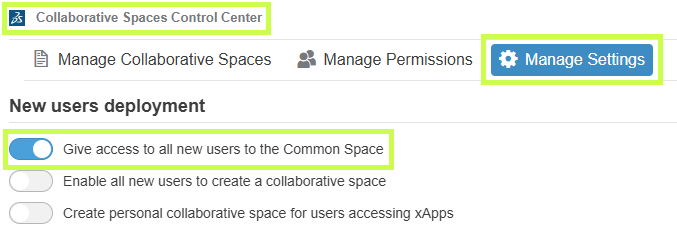
Every new platform starts with one by default: the Common Space. This is often used for templates or standard component libraries. Administrators can open it up or lock it down depending on the needs of the team.
Pro tip: You’ll likely create additional spaces as your projects grow, but resist the urge to treat them like folders. Collaborative Spaces are not meant for organizing data. They’re meant for controlling access and visibility.
For many companies, just two spaces (Common Space and Design Space) are enough. If you’re working across multiple divisions or sharing with external partners, you might need more.
Visibility: Who Sees What?
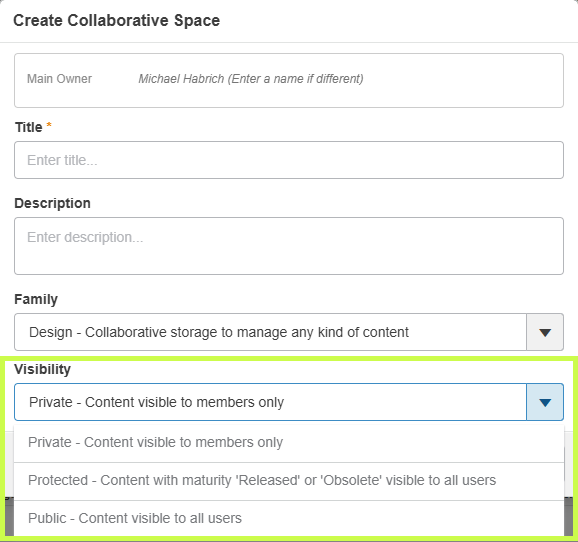
When creating a Collaborative Space, one of the first choices you’ll make is its visibility setting. Don’t worry, you can always adjust it later.
Here’s the quick rundown:
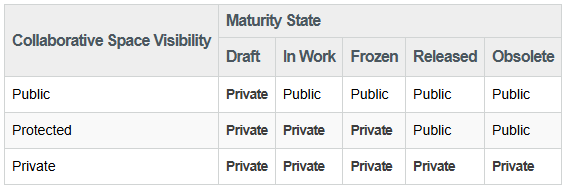
Private – Only members you invite can access the data. Perfect for sensitive projects or limited teams.
Protected – Data starts private, but once it’s released or obsolete, it becomes visible beyond the team. Great for controlling design maturity while keeping transparency later on.
Public – Everyone, inside and outside your organization, can see the data. Best for shared standards and libraries.
Important: If you switch a space to Public, everything inside it becomes public too. Combine visibility with maturity states to get the right balance of security and openness.
Permissions: Defining Roles in a Space
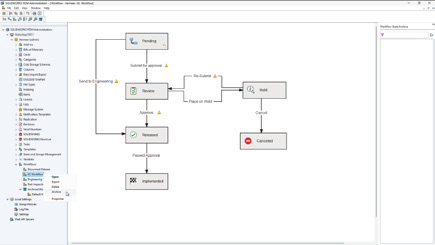
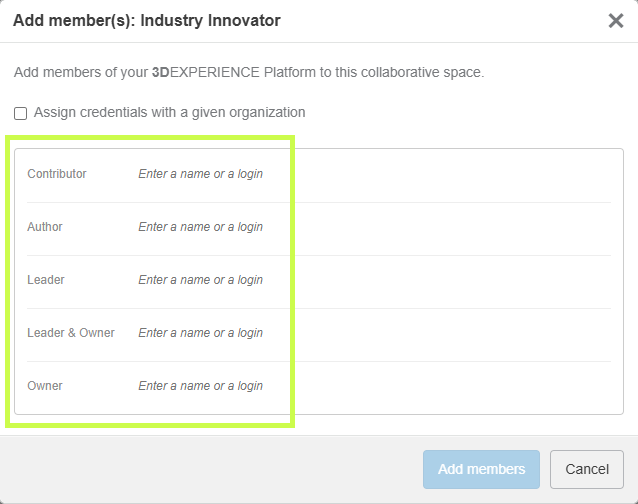
Once your Collaborative Space is ready, it’s time to decide who gets to do what. This is managed through permission levels, and each role builds on the one before it.
Here’s the spectrum, from least to most control:
Public Reader – Can only view shared data. A good role for contractors or suppliers (not depicted).
Reader – Can view data in public spaces and any private spaces they’re invited to (not depicted).
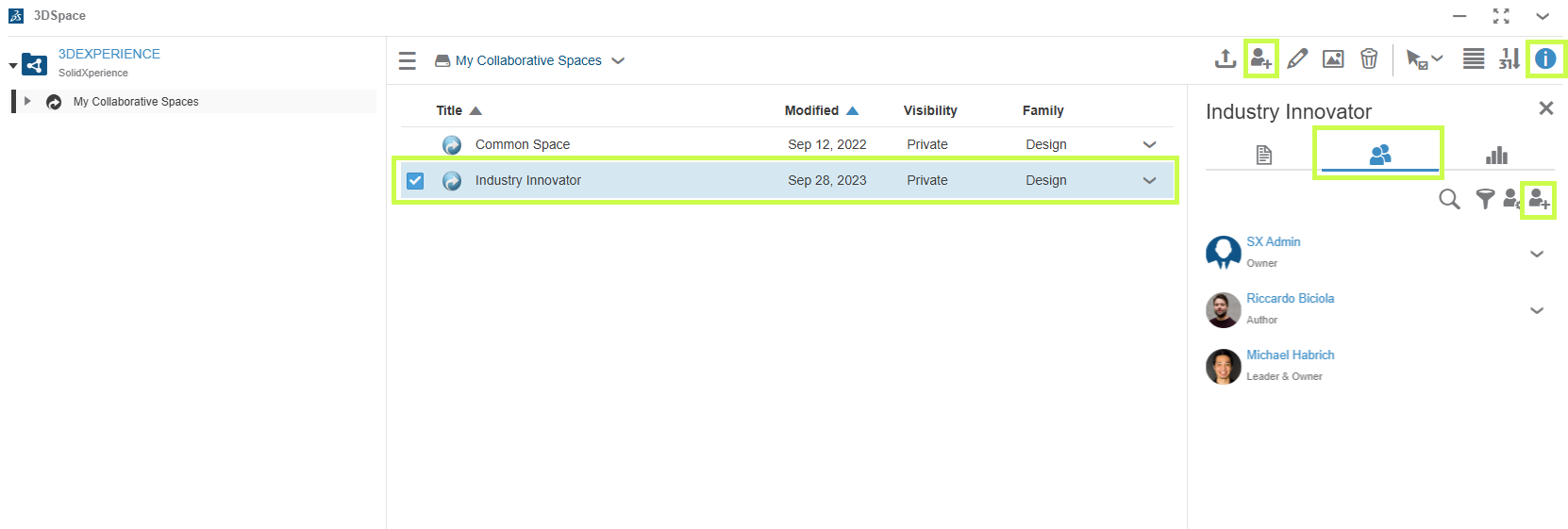
Contributor – Can add objects that complement data (comments, discussions), but can’t change core files.
Author – Can create and modify designs, but not release them.
Leader – Full control of content: can change maturity states, manage templates, and guide the team.
Owner – Administrative power. Can manage members, set permissions, and configure the space itself.
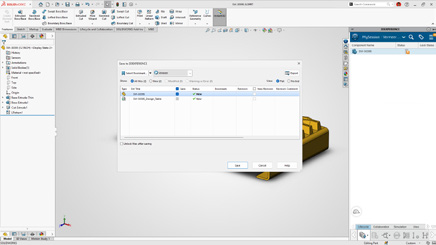
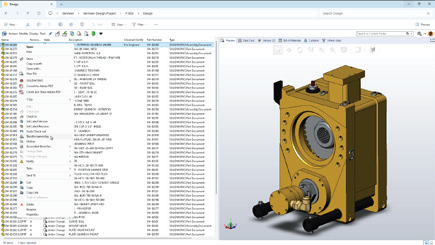
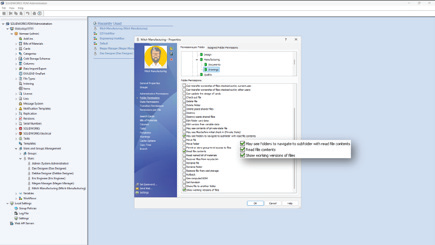
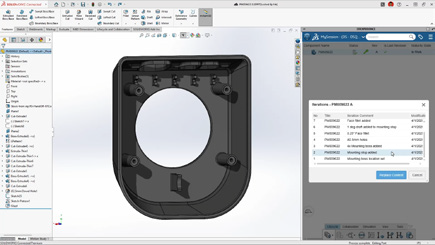
To check or adjust permissions, just open the 3DSpace app, select your Collaborative Space, and review the Members tab.
Bringing It All Together
Collaborative Spaces are at the heart of data management in 3DEXPERIENCE. By combining the right visibility settings with clear permission roles, you can keep your projects secure, your teams aligned, and your workflows smooth.
At Solidxperts, we know that these details can make the difference between confusion and confidence. If you’re ready to explore more, check out our other tips and tutorials or reach out to our team directly. We’re here to help you unlock the full potential of 3DEXPERIENCE.
Michael Habrich
3DEXPERIENCE Specialist
Any questions? Need help? Ask one of our experts.
Whether you’re ready to get started or just have a few more questions, you can contact us toll-free:
3D printing has already transformed industries like aerospace, automotive, and healthcare with rapid prototyping and on-demand production. But in the food and beverage industry, adoption has been much slower. Why? One key reason: the lack of certified food safe 3D printer filament.
That’s now changing. With new compliant materials available, manufacturers can finally use additive manufacturing to create safe, durable, and customizable parts for production environments without compromising food safety standards.
Why Food Safe 3D Printing Materials Are Critical
For food and beverage manufacturers, the real challenge isn’t just speed. It’s staying compliant while keeping production moving. Every component used on the line, from conveyor guides to packaging tools, is subject to strict hygiene standards. A non-certified material can introduce risks like contamination, regulatory fines, or costly recalls.
This is where food safe 3D printer filament becomes a game-changer. By using certified materials, teams can create replacement parts and custom tooling quickly without sacrificing compliance. Instead of waiting weeks for machined plastics or stainless steel components, manufacturers gain the flexibility of in-house printing while still meeting food-contact regulations. The result is less downtime, lower costs, and peace of mind that safety standards aren’t being compromised.
Where Food Safe 3D Filament Fits in Manufacturing
To understand how food safe 3D printer filament fits into the manufacturing process, it’s helpful to use the industry-standard “zone” concept:
Food safe 3D printer filament isn’t just about meeting regulations. It’s about keeping operations running smoothly across the entire production workflow. The biggest opportunities show up in three critical areas:
Upstream operations: Custom funnels, chutes, and forming tools help direct ingredients without risk of contamination.
In-line equipment: Conveyor guides, pushers, and diverters can be printed in-house to reduce downtime and adapt quickly to new product runs.
Downstream packaging: Non-marring brackets, clamps, and supports ensure products are packaged safely while minimizing damage and waste.
By viewing food safe filament through the lens of workflow impact, manufacturers can pinpoint where certified materials will have the greatest effect, reducing delays, cutting costs, and ensuring compliance at every stage of production.
Another way to think about it comes from Markforged’s blog on food safe 3D printing. They highlight that it isn’t just about where the part is used, but also about how it performs under factory conditions, resisting heat, moisture, and repeated sanitation cycles. In other words, compliance is only the first step; durability and cleanability are just as important when evaluating materials for food-contact environments.
Food safe filament is most transformative in Zones 1 and 2. In these areas, compliance with certifications like NSF/ANSI Standard 51 and FDA CFR Title 21 is often a requirement, not a recommendation.
Buyer’s Guide: What to Look for in a Certified Food Safe Filament
Choosing the right material isn’t just about grabbing the first “FDA approved” filament you find. There are key considerations every manufacturer should keep in mind:
Check the actual certification: Not all “food safe” claims are equal. Look for NSF/ANSI 51, FDA CFR Title 21, or EC 1935/2004 compliance.
Understand limitations: Some filaments are certified for certain food types only (for example, excluding alcohol contact).
Consider surface finish: Even certified materials can fail audits if the printed part has a rough surface that traps contaminants.
Think long-term durability: The filament should withstand repeated washdowns, high humidity, and daily wear.
Match material to your workflow: Does your team have post-processing capabilities like sanding or vapor smoothing? If not, pick a filament that prints with naturally smoother finishes.
A smart buying decision combines compliance with practicality. The “best” food safe filament is one that not only meets regulations but also fits seamlessly into your team’s printing, cleaning, and production processes.
How Manufacturers Apply Food Safe 3D Printer Filament
With the right material, food manufacturers can confidently print parts such as:
Conveyor pushers, diverters, and guides
Funnels and chutes for packaged goods
Robotic end-of-arm tooling
Non-marring clamps, brackets, and supports
The value lies in customization. Teams can design parts for unique product lines, adjust them on the fly, and replace them in-house without long lead times.
Choosing and Comparing Food Safe 3D Printing Materials
Material
Food-Safe Certified?
Pros
Cons
PLA
Sometimes
Easy to print, biodegradable
Weak and heat-sensitive
PETG
Often (FDA grades)
Good chemical resistance, stronger than PLA
Needs post-processing
Standard Nylon
Rarely
Strong and durable
Usually not certified
Nylon White FS
Yes
Certified, smooth, durable, industrial-grade
Not approved for alcohol contact
Source: Adapted from Markforged’s blog on food safe 3D printer filament
Among these, Nylon White FS stands out as one of the only industrial-grade certified food safe filaments suitable for factory conditions.
Best Practices for Food-Ready 3D Printed Parts
To make sure 3D printed parts are truly food ready, manufacturers need to go beyond just choosing a certified food safe 3D printer filament. Design plays a major role in compliance: parts should feature smooth, sloped surfaces that are easy to clean, while avoiding tight crevices where food particles can collect. Post-processing steps such as sanding or vapor smoothing further reduce surface roughness and improve cleanability. It’s also best practice to dedicate specific printers, nozzles, and build surfaces exclusively for food-contact parts to prevent cross-contamination. Finally, every part must be integrated into validated cleaning and sanitation workflows, ensuring consistent performance in demanding food and beverage environments.
Conclusion: The Strategic Advantage of Food Safe 3D Printing
Food and beverage manufacturers have always faced a difficult balance: strict compliance on one hand, and the need for speed and flexibility on the other. Traditional materials like stainless steel or machined plastics ensured safety, but they slowed innovation and raised costs.
Certified food safe 3D printer filament offers a way forward. It allows teams to reduce downtime with rapid part replacement, keep costs under control by printing in-house, and adapt quickly to new product launches without compromising hygiene.
More importantly, it shifts additive manufacturing from being a prototyping tool to becoming a trusted part of regulated production environments. This means greater agility, faster problem-solving, and the confidence that every printed part aligns with food-contact safety standards.
In short, food safe filament is more than just a material. It’s a competitive edge for manufacturers ready to modernize their operations and lead the future of food production.
Ready to see how certified food safe 3D printing materials could transform your production line? Start exploring your options today by contacting our experts.
Any questions? Need help? Ask one of our experts.
Whether you’re ready to get started or just have a few more questions, you can contact us toll-free:
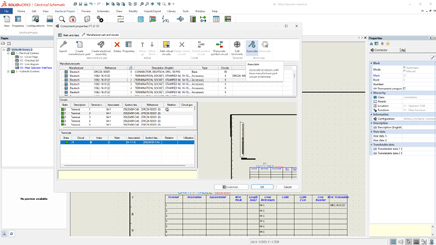
SOLIDWORKS is the gold standard for 3D CAD. Yet, when used in many industries, including mechanical engineering and product design. However, as a timber design software, it has certain limitations in terms of 3D timber modelling and timber production optimisation. As a result, when it comes to wood design and manufacturing, these limitations can make the process less efficient and more error prone. Therefore, to address this challenge, this is where SWOOD, a supplement specially designed for cabinetry, carpentry, interior design, and even the current trend VanLife! comes into play. This solution brings features specific to the wood trade that perfectly complement SOLIDWORKS, facilitating the transition from design to production.
In this article, we’ll explore in detail why SWOOD is a strategic choice for optimizing your wood designs in SOLIDWORKS, highlighting its benefits, features, and impact on the productivity and profitability of companies in the industry.
SOLIDWORKS: A Powerful but Generalist Foundation
SOLIDWORKS is widely recognized for its flexibility in mechanical and industrial design. Key strengths include:
An intuitive, parametric 3D environment facilitating the design of complex parts and assemblies
Moreover, extensive integration with analysis and simulation tools (material strength, airflow, kinematics, etc.)
In addition, advanced management of assemblies and drawings for production
Finally, a rich ecosystem of plugins and third-party solutions to extend its capabilities according to the user’s needs
However, SOLIDWORKS remains a general-purpose software. In the context of wood design, several limitations are felt:
Firstly, lack of native management of panels and wood-based materials (MDF, laminate, plywood, etc.)
Secondly, complexity of creating specific connections (grooves, mortise and tenons, lamellos, etc.)
Another limitation is the lack of bookcases suitable for hardware components commonly used in layout and millwork
Finally, the need to develop macros or scripts to automate certain recurring tasks. Consequently, it is in this context that SWOOD brings considerable added value.
SWOOD: Ideal complement for wood design
SWOOD is a set of modules developed specifically for the wood sector, offering a complete solution tailored to the needs of carpenters and furniture manufacturers. Unlike other generalist software, SWOOD stands out for its dedicated approach, integrating a wood CAD plugin that automates the design and assembly of panels, hardware and specific machining. Through woodworking automation, SWOOD helps significantly reduce errors, optimize material usage, and speed up the transition from design to manufacturing, making the process smoother, more cost-effective, and designed to integrate seamlessly with SOLIDWORKS. In other words, it offers dedicated tools that simplify the design and production of wooden furniture, fixtures and structures.
The main modules of SWOOD
SWOOD Design
Advanced panel management, with automated creation of cutouts and assemblies
Smart libraries of hardware and standard elements (hinges, slides, fasteners, etc.)
Generation of detailed bills of materials to optimize purchasing and production
Automation of wood assemblies and constraints
SWOOD CAM
Machining module for generating CNC programs adapted to machines in the woodworking sector
Automatic recognition of drilling and machining
Machining simulation to detect possible errors before production
Support for 3, 4 and 5 axis machines
SWOOD Nesting
Optimization of the placement of parts on the panels to limit falls and reduce costs
Advanced management of formats and machining priorities
Management of facades and grouping of items by blank slabs
SWOOD Center
Product configurator for the wood industry
SWOOD Center is an advanced solution for configuring tailor-made products in the world of wood and fittings. Integrated with SOLIDWORKS, this configurator optimizes process design, production, and automation.
Why choose SWOOD Center?
Advanced customization
Parametric configuration of furniture and layouts
Managing product variants and options
Dynamic visualization of changes
Workflow automation
Automatic generation of production files (drawings, bills of materials, CNC programs)
Integration with SWOOD Design and SWOOD CAM
Material optimization and error reduction
Time saving and efficiency
Reduced design time
Simplifying processes for technical and business teams
Improved responsiveness to customer requests
An ideal solution for manufacturers and fitters
Thanks to SWOOD Center, wood professionals can standardize their designs while offering tailor-made solutions to their customers. This configurator is particularly suitable for carpenters, fitters, kitchen designers and furniture manufacturers who want to modernize their design and manufacturing process.
By integrating SWOOD Center into your workflow, you can accelerate your product time-to-market while ensuring a reliable and accurate design.
The Benefits of an Integrated SOLIDWORKS + SWOOD Solution
By combining both solutions, using SOLIDWORKS and SWOOD together provides many benefits, including:
Time saving: Automation of repetitive tasks such as inserting fasteners, managing panels and exporting files for production
Reduction of errors: Consideration of the specificities of the wood from the design stage, thus limiting corrections during the manufacturing phase
Full shop floor compatibility: Ability to generate CNC files that can be used directly by machine tools
Cost optimization: Less scrap, better management of raw materials and reduction of production times
Improved collaboration: Easier integration with other departments in the company, including production and purchasing teams
Altogether, these advantages allow manufacturers to gain in competitiveness while guaranteeing optimal quality to their customers.
With SWOOD, companies can streamline their design processes, reduce human error, and maximize shop floor efficiency. As a result, manufacturers can confidently move from design to production.
SWOOD Testimonial: Reviews and Case Studies
For instance, many carpentry and layout companies have successfully adopted SWOOD. Here is a concrete example:
A concrete example is Groupe Beaubois which faced the challenge of improving the efficiency of its project and streamlining its operations. To achieve this, he needed to embrace technological advancements and integrate automation and robotization into his factory. However, he quickly realized that his design software played a vital role in facilitating the flow of information on his equipment. That’s when he discovered the SWOOD solution, which was specially designed for the wood industry.
Text: Groupe Beaubois boosts efficiency and growth thanks to SWOOD
Return on investment and development prospects
From a business perspective, investing in SWOOD represents an initial cost that is quickly amortized thanks to productivity gains. Here are a few things to consider:
Learning time: Quick training is often enough to master the basics of the software
Material savings: Better cutting management and reduced errors
Valuation of internal skills: Designers gain autonomy and efficiency
In the future, the integration of SWOOD with technologies like artificial intelligence and 3D printing could further improve the performance of the industry.
From Design to Production Without Limits
In conclusion, if your processes are disconnected and your work seems to be in silos! Whether you’re switching from one solution to another to get your production up and running, the SOLIDWORKS + SWOOD combination is a powerful, comprehensive solution that’s perfect for you. It helps optimize design, improve accuracy, and increase efficiency, while reducing costs and errors. By integrating SWOOD into your workflow, you ensure better control of your production and increased competitiveness in the market.
Therefore, if you’d like to learn more about SWOOD and its integration with SOLIDWORKS, request a demo of SWOOD for wood design today and learn how to optimize your woodworking and layout projects! Contact us or request a demo today!
The structural steel industry is undergoing a rapid transformation, driven by software innovations that simplify the work of engineers, designers, and manufacturers. One of the key drivers of this transformation is the automation of fabrication through standardized file formats, chief among them the DSTV format (Deutscher Stahlbau-Verband), which has become a standard in the industry.
The DSTV module of SolidSteel, integrated within the SOLIDWORKS environment, enables the automatic generation of DSTV files directly from 3D models. This process streamlines the fabrication of steel components, improves precision, reduces human error, and shortens production timelines. Provided by Solidxperts with personalized training and support, this solution becomes a strategic asset for any company involved in designing and fabricating steel structures.
In this blog post, we’ll explore the added value of the SolidSteel DSTV module, its seamless integration with SOLIDWORKS and other platforms, and the training and consulting services offered by Solidxperts, your trusted partner in digital transformation.
1. What Is the DSTV Format and Why Is It Essential?
The DSTV format (.nc) was developed by the German Steel Construction Association to enable machine tools, particularly CNC machines, to directly read fabrication data for steel parts. It is a text-based file containing all machining instructions: drilling, cutting, beveling, notching, etc.
Why is DSTV crucial in modern steel fabrication?
Standardization: It’s globally recognized and compatible with most CNC equipment.
Precision: Eliminates manual conversion or transcription errors.
Time Savings: Generates production-ready files directly from 3D models.
Traceability: Facilitates better process management and quality control.
This is where SolidSteel’s DSTV module comes in, unlocking the full power of the DSTV format within the world’s most widely used 3D CAD environment, SOLIDWORKS.
2. Added Value of the SolidSteel DSTV Module
SolidSteel is a powerful parametric modeling solution for steel structures, fully embedded in SOLIDWORKS. Its DSTV module offers a seamless bridge from design to manufacturing.
Key benefits include:
a. Automated Fabrication Workflow
The module automatically generates (.nc) files for every profiled part, complete with cutting, drilling, and marking data. Eliminating the need for manual exports or third-party converters.
b. Increased Accuracy
By using the 3D model as the single source of truth for production data, the risk of errors is greatly minimized. Every detail is derived from the master model, ensuring perfect alignment between design and production.
c. Time and Cost Efficiency
Reducing manual tasks and interpretation errors saves valuable time per project, minimizes on-site modifications, and cuts down on costly rework.
d. Compatibility with Various CNC Machines
The DSTV files generated by SolidSteel work with nearly all CNC machines in steel fabrication, including Peddinghaus, Ficep, Voortman, Kaltenbach, and others.
e. Smooth Workflow Integration
Users can generate DSTV files without ever leaving the SOLIDWORKS interface, making it easy for designers unfamiliar with CNC programming to contribute to production seamlessly.
3. Integration with SolidSteel DSVT Module and Other Software
The SolidSteel DSTV module operates natively within SOLIDWORKS, offering a smooth experience for engineers and designers. Here’s how it integrates and connects with other tools:
a. SOLIDWORKS: A Robust Foundation
SolidSteel is fully embedded into SOLIDWORKS, leveraging its familiar interface, parametric modeling tools, and design engine. Key features include:
A consistent and intuitive user interface
Direct use of dimensioning and drawing tools
Support for international profile standards (DIN, ASTM, etc.)
Full compatibility with assemblies, configurations, and BOMs
b. Direct DSTV File Generation from SOLIDWORKS
DSTV files can be automatically created for each steel profile directly from the 3D model. Users can adjust export settings, including naming conventions, tolerances, and drilling formats.
c. Interoperability with Other Software
Although optimized for SOLIDWORKS, the exported DSTV files are universal. Companies can integrate them into ERP, MES, simulation, or external CNC programming tools. They also work with BIM platforms, supporting cross-disciplinary collaboration (concrete, electrical, MEP, etc.).
d. Customization and Extensions
The DSTV module can be enhanced with additional tools such as:
ERP/MRP Integration: Sync with production planning systems
PDM Compatibility: Version control and file management
Structural Analysis Add-ons: Connect with tools like RSTAB or Autodesk Robot for material strength calculations
4. Training and Support by Solidxperts
Adopting such a high-performance solution requires tailored training and strategic guidance. This is where Solidxperts stands out.
a. Customized Training Programs
Solidxperts offers training that’s adapted to your industry (structural steel, industrial, infrastructure, etc.) and your team’s level of expertise in SOLIDWORKS. Training covers:
Getting started with SolidSteel
Using the DSTV module
Setting up CNC-specific export parameters
Best practices to ensure design-to-fabrication consistency
Training sessions are available on-site, online, or in-person.
b. Dedicated Technical Support
Solidxperts’ team includes certified trainers and experienced application engineers who provide responsive technical support and guidance on advanced features.
c. Webinars and Learning Resources
Beyond traditional training, Solidxperts regularly offers webinars, video tutorials, technical articles, and Q&A sessions to help your team stay current and deepen their expertise.
d. Implementation and Strategic Consulting
Solidxperts also helps companies integrate the DSTV module strategically into their workflow, including:
Analyzing current processes
Configuring software to meet specific needs
Creating customized templates and part libraries
Integrating with workshop CNC machines
What Could SolidSteel DSTV Unlock for Your Projects?
The SolidSteel DSTV module is far more than a CNC file generator. It’s a strategic tool that connects digital design with real-world production efficiently and accurately. Integrated into SOLIDWORKS, it empowers engineers to streamline their workflows, reduce errors, and meet modern project demands in steel construction.
With Solidxperts’ expertise and support, companies can quickly deploy this solution, train their teams, and digitally transform their production lines, staying competitive in a rapidly evolving market.
Want to learn more or schedule a live demo? Contact Solidxperts today and discover how the SolidSteel DSTV module can revolutionize the way you design and fabricate steel structures.
Any questions? Need help? Ask one of our experts.
Whether you’re ready to get started or just have a few more questions, you can contact us toll-free:
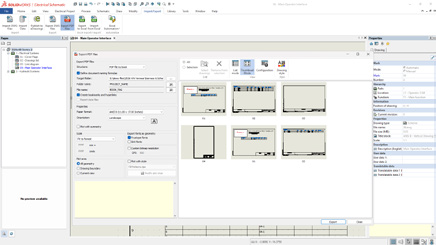
In the field of industrial design and steel construction, efficiency, precision, and seamless integration of design tools are key success factors. Industry professionals face technical, economic, and time-related challenges that require high-performance software solutions. SolidSteel for SOLIDWORKS stands out as a parametric 3D modeling solution dedicated to steel construction within SOLIDWORKS. This innovative tool allows engineers and designers to save valuable time while meeting industry standards and optimizing the design process from initial sketches to fabrication.
Target Market for SolidSteel for SOLIDWORKS
SolidSteel for SOLIDWORKS is primarily aimed at engineering firms, civil engineers, steel fabricators, manufacturers of steel structures, and any company specializing in steel construction. It is especially useful for businesses that work on complex structural projects such as industrial walkways, frames, or structures for specialized machinery. Its deep integration with SOLIDWORKS makes it a natural choice for users already familiar with this widely adopted CAD platform in the industrial sector.
This product is also ideal for manufacturing companies equipped with CNC production workshops, as data export in the DSTV format facilitates the transition from digital design to physical fabrication. The target market is therefore broad, ranging from SMEs to large international companies in construction, energy, transportation, or heavy manufacturing industries.
Added Value and Problems Solved with SolidSteel
While designing steel structures in SOLIDWORKS is possible, it can quickly become tedious and time-consuming using only standard tools. SolidSteel for SOLIDWORKS fills this gap by providing features specifically tailored to steel construction:
Automatic generation of standard profiles according to DIN, EN, ASTM, and other norms
Automated connections (welds, bolts, base plates, etc.)
Calculation and management of cuts, notches, and complex angles
Fast creation of fabrication drawings and part lists
Integration of manufacturing and assembly constraints at the design stage
Libraries of standard components to save time on repetitive projects
Generation of complex assemblies with interference management
Thanks to these features, SolidSteel for SOLIDWORKS eliminates human errors, shortens design timelines, and improves the overall quality of metal structure projects. It also enables companies to be more competitive by allowing them to respond quickly to tenders with accurate designs, automated quotes, and realistic planning.
Seamless Integration into SOLIDWORKS
One of the major strengths of SolidSteel for SOLIDWORKS is its native integration within the SOLIDWORKS interface. Unlike external software solutions, SolidSteel functions as a natural extension of the engineer’s daily work environment. Users benefit from a consistent ergonomic experience without needing to learn new software or change their existing workflow.
With bidirectional integration with other SOLIDWORKS modules, users can combine SolidSteel for SOLIDWORKS with structural simulation (SOLIDWORKS Simulation), stress analysis, or technical documentation generation (SOLIDWORKS Composer), thus enhancing efficiency and precision throughout the entire process.
This integration also allows users to leverage all the powerful features of SOLIDWORKS (assemblies, configurations, drawings, simulation, etc.) while adding specialized tools for steel design. This synergy ensures a smooth workflow from design to production.
Competitive Advantages of SolidSteel
SolidSteel for SOLIDWORKS offers several advantages that set it apart from the competition:
Intuitive interface tailored to SOLIDWORKS users
Advanced customization of connection templates
Fast modeling with intelligent placement tools
Compatibility with international standards
Automated documentation and traceability features
Scalable solution based on client needs
These benefits help companies standardize their design processes while maintaining the flexibility needed to meet specific project requirements. SolidSteel for SOLIDWORKS is therefore a strategic tool for digital transformation in the steel industry.
Training Offered by Solidxperts on SolidSteel for SOLIDWORKS
To help professionals get the most out of SolidSteel for SOLIDWORKS, Solidxperts—an expert SOLIDWORKS solutions partner—offers a comprehensive range of training programs tailored to various needs. These training sessions cover the different SolidSteel modules:
SolidSteel Parametric for accurate and parametric 3D design of complex steel structures
SolidSteel Frame for rapid creation of steel frames and structures
SolidSteel Manufacturing for fabrication preparation, including production drawings and assembly management
Training includes:
Hands-on sessions with each module in the SOLIDWORKS environment
Best practices for modeling steel structures
Creation of smart and customizable connections
Automatic generation of drawings and BOMs
Production process optimization
Export to DSTV format for automated machining of profiles in the workshop (crucial for interoperability with CNC production lines in the steel construction industry)
Automation of technical documentation and bill of materials
Solidxperts offers flexible training formats: online, in-person, onsite at the client’s location, or at their own facilities. In addition, personalized post-training support is provided to ensure proper integration of SolidSteel for SOLIDWORKS into the team’s daily operations. Advanced workshops can also be arranged on topics such as connection optimization, BIM export, or project revision management.
Use Cases and Customer Feedback on SolidSteel for SOLIDWORKS
Several companies that have adopted SolidSteel for SOLIDWORKS report significant gains in productivity and quality. For example, a steel construction firm reduced its complex structure design time by 40% thanks to automatic connection and drawing generation. Another company integrated DSTV files directly into its CNC machines, eliminating intermediate reprogramming steps.
These success stories highlight the tangible impact SolidSteel for SOLIDWORKS has on project profitability. It’s not just a design assistant. It’s a true catalyst for efficiency and innovation.
The Future of Steel Design with SolidSteel for SOLIDWORKS
SolidSteel for SOLIDWORKS is much more than just a plugin: it’s a comprehensive solution that transforms how steel structures are designed, documented, and manufactured. With its seamless integration, powerful tools, and specialized training offered by Solidxperts, professionals gain a strategic edge in both efficiency and quality.
By combining technical performance, industry compatibility, and human support, SolidSteel for SOLIDWORKS empowers companies of all sizes to advance their digital transformation. For any business looking to streamline steel design while relying on the reliability of SOLIDWORKS, SolidSteel is the obvious choice.
Whether you’re an engineer, drafter, project manager, or workshop supervisor, SolidSteel for SOLIDWORKS helps you tackle the challenges of modern steel construction with precision, speed, and confidence.
Ready to take your steel design process to the next level? Contact Solidxperts today to learn how SolidSteel for SOLIDWORKS can transform your projects.
Any questions? Need help? Ask one of our experts.
Whether you’re ready to get started or just have a few more questions, you can contact us toll-free:
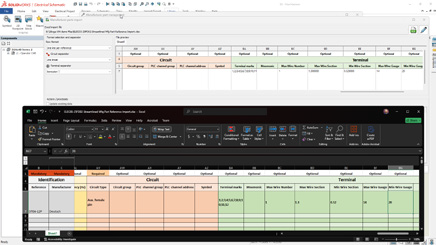
We are pleased to announce the upcoming arrival of the updated version of SWOOD 2025 solutions, eagerly awaited by professionals working with wood, both in cabinets, architectural cabinetry, and any type of layout. In fact, the new SOLIDWORKS, SWOOD innovations are attracting lots of interest.
Moreover, the updated version, which will be available soon, includes several notable improvements to the SWOOD software suite. Here is a summary of the main advances, structured around the three pillars of the new SWOOD 2025 products.
This is an overview of what’s new. Contact us for more details, as each new feature can have several aspects.
The 3 Pillars of SWOOD 2025
Design
Manufacturing
Automation
Pillar 1: Design
Panel Cutting Improvements
Panel cutting was introduced with SWOOD 2024 and has undergone some improvements this year. For example, improvements around the user experience by adding for example a help button, it is now possible to pin the function and therefore to chain the different cuts. Finally, the highlighting of interference has been added.
Edge Banding Length Feature
From the Edge Library or, from the Edge function, in the Design Tree, you will have the choice to set an over-field length. This overlength is going to be mostly used in the report or the total length in the report. As a result, you will have a reliable estimate.
Easy Customization of SWOODBox
Thanks to the library installer you have access to links too! For example, hinges, inserting default settings allows you to quickly create SWOODBox! Therefore, you can save them to your SWOODBox library and quickly reuse them.
Improved User Experience
Right-clicking allows you to collapse folder contents, reducing the number of clicks and making navigation faster and more intuitive. This also eliminates the need for endless scrolling when searching for the right folder.
Additionally, to further streamline navigation and enhance your overall experience, you can also make use of filters.
Performance Improvements
Significant enhancements have been made across multiple areas. PDM now handles copy operations more efficiently, while deletion states in SWOODBox have been optimized for smoother workflows. Texture and appearance management has also been improved, ensuring greater consistency. Finally, reporting has been streamlined for faster, more reliable results.
Order Manager Improvements
Similarly, the order managers, so SWOOD design and SWOOD Cam. What was done was to bring the SWOOD design and SWOOD Cam tools directly into these managers. This makes them more manageable and can even be reset to default if needed.
Library Installer Updates
The next Library installer that will arrive so there are about new features once a month, an update once every 2 weeks with new hardware and new elements. Furthermore, speaking of new elements, well, let’s move on to the SWOOD 2025 improvements.
Liaisons were something that was missing. And now? Well, we will have the possibility to download links from the free installer.
In addition, another new feature is that the elements that you are going to download are going to be blocked, but if you want to modify them, you will just need to duplicate them, copy them and then you can modify them according to your needs.
Panel Manager Enhancements
In particular, the panel manager is a tool developed a little over five years ago, with a first version released in 2020. Its main purpose is to add SWOOD data to existing CAD files, whether they are models designed only with SOLIDWORKS (especially before the introduction of SWOOD), multibody parts exported to assemblies or files imported in STEP format. The workflows and features of this tool have been fine-tuned to allow the manufacture of models that were not originally created with SWOOD.
New Conditional Filter Tool in SWOOD 2025!
These conditional filters will be found a little bit everywhere in the software. This will simply allow us to start from a list. Well, to set of, variables, parameters to filter a list.
Most importantly, the advantage is that these filters are intelligent so that they can be found in a library of materials or fields, for example.
Pillar 2: Manufacturing
CAM Copy Tool
Its accessibility has been simplified. We will find it directly from the Command manager so we will have easy access to it.
We will find 2 modes, the mode, the first mode is the copy mode or from the source strategy, we will be able to take this strategy, define either an assembly, a part or even a folder! to stick this strategy to the selections.
On the other hand, the second mode will allow us to duplicate from a nesting file to be able to duplicate them to a new post processor and so, for example, if we have several CNCs and Well, we will be able to duplicate all these elements, all these nesting sheets to a new machine.
Input and Output Machining Speed
The management of machining inputs and outputs will define how the tool will enter the material, we will be able to define a specific speed to avoid splinters and have a better rendering, for example. These are often parameters that are not necessarily available, so here we will have the possibility to do it directly with SWOOD cam and encode it on the machine.
3D Finishing Enhancements
In concrete terms, this is how it works: on this part, a new 3D finish is defined by selecting the relevant surfaces. Then, all the necessary options are chosen, for example by specifying that the tool should be positioned horizontally and then adjusting the appropriate angle. It is not possible in some cases to access certain areas. However, with the new undercut option, it becomes possible to treat these parts, along with a release option to ensure the safety of tool outlets. Simulation of the toolpath allows you to visualize these steps, and this feature opens up more possibilities for the manufacture of complex parts.
Nesting Improvements with the Auto Flip Detection
From a 3D file, SWOOD automatically detects parts that require flipping. Users can change this list if needed. When recalculating based on set parameters such as offset, flip direction, or reference corner, SWOOD finds which sheets have parts requiring reversal. This reduces unnecessary flips by grouping compatible parts on the same sheet.
SWOOD 2025 introduces the new Nesting from CSV
Let’s continue with the nesting feature that allows you to import data from a CSV file. Remember that the system report offers the possibility of exporting lists in CSV format. By simply specifying the file path and the desired quantity for one or more projects, we can export this CSV and then import it into the nesting module; it is possible to work with one or more CSV files. This flow automatically redefines the sources and their quantities, whether it’s an assembly or a part. A simple recalculation then allows the best nesting result to be obtained quickly. As a result, the transition from design to manufacturing is just a few clicks away, easing more correct production management without the need to manually search for the right files.
New Tilt Types in SWOOD 2025!
Five additional tilt angle configurations are now supported for more refined tool orientation control during 3D operations.
Pillar 3: Automation
General System Report Enhancements
Data Export: Data export has been improved with SWR format stabilization, a standalone viewer, and lighter data files that can now be created in just milliseconds. In addition, cutting patterns and board estimations have been refined for greater accuracy.
System Report: The new standard data export allows you to export all project data with multiple levels of detail (parts, panels, materials, hardware, programs, etc.). A project report history is also available for easy tracking.
Customize Data Views: You can now hide or show data levels, filter data views, display columns, export table views to CSV, and choose your preferred print layouts and much more.
Customize Views: Enhanced customization options make navigation easier: you can open documents directly from folder access, group data by variables, and add a calculation line (sum, count, average, min, max, etc.). In addition, you can now save your settings by creating profiles.
New SWOOD 2025 Data Sharing Method
This updated version offers a multitude of features, mainly focused on data sharing and collaboration within the company. It offers precise access management, whether online or offline.
About automation, significant improvements have been made to the system report. It is now possible to easily share all data and documents, without having to install more software, simply via a link accessible to the entire organization.
It’s Now Your Turn to Discover the Power of SWOOD 2025
SWOOD 2025 represents a major leap forward in woodworking design, manufacturing, and automation. The new features and enhancements covered here are only a glimpse of what the latest version has to offer. Indeed, whether you are optimizing your workflows, improving accuracy, or streamlining collaboration, SWOOD 2025 provides powerful tools to help you achieve more.
To fully explore how SWOOD 2025 can transform your projects, contact us today for personalized guidance and demonstrations.
When we talk about digital transformation in manufacturing, we often picture smart factories, IoT, robotics, or even artificial intelligence. Yet, there’s a critical, and sometimes underestimated, stage that initiates this transformation: the digital design of products using CAD software for manufacturing. This is precisely where SOLIDWORKS comes in.
Developed by Dassault Systèmes, SOLIDWORKS has long been a key player in the world of Computer-Aided Design (CAD). But today, its role extends well beyond drafting and modeling. As powerful CAD software for manufacturing, SOLIDWORKS sits at the core of the digital manufacturing chain, acting as a bridge between creativity and production, and integrating with data management, simulation, process automation, and enterprise systems.
At Solidxpets, we help businesses implement these technologies across their operations. With the hands-on support of our experts, you can count on real-world guidance for deploying the full SOLIDWORKS portfolio.
From 3D Modeling to the Shop Floor: A Seamless Transition with CAD Software for Manufacturing
While 3D modeling is already a step toward digitization, it becomes far more powerful when integrated with the rest of the production workflow. That’s why a fully connected digital chain, from design to delivery, is so vital.
With the 3DEXPERIENCE® Works platform, SOLIDWORKS becomes more than a design tool. It is a collaborative hub that connects departments, suppliers, customers, and even machines. As CAD software for manufacturing, it ensures your designs flow seamlessly into production.
This connectivity leads to:
Shorter lead times
Improved decision traceability
Clearer interdepartmental communication
Enhanced agility
Smart 3D Modeling and Integrated Simulation in CAD Software for Manufacturing
SOLIDWORKS provides robust parametric 3D modeling tools, enabling precise control over parts, assemblies, and configurations. These models can be easily reused, modified, and scaled.
The real game-changer is simulation. With SOLIDWORKS Simulation, a core component of CAD software for manufacturing, engineers can:
Test structural integrity under load
Predict deformation and failure
Analyze fluid dynamics and airflow
Evaluate thermal performance
All of this happens before manufacturing begins, drastically reducing prototypes, costly rework, and delays.
Connected, Flexible Manufacturing Tools Powered by CAD Software for Manufacturing
The 3DEXPERIENCE® Works portfolio includes purpose-built tools for the factory floor:
Shop Floor Programmer: Allows CNC programmers to create and simulate 2.5- and 3-axis toolpaths, generate wire EDM operations, and detect potential collisions during production.
Robot Programmer: Enables fast and easy programming, simulation, and deployment of robotic routines without disrupting current production lines.
Factory Simulation Engineer: Simulates plant layouts and production flow using 2D, 3D, or point cloud environments, helping optimize floor space and logistics.
Together, these tools form a closed-loop ecosystem between design and manufacturing, ensuring continuous feedback and real-time synchronization.
Collaboration and File Management: A Strategic Necessity in CAD Software for Manufacturing
In manufacturing, engineering data is a strategic asset. Managing this data becomes increasingly complex with more iterations, collaborators, and file versions.
With SOLIDWORKS PDM and the 3DEXPERIENCE platform, both integral to modern CAD software for manufacturing, companies can:
Centralize all product data
Control revisions and user access
Collaborate securely via the cloud
Track every design change, comment, and approval
This level of traceability is essential, especially in highly regulated industries like aerospace, medical devices, or defense.
ERP Integration with CAD Software for Manufacturing: Real-Time Data Flow Across the Business
Enterprise Resource Planning (ERP) systems are at the heart of business decision-making. Yet in many organizations, CAD remains disconnected from the main information system.
Integrating SOLIDWORKS CAD software for manufacturing with ERP software like SAP, Oracle, or Microsoft Dynamics allows for:
Automatic transfer of Bill of Materials (BOMs)
Real-time work order generation
Cost estimation based on materials and machine time
Elimination of redundant data entry
This creates a direct link between design and operations, boosting organizational responsiveness and reducing costly delays.
At Solidxperts, we offer proven connectors and services for integrating SOLIDWORKS with leading ERP systems so your business runs smoother from day one.
Cloud Solutions for Distributed Teams Using CAD Software for Manufacturing
As remote and hybrid work models become standard, secure and flexible cloud access to CAD data is more critical than ever.
The 3DEXPERIENCE platform provides centralized, cloud-based project spaces with:
Anytime, anywhere access to design files
Real-time collaboration
Browser-based viewing and markup
Built-in security and automatic backups
For teams using CAD software for manufacturing, this means faster decision-making, improved communication, and a single source of truth for every stakeholder.
Automating Business Processes with CAD Software for Manufacturing
Beyond CAD, the 3DEXPERIENCE platform empowers users to digitize business workflows such as design validation, quality approvals, and production launches.
With low-code and no-code tools, you can:
Build simple, intuitive apps for non-technical staff
Automate approval workflows
Eliminate repetitive manual tasks
By embedding automation into CAD software for manufacturing, companies can save time, reduce errors, and accelerate product launches.
People Matter: Training and Expert Support for CAD Software for Manufacturing
A digital manufacturing chain is only as strong as the people behind it. Even the most powerful tools are ineffective without proper training and adoption.
In-depth audits to identify process improvement opportunities
Bilingual technical support based in North America
Pilot projects to support change management
The best CAD software for manufacturing is only as good as its users, and the right training ensures you get maximum value from your investment.
Conclusion: The Role of SOLIDWORKS CAD Software for Manufacturing in the Digital Manufacturing Chain
SOLIDWORKS is far more than a design tool. It is a foundational element in the digital manufacturing chain, enabling companies to innovate, streamline production, and stay competitive in an evolving market. By connecting SOLIDWORKS CAD software for manufacturing with the 3DEXPERIENCE® Works platform, businesses gain access to simulation, cloud collaboration, manufacturing tools, and process automation, all within one agile, integrated ecosystem. This strategic integration empowers organizations to work smarter, adapt faster, and achieve long-term success in the era of Industry 4.0.
At Solidxperts, we believe this transition must be strategic, personalized, and scalable. In other words, tailored to your company’s unique reality. Ready to take the next step? Contact our experts.
Product development is rarely a straight line. Between concept sketches, CAD assemblies, design reviews, revisions, and final release, there’s a maze of decisions, data, and documentation. SOLIDWORKS PDM brings order to that chaos. In this article, we’ll explore how SOLIDWORKS PDM adds value at every stage of the product lifecycle, helping engineering teams stay focused, stakeholders stay informed, and projects move forward with confidence.
Why Product Development Needs More Than Just Great Design
Designing a product is only one piece of the puzzle. Successful product development also requires coordination, traceability, secure data management, and seamless collaboration across departments. That’s where SOLIDWORKS PDM (Product Data Management) steps in.
Whether you’re an engineer managing daily file revisions, a project manager tracking progress, or a stakeholder waiting for final approvals, PDM acts as the connective tissue that ties all your efforts together. Let’s walk through how SOLIDWORKS PDM supports each phase of the journey from idea to delivery.
Concept Phase: Organizing Early-Stage Ideas with SOLIDWORKS PDM
Centralized Storage for Early Concepts
At the beginning of any project, ideas are fluid. With SOLIDWORKS PDM , even preliminary sketches, reference documents, and brainstorming files are stored securely and version-controlled from day one.
Use vaults to avoid scattered folders across multiple drives
Control access so only core team members see early-stage content
Automatically track file history as changes begin
Real-World Use Case: We often see R&D teams using PDM to store benchmarking reports, scanned sketches, and market research under one controlled folder structure. This avoids knowledge silos and keeps pre-CAD work accessible.
Enabling Early Collaboration Using SOLIDWORKS PDM
Concept development often includes external stakeholders: clients, sales teams, or suppliers. SOLIDWORKS PDM supports this with secure sharing options and predefined roles. Engineers can share read-only previews or exported PDFs while keeping the master files untouched.
This kind of early collaboration leads to better-aligned goals and fewer surprises down the road.
Managing CAD Revisions and Team Collaboration with SOLIDWORKS PDM
Revision Control Done Right
As designs evolve, keeping track of the latest version becomes mission-critical. PDM ensures that everyone, designers, engineers, and manufacturing, is always working from the most current file.
Check-in/check-out avoids overwriting others’ work
Revision tables update automatically in drawing templates
Historical versions are retained for easy rollback
Whether you’re modifying parts, updating assemblies, or reconfiguring sub-components, SOLIDWORKS PDM keeps a record of every change. This ensures accountability and simplifies audit trails.
Facilitating Collaboration Across Teams with SOLIDWORKS PDM
With built-in workflows and notifications, SOLIDWORKS PDM keeps communication flowing.
Notify stakeholders when parts are ready for review
Route files for approvals or changes
Attach related documents like PDFs, specs, and images to CAD data
Streamlining Design Reviews
Reviews and feedback loops can make or break a timeline. SOLIDWORKS PDM allows teams to initiate automated review cycles with defined timelines, roles, and actions. You can:
Add comments and instructions to automated notifications
Set reminders for overdue approvals
Maintain a history of who approved what, and when
Release Phase: Streamlining Sign-Offs and Approvals
Automated Workflows
Say goodbye to emailing PDFs and Excel trackers. PDM automates the release process with custom workflows:
Set conditions for approvals based on role or department
Lock released files to prevent unintentional edits
This eliminates common issues like duplicate files, miscommunication, or errors due to outdated versions. It also ensures engineering time is spent on design, not chasing down signatures.
Cross-Department Access
Need marketing to grab a STEP file or QA to access the BOM? With the right permissions, they can do so directly from the PDM vault without bothering engineering.
Role-based access reduces bottlenecks
Files can be exported in neutral formats as part of release workflows
Compliance and Quality Assurance
In regulated industries or ISO-certified environments, compliance isn’t optional. SOLIDWORKS PDM ensures:
Secure file storage with backup and disaster recovery options
Searchable metadata for faster retrieval of compliance documentation
Delivery and Beyond: Supporting Manufacturing, Maintenance, and More
Manufacturing and Assembly with SOLIDWORKS PDM
Released data in PDM can be pushed to ERP systems, ensuring that manufacturing always has the latest files.
Reduce shop floor confusion with version-controlled documentation
Link parts lists and work instructions directly to CAD files
Some companies even deploy PDM workstations on the production floor, where machinists or assembly techs can search, view, and print relevant drawings or specs without waiting on engineering.
Change Management After Release
Post-release changes are inevitable, whether it’s design improvements, customer feedback, or field failure fixes. SOLIDWORKS PDM simplifies this by integrating change request workflows and version comparison tools.
Reuse legacy designs by copying existing projects
Compare part revisions visually to highlight differences
Keep traceable links between change requests and CAD revisions
Long-Term Product Support
PDM isn’t just for initial design. Years later, service teams may need access to product specs or previous revisions.
Retrieve any version of a file, even from a decade ago
Store test results, certifications, and compliance docs securely
Smarter Data, Stronger Products: The Long-term Value of SOLIDWORKS PDM
SOLIDWORKS PDM helps you do more than just manage files. It improves collaboration, reduces errors, accelerates timelines, and ensures that data supports your product long after it’s left the drawing board.
No matter what stage you’re at in your product development process, from napkin sketch to market launch and beyond, SOLIDWORKS PDM ensures that your data works for you, not the other way around.
From concept to creation, from design to delivery, SOLIDWORKS PDM is more than a storage tool. It’s your partner in building better products, smarter workflows, and stronger teams.
Curious how SOLIDWORKS PDM could streamline your team’s product development workflow? Get in touch with a Solidxperts specialist to schedule a demo or consultation tailored to your business needs.
In today’s increasingly demanding industrial design environment, the consistency and quality of CAD files have become critical. Meeting internal standards, drawing conventions, and client specifications is a constant challenge for design teams, especially when multiple engineers collaborate on the same project. This is where SOLIDWORKS Design Checker steps in.
Although often overlooked or underused, this built-in SOLIDWORKS tool allows you to automatically verify that your models comply with predefined design criteria. From dimensioning standards and font usage in annotations to document properties and applied materials, Design Checker delivers a robust quality control process directly within your design workflow.
What is SOLIDWORKS Design Checker?
SOLIDWORKS Design Checker is an add-in module that evaluates whether a part, assembly, or drawing adheres to a set of standardized rules. These rules can be based on your company’s internal procedures, ISO/ANSI standards, or specific client requirements.
The tool functions like an automated reviewer, eliminating repetitive human errors and oversights. It provides a clear report highlighting non-compliant items and offers suggestions for correction.
Key Features of Design Checker
One of the strengths of Design Checker lies in its modularity. You can create Check Files tailored to specific projects, clients, or corporate standards. Here are the main design elements you can verify:
Dimensioning Standards Ensure that dimension styles (fonts, tolerances, units) conform to ISO, DIN, ASME, or your internal standards.
Text Fonts Verify that all annotations, dimension texts, and title blocks follow the required font, size, or alignment.
Applied Materials Confirm that a valid material from your internal library is applied and avoid models with undefined materials.
Sketches and Entities Analyze sketches to detect open contours, dangling dimensions, or missing geometric relations.
Document Properties Check for the presence and values of custom properties like part number, project name, author, or creation date.
Drawing Styles Validate the use of standardized title blocks, sheet formats, and line styles in your technical drawings.
Common Use Cases
Company-Wide Standardization Within design teams, Design Checker ensures all files follow the same structure, making reviews, reuse, and archiving far easier.
Supplier File Validation When receiving external CAD files from vendors or subcontractors, you can apply your own rules to verify compliance before integration.
Manufacturing Preparation Before sending files to the shop floor or outsourcing partners, Design Checker ensures drawings are complete, properly dimensioned, and readable.
Certification Readiness In industries like aerospace or medical devices, strict documentation standards apply. Design Checker helps enforce these requirements consistently.
How to Use SOLIDWORKS Design Checker
The tool operates on a simple logic: define the rules, then apply them to your documents.
Step 1: Activate the Add-in Go to Tools > Add-Ins, then check Design Checker to enable it.
Step 2: Create a Check File Using the Check File Editor, define the rules to be checked—such as units, fonts, properties, etc. These are saved in a .swstd file.
Step 3: Apply to a Document In the Design Checker tab, load the appropriate .swstd file and launch the analysis. The tool will highlight any deviations and may offer automatic corrections.
Step 4: Review the Report Design Checker generates a detailed report, enabling you to either manually adjust issues or apply one-click corrections where possible.
Benefits for Design Teams
Time Savings
No need for manual verification, errors are detected in seconds.
Error Reduction
Common issues (missing properties, incorrect fonts, etc.) are caught automatically.
Greater Reliability
Your files are ready for production, certification, or sharing, with guaranteed quality.
Improved Collaboration
Standardized files are easier to hand off between colleagues, vendors, or clients.
Stronger Process Control
Formalizing checks improves the technical credibility and professionalism of your organization.
Limitations and Best Practices
While powerful, Design Checker requires a bit of setup:
Creating rules requires thoughtful definition of internal standards.
Rules must be kept up to date to remain relevant.
The tool works best in structured environments with clearly defined design practices.
However, once these steps are in place, Design Checker becomes a powerful asset in your CAD toolkit.
Wrapping Up: The Value of Design Checker
SOLIDWORKS Design Checker is more than just a verification utility; it’s a built-in quality assurance system for your CAD models. By incorporating it into your workflow, you ensure that every design meets your standards, is ready for production, and free of preventable errors.
The Solidxperts team is here to help you get the most out of SOLIDWORKS Design Checker, from setup and customization of rule sets to best practices for team adoption.
FAQ
Is Design Checker available in all versions of SOLIDWORKS?
SOLIDWORKS Design Checker is included in SOLIDWORKS Professional and Premium. It is not available in the Standard edition.
Can the SOLIDWORKS Design Checker automatically fix detected issues?
Yes, for many items such as dimension styles, fonts, or document properties, the tool offers automatic correction options.
Can verification rules be shared between team members?
Absolutely. .swstd rule files can be stored on a server or shared network folder, allowing everyone to work from the same standards.
Can it be used on assemblies and drawings?
Yes. Design Checker works on parts, assemblies, and drawing files.
Does it require advanced CAD knowledge to use?
No. Once configured, SOLIDWORKS Design Checker is straightforward to use. However, setting up the initial rule set does require a solid understanding of your company’s standards and SOLIDWORKS property management.
Reverse engineering with Artec 3D scanning technology is revolutionizing how industries replicate, analyze, and improve existing parts.
This blog explores the role of Artec 3D scanners in reverse engineering, highlighting their precision, ease of use, and impact across sectors like automotive, aerospace, manufacturing, and product design.
What Is Reverse Engineering?
Reverse engineering is the process of deconstructing a physical object to understand its design, structure, and functionality. Whether for quality control, reproduction, or innovation, this technique plays a vital role across many industries.
Traditionally, this process relied on manual measurement techniques, which were time-consuming and error-prone. Thanks to advanced 3D scanning technologies like Artec Leo and Artec Eva, reverse engineering is now faster, more precise, and more accessible than ever.
Real-World Use: Scanning a Vantage Bandsaw with Artec Leo
In a recent project, I used the Artec Leo 3D scanner to scan my Vantage bandsaw.
My goal was to ensure I had every critical dimension needed before modifying the table. It might have seemed overkill, but I wanted complete confidence that the new slots I was adding wouldn’t interfere with any mounting brackets underneath.
More importantly, I needed to control the location of my jigs to within 0.5 mm tight tolerances are essential for my process. By building jigs from a model that was 100% true to the real tool, I eliminated the guesswork.
The scan allowed me to design precise slots for quick tool changes and ensured everything fit on the first attempt. I then used Markforged desktop printers to bring those jigs to life.
The result: faster setup, fewer errors, and higher confidence in the final tooling.
What Makes Artec 3D Scanners Unique?
Artec 3D scanners stand out due to their exceptional accuracy, portability, and user-friendly interface. Devices like the Artec Leo and Artec Eva can capture high-resolution, full-color 3D models quickly, without requiring physical contact or markers.
The real-time scanning feedback and seamless integration with software such as Artec Studio make it easy to digitize objects of all sizes, from intricate mechanical parts to full vehicles.
Reverse Engineering Applications Across Industries
Artec scanners are used in various reverse engineering workflows.
In the automotive industry, engineers can scan legacy parts no longer in production and create CAD files for reproduction or redesign.
Aerospace companies use Artec for stress analysis and component modification.
In manufacturing, it enables faster prototyping and better fitment checks, while product designers leverage it to iterate and innovate efficiently.
From Scan to CAD: The Workflow
A typical reverse engineering workflow with Artec begins by scanning the object and processing the scan in Artec Studio.
From there, the data is cleaned, aligned, and exported into CAD-compatible formats. Software like Geomagic or SOLIDWORKS then helps generate precise CAD models.
This digital workflow dramatically reduces turnaround time and ensures superior accuracy compared to manual measurement methods.
The Future of Reverse Engineering Starts with Artec
Reverse engineering with Artec 3D scanners is transforming how we approach design, reproduction, and innovation. Their ease of use, portability, and accuracy make them essential tools for businesses seeking a competitive edge. Interested in exploring what Artec can do for your reverse engineering needs?
Contact us today at Solidxperts for a demo or consultation.
Richard Forcier
Solutions Specialist – Additive Manufacturing & 3D Scanning
Any questions? Need help? Ask one of our experts.
Whether you’re ready to get started or just have a few more questions, you can contact us toll-free:
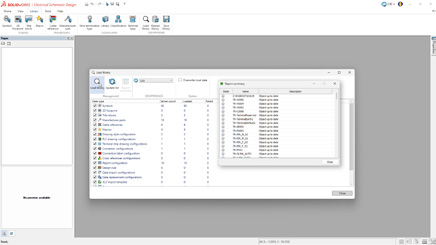
Option 1: For licenses <1 year expired( Pay 2 Years Forward Upfront )
Get back on track with SOLIDWORKS CAD w/Cloud Services. By paying upfront for the next two years, you not only regain access to the powerful features of SOLIDWORKS but also enjoy cloud services to boost collaboration and efficiency.
Promotion Perks:
No need to worry about backdating and penalties. We’ll waive them for you!
Regain access to your design projects and continue where you left off, without any interruptions.
Option 2: For licenses >1 year expired ( Pay 3 Years Forward Upfront )
If your license has been expired for over a year, we understand the urgency to get back in the game. With this option, you can secure SOLIDWORKS CAD ALC w/Cloud Services.
Promotion Perks:
Our team is here to support your reintegration process, and we’ll waive backdating and penalties for a smooth transition.
Take advantage of the comprehensive SOLIDWORKS suite and unleash your creativity with the latest tools and features.
Option 1: Upgrade to 3DEXPERIENCE SOLIDWORKS
Seamlessly transition from SOLIDWORKS Desktop to 3DEXPERIENCE SOLIDWORKS, and experience a new dimension of design and collaboration. With secure cloud data management, increased collaboration capabilities, and reduced IT administration, 3DEXPERIENCE SOLIDWORKS empowers your team to work smarter and faster.
Option 2: Upgrade to SOLIDWORKS TERM w/Cloud Services
Opt for SOLIDWORKS TERM with Cloud Services, a flexible and convenient option that combines the power of SOLIDWORKS with the benefits of cloud-based solutions. Say goodbye to traditional licensing hassles and welcome easy deployment and automatic updates for a seamless design experience.
Promotion Perks:
This promotion covers both Standalone and Network licenses (SNL), making it suitable for businesses of all sizes.
Take advantage of the promotion price and add as many new licenses (3DEXPERIENCE SOLIDWORKS or SOLIDWORKS TERM w/Cloud Services) as you need on the same Purchase Order, with no limit on extra seats.
Enjoy the promotion discount for 3 years, whether purchased annually or upfront.
Even after the promotion period, you’ll continue to benefit with a 25% discount on successive years.