Why Material Matters: Choosing the Best 3D Printing Filament

BLOG

Why Material Matters: Choosing the Best 3D Printing Filament

The Basics of FDM 3D Printing Materials

When it comes to 3D printing, the material you choose is just as important as the printer itself. Filament is the thermoplastic feedstock used in fused deposition modeling (FDM) 3D printers. It is a continuous slender plastic thread spooled into a reel, with diameters ranging from 1.75 mm to 2.85 mm. Filament comes in various types, each with its own unique properties.


3D printers use different mechanisms to extrude the filament and build up layers to create your final model.


How Filament Choice Impacts Your 3D Printing Project

The choice of 3D printing filament can have a significant impact on the outcome of your 3D printing project. Different filaments have different properties, such as strength, flexibility, and temperature resistance. Understanding these properties and how they relate to your project is crucial for achieving the desired results.


For example, if you’re printing functional parts that require strength and durability, ABS or PETG would be suitable choices. On the other hand, if you’re creating decorative or artistic pieces, PLA or specialty filaments like wood or even metal may be more appropriate.


Exploring Just a Few Types of Available 3D Printer Filaments

PLA (Polylactic Acid)Spool of blue Raise3D PLA 3D printing filament

PLA is one of the most popular filaments for 3D printing. It is a biodegradable and environmentally friendly filament that is derived from renewable resources such as cornstarch or sugarcane. PLA is easy to print with and offers good dimensional accuracy. It is known for its vibrant colors and smooth surface finish. PLA is commonly used for prototyping, hobbyist projects, and decorative prints. It is compatible with most commercially available FDM printers and can be printed at lower temperatures compared to other filaments.


Raise3D grey ABS 3D printing filament spoolABS (Acrylonitrile Butadiene Styrene)

ABS is a popular filament known for its durability and impact resistance. It has a higher melting temperature compared to PLA, making it suitable for functional parts that require strength and toughness. ABS is commonly used in applications such as automotive parts, electronic enclosures, and industrial prototypes. It can be challenging to print with due to its tendency to warp and emit strong fumes during printing. However, with proper printer settings and a heated bed, ABS can produce high-quality prints with excellent mechanical properties.


PET (Polyethylene terephthalate)Spool of Raise3D PET 3D printing filament in black

PET is a popular 3D printing filament known for its strength and flexibility. Its durability and impact resistance ensure long-lasting printed objects, while its flexibility allows for complex shapes without cracking. Additionally, it offers excellent chemical resistance and is food-safe, making it suitable for kitchen items. PET is easy to print with a lower risk of warping and can be used on most standard 3D printers. Being recyclable, it also provides an eco-friendly option for various 3D printing projects.


Spool of Raise3D PETG 3D printing filament in blackPETG (Polyethylene terephthalate glycol)

PETG is a variation of PET that offers improved impact resistance and chemical resistance. It’s a versatile filament known for its balance of strength, flexibility, and temperature resistance. It is commonly used for functional parts, mechanical components, and consumer products that require durability and impact resistance. PETG has excellent layer adhesion, making it ideal for strong and durable prints. Additionally, it is FDA-approved for food contact, making it a popular choice for printing kitchen utensils and containers.


TPU (Thermoplastic polyurethane)A 3D printed TPU part being compressed by hand

TPU is a flexible filament that is widely used for creating elastic parts and prototypes. It offers excellent resistance to abrasion, chemicals, and oils, making it suitable for applications that require flexibility and durability. TPU is commonly used in industries such as automotive, footwear, and prosthetics. It can be printed with ease on most FDM printers and does not require a heated bed. TPU is available in various shore hardness ratings, allowing for different levels of flexibility and elasticity in prints.


Specialized 3D Printing Filaments

In addition to the common filaments used in 3D printing, there are specialized filaments that offer unique properties for specific applications. These filaments are often infused with different materials to enhance their properties. Some examples of specialized filaments include carbon fiber-infused filaments, which offer high strength and rigidity, and metal-infused filaments, which allow for the printing of metal-like objects. These specialized filaments are commonly used in industries such as aerospace, automotive, and jewelry.


Spool of Markforged Onyx 3D printing filamentOnyx by Markforged: High Performance Carbon Fiber

Onyx is a high-performance carbon fiber filament developed by Markforged. It combines the strength and rigidity of carbon fiber with the ease of printing with nylon. Onyx is known for its excellent dimensional stability, high strength-to-weight ratio and resistance to heat and chemicals. It is commonly used in industries such as aerospace, automotive, and defense for applications that require lightweight yet strong parts. Onyx can be printed on Markforged 3D printers, which are specifically designed to handle the unique properties of this filament.


Metal 3D Printing: Stainless Steel, Copper, and moreSteel engine impeller 3D printed on the Markforged Metal X

3D printing with metal filaments allows for the creation of metal-like objects without the need for traditional metalworking processes. These filaments are composed of a mixture of metal powder and a binding agent. After printing, the object can be further processed to remove the binding agent and sinter the metal particles together, resulting in a solid metal part.

While an expensive and infrastructure-heavy investment, 3D printing with metal filaments offers the ability to create complex geometries and customized metal parts with good mechanical properties.


Factors to Consider When Selecting a Filament

When choosing a filament for your 3D printing project, consider factors like strength, durability, flexibility, temperature resistance, and printer compatibility. Filaments such as ABS, PETG, or carbon fiber are suitable for strength, while TPU works well for flexibility. For high temperatures, consider polycarbonate. Always remember to check compatibility with your printer’s settings!


Assessing the Strength and Durability Needs of Your Project

When selecting a filament for your 3D printing project, it is essential to assess the strength and durability needs of your project. Consider the intended use of the printed object and the level of stress it will be subjected to. If you require high strength and impact resistance, filaments like ABS, PETG, or carbon fiber-infused filaments may be suitable. These filaments offer excellent mechanical properties and can withstand heavy loads and impacts.


Considering Flexibility and Elasticity for Functional Parts

For functional parts that require flexibility and elasticity, it is important to consider filaments that can meet these requirements. TPU is a popular choice for flexible prints. It offers excellent flexibility and resilience, making it ideal for applications such as phone cases, prosthetics, and wearables. TPE (Thermoplastic elastomer) is another flexible filament that provides a soft and rubber-like texture. It is commonly used for creating gaskets, seals, and other parts that require high flexibility.


Temperature and Environmental Resistance

Temperature and environmental resistance are important considerations when selecting a 3 D printing filament. Different filaments have different temperature ranges at which they perform optimally. For example, PLA can be printed at relatively low temperatures (180-230°C) and is suitable for most everyday applications. On the other hand, filaments like polycarbonate (PC) and polyetherimide (PEI) have higher temperature resistance and can withstand elevated temperatures (up to 340-380°C). These filaments are commonly used in applications that require exceptional heat resistance, such as aerospace components and automotive parts.


Cost-Effectiveness and Availability

Cost-effectiveness and availability are key factors when selecting 3D printing filament. PLA is popular for being affordable and widely available, as well as eco-friendly. PETG is valued for its strength and durability with better impact resistance than PLA. While PLA and PETG are cost-effective and common, ABS and Nylon may be pricier but offer unique strengths. ABS provides high strength and temperature resistance for functional parts, while Nylon offers flexibility and durability for specialized applications like gears. Finding this balance depends heavily on the user, projects, and printing frequency.


Consider how you prefer to source your materials. Are you more comfortable dealing with a consistent supplier, or are the readily available 3D printing filaments on Amazon enough for your needs? It’s important to consider the specific requirements of your project and budget constraints when selecting a 3D printing filament. By balancing cost-effectiveness and availability, you can ensure that you choose the best filament for your 3D printing needs.


Balancing Quality with Budget Constraints

Similarly, choosing the right 3D printing filament involves balancing quality and budget. High-quality filaments offer superior performance but come at a higher cost. Research and comparing brands can help find affordable options with satisfactory results. Reading reviews and seeking recommendations can identify cost-effective choices. Experimenting with different types of filaments can help strike a balance between quality and budget based on project requirements.


Application-Specific Recommendations

Different 3D printing applications require different 3D printing filament types to achieve optimal results. By selecting the right material for your specific application, you can ensure that your 3D prints meet the desired functionality and performance requirements.


Prototyping with Precision: Choosing the Right Material

When it comes to precision prototyping, choosing the right 3D printing filament is crucial to achieve accurate and detailed prints. Different materials offer varying levels of precision and surface finish.


PLA (Polylactic Acid) is a popular choice for precise prototyping due to its low shrinkage and excellent dimensional accuracy. It provides smooth and clean prints, making it ideal for visual models and product prototypes. Additionally, PLA is easy to print with and offers a wide range of colors to choose from.


ABS (Acrylonitrile Butadiene Styrene) is another material suitable for precision prototyping. It offers better temperature resistance and durability compared to PLA, making it suitable for functional prototypes that require strength and impact resistance.


PETG (Polyethylene Terephthalate Glycol) is also a good option for precision prototyping. It offers a balance of strength, flexibility, and dimensional stability, making it suitable for a wide range of applications.


By selecting the right material for precision prototyping, you can ensure that your prints accurately represent your design and meet your quality expectations.


Functional Parts and Mechanical Components: What Works Best?

When it comes to printing functional parts and mechanical components, choosing the right filament is essential to ensure durability and performance. Different materials offer varying mechanical properties and characteristics.


TPU (Thermoplastic Polyurethane) is an excellent choice for parts that require flexibility and resilience. It offers high elasticity and impact resistance, making it suitable for gaskets, seals, and other flexible components.


Nylon is known for its exceptional strength and toughness, making it ideal for functional parts that require durability and high load-bearing capabilities. It also offers good chemical resistance, making it suitable for applications in harsh environments.


ABS (Acrylonitrile Butadiene Styrene) is a versatile material that provides a balance of strength, impact and temperature resistance. It is commonly used for functional parts in various industries, including automotive and aerospace.


By choosing the right filament for functional parts and mechanical components, you can ensure that your 3D prints meet the required performance standards and withstand the intended applications.

Frequently Asked Questions

How does the choice of filament material impact the quality of a 3D printed object?

The choice of 3D printing filament plays a crucial role in determining the quality of a 3D printed object. Different materials have unique properties such as strength, flexibility, and durability, which directly affect the performance and appearance of the printed object. Factors such as layer adhesion, dimensional accuracy, and surface finish are influenced by the filament material used.

How do I determine the best 3D printing filament for my project?

To determine the best filament for your 3D printing project, consider the specific requirements of the print, such as desired strength, flexibility, and temperature resistance. Additionally, take into account the printer compatibility and budget constraints. Conducting research and consulting experienced users can provide valuable insights and recommendations.

X_green_halo

Any questions? Need help? Ask one of our experts.

Whether you’re ready to get started or just have a few more questions, you can contact us toll-free:

    Enhancing Design Efficiency with SOLIDWORKS Visualize

    BLOG

    Enhancing Design Efficiency with SOLIDWORKS Visualize

    Key Highlights

    • SOLIDWORKS Visualize allows users to quickly and easily create professional photo-quality images, animations, and interactive 3D content.
    • Real-time HD rendering provides instant visual feedback, allowing for faster decision-making and improved productivity.
    • Automation features in Visualize help speed up the design process, eliminating repetitive tasks and integrating seamlessly with SOLIDWORKS CAD.
    • Advanced tools in Visualize allow for the creation of interactive animations and virtual reality content, bringing designs to life and enhancing the overall design experience.


    Understanding SOLIDWORKS Visualize and Its Impact on Design

    SOLIDWORKS Visualize transforms 3D CAD data into high-quality images, animations, and interactive content. It enhances productivity and expedites product development by empowering you to easily create realistic visuals for marketing or web content.

    With an easy-to-learn toolkit, you can become the artist you’ve always wanted to be while effectively communicating design ideas and concepts.


    The Role of SOLIDWORKS Visualize in Streamlining Design Workflows

    SOLIDWORKS Visualize is a game-changer for your design workflows. It integrates smoothly with SOLIDWORKS CAD, so you don’t waste time transferring data manually or dealing with errors.

    Plus, sharing designs with your team and getting feedback is a breeze—you can create and share visualizations, animations, and even VR experiences. Real-time HD rendering gives you instant visual feedback, helping you make quick, informed decisions and cut down on multiple design iterations.

    And with its detailed, realistic visuals, getting stakeholder feedback is easier, ensuring your final product is spot-on.


    Exploring the Intuitive Visualize User Interface


    SOLIDWORKS Visualize interface screenshot with a focus on a bicycle standing on a dirt path


    The Visualize interface is super intuitive and user-friendly, perfect for both newbies and pros. It’s just like a photo studio, where you can easily move the camera around your product and capture your CAD designs.

    With an integrated Viewport and no complex node-based materials, it’s accessible even if you’re new to 3D design. You can personalize your experience with dark or light themes and switch to Easy Mode, which simplifies the interface to just five buttons. This makes creating stunning visuals of your designs straightforward and enjoyable.


    Navigating the User-Friendly Dashboard

    The user-friendly dashboard makes it easy to create professional, photo-quality images and animations.

    With intuitive tabs like the Palette tab, you can quickly access materials, appearances, and environments. This makes it super easy to tweak and customize your design as much as you want until you get that perfect shot.

    The Simplified Import and Render windows streamline importing CAD files and rendering high-quality images. Adjust render settings to get the perfect level of detail and quality.

    The dashboard also offers various viewing options, allowing you to switch perspectives and manipulate camera positions, lighting, and more.


    Maximizing Productivity with Real-Time HD Rendering: The Benefits of Instant Visual Feedback


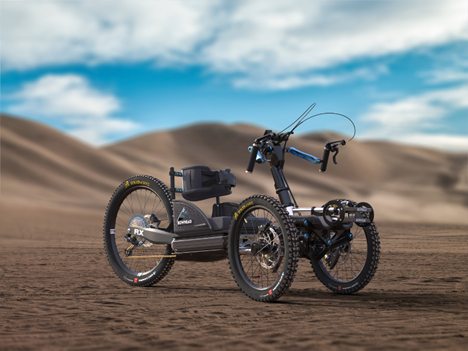
    HD rendering of a Bowhead bike from SOLIDWORKS Visualize


    With real-time HD rendering in Visualize, you get instant visual feedback, making the design process smoother and faster. You can see changes instantly, which helps you make quick, informed decisions and spot issues early on. This means fewer costly redesigns. Plus, it boosts collaboration—share your designs, get immediate feedback, and ensure everyone’s on the same page. You can tweak and refine your designs on the fly, speeding up iterations and revisions. Overall, instant visual feedback improves the design process, enhances teamwork, and increases productivity.


    Automation Features to Speed Up the Design Process

    SOLIDWORKS Visualize has awesome automation features that speed up the design process by eliminating repetitive tasks. You can create templates for materials, lighting, and camera setups, saving you the hassle of setting them up each time. Plus, it integrates seamlessly with SOLIDWORKS CAD, so you can easily import data and keep your visualizations up to date with any changes.

    This integration means smooth transitions between designing and visualizing, making the whole workflow faster and more efficient. Overall, these automation features let you focus on the creative aspects of your work while making the design process quicker and easier.


    Integration with SOLIDWORKS CAD for Seamless Design Transitions

    Fun fact: Your SOLIDWORKS Visualize integrates seamlessly with your other SOLIDWORKS products, including CAD, making the transition from design to visualization smooth and efficient. You can easily import 3D CAD models into Visualize, saving time and effort. Plus, any changes made in SOLIDWORKS CAD are automatically updated in Visualize, so your visualizations are always up to date. This integration with Dassault’s SOLIDWORKS CAD is especially beneficial for those using SOLIDWORKS Professional, as a seat of SOLIDWORKS Visualize Standard is included with each seat of SOLIDWORKS Professional and Premium on active Subscription.

    This integration eliminates manual updates and streamlines the workflow, letting you switch effortlessly between designing and visualizing at different stages.


    Advanced Tools for Creating Interactive Animations and VR Content


    HD rendering of a Bowhead bike on a colorfully lit background


    SOLIDWORKS Visualize Professional offers advanced tools for creating interactive animations and VR content. You can animate exploded views, part opacity, and cameras to showcase how your product works, and its components interact. Plus, you can create VR content with 360-degree stereo images and animations for devices like HTC Vive and Oculus Rift, offering an immersive experience. With the added features of Visualize Professional, you can now tell a deeper story and communicate even the most complex design details with ease, giving you a competitive edge in the market.

    Simplify complex animations and you control movement, timing, and effects with these features that help you create engaging, dynamic presentations that truly bring your designs to life.


    Simplifying Complex Animation Processes

    Animating designs can be tricky but Visualize makes it easy with its awesome tools. The Animation Ribbon shows a 3D representation of how parts and cameras move, making it simple to edit complex animations. You can animate exploded views, part opacity, cameras, and more, creating detailed, realistic animations. Plus, you can add depth of field effects, adjusting focus and blur for extra realism.

    These intuitive features make it a breeze to create captivating and visually appealing animations, bringing your designs to life effortlessly.


    Bringing Designs to Life with Virtual Reality

    VR content offers a unique, engaging way to evaluate and improve your designs. You can set up camera positions to create 360-degree stereo images and animations for VR devices like HTC Vive, Oculus Rift, and Google Cardboard. This means you can explore and review your designs at a 1:1 scale in a virtual environment, giving you and your audience a realistic, interactive understanding of the design. It’s great for presenting to clients, internal reviews, or showcasing at tradeshows.

    Frequently Asked Questions

    How Can SOLIDWORKS Visualize Improve My Design Process?

    By leveraging Visualize, designers can enhance their design process through realistic visualizations, speeding up decision-making and reducing errors. Its intuitive interface and real-time rendering provide instant feedback for a more efficient workflow. Integration with SOLIDWORKS CAD ensures seamless design transitions.

    Are there any specific industries or applications that can benefit most from using SOLIDWORKS Visualize?

    SOLIDWORKS Visualize finds applications across various industries like automotive, architecture, consumer goods, and more. It benefits those requiring high-quality visualizations for design validation, marketing materials, and presentations. Its versatility caters to professionals seeking realistic renderings for their projects.

    X_green_halo

    Any questions? Need help? Ask one of our experts.

    Whether you’re ready to get started or just have a few more questions, you can contact us toll-free:

      Solidxperts Essentials Guide to SOLIDWORKS Certification

      BLOG

      Solidxperts Essentials Guide to SOLIDWORKS Certification

      Key Highlights

      • The SOLIDWORKS certification program gives you valuable industry credentials that showcase your expertise in mechanical design.
      • Being a certified user can give you a competitive edge in the job market.
      • Key exams include Certified SOLIDWORKS Associate (CSWA) and Certified SOLIDWORKS Professional (CSWP).
      • Advanced certificates are available for those looking to further enhance their CAD and digital engineering skills.


      Introduction

      Welcome to the essential guide to SOLIDWORKS certification! If you’re aiming to validate your skills in mechanical design and gain a competitive edge, an official certification is the way to go. This guide covers the value and availability of certifications as well as some helpful preparation tips.


      Why get a SOLIDWORKS certification?

      SOLIDWORKS certification is a globally recognized credential validating your proficiency in using the software for mechanical design. It demonstrates your ability to create parametric parts, assemble, and analyze mechanical designs.

      The exams assess your knowledge and skills in various aspects of mechanical 3D design, including part modeling, assembly modeling, drawings, and sheet metal design. The exams are conducted online, non-proctored, and can be taken at your convenience. By passing these exams, you prove your competence in using the software to design and analyze 3D models.


      The Value of Being Certified

      Being a certified user brings numerous professional benefits. It validates your expertise in using the software for mechanical design, showcasing your commitment to continuous learning and adherence to industry standards.

      Enhance your credibility as a CAD professional and become more attractive to employers who value certified users for their competency in improving productivity and efficiency. Certification can give you a competitive edge in the job market, increasing your chances of securing employment or advancing in your current organization. Many companies specifically seek certified professionals, ensuring they hire individuals with demonstrated expertise.

      Each exam in the SOLIDWORKS certificate program tests your knowledge and skills in a specific area. By passing these exams and earning the certifications, you can demonstrate your expertise and distinguish yourself as a highly skilled user.


      How should you Prepare for the SOLIDWORKS Exams?

      Preparing for any certification involves training, self-study, and practice. Here are some tips to help you prepare effectively:


      Recommended Training Courses with Solidxperts

      Solidxperts offers training courses specifically designed to prepare you for your SOLIDWORKS exam certification.


      These courses cover the exam topics comprehensively and are taught by experienced instructors who are certified professionals with years of industry and training experience. They are the Xperts!


      Tips for Self-Study and Practice


      • Familiarize yourself with the interface and tools.
      • Use online resources, tutorials, and forums to learn more about the software’s features and functionalities.
      • Practice on real-world projects involving designing and modeling different parts and assemblies.
      • Take practice exams to familiarize yourself with the exam format and assess your readiness.
      • Seek feedback and guidance from experienced SOLIDWORKS users or instructors, like us.


      What does the certification process look like?

      The road to SOLIDWORKS accreditation involves several steps, from registration to taking the exams.


      Registration and Requirements

      To register for SOLIDWORKS CAD certification exams, create an account on the Certification Center website. Once registered, browse the available exams and select the ones you wish to take.


      Exam Formats and What to Expect

      The certification exams are conducted online and are non-proctored. They are timed, and you must complete them within the allocated timeframe. Here is an overview of the exam formats:


      • CSWA: Online, multiple choice, 3 hours, pass mark 70%.
      • CSWP: Online, multiple choice, 3.5 hours, pass mark 75%.
      • Advanced Certifications: Online, practical, duration varies.
      • CSWE: Online, practical, duration varies, pass mark 85%.


      The exams consist of multiple-choice questions, practical exercises, and modeling tasks. Carefully read the instructions and understand the requirements of each question before attempting to answer.


      What Certifications are Available?

      Certified SOLIDWORKS Associate (CSWA)

      An entry-level credential demonstrating fundamental knowledge of modeling. Passing the CSWA exam proves your ability to create and modify parametric parts, assemble components, and create basic drawings.


      Certified SOLIDWORKS Professional (CSWP)

      For users with a deeper understanding of advanced functionalities. It validates your ability to create complex parametric parts, analyze assemblies, and create detailed drawings.


      Advanced Certifications

      These include specializations in areas like Sheet Metal, Weldments, Surfacing, Mold Making, and Drawing Tools. Obtaining these certifications showcases your expertise and specialized SOLIDWORKS qualifications. For example, the SOLIDWORKS drawing certification tells your peers, colleagues, and potential employers that you possess advanced skills in creating detailed and precise technical drawings.

      Let’s take a look at some of the popular exams and certifications available to you.


      Certified SOLIDWORKS Expert (CSWE)

      This globally recognized credential signifies deep working knowledge and expertise in using diverse applications. To attain the CSWE certification, individuals must have the CSWP credential and four CSWPA certifications in different areas.


      Specialty Certifications Overview


      • CSWPA-SM: Validates proficiency in using sheet metal tools.
      • CSWPA-MM: Demonstrates proficiency in using mold design tools.
      • CSWPA-SU: Recognizes expertise in using advanced surfacing tools.
      • CSWPA-WD: Confirms ability to create and analyze weldments using.


      These certificates provide targeted recognition for CAD professionals specializing in areas like sheet metal design, mold design, and advanced surface modeling.


      Conclusion

      Becoming a SOLIDWORKS certified professional can significantly elevate your career prospects and skill set. With various certification levels available, from CSWA to CSWE, you have a clear path to expertise. Whether you opt for training courses or self-study, thorough preparation is key to excelling in the certification process. Understanding the value of each certification and the exam formats will help you navigate the journey seamlessly.

      Frequently Asked Questions

      How Long Does It Take to Prepare for the Certification?

      The preparation time varies based on prior experience, familiarity with SOLIDWORKS, and the certification level. For experienced users, preparation time may be shorter. However, those new to the software or with limited experience may need more time. It is recommended to take training courses aligned with the exam content. Reach out to your friendly neighborhood Xpert for advice on the best training path for your goals!

      Can I Retake an online SOLIDWORKS Certification Exam If I Don't Pass?

      Yes, individuals can retake the exams if they don’t pass on their first attempt. There are specific waiting periods and rules for retaking exams, usually a 30-day wait. There may be a fee associated with retaking the exam. Reviewing the exam content, study materials, and practice tests thoroughly before attempting the exam again can help identify areas of weakness and improve skills for subsequent attempts.

      What are the benefits of obtaining a SOLIDWORKS CAD certification?

      Obtaining a SOLIDWORKS certification can enhance your career prospects by showcasing your expertise in using the software, increasing your earning potential, and opening up opportunities to work on exciting projects with top companies across various industries.

      X_green_halo

      Any questions? Need help? Ask one of our experts.

      Whether you’re ready to get started or just have a few more questions, you can contact us toll-free:

        What is CAD? Exploring the World of Computer Aided Design

        BLOG

        What is CAD? Exploring the World of Computer Aided Design

        Key Highlights

        • Computer aided design (CAD) is the digital creation of models and simulations of to-be real world goods and products, in 2D or 3D.
        • The advancements in CAD technology have led to the rise of cloud-based platforms and the integration of AI and machine learning.
        • Streamline production processes, enable prototyping with 3D printing, and enhance collaboration among teams.
        • SOLIDWORKS and Dassault Systèmes offer a wide range of specialized solutions for different design needs.


        Introduction

        With computer aided design software, designers and engineers can simulate objects digitally, refining designs before production. This software enables precise technical drawings, eliminating manual drafting, improving efficiency, accuracy, and facilitating team collaboration.


        Understanding Computer Aided Design: The Basics

        Gone are the days of using pencils, rulers, and protractors to create blueprints. Computer aided design allows engineers to create 2D and 3D models of objects, complete with scale, precision, and physics properties.

        Use a combination of digital creation tools, such as lines, circles, and curves, to craft desired shapes and geometries, and even add annotations, dimensions, and other details to your models. These can then be manipulated, tested, analyzed, and easily modified for faster iteration and higher overall quality.


        A Quick Blueprint for the Core Components of a CAD System


        • Solid modeling: A fundamental feature that allows designers to create realistic 3D representations of objects. Solid models are built by joining 3D surfaces and can accurately depict the dimensions and attributes of the object.
        • Parametric modeling: Establish relationships between different parts of a detailed design. For example, when one part of a model is modified, other related components adjust accordingly, ensuring consistency.
        • Simulation: Simulate how a design will perform under various conditions, such as stress, heat, or fluid flow. Identify potential issues early in the design stage and make necessary adjustments to improve final performance and reliability.
        • Documentation: Easily create detailed technical documentation for your 3D models, including technical drawings, bills of materials (BOMs), and assembly instructions.


        Together, these core components enable you to create detailed and precise designs while simplifying the process, making it easier to iterate on and improve overall quality.


        Distinguishing Between 2D, 2.5D, and 3D CAD


        • 2D: Primarily used for creating 2D drawings. It allows designers to create flat representations of objects using fundamental geometric shapes such as lines, rectangles, and circles. Most commonly used for architectural floor plans, electrical circuit diagrams, and technical illustrations.
        • 2.5D: Also known as prismatic modeling. Allows designers to create models with depth. While the objects created in 2.5D are three-dimensional, they do not have overhanging parts. Often used for creating molds, toolpaths for machining, and other applications where a limited level of depth is required.
        • 3D: Enables designers to create realistic 3D models of objects. Accurately represents the dimensions, shape, and attributes of the object. Widely used in industries such as automotive, product and industrial design, and engineering projects.


        How does Computer Aided Design Software Work?

        The simple answer? A computer does all the heavy lifting for you! No more crooked drawn lines, scribbled dimensions, or confusing design intent. Just clear, shareable 3D representations of your coolest inventions.

        Your CAD software features simplify the process with a user-friendly interface and powerful tools for creating 3D designs. It allows you to visualize your ideas in a digital environment, and makes it easier to iterate and improve the design before manufacturing.


        Integration with Other Tools and Platforms: CAM, Documentation, Simulation, and More!

        Integration with other tools and platforms allows designers to leverage the strengths of each tool and create a seamless design process.


        • Computer Aided Manufacturing (CAM): Automate the manufacturing process. CAM software uses 3D models to generate toolpaths for machining operations, allowing for efficient and accurate production.
        • Simulation Software: Analyze the behavior and performance of your design. Simulate various factors such as stress, heat transfer, and fluid dynamics.
        • Product Lifecycle Management (PLM): a centralized repository for managing data and collaboration among design teams. Easily exchange data, manage version control, and workflow management.


        Revolutionizing Industries Worldwide

        Computer aided design has revolutionized various industries, enabling designers and engineers to create precise and optimized designs, enhancing efficiency, accuracy, and innovation in the invention processes.


        Automotive Design and Manufacturing

        In the past, the automotive industry relied heavily on manual drafting and physical prototypes. CAD models have replaced these traditional methods, allowing designers to create accurate digital models and simulate real-world behavior. With the help of systems like SOLIDWORKS and CATIA, automotive designers can now use CAD for conceptual mechanical design, creating realistic 3D models of vehicles, optimizing performance, and streamlining manufacturing.

        Also, digital collaboration among teams, suppliers, and manufacturers improves communication and reduces errors. Like sending a text message, instead of a carrier pigeon!


        Architecture and Construction

        Powerful computer-calculated simulations, depicting how a building will look and function, empower architects to make informed decisions about elements such as lighting, acoustics, and energy efficiency. With less time and effort spent on drawing physical blueprints and decoding the notation styles and penmanship of their peers, architects are freed up to experiment with different materials and never-before-seen designs.

        In the construction industry, specialized tools help create drawings and models with a significantly higher level of detail, facilitating communication and coordination between architects, engineers, and contractors. This ensures designs meet building codes and regulations for systems like HVAC, electrical, and plumbing.


        SOLIDWORKS: A Leader in 3D Design Technology

        Industry-leading SOLIDWORKS is globally known for its reliable solid modeling capabilities and user-friendly interface. It offers a comprehensive set of tools for creating, modifying, and analyzing 3D models so designers can create realistic 3D models incorporating detailed dimensions, standard materials, and physical properties.

        With SOLIDWORKS, you can simulate real-world behavior, perform stress analysis, and create photorealistic renderings of your designs. The software also provides advanced features for sheet metal design, welding, assembly modeling, and more!


        Practical Applications

        Computer aided design helps streamline production processes, enables prototyping with 3D printing, and enhances collaboration among design teams.


        • Streamlining Production: Create accurate and detailed manufacturing drawings, optimizing production processes and reducing errors. Enable efficient material usage, precise machining instructions, and documentation of the production process.
        • Prototyping with 3D Printing: Create physical prototypes of your 3D models using 3D printing technology. Quickly iterate and test designs, saving the time, costs, and headaches associated with traditional prototyping methods.
        • Enhancing Collaboration: Encourage multiple designers to work on the same project simultaneously with real time communication, version control, and documentation sharing for improved efficiency and fewer errors.


        Streamlining Production Processes

        CAD software boosts production efficiency by streamlining processes, cutting time and costs. Create detailed manufacturing drawings to ensure products meet specifications. Identify and fix manufacturing issues early, reducing errors.

        CAD can also optimize your material usage, reduce waste, and maximize your cost savings. It assists in designing objects like jewelry, furniture, and appliances, documenting revisions and quality control procedures for consistency and traceability, enhancing your process efficiency and product quality.


        Fast and Easy Prototyping with 3D Printing

        CAD software revolutionizes prototyping by allowing you to create physical prototypes from digital models using 3D printing. It enables quick iteration, testing, and cost reduction. Simulate product behavior, modify designs, and produce complex shapes in various materials such as plastics, metals, and composites to ensure optimal performance.


        Enhanced Real Time Collaboration

        Computer aided design software improves collaboration among design teams by enabling real time communication. It allows multiple designers to work together simultaneously, share work, make modifications, and provide feedback instantly. Easily share designs with clients and manufacturing teams, improving communication and reducing errors. With features like version control and revision tracking, you can ensure consistency, meet project deadlines, and centralize design communication, documentation, and feedback for enhanced efficiency and seamless teamwork!


        Advancements and Future Trends

        Computer aided design technology continues to evolve, with advancements and future trends shaping the way designers and engineers work. These advancements seek to simplify the design process, so passionate inventors can focus on what they do best: Innovate!


        The Rise of the Cloud-Based Platform

        Cloud-based CAD platforms, like the 3DEXPERIENCE platform, offer increased accessibility and collaboration compared to traditional on-premises software. Access files from anywhere, eliminate the need for physical storage, and enable seamless collaboration.

        Multiple designers can work together in real time, streamlining the design process and improving efficiency. These platforms also provide scalability, allowing designers to adjust usage as needed by adding or removing users and accessing additional features. The rise of real time cloud-based CAD has revolutionized the design industry with enhanced accessibility, collaboration, and flexibility.


        Learn more about moving to 3D with the 3DEXPERIENCE in our blog post, here.


        AI and Machine Learning in CAD

        AI and machine learning have revolutionized CAD by automating conceptual design processes, optimizing designs, and improving simulation capabilities. Generative design generates options based on constraints, allowing for exploration of various possibilities. Machine learning algorithms learn from feedback to offer intelligent design recommendations. They enhance simulation accuracy, leading to more reliable designs.

        As AI progresses, CAD software will become more efficient and capable of automating complex tasks, promising innovation in design creation.


        Overcoming Challenges in CAD

        By addressing challenges through training and support, designers and engineers can maximize the benefits of their software and overcome any hurdles between them and brining their ideas to life.


        Addressing the Learning Curve

        Using CAD software can be challenging due to its complexity, requiring users to learn new tools and workflows. To help with this learning curve, your friendly neighborhood experts (that’s us!) offer training resources, and community support. Our training resources offer structured learning experiences for CAD users of all proficiency levels.

        Community support enables users to connect with others, ask questions, and share experiences to enhance proficiency in CAD software. Leveraging these resources can help you unlock the full potential of CAD software.


        Navigating Software Compatibility Issues

        CAD software compatibility is crucial. Different programs have unique file formats, posing challenges for data exchange and collaboration. Opt for software supporting neutral formats like STEP, IGES, or JT for better interoperability. Alternatively, choose software with native formats for enhanced data accuracy, though limited accessibility. Consider industry-wide acceptance for smooth collaboration.


        Conclusion

        CAD software is pivotal across industries, from automotive to architecture, by optimizing production workflows, fostering collaboration, and spearheading technological advancements. As cloud-based platforms evolve and AI and machine learning become more integrated, the potential for CAD in the future is boundless.

        Want to learn more? Take a look at our recent blog post about transitioning to 3D technology, here.

        Frequently Asked Questions

        Is it hard to learn SOLIDWORKS?

        Learning SOLIDWORKS can be challenging for beginners due to its robust features and functionalities. However, with dedication, practice, and leveraging available tutorials and training resources, users can overcome the learning curve and become proficient in using SOLIDWORKS for various design and engineering tasks. Remember, practice makes perfect!

        Can CAD Software Be Used for Animation?

        Yes, CAD software can be used for animation. While CAD software is primarily used for designing and simulating real-world objects, it also has features that allow for visualization and animation. This can be useful for creating realistic representations of design projects and showcasing how a they would function in real life.

        How Has CAD Influenced Product Development?

        CAD has had a significant impact on product design. It has revolutionized the entire process by allowing engineers and designers to create and modify designs in a digital environment. CAD has enabled innovation, improved efficiency, and customization in product design, leading to the development of better and more complex products.

        X_green_halo

        Any questions? Need help? Ask one of our experts.

        Whether you’re ready to get started or just have a few more questions, you can contact us toll-free:

          Refreshed, Renewed, & Reinvigorated: The New Solidxperts Debuts at MMTS 2024

          BLOG

          Refreshed, Renewed, & Reinvigorated: The New Solidxperts Debuts at MMTS 2024

          The Montreal Manufacturing Technology Show (MMTS) 2024 has come to a successful close, and Solidxperts is proud to have been a part of this exciting event. Held at the Palais des Congrès de Montréal from June 18-20, MMTS once again proved to be a cornerstone for the manufacturing industry, drawing thousands of professionals eager to explore the latest innovations.


          Unveiling the New Solidxperts Branding and Tradeshow BoothSolidxperts team at MMTS booth

          One of the most exciting moments for us at MMTS 2024 was the unveiling of our new Solidxperts branding and tradeshow booth. Our refreshed brand identity reflects our evolution as a company and our commitment to staying at the forefront of technology.

          The new Solidxperts tradeshow booth setupOur Impact at MMTS 2024

          Our booth was a hub of activity, attracting a diverse audience of industry leaders, engineers, and technology enthusiasts. Here’s a look at some of the highlights from the Solidxperts booth:


          Engaging Live Demonstrations

          Our live demonstrations were a standout feature of our booth. Captivating attendees with more than just our sharp-dressed team, our real-time showcases of SOLIDWORKS, 3DEXPERIENCE, and 3D printing always aim to provide valuable insight into what our tools can do, and what they can do for you!


          Showcasing the Latest 3D Innovations

          We were thrilled to introduce our latest offerings to the MMTS audience.

          Our advanced CAD and simulation tools as well as our cutting-edge 3D printing technologies truly stole the show.

          Everyone seemed particularly impressed to see how all these pieces come together to solve complex manufacturing challenges in creative and innovative ways.


          The Solidxperts tradeshow booth full of visitorsExpert Engagement

          Our team of knowledgeable experts was on-hand to engage with attendees, answer questions, and provide personalized advice.


          Valuable Networking Opportunities

          Every show, MMTS provides an excellent platform for networking, and this year was no exception. We were delighted to meet and connect with everyone, forging new relationships and strengthening existing ones.


          Next time you find yourself at an industry tradeshow, look us up and come say hi!


          Looking Ahead

          Reflecting on our participation in MMTS 2024, we are amped up and ready to empower innovation and enable design success. The positive feedback and enthusiastic response from our visitors have reaffirmed our dedication to providing top-tier solutions that meet your evolving business needs.


          Thank You!


          We extend our heartfelt thanks to everyone who visited our booth, participated in our demonstrations, and engaged with our team. Your support and interest drive us to continually push the boundaries of what’s possible in manufacturing technology.


          Stay connected with Solidxperts for more updates, insights, and upcoming events. Follow us on social media and visit our website, www.Solidxperts.com, to stay informed about our latest developments and opportunities.


          For more information about our products and services or to discuss how Solidxperts can support your business, don’t hesitate to reach out. We’re here to help, every step of the way.


          Contact us


          We look forward to participating in future events and continuing to lead the way in 3D design and manufacturing technology.

          X_green_halo

          Any questions? Need help? Ask one of our experts.

          Whether you’re ready to get started or just have a few more questions, you can contact us toll-free:

            SOLIDXPERTS LAUNCHES CREDLY BADGES FOR ALL TRAINING COURSES

            BLOG

            SOLIDXPERTS LAUNCHES CREDLY BADGES FOR ALL TRAINING COURSES

            In an exciting move to enhance the value and recognition of our training programs, SolidXperts is proud to announce the implementation of Credly digital badges for all our courses. This initiative is designed to provide our trainees with a modern, verifiable, and shareable way to showcase their skills and accomplishments.


            credly logo


            As a leading provider of specialized 3D design training, we understand the importance of not only gaining knowledge but also having the ability to effectively demonstrate that expertise to potential employers and peers. With Credly badges, we are taking a significant step forward in helping you stand out in a competitive job market and advance in your professional journey.


            WHAT ARE CREDLY BADGES?


            Credly badges are digital credentials that recognize your skills and achievements. Think of them as your online bragging rights. These secure, shareable, and verifiable credentials let you shout from the virtual rooftops, “I’ve mastered this!”


            Put them on LinkedIn, Facebook, Twitter—even grandma’s fridge if you want.

            FOR OUR VALUED PARTICIPANTS


            If you attended any qualifying SolidXperts training courses in 2023 or earlier in 2024, you’ll soon receive your digital certifications via email. This will include a Credly badge that you can proudly display on your LinkedIn profile, resume, email signature, and other digital platforms. Keep an eye on your inbox!

            badge logo

            FUTURE STUDENTS – GET READY!


            Moving forward, participants in our selected training programs will earn Credly badges upon completion. These badges represent a new standard of achievement, providing instant recognition of your expertise. These badges aren’t just shiny icons; they’re your ticket to standing out in a competitive job market. How many can you collect?


            View Our Full List of Badges on Credly


            SHOWCASE YOUR SUCCESS


            It’s not enough to know your stuff; you need to prove it. We encourage you to proudly display your new Credly badges. They’re not only a testament to your dedication and skill, but also a powerful tool to enhance your professional visibility and career opportunities.


            WE VALUE YOUR FEEDBACK


            If you have a few moments, we would greatly appreciate your testimonials about your experience with SolidXperts. Your feedback helps us continually improve and provides valuable insights for future students.


             Share Your Testimonials


            HOW TO SIGN UP AND EARN YOUR BADGES


            Labtop picture


            Ready to take your skills to the next level? Sign up for one of our comprehensive training courses today and start earning your Credly badges!


            Explore Our Full Course Catalog


            Join us in celebrating this new chapter in spotlighting engineering excellence. We look forward to seeing you earn and share your achievements!


            CONTACT US


            For more information or assistance, please reach out to our team. We’re here to support you on your journey to 3D success.


            Happy achievement hunting!

            X_green_halo

            Any questions? Need help? Ask one of our experts.

            Whether you’re ready to get started or just have a few more questions, you can contact us toll-free:

              What is Product Data Management, and Why is it so Important?

              BLOG

              What is Product Data Management, and Why is it so Important?

              Key Highlights

              • PDM software centralizes all related data, fostering cross-department collaboration and boosting development efficiency.
              • Seamless collaboration minimizes errors and significantly boosts productivity.
              • Handle files, change orders, and integrates effortlessly with other systems.
              • Enjoy faster, more cost-effective product development, elevated quality standards, improved teamwork, and robust data security.


              Introduction

              Product Data Management (PDM) is all about handling design and engineering related information. It encompasses managing computer-aided design (CAD) files, technical specifications, design drawings, bills of materials (BOMs), engineering models, and manufacturing requirements. The goal of any PDM system is to store and share information securely, making it easier for teams to work together.


              Transitioning from 2D to 3D

              Transitioning from 2D drawings to 3D design technology revolutionizes product development. Designers can create precise virtual models for clearer communication, enhanced creativity, and more innovative designs. However, with 3D tech comes 3D data. And, a lot of it! So, what now?


              Understanding Product Data Management

              Imagine having accurate, up-to-date information at everyone’s fingertips, streamlining workflows, and slashing development times and costs. An organized PDM system transforms the way teams collaborate, breaking down silos and fostering seamless communication across departments. This means faster project timelines, impeccable quality standards, and easy compliance with regulatory requirements. With SOLIDWORKS PDM, you’re not just managing data—you’re driving innovation and ensuring consistent, top-tier outcomes every step of the way.


              The Role of SOLIDWORKS PDM Software in Modern Product Development

              SOLIDWORKS PDM is a CAD-aware data management solution designed to streamline and optimize the development cycle. It enables, as you might guess, clean and efficient management, collaboration between teams, and secure data storage.

              This feature rich software suite creates a single information repository, a Vault, ensuring everyone has access to the latest and most accurate information. Seamless file sharing improves efficiency, reduces errors, and ensures that all changes and revisions are properly tracked and documented.


              Core Components

              1. Centralized Storage: all your data is in one place, accessible to the right people, preventing silos, reducing duplication, and ensuring up-to-date information for all team members.
              2. Collaboration Tools: foster real-time communication and teamwork among departments and team members, facilitating file sharing, comments, and feedback to expedite decision-making processes.
              3. Version Control: track changes to files, revert to previous versions if necessary, and get a transparent audit trail of modifications.
              4. Integration Capabilities: connect your new system and other product development tools for data consistency, automated processes, and enhanced efficiency by eliminating manual transfers.


              How does it Streamline 3D Design and Manufacturing?

              Acting as a centralized hub, a proper product data management system empowers teams to access intricate 3D models, information, and specifications effortlessly while facilitating seamless collaboration and communication. With robust version control features, it ensures integrity and prevents costly errors. Moreover, its seamless integration with CAD and CAE tools optimizes workflows, creating a cohesive ecosystem where innovation thrives.


              The Significance of PDM in PLM

              PDM is the backbone of Product Lifecycle Management (PLM), connecting design, manufacturing, and distribution teams seamlessly. It acts as a hub, integrating CAD software for design tracking and ERP systems for manufacturing data. Every team member has access to crucial information throughout the product lifecycle, from inception to distribution. This integration streamlines processes, minimizes errors, and upholds quality standards, ultimately driving success in PLM endeavors.


              Enhancing Collaboration Across Departments

              Proper consistent data management streamlines collaboration, helps keep everyone on the same page as seamlessly as possible, and enables real-time collaboration between designers, engineers, and manufacturing teams. Everyone has access to accurate information when they need it, fostering both teamwork and productivity.


              Streamlining Development and Time to Market

              A powerful Product Data Management platform is instrumental in expediting product development and shortening time to market by centralizing data and enhancing efficiency. Through collaborative work on design files and streamlined change tracking, you can reduce manual processes, ensuring stakeholders access the latest information promptly. By optimizing workflows and fostering efficient collaboration, you and your teams can speed up product launches, gaining a competitive advantage in the market.


              Security, Access & Version Control, Audit Trails, OH MY!

              SOLIDWORKS PDM is the guardian of your valuable data and intellectual property. By employing robust security features, it ensures that sensitive information remains protected. Administrators can manage who gets access to what, set user permissions, and monitor activities, so that only the right eyes see specific information. With encryption and secure storage, system admins can stop unauthorized access and potential breaches.

              But it doesn’t stop there—version control and audit trails keep a meticulous record of changes, capturing the who, what, and when of file modifications. This not only guarantees data integrity but also brings a level of transparency and accountability that keeps your operations smooth and secure.


              Benefits of Integration into Your Daily Workflows

              Integrating engineering product data management software simplifies file access, enabling seamless collaboration between departments and streamlining communication channels. This ensures that all team members have access to the most accurate information, reducing errors and facilitating informed decision-making throughout the product lifecycle.


              Reducing Errors and Improving Quality

              Simplified and streamlined information flow inherently enhances quality by consolidating data, fostering collaboration, and optimizing workflows. This leads to clearer communication, elevated quality standards, and enhanced tracking of regulatory compliance.


              Implementing New Solutions: Challenges and Solutions

              Resistance to change is common, rooted in fear of disruption to established workflows. Successfully implementing a new system requires actively addressing common challenges through clear communication, thorough training, meticulous planning, stakeholder involvement, and comprehensive testing. Proactive management of these issues ensures successful implementation, resulting in enhanced collaboration, reduced errors, and cost savings.


              Best Practices to Consider

              1. Define clear objectives: Clearly define the objectives of implementation and communicate them to all stakeholders. This helps align everyone’s expectations and creates a shared vision for the implementation.
              2. Conduct thorough training: Provide comprehensive training and support to employees to ensure a smooth transition. This includes training on the features and functionalities of the PDM system as well as any changes to existing workflows.
              3. Test and iterate: Conduct thorough testing of the your system before fully deploying it. Address any issues or challenges that arise during testing to ensure a smooth implementation.


              Conclusion

              By transitioning to 3D design technologies and utilizing tools like SOLIDWORKS PDM, you can streamline collaboration, enhance data security, and optimize resource allocation. The benefits extend to reducing errors, improving product quality, and accelerating time to market. Overcoming challenges through best practices ensures a smooth PDM implementation. To integrate PDM into your workflow effectively, get in touch with us for expert guidance. Elevate your product development with efficient PDM solutions tailored to your needs.


              Contact the Xperts for more info about PDM and how we can guide you to implementation success!

              Frequently Asked Questions

              What Makes PDM Essential for Modern Manufacturing?

              Product Data Management (PDM) is essential for modern manufacturing as it streamlines the product development process, improves collaboration between teams, enhances 3D design capabilities, and reduces time to market.

              How can implementing PDM benefit a company or organization?

              By implementing PDM, companies can enhance collaboration, streamline product development, reduce errors, and optimize resource allocation. This leads to improved product quality, cost savings, and faster time to market. Efficient PDM systems ensure data security, and version control, and facilitate smooth 3D design processes.

              What is PDM vs PLM?

              Product Data Management tools focus on managing product data throughout its lifecycle, while Product Lifecycle Management (PLM) handles the entire product lifecycle, including processes and resources. PDM primarily deals with data control, while PLM encompasses a broader scope of product development and management.

              What is the best PDM option for SOLIDWORKS?

              Selecting the ideal PDM option for SOLIDWORKS depends on your specific needs. Options like SOLIDWORKS PDM Standard or Professional offer varying features to suit different requirements. Assess your workflow, collaboration needs, and data management priorities to determine the best fit.

              X_green_halo

              Any questions? Need help? Ask one of our experts.

              Whether you’re ready to get started or just have a few more questions, you can contact us toll-free:

                SolidSteel Parametric for SOLIDWORKS: Experience Faster Learning and Enhanced Interactivity in Version 6.0

                BLOG

                SolidSteel Parametric for SOLIDWORKS: Experience Faster Learning and Enhanced Interactivity in Version 6.0

                We are excited to announce the release of SolidSteel parametric for SOLIDWORKS version 6.0, which brings a wealth of new functionalities and significant improvements to streamline your structural steel design workflow. This latest update is designed to enhance your productivity and simplify your design process with new tools and refined features.


                What makes SolidSteel parametric for SOLIDWORKS 6.0 stand out from previous versions?

                SolidSteel parametric for SOLIDWORKS 6.0 introduces groundbreaking features like the interactive Introductory Assistant and revamped Drawing Assistant, streamlining the design process and enhancing productivity. With enhanced management tools, SDNF data updates, and bug fixes, this update ensures smoother workflows and empowers users to achieve unparalleled efficiency and precision in structural steel design.


                Apps for SOLIDWORKS brochure


                Introducing the New Features

                Introductory Assistant

                Starting with SolidSteel parametric has never been easier, thanks to the new interactive Introductory Assistant. This built-in tutorial guides you through your initial designs, covering basic working methods, handling profiles, components, and connections. No need to search for external resources—the Introductory Assistant offers a structured, step-by-step learning experience directly within the software, ensuring you can quickly become proficient in using SolidSteel parametric.

                Introductory Assistant for SolidSteel parametric

                Drawing Assistant

                Recognizing the critical role of shop drawings in many companies, the new Drawing Assistant has been completely redesigned based on user feedback.


                SolidSteel parametric interface with an engineering drawing of a mechanical part


                This feature now includes:


                – Dedicated User Interface: Easily manage all parts, assemblies, and their status in relation to drawings. Decide whether to create new drawings, update existing ones, or not create drawings at all for each part.


                – Automated Shop Drawings: Automatically generate shop drawings for all profiles, sheets, welded assemblies, and main/sub-assemblies created with SolidSteel parametric. This includes parts created with standard SOLIDWORKS functions, provided they follow the SolidSteel parametric part template.


                – Individual Drawing Settings: Customize drawing templates for each part and assembly, allowing for different bill of material formats on assembly and welded assembly drawings.


                – Update Function: Preserve all existing drawing information when parts are modified. Only the dimensions affected by the change are updated, saving you from redundant work during late design changes.


                – BOMs on Drawings: Automatically include bills of materials on assembly and welded assembly drawings based on your drawing templates, eliminating manual rework.


                – Dimensioning Options: Choose between chain dimensioning and ordinate dimensioning based on your project needs or company standards.


                Enhanced Diagnostic and Management Tools

                Diagnostics Tab

                – View profiles, create ToDo entries, and edit profiles directly from the Diagnostics tab.


                SolidSteel parametric Diagnostics tab displaying new menu options


                ToDo Manager

                – Automatically load and update ToDos when opening an assembly.

                – Temporarily store ToDos when switching between assemblies.

                – Delete multiple entries simultaneously.


                PDM Equal Part Detection

                – The “Finalize” function has been renamed to “PDM Equal Part Detection”, for a bit more clarity.

                – Post-detection changes on the assembly are blocked to ensure consistency.


                SolidSteel parametric ToDo tab displaying new menu options


                SDNF Data and Profile Updates

                – Detailed change tracking for SDNF files.

                – Updated profile database with UK standards including CHS, SHS, and RHS as per EN 10210 and EN 10219, and flat, square, and round bars as per EN 10025-2.


                Additional Improvements

                Manual Bolting

                – Position holes and bolted connections using hole sketches for precise customization.


                Holes and bolted connections positioned using hole sketches in SolidSteel


                Miscellaneous and Bug Fixes

                – Enhanced stability and error corrections across various functionalities, including SDNF import, diagnostics, railings, and connection management.

                – Improved handling and editing of profiles, connections, and bolted joints.


                Important Note: Password Update Required

                To use the new version 6.0.0, you will need to request new passwords. You can conveniently request these through the Klietsch PasswordCenter or from your SolidXperts representative.


                Conclusion

                SolidSteel parametric for SOLIDWORKS version 6.0 is packed with powerful features and improvements to make your design process more efficient and intuitive. From the comprehensive Introductory Assistant to the robust Drawing Assistant and beyond, this update ensures you can achieve higher levels of automation and significant time savings in your daily work.


                For more information or to request your new passwords, contact SolidXperts today and take your structural steel design to the next level with SolidSteel parametric 6.0.


                Want to dive a little deeper? Get to know SolidSteel parametric!

                X_green_halo

                Any questions? Need help? Ask one of our experts.

                Whether you’re ready to get started or just have a few more questions, you can contact us toll-free:
                  Discover the Latest Enhancements in SOLIDWORKS 2024

                  BLOG

                  Discover the Latest Enhancements in SOLIDWORKS 2024

                  What are the new features and updates in SOLIDWORKS?

                  SOLIDWORKS 2024 introduces enhancements like improved simulation capabilities, enhanced performance for large assemblies, and a streamlined user interface for better productivity. These updates aim to provide a more efficient and seamless 3D design experience for users.


                  Key Highlights

                  • Improvements in core CAD functionality, simulation capabilities, and collaboration tools.
                  • Improved performance, streamlined workflows, and enhanced customization options.
                  • The integration of the 3DEXPERIENCE platform for cloud-based collaboration and design tools.


                  Introduction

                  With each new release, SOLIDWORKS brings a range of new features and enhancements to improve the design experience and streamline workflows. This year’s release focuses on providing a seamless design experience and enabling users to work smarter, faster, and more efficiently. From enhanced performance and speed to advanced simulation features and cloud integration, we’ll uncover a goldmine of tools and functionalities to boost productivity and unleash creativity. So, let’s dive in and discover the latest features in SOLIDWORKS 2024!


                  From CAD to PDM: A Comprehensive Overview


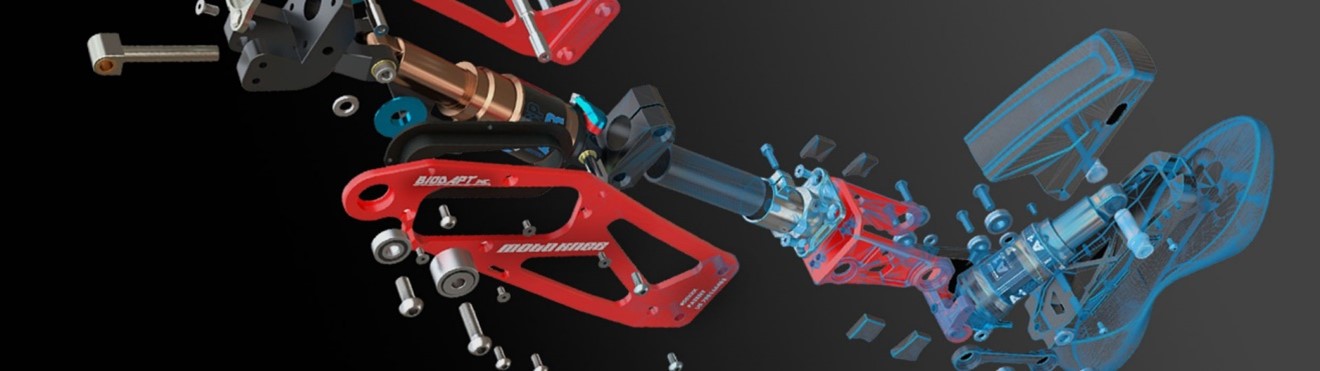
                  Disassembled Bowhead bicycle model


                  With a focus on improving core CAD and Product Data Management (PDM) capabilities, SOLIDWORKS 2024 enhances the design experience and empowers users like us to create complex and innovative designs.

                  For example, as a core improvement on the list, there are more advanced tools for creating and managing complex assemblies. Easily define and manipulate assembly structures or organize and navigate larger projects. With these new functionalities you can create and manage your sub-assemblies, components, and in-context relationships much more efficiently. Also, you have access to enhanced sketching tools, which include the capability to generate intelligent, immediate sketch dimensions. This feature simplifies the creation of intricate geometries. Take advantage of these new functionalities to craft your most elaborate designs, whether they involve sheet metal or plastic components!


                  Key Enhancements and Innovations

                  SOLIDWORKS 2024 adds a range of key innovations that enable you and your design teams to achieve better designs faster.


                  • Enhanced capabilities in product development disciplines such as simulation, manufacturing, and data management.
                  • Improved performance and speed to accelerate workflows and optimize productivity.
                  • Streamlined design processes with new tools and functionalities for complex geometry and organic shapes.
                  • Advanced simulation features for more accurate and efficient analyses.


                  These enhancements and innovations are designed to help you streamline your design processes, boost productivity, and craft higher-quality designs.


                  User Experience Improvements

                  The 2024 release includes several improvements to workflows, customization options, and overall usability. The software now provides more streamlined workflows, allowing everyone to get more done, more quickly, and with fewer steps. You can expect improved navigation, simplified processes, and a more intuitive, productivity boosting interface.

                  Additionally, SOLIDWORKS 2024 offers increased customization options, allowing users to further personalize their workspace to suit their preferences and working style. You can customize your toolbars, menus, and shortcuts, making it easier to access your own most-frequently used commands and functionalities.


                  TL:DR, expect a more intuitive and personalized design environment, empowering you to focus on creativity and your innovative design process.


                  A Deep Dive into Performance Upgrades

                  SOLIDWORKS 2024 brings significant performance upgrades aimed at enhancing speed, efficiency, and your overall user experience. The new release focuses on improving various aspects of performance, making the design process smoother and more efficient.

                  2024 offers optimized file management capabilities, allowing you to manage and access your design data without losing valuable time or brain power. And, with this year’s design performance upgrades you can expect faster load times and improved responsiveness.


                  Performance enhancements displayed in SOLIDWORKS PDM


                  Backward Compatibility

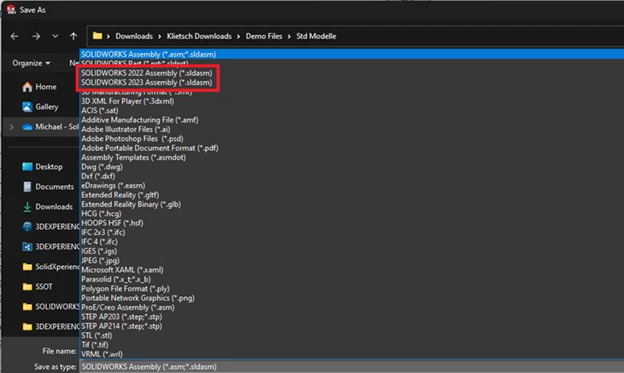
                  It’s about time! SOLIDWORKS 2024 has officially introduced backward compatibility, letting you seamlessly work with projects created in SOLIDWORKS 2024, PLUS the previous 2 versions of the software.

                  You now have the power to open, edit, and save files from previous releases without any compatibility issues. Confidently collaborate on projects created in older versions of SOLIDWORKS, ensuring seamless integration and transition to the new release.


                  SOLIDWORKS 2024 backwards compatibility menu


                  PDM Performance Improvements

                  File-based operations are now twice as fast! Key operations such as adding files, changing state, and copying trees have seen significant speed enhancements.

                  • View component data, including workflow states, directly within SOLIDWORKS using assembly visualization.
                  • Enhanced web capabilities make it easier to access and manage data remotely.
                  • Specific icons for weldment cut-list components simplify identification and streamline the design process.
                  • Access system information in SOLIDWORKS via the Task Pane for convenient access to file versions and other critical data.

                  In version 2024, all these upgrades really smooth things out and make using SOLIDWORKS PDM a whole lot easier and faster for everyone.


                  SOLIDWORKS 2024 3D model showcasing improved visual content


                  Advanced Simulation Features for Enhanced Model-Based Design (MBD)

                  The 2024 release focuses on enhancing simulation capabilities, empowering you to optimize designs and make informed engineering decisions. Access more sophisticated analysis tools to perform complex simulations with ease, and conduct advanced structural analysis, thermal analysis, and fluid flow simulations to validate and optimize your designs before any prototyping even starts.

                  Additionally, SOLIDWORKS 2024 provides improved integration between design and simulation, enabling the seamless transfer of your data and analysis results. Streamline your workflows between design and simulation, making it easier for your engineers to iterate and refine their designs based on simulation results.


                  Multiphysics simulations run in SOLIDWORKS 2024 for advanced model-based design


                  Enhanced Tools for Complex Geometry

                  Newly introduced advanced surfacing tools now allow you to create and edit complex surfaces more efficiently. Manipulate and control surfaces with precision, resulting in intricate and highly detailed designs. Additionally, SOLIDWORKS 2024 provides enhanced tools for creating sheet metal and plastic parts. With the enhanced tools for complex geometry in SOLIDWORKS 2024, you can push the boundaries of your designs to create intricate and innovative products.


                  Apple slicer modeled in xShape on the 3DEXPERIENCE platform featuring complex geometries


                  Automation Features to Boost Productivity

                  SOLIDWORKS 2024 now offers automated processes for common design tasks, allowing you to complete them more quickly and with fewer manual steps. Automate tasks such as creating mates, dimensioning, and creating exploded views, saving valuable time and effort.

                  Additionally, SOLIDWORKS 2024 provides advanced automation capabilities for customizing design processes. You can more easily create macros, scripts, and custom functions to automate specific actions and repetitive tasks, further boosting productivity and efficiency.


                  Customization and Flexibility in SOLIDWORKS 2024

                  This year, gain a full toolbox of customization and flexibility options that allow you to personalize your workspace and adapt everything to your preferences. Customize toolbars, menus, and shortcuts, making it easier to access your frequently used commands and features.

                  Also, SOLIDWORKS 2024 adds flexibility to your design processes, allowing you to adapt the software to your specific workflows and requirements. Try out custom templates, standards, and design processes.


                  More Than Just Cloud Storage: Leveraging the 3DEXPERIENCE Platform

                  SOLIDWORKS 2024 alongside the 3DEXPERIENCE platform gives you access to a diverse kit of cloud-based tools to upgrade your designs and boost collaboration.

                  The 3DEXPERIENCE platform provides a comprehensive suite of applications and services that enable users to connect, collaborate, and innovate. You can seamlessly access the platform’s capabilities directly from their SOLIDWORKS environment. Tap into the power of the cloud for real-time collaboration, secure data storage, and advanced design capabilities to collaborate and create better designs, leveraging the platform’s file management processes.


                  A Preview of Cloud-Based Project Management Tools

                  SOLIDWORKS 2024 offers a range of cloud-based project management tools that enhance collaboration and streamline workflows. Gain access to cloud solutions that will enable you to manage projects, share files, and collaborate with team members effortlessly.

                  One of the key cloud-based project management tools on the 3DEXPERIENCE is Project Planner. This tool allows users to create, track, and manage project tasks, timelines, and milestones.


                  Learn more about how you can assign tasks to team members, monitor progress, and ensure timely completion of projects.


                  SOLIDWORKS 2024 offers cloud-based collaboration tools, such as real-time document sharing and markup. Easily share design files, review, and annotate them in real-time, and collaborate with team members across different locations.


                  Share and Markup example on a 3D model on the 3DEXPERIENCE platform


                  Why upgrade to SOLIDWORKS 2024?


                  HD SOLIDWORKS Visualize render of a Bowhead bike on a mountain top


                  SOLIDWORKS 2024 brings a wave of innovation and efficiency for designers and engineers with enhanced performance, advanced simulation capabilities, and seamless cloud integration. Its focus on customization and flexibility empowers you to tailor your workspace and boost productivity with automation features and new capabilities. Improved and simplified compatibility and support for hardware and systems, along with backward compatibility, makes the transition smooth. Embrace the future of design, where collaboration, speed, and precision converge to set new standards in CAD software.


                  How Do I Start the Upgrade Process?

                  To upgrade to SOLIDWORKS 2024, drop us a line! Give our Xperts a call or send us an email and we’ll guide you, stress-free, through the upgrade process, including the activation and setup of the new release. We can even help backup all your important data before starting the upgrade process.


                  Reach out to our dedicated team of SOLIDWORKS Xperts today!

                  X_green_halo

                  Any questions? Need help? Ask one of our experts.

                  Whether you’re ready to get started or just have a few more questions, you can contact us toll-free:
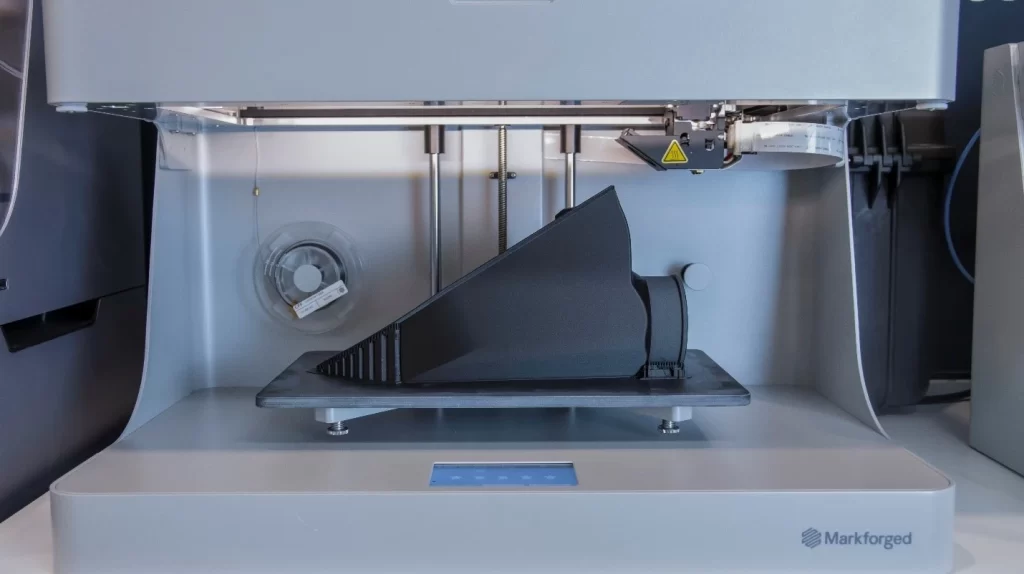
                    Mastering DraftSight for Beginners: Expert Tips for Success

                    BLOG

                    Mastering DraftSight for Beginners: Expert Tips for Success

                    Understanding DraftSight for Advanced Product Design

                    DraftSight is a powerful CAD software that provides a comprehensive set of tools for creating, editing, viewing, and sharing 2D and 3D DWG files. It is designed for architects, engineers, designers, hobbyists, and professionals across various industries. Unleash your creativity and bring your ideas to life with precision and accuracy.


                    Key Highlights

                    • Professional grade 2D CAD that allows users to create, edit, view, and markup 2D drawings and DWG files widely used in various industries such as architecture, engineering, construction, manufacturing, and design.
                    • Easily integrated with SOLIDWORKS 3D CAD, allowing for seamless collaboration and management of DWG files.
                    • Provides a familiar and easy-to-learn interface, making it accessible for beginners and experienced CAD users alike.
                    2D draftsman designs on a drafting board with a laptop

                    Introduction

                    Welcome to the world of DraftSight, a leading 2D drafting software from Dassault Systèmes, and a critical bridge between computer pixel and final physical product. We will delve into the basics, how to leverage it to streamline the journey from 2D drafting to 3D design, and how it can help bridge the gap between traditional drafting and modern product design and manufacturing. We’ll also provide tips and tricks for beginners to transition from traditional to digital drafting and explore advanced features that can enhance your workflow.


                    Consumer product drawing being designed in DraftSight


                    So, if you’re ready to take your drafting skills to the next level and unlock the full potential of CAD software, let’s go!


                    What is DraftSight and Who Needs It?

                    DraftSight is a professional grade 2D CAD software that offers a wide range of features and tools for creating, editing, and viewing 2D drawings and DWG files. It is an essential tool for architects, engineers, designers, and anyone involved in drafting or product design.

                    It provides a familiar and easy-to-learn interface, making it accessible for both beginners and experienced CAD users. Its intuitive interface and powerful capabilities make it your go-to choice for anyone in need of accurate and efficient drafting software.


                    A woman sitting at a computer working on a 3DEXPERIENCE DraftSight project


                    From 2D Drafting to 3D Design

                    DraftSight has grown up along side the 3D industry, evolving from a 2D drafting tool to a full-fledged 3D design software, primed to help anyone move from traditional pencil-and-paper drafting to 3D technology. But how?


                    • Versatility: All the necessary 2D drafting tools anyone could ask for, allowing users to create precise 2D drawings, with the added benefit of 3D design, enabling users to create complex 3D models.
                    • Compatibility: Support for industry-standard file formats such as DWG, DXF, and DGN, ensuring seamless compatibility with other CAD software.
                    • Automation: Tools that help speed up the design process, allowing users to automate repetitive tasks and improve productivity.
                    • Collaboration: With DraftSight, users can easily share and manage design files, making collaboration with team members or clients a breeze.


                    Transitioning from Traditional to Digital: Tips and Tricks


                    Product designers collaborate on 3DEXPERIENCE DraftSight


                    Transitioning from traditional drafting methods to digital CAD software can be a daunting task, especially for beginners. However, with the right tips and tricks, you can make the transition smoother and more efficient.


                    • Familiarize yourself with the interface: Take some time to explore the interface and familiarize yourself with its different tools and features.
                    • Take advantage of tutorials and resources: Make use of resources that enhance your understanding and skills. check out the trainings we have available here.
                    • Customize your interface: Customize the interface to suit your preferences. Take advantage of this feature to create a workspace that enhances your productivity.
                    • Seek help from the community: If you have any questions or face challenges while using DraftSight, don’t hesitate to seek help from the DraftSight community. There are forums, user groups, and support channels available to assist you.


                    Integrating DraftSight into Your Current CAD Workflow


                    DraftSight interface displayed on computer monitor


                    Integrating DraftSight into your current workflow is a seamless process that can enhance your productivity and efficiency.

                    • Evaluate your current workflow: Assess your current workflow and identify areas where DraftSight can be incorporated to streamline your design process.
                    • Import and convert existing files: The software supports various file formats, allowing you to import and convert existing design files into the new environment.
                    • Collaborate with team members: Collaboration features make it easy to work on design projects with team members. Use the software’s sharing and markup tools to collaborate effectively.
                    • Customize the interface: Personalize your interface to match your preferred workflow. Customize menus, toolbars, and shortcuts for quick access to frequently used commands.
                    • Take advantage of automation tools: Automation tools can save you time and effort. Explore these tools and incorporate them into your workflow.


                    Overcoming Common Challenges for Beginners

                    Starting with a new CAD software can be challenging, especially for beginners. However, DraftSight is designed to be user-friendly and intuitive, making it easier for new users to overcome common challenges.

                    One of the main challenges for beginners is getting familiar with the interface and navigation. DraftSight’s interface is designed to resemble traditional drafting tools, making it easier for beginners to understand and use. Additionally, the software provides tooltips and on-screen guides to help you navigate and locate various tools and functions.


                    DraftSight user interface displaying drafting applications


                    Another challenge for new users is understanding the different drawing and editing tools. DraftSight offers a comprehensive tutorial library that covers the basics of CAD drafting and design, including DraftSight basics. From creating basic shapes to advanced 3D modeling, the tutorials provide step-by-step instructions and practical examples to help beginners grasp the concepts and techniques.

                    DraftSight also provides a range of support options, including a community forum where users can ask questions and share their experiences. This creates a supportive and collaborative environment where beginners can seek guidance and learn from more experienced users.

                    With the right resources and support, beginners can quickly overcome the common challenges of learning DraftSight and start creating professional-quality products.


                    Setting Up for Success: Preparing Your Workspace in DraftSight

                    Setting up your workspace is essential for success in your design and drafting tasks. By customizing the interface to suit your preferences and needs, you can improve your workflow and efficiency.


                    DraftSight user preferences and drawing settings menu


                    Customize various aspects of the interface, such as the toolbar layout, command window position, and color scheme. By organizing the tools and commands you frequently use in a way that makes sense to you, you can access them more quickly and efficiently.

                    Additionally, you can create custom keyboard shortcuts and aliases for frequently used commands, further speeding up your workflow. These customization options make DraftSight a powerful tool that adapts to your working style and preferences.

                    By taking the time to set up your workspace, you can create a comfortable and efficient environment that allows you to focus on your designs and achieve the best results.


                    Using DraftSight for Collaborative Product Design

                    A design team collaborates with Engineering on a DraftSight project


                    One of the key collaborative features of DraftSight is the ability to share and manage files. Easily share your designs with colleagues or clients, ensuring seamless collaboration and feedback. You can also control access rights and permissions, ensuring that only authorized individuals can make changes to the design.

                    Moreover, DraftSight enables multiple users to work on the same project simultaneously. This allows for real-time collaboration, where users can view and edit the design in real-time, improving communication and efficiency.


                    Sharing and Managing Design Files

                    DraftSight allows you to export your designs in various file formats, such as DWG, DXF, and PDF. This ensures compatibility with other CAD software and allows non-CAD users to view and review your designs. Additionally, options to customize export settings ensure that your design files are always optimized.

                    Version control and revision history features allow you to track changes and manage different versions of your design files. This ensures that everyone involved in the project is working with the latest version and reduces the risk of errors or conflicts.


                    DraftSight for Beginners: Team Projects

                    Utilizing DraftSight in team projects can greatly enhance collaboration and productivity. DraftSight offers features that enable multiple users to work on the same project simultaneously, making it an ideal tool for team-based design and drafting tasks.


                    1. Simultaneous usage: allows multiple users to access and work on the same design file simultaneously, enabling real-time collaboration and eliminating the need for manual file sharing and merging.
                    2. User permissions: options to control user permissions allow you to define who has access to specific design files and what actions they can perform.
                    3. Markup and commenting: allows users to add markups and comments to design files, facilitating communication and feedback within the team.
                    4. Revision control: version control and revision history features allow team members to track changes and manage different versions of the design file.


                    By utilizing these features, teams can collaborate seamlessly, improve communication, and achieve better design outcomes in their projects.


                    Simultaneous usage User permissions Markup and commenting Layer management Revision control
                    Enable multiple users to work on the same design file simultaneously Control user access and actions on specific design files Add markups and comments to facilitate communication and feedback Organize and separate different components of the design Track changes and manage different versions of the design file

                    Beyond the Basics: Advanced Features to Explore

                    While DraftSight provides a solid foundation for beginners, it also offers a range of advanced features that can take your skills to the next level. These features allow you to explore more complex techniques and enhance your productivity.


                    • 3D capabilities: powerful 3D modeling tools allow you to create and visualize complex 3D designs. You can create and edit 3D models, apply materials and textures, and generate realistic renderings.
                    • Automation tools: automation tools, such as scripts and macros, can automate repetitive tasks and improve efficiency. By creating custom scripts, you can streamline your processes and save time.
                    • Customization options: extensive customization options allow you to tailor the software to your specific needs and preferences. You can customize the interface, create custom commands, and define your own keyboard shortcuts.

                    By exploring these advanced features in DraftSight, you can unlock new possibilities in your routines and achieve more complex and sophisticated designs.

                    3DEXPERIENCE DraftSight displayed on a tablet

                    Automation Tools to Speed Up Things Up

                    DraftSight provides automation tools that can greatly improve your efficiency and productivity in design tasks. By automating repetitive tasks, you can save time and focus on more creative aspects.

                    One of the automation tools in DraftSight is the ability to create custom scripts and macros. These scripts allow you to automate repetitive tasks, such as batch processing, file conversions, and data extraction. By creating custom scripts, you can streamline your design process and automate time-consuming tasks.

                    DraftSight also offers a powerful scripting language, AutoLISP, which allows you to create custom commands and extend the functionality of the software. With AutoLISP, you can automate complex operations, create custom tools, and enhance your productivity.

                    By leveraging automation tools in DraftSight, you can speed up your design process, reduce errors, and focus on creating high-quality designs.


                    Conclusion

                    DraftSight is your ultimate companion for seamlessly transitioning from 2D to advanced 3D creations. Master the art of collaborative design, streamline your workflow, and unleash your creativity with its array of features. From customizing interfaces for efficiency to exploring automation tools, it empowers you to elevate your design game. Ready to bridge the gap between pixel and product? Dive into the world of digital design and bring your imaginative projects to life with ease.


                    For more insights and personalized guidance, don’t hesitate to get in touch with us today.


                    Frequently Asked Questions

                    Can DraftSight Help Bridge the Gap Between Traditional Drafting and 3D Design?

                    Yes, DraftSight can help bridge the gap between traditional drafting and 3D design. With its intuitive interface and comprehensive set of tools, DraftSight allows users to easily transition from traditional drafting techniques to 3D, enabling a smooth transition and improved design capabilities.


                    Can DraftSight be used for both 2D and 3D drafting, and what are the differences in using it for each?

                    Yes, DraftSight can be used for both 2D and 3D drafting. The main difference lies in the tools and techniques used for each. In 2D drafting, you focus on creating precise 2D drawings, while in 3D drafting, you create and manipulate 3D models. DraftSight provides the necessary tools and functionality for both types of drafting.

                    X_green_halo

                    Any questions? Need help? Ask one of our experts.

                    Whether you’re ready to get started or just have a few more questions, you can contact us toll-free:

                        Download

                          Download

                            Download

                            All search results