Better integration of SOLIDWORKS Electrical for SOLIDWORKS PDM

BLOG

Did you know that a better integration of SOLIDWORKS Electrical for SOLIDWORKS PDM is now available?

SOLIDWORKS provides you with a new tool: SOLIDWORKS Electrical integration for Professional SOLIDWORKS PDM 2018. SOLIDWORKS Electrical Integration for SOLIDWORKS PDM is a new SOLIDWORKS Electrical component that implements a better integration with SOLIDWORKS PDM Professional.

SOLIDWORKS Electrical Integration for SOLIDWORKS PDM is a free product that will be available to customers using SOLIDWORKS Electrical 2D and SOLIDWORKS PDM Professional.

SOLIDWORKS Electrical Integration for SOLIDWORKS PDM is being released with SOLIDWORKS Electrical 2018
The most important functionalities of this tool are:

• SOLIDWORKS Electrical users will obviously be able to store their projects in SOLIDWORKS PDM from within SOLIDWORKS Electrical.
• Allow the work-sharing between users.
• Variable mapping between both products so that key electrical metadata can be made available in SOLIDWORKS PDM.
• Electrical components libraries will be pushed and synchronized to SOLIDWORKS PDM
• “Where Used” information will be available.
• This product will also manage electrical deliverable files, such as PDF and DWG.
• It will also publish an advanced electrical Bill of Material (BOM) to SOLIDWORKS PDM.

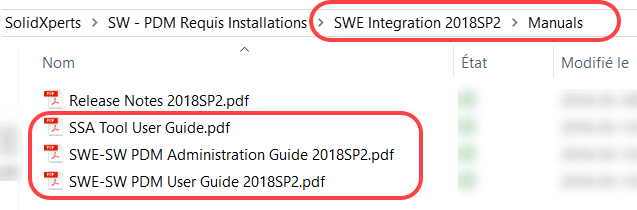
Installation, administration and users guide will be installed in the installation folder of SOLIDWORKS Electrical integration for Professional SOLIDWORKS PDM 2018.

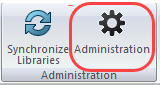
Once SOLIDWORKS Electrical integration for Professional SOLIDWORKS PDM 2018 was installed in SW Electrical, you must define some parameters in the administration of the tool.


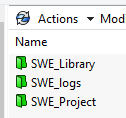
You will beforehand have created a folder structure in your PDM vault to host your 2D SW Electrical projects, and logs, as well as a Library folder for synchronization of SW Electrical.

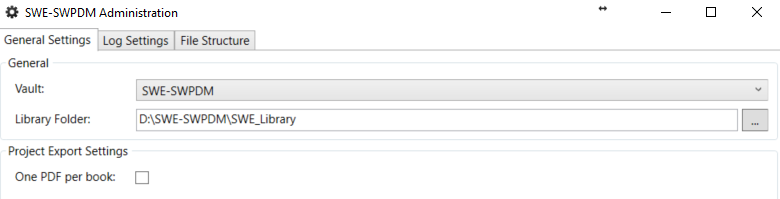
In the tab General Settings:
Choose your Vault and the library folder in your vault.

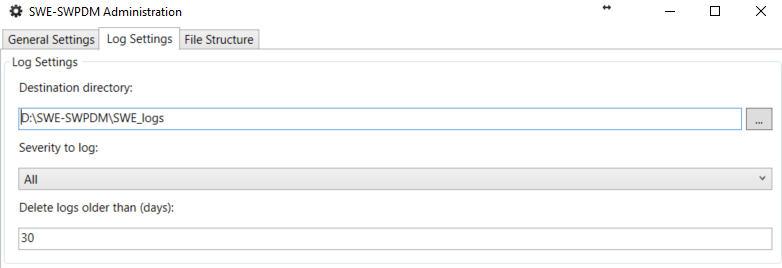
In the tab Log Settings:
Define the folder of logs inside the vault, as well as its options.

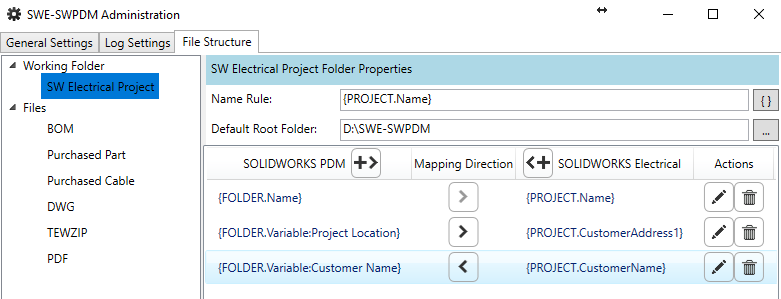
In the tab File Structure:
According to SOLIDWORKS Electrical document types, you can make some Mapping.

To start the collaboration of SOLIDWORKS Electrical integration and SWPDM.
Since you are Project Manager:
Unarchive and open your SW Electrical project
(Files *.tewzip)

Work on your project as usual, when ended.
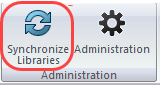
Make a synchronization of your library towards PDM,
by using Synchronize Libraries.

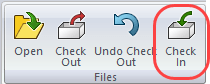
And make Check-in:

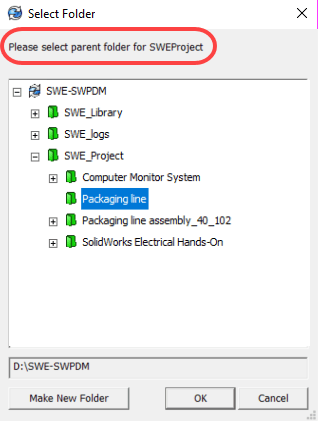
As asked, select the parent file of your project.

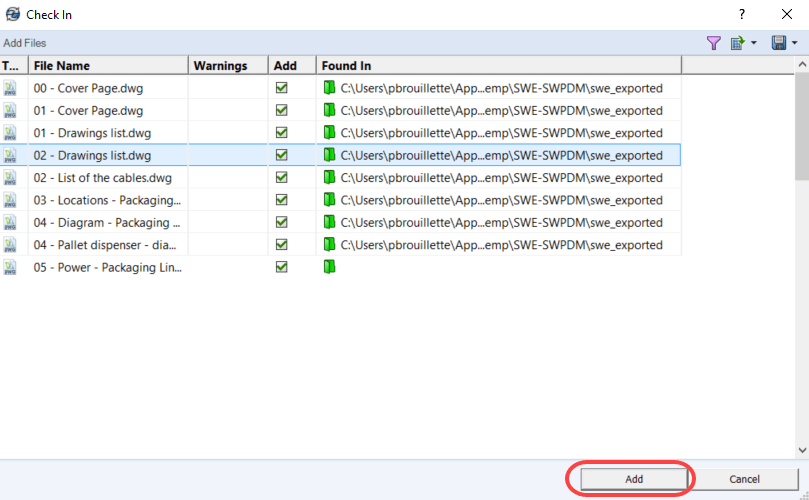
A table showing all the files which will be archived will appear, click Add.

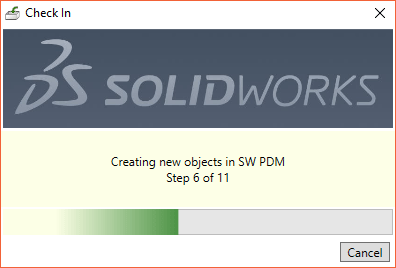
Let the process make the creation of all the objects of your project (it can take some time).

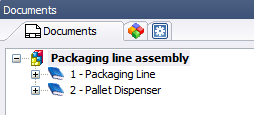
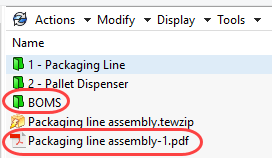
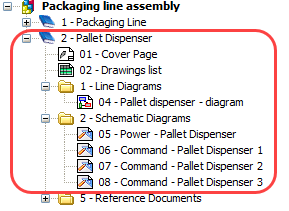
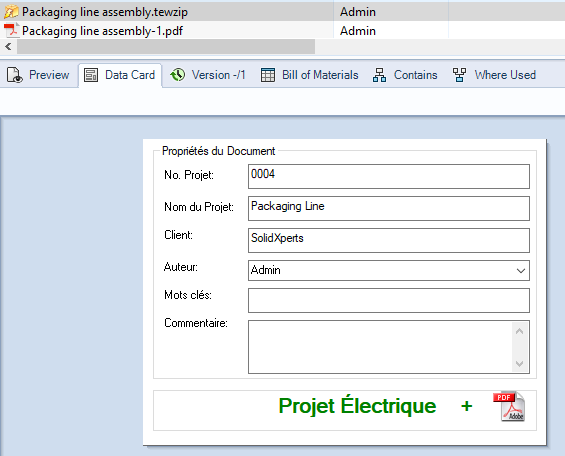
Once the process is completed; you will notice that the structure of your project SOLIDWORKS Electrical was duplicated in PDM. by adding a folder BOMS.
and creating a .pdf file of your complete drawing package.

SOLIDWORKS Electrical

Local PDM view

SOLIDWORKS Electrical


Local PDM view

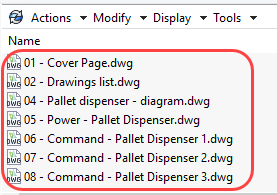
You will also notice the creation of all your drawings in .dwg format.

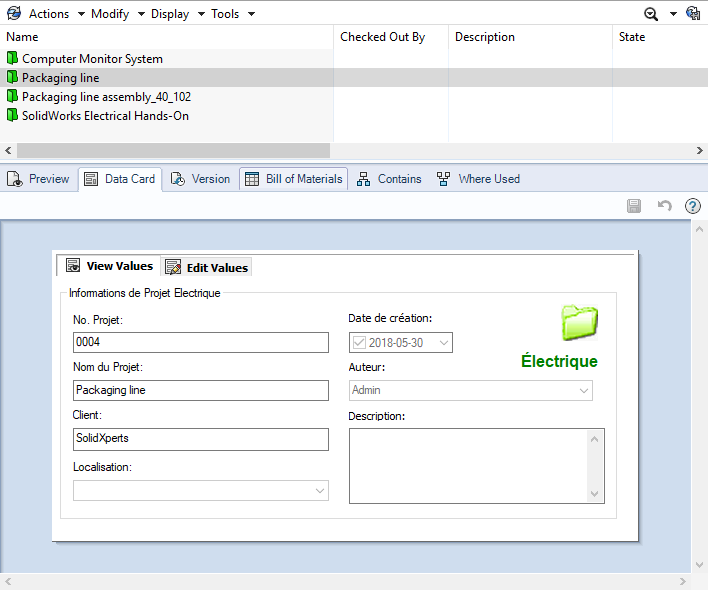
All the PDM tabs will be accessible. You can even design a specific card for your SOLIDWORKS Electrical projects.

As well as file cards which will inherit some properties of their folder card.

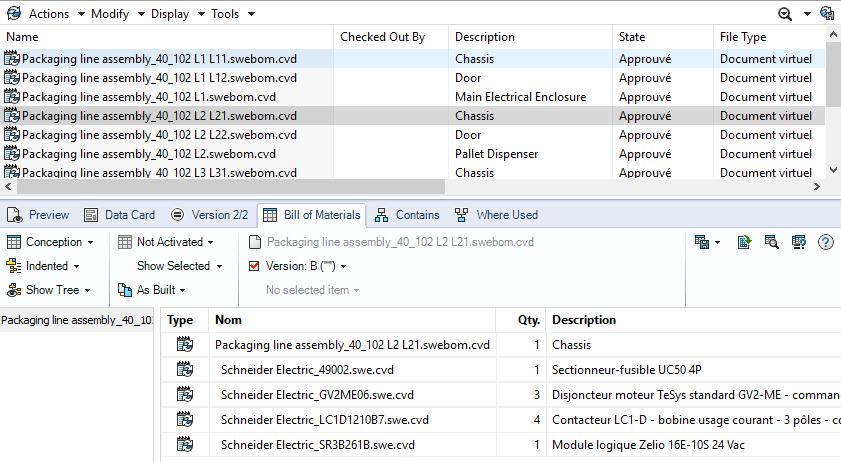
In the folder BOMS; you will find all the bills of material for your project. It will be possible for you to open and export your BOM throw Excel such as any other BOM in PDM.

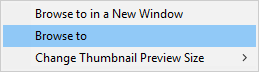
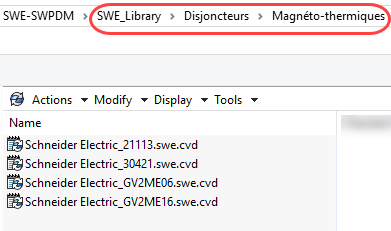
By choosing a file of a BOM (Click + right button of the mouse) to obtain the options such as: Browse to, allowing to go to the localization of the library parts.

This new tool will allow better collaboration between your electric and mechanical engineering departments. If you have any questions just contact one of our Xperts.

On the same subject, take a look at the video produced by SOLIDWORKS:

X_green_halo

Any questions? Need help? Ask one of our experts.

Whether you’re ready to get started or just have a few more questions, you can contact us toll-free:

    Third-party Files Available for Import as Graphics Bodies

    BLOG

    Third-party Files Available for Import as Graphics Bodies

    By Gregory Bejtlich – Application Specialist at SolidXperts

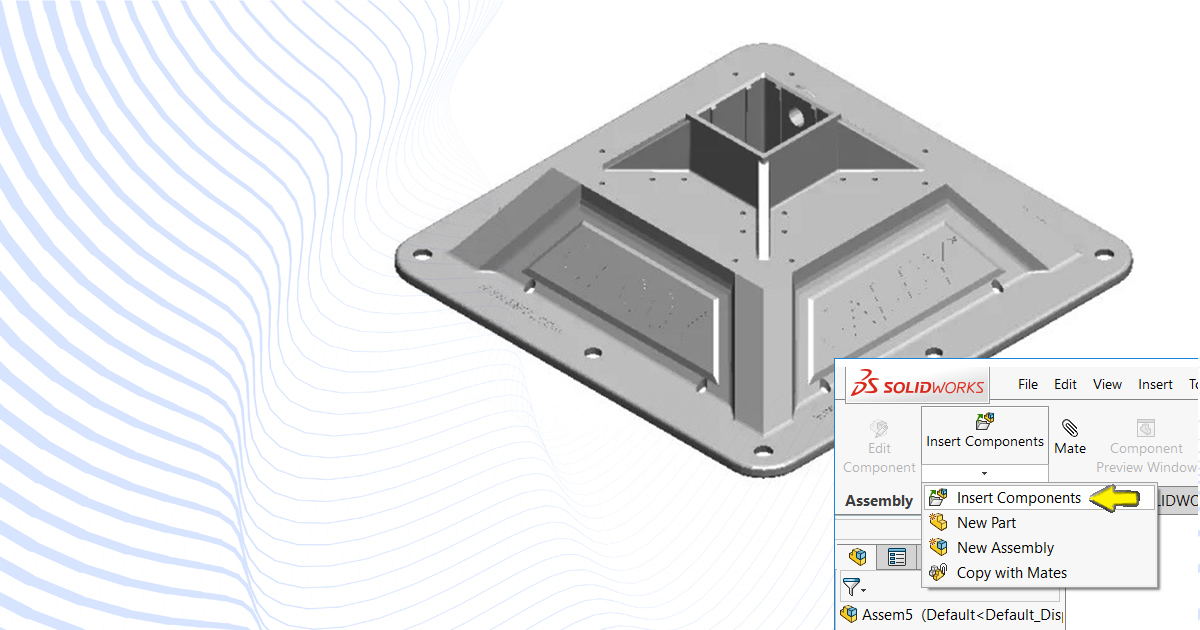
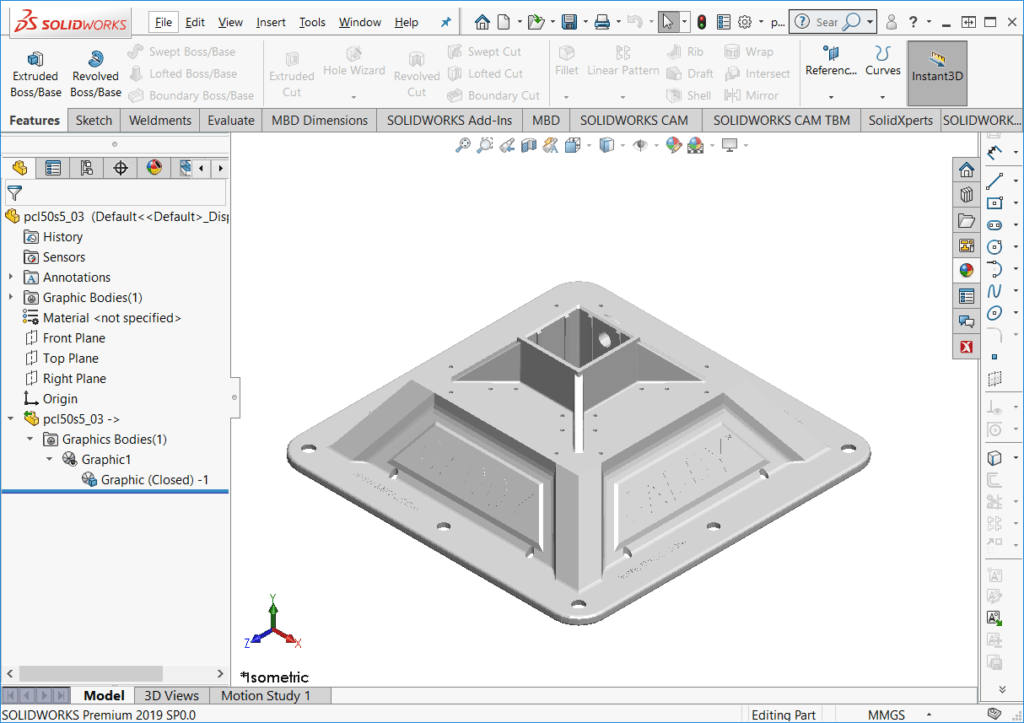
    Following the release of SOLIDWORKS, users can now import third-party files as graphical 3D meshes rather than solid or surface bodies. Previous releases were limited to the mesh file types *.stl, *.obj, *.off, *.ply, *.ply2. Changes for 2019 also include the addition of a ‘Graphical Body’ check box from the ‘Open’ dialog.

    Importing as a graphics body can be very useful for manual remodeling or taking specific measurements. Additionally, importing as a graphics body utilizes significantly fewer resources when opening large or complex files.

    To access this feature, follow the steps below.

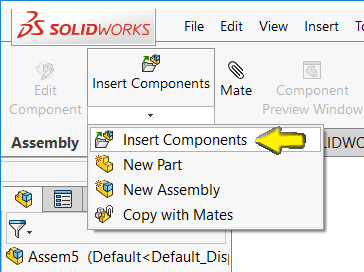
    Import as a Graphical Body can be accessed with File > Open (Ctrl + O) or Insert > Component > Existing Part/Assembly within an assembly.

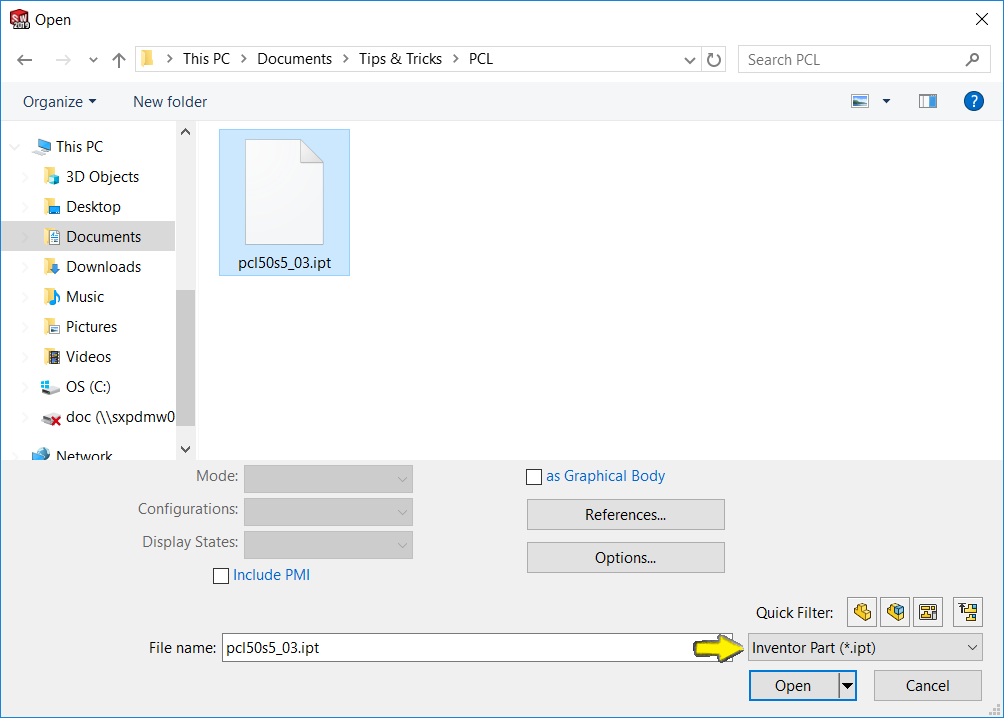
    Using the file format drop list, select any third-party format such as Autodesk Inventor (*.ipt) or ProE/Creo (*.prt)

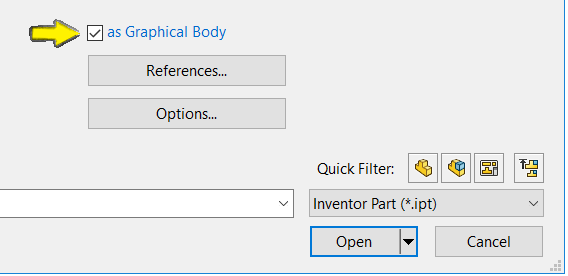
    Unlike importing mesh files, users are no longer required to enable the Graphics Body through the options menu. SOLIDWORKS now includes an “as Graphical Body” check box below the file explorer. Select the check box and click ‘Open’.

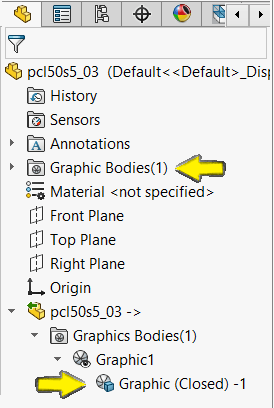
    The Inventor Part (*.ipt) is now imported as a Graphical Body. Notice the feature tree displays the part not as a surface body or solid body – but as a Graphic Body.


    Contact Us if you have any questions.

    X_green_halo

    Any questions? Need help? Ask one of our experts.

    Whether you’re ready to get started or just have a few more questions, you can contact us toll-free:
      How to fix a toolpath with SOLIDWORKS CAM?

      BLOG

      How to fix a toolpath with SOLIDWORKS CAM?

      By Ghyslain Lacombe – Application Specialist at SolidXperts

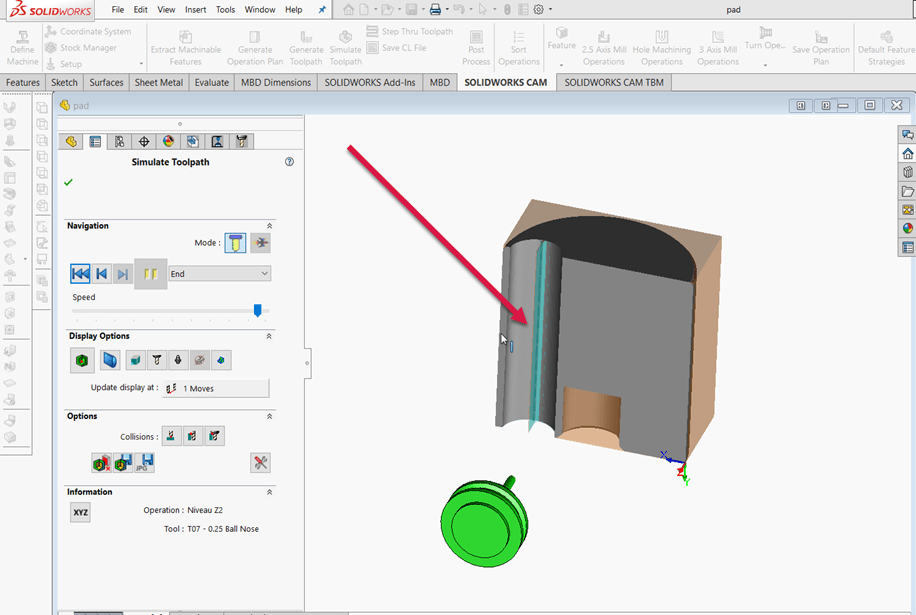
      When creating a toolpath, the result can sometimes not be the one you want. In the following example shown in video and screen captures, there is a steel island in the center of a cutting.
      How to correct the default toolpath in order to remove the steel island left by the initial toolpath?

      1- Region to be machined:

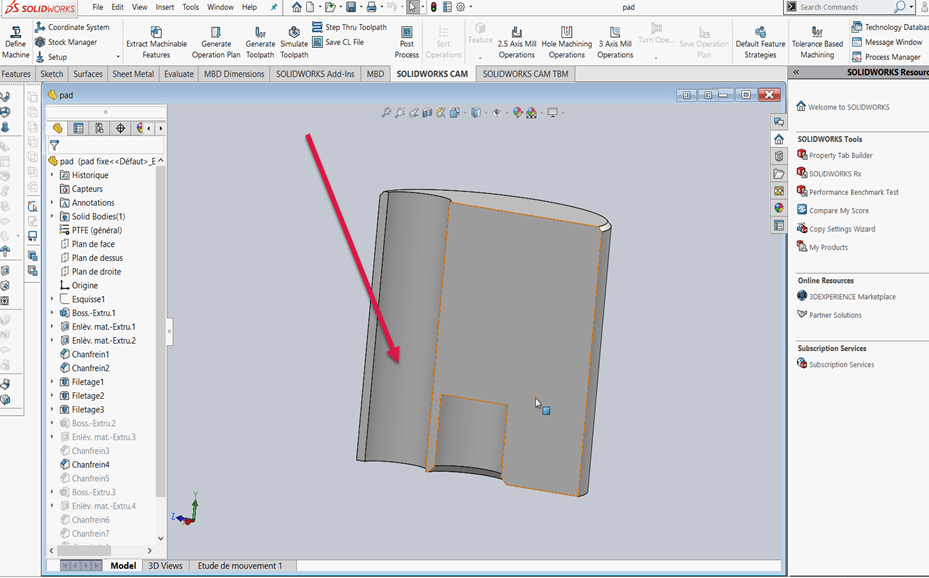
      As you can see, the customer wants to machine this region:


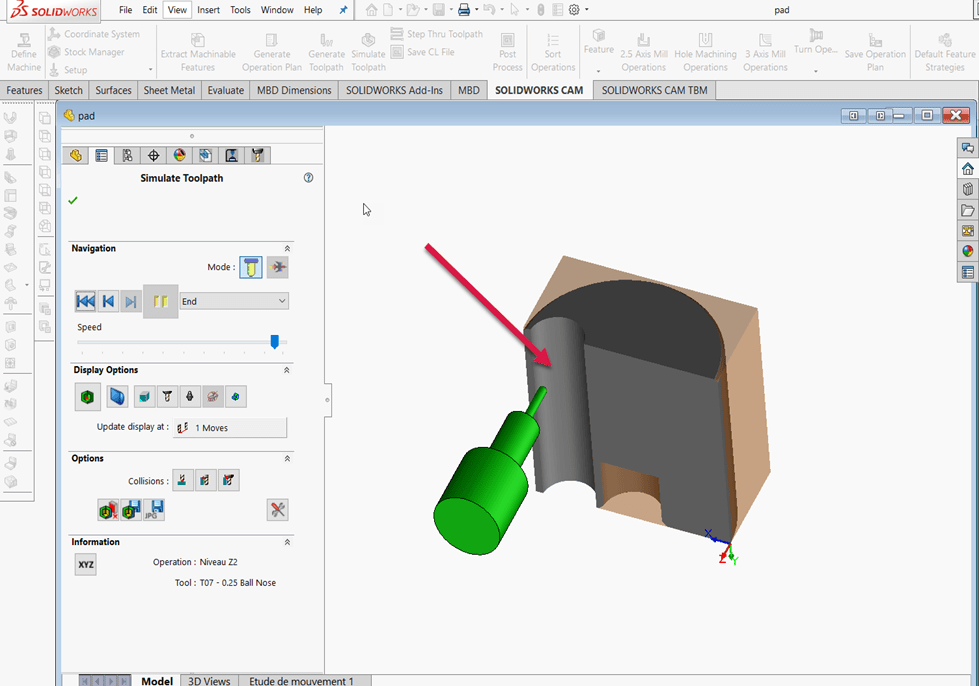
      2- Result of the initial toolpath:


      The result of the toolpath leaves an undesirable steel island: How to correct this?

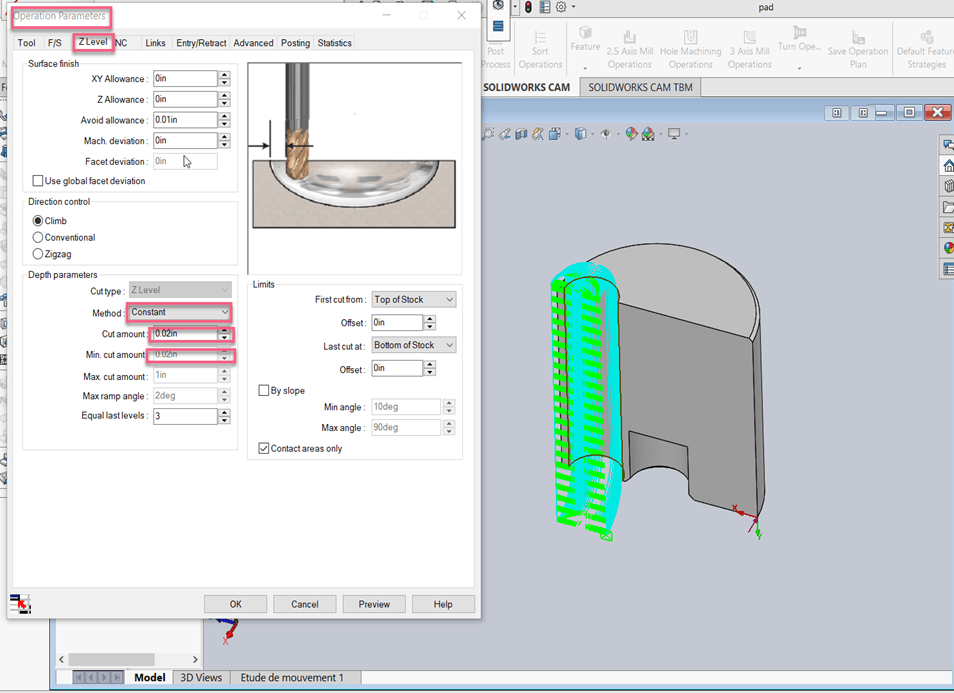
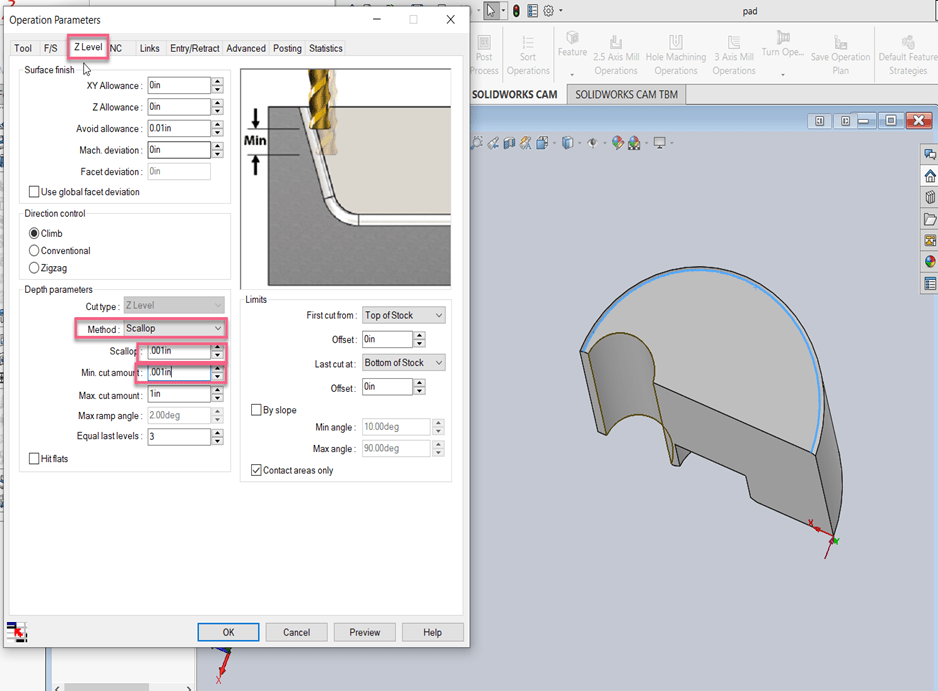
      3- Edit the function: Z Level:

      The operation parameters are as follows:


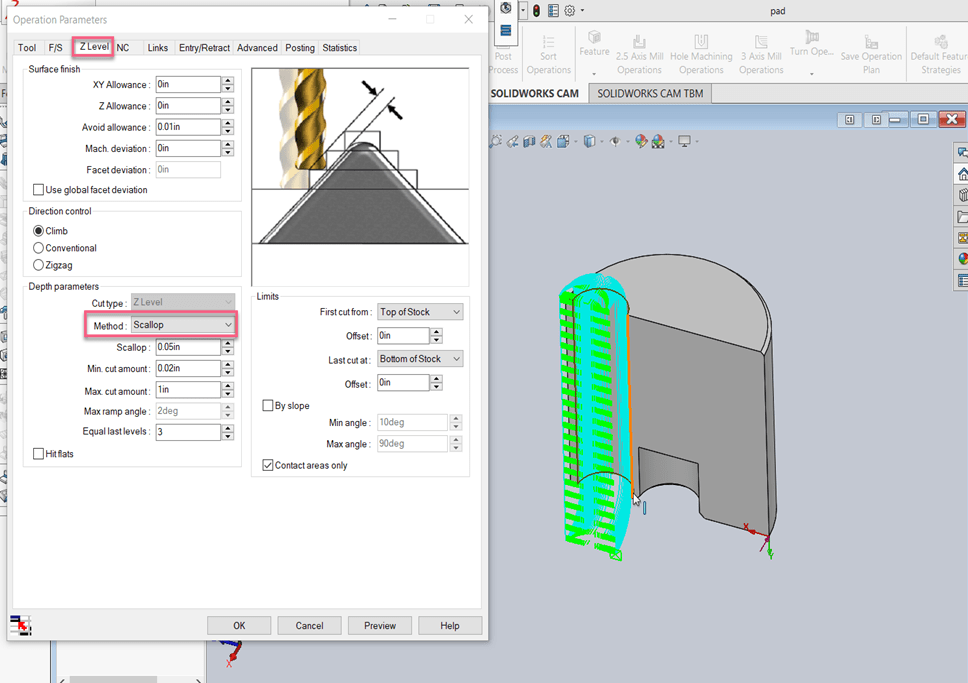
      4- In this case, you must change the method from constant to scallop to be able to eliminate material that cannot be machined with the other process.


      5- The result still leaves an unmachined region because it is necessary to increase the precision:


      6- It is then necessary to reduce the scallop and the minimum cut amount to be able to remove all the material.


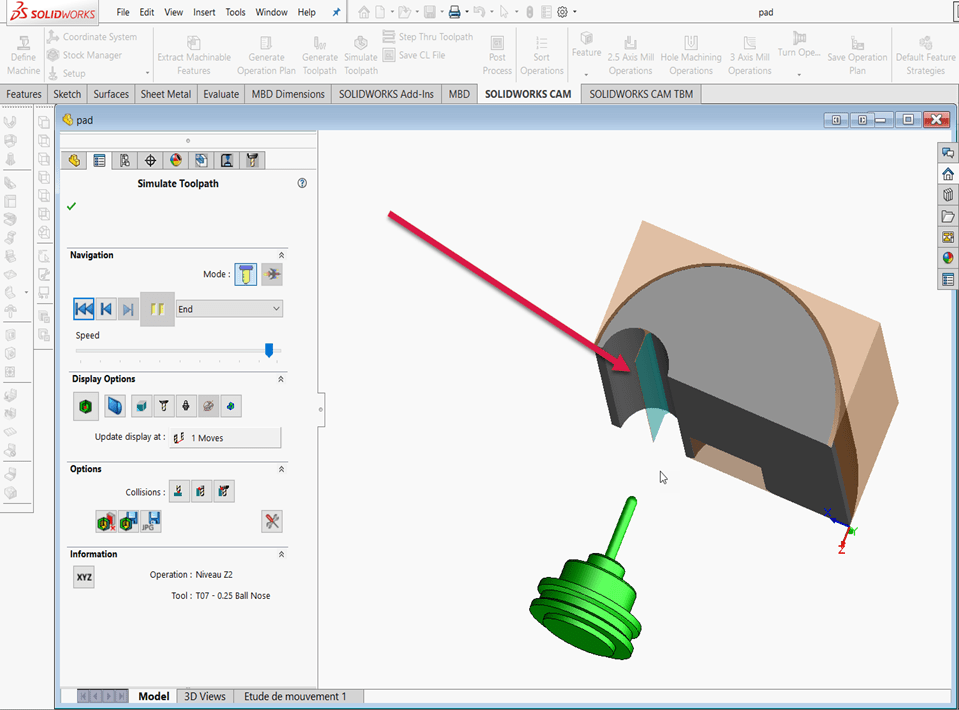
      7- The result shows that the machining is now complete:


      Therefore, depending on the kind of workpiece, you must determine the machining method to use and adjust the number of passes and the scallop for machining to be complete.

      Contact Us if you have any questions.

      X_green_halo

      Any questions? Need help? Ask one of our experts.

      Whether you’re ready to get started or just have a few more questions, you can contact us toll-free:
        Hidden Keyboard Shortcuts for SolidWorks

        BLOG

        Hidden Keyboard Shortcuts for SolidWorks

        As with video games, there are hidden shortcuts in the SolidWorks software. Today, we reveal some of these different combinations to help with your part, assembly, and drawing creation.

        Continue reading “Hidden Keyboard Shortcuts for SolidWorks”

        Server Installation for SOLIDWORKS PDM Standard

        BLOG

        Server Installation for SOLIDWORKS PDM Standard

        By Elene Teolis – PDM Application Specialist

        The following steps will guide you through the installation of SOLIDWORKS PDM Standard and its basic minimal operational configuration settings.

        This document will cover the following points:

        1. Server Preparation
        2. Software installation
        3. Archive Server Configuration
        4. License Activation
        5. Creating a Safe

        Server Preparation

        1.1. Ensure the server meets the computer requirements. See Hardware and System Requirements – PDM STD.
        1.2. Have your PDM Standard License Number on hand.

        SOLIDWORKS PDM licenses must be released by SOLIDWORKS in order to be activated on a server.

        Contact SolidXperts Technical Support to have your PDM Standard license released.
        -Telephone: 1-877-824-3379 or 1-877-876-5434, ext. 150
        -Email: support@solidxperts.com

        The installation files for PDM Standard can be found on the DVD or in the SOLIDWORKS Portal.

        Software Installation

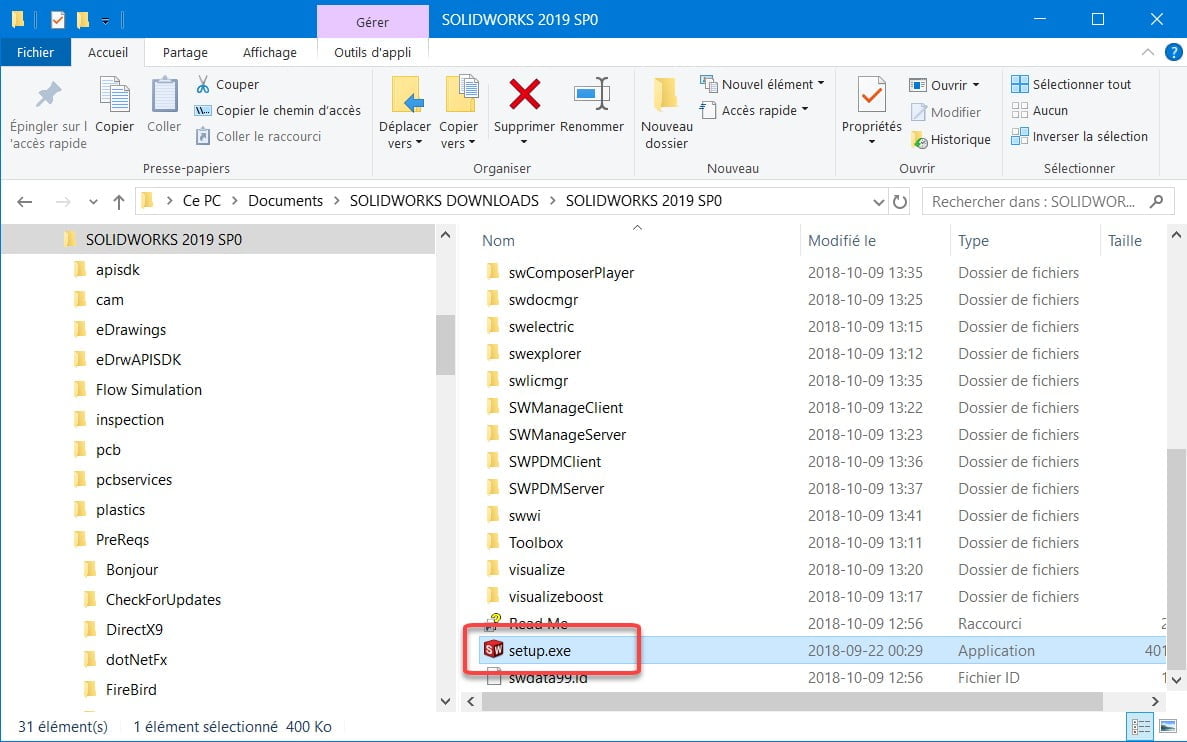
        2.1. Run ‘Setup.exe’ as an Administrator


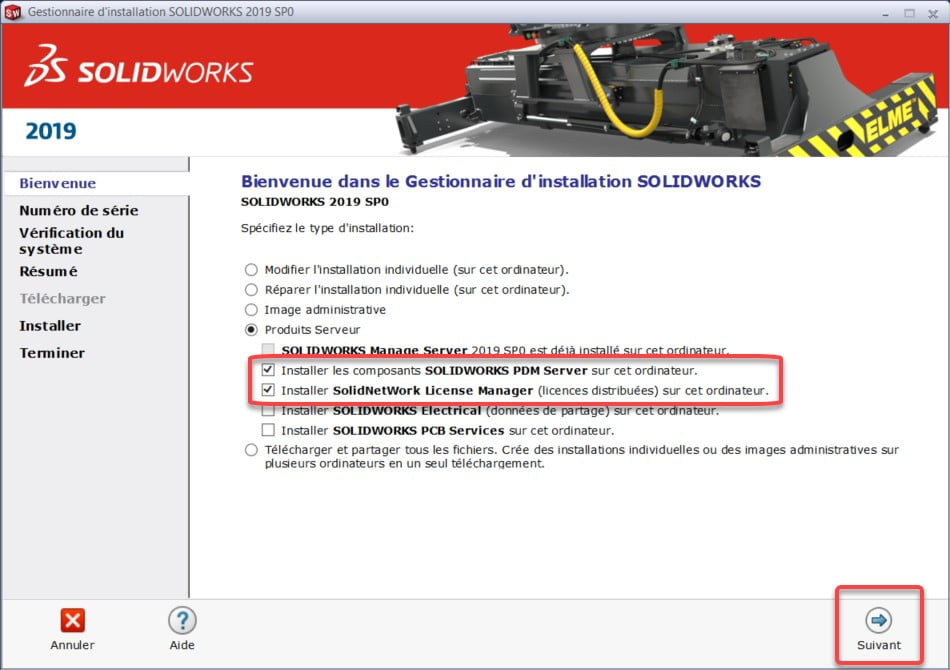
        2.2. Choose which Server Products to install

        • Install SOLIDWORKS PDM Server Components
        • Install SolidNetWork Licensed Manager

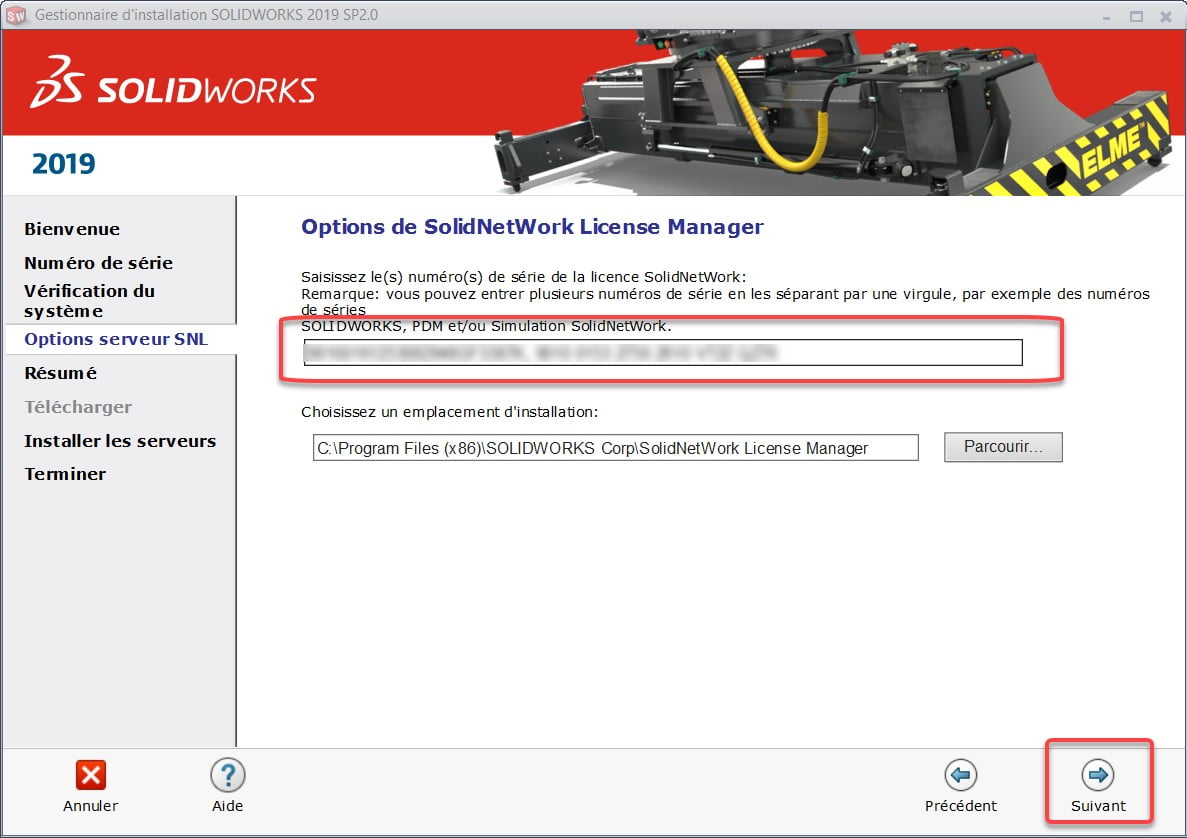
        2.3. SNL Server Options

        • Enter your license numbers into SolidNetWork License Manager

        SOLIDWORKS PDM Standard licenses are floating. The available number(s) must be entered in this field, separated by a comma.

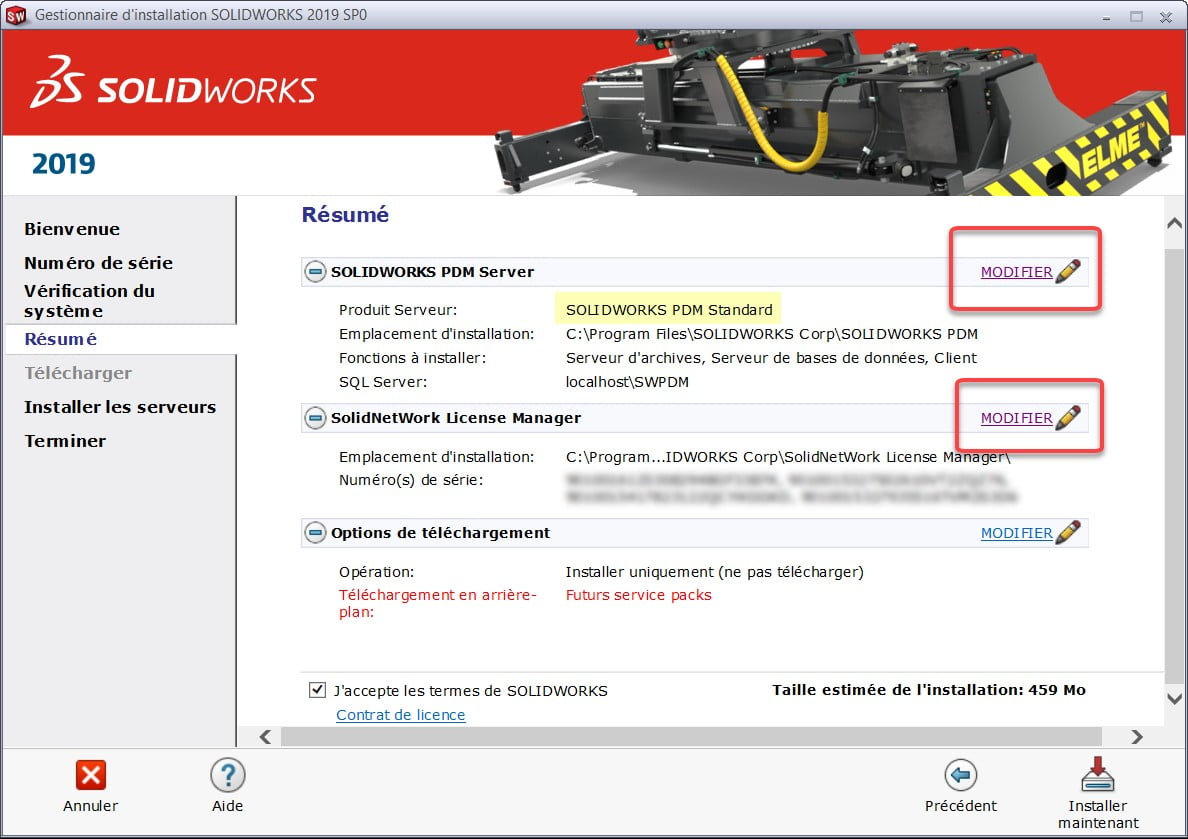
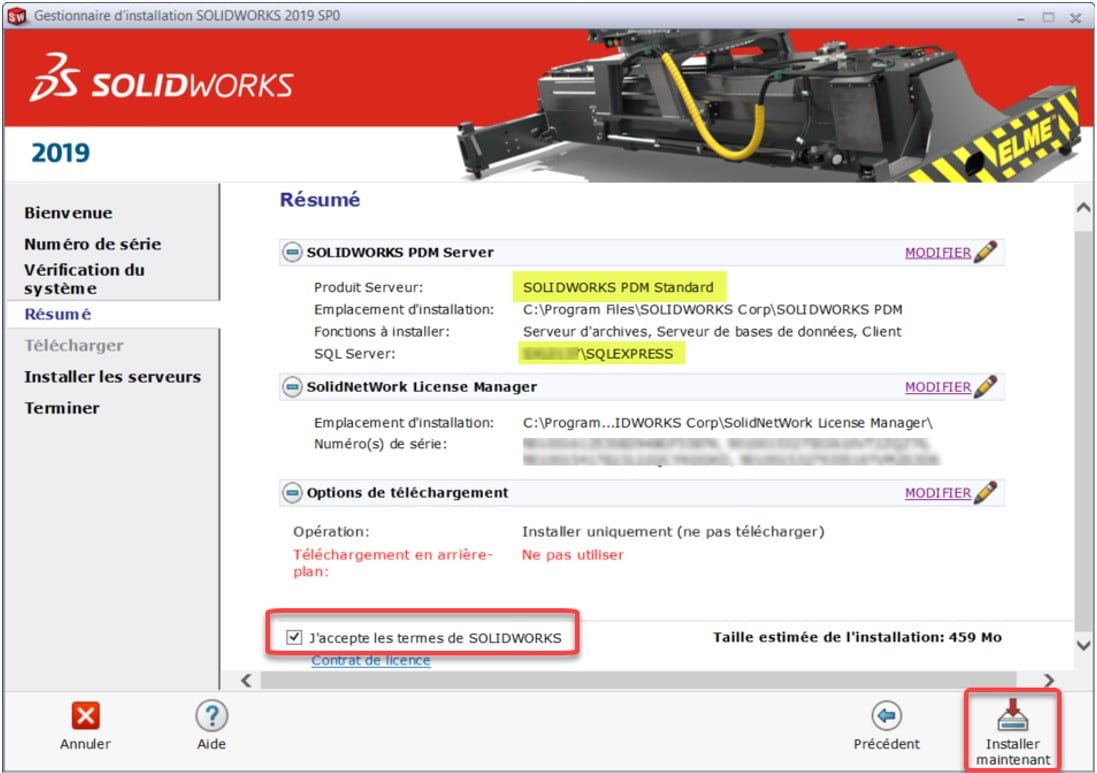
        2.4. Component Installation Summary

        • SOLIDWORKS PDM server – Edit

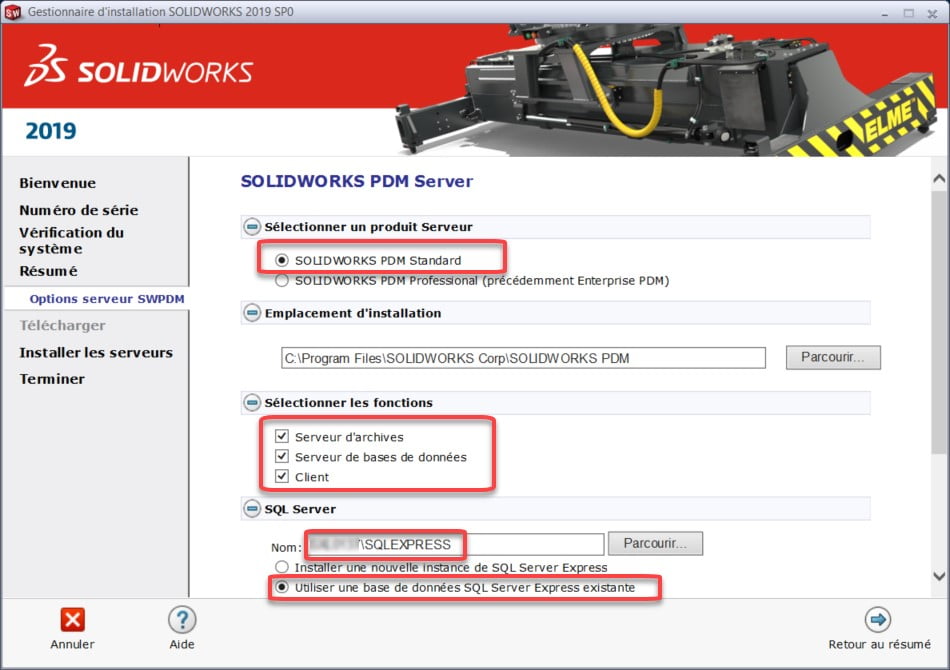
        • Validate and/or edit the options for:
          • Server Product: Choose SOLIDWORKS PDM Standard
          • Features to install:
            • Archive Server
            • Server Database
            • Client

          • SQL Server:
            • Choose the previously installed SQL Express instance
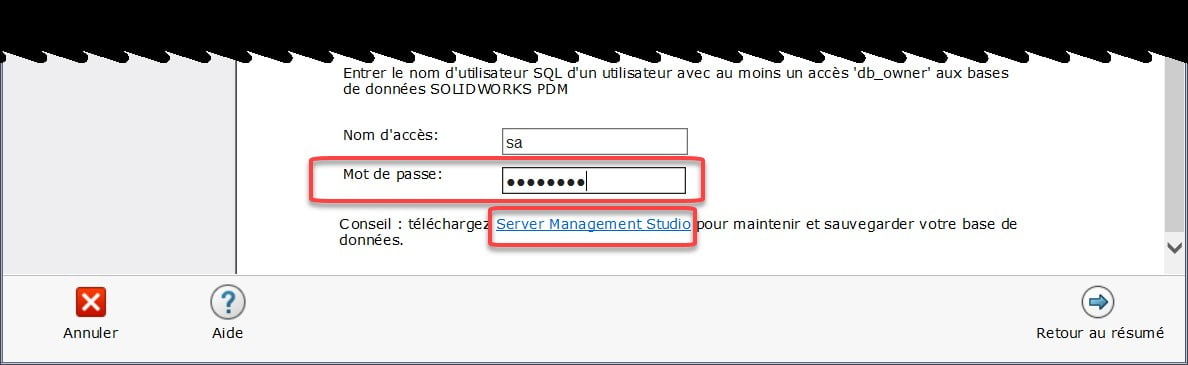
            • Enter the SA username and password, chosen when installing SQL Express

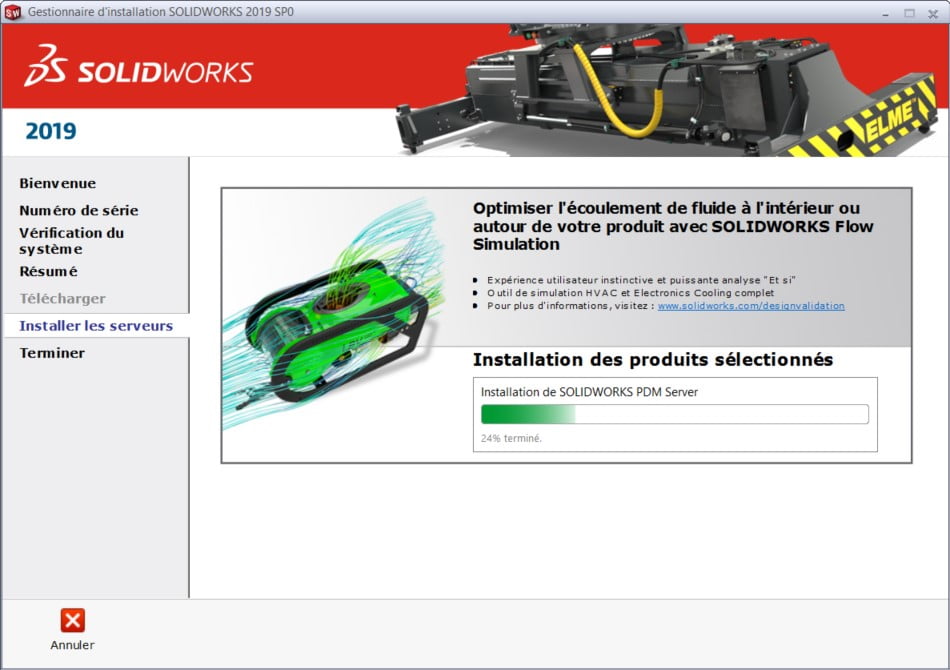
        2.5. Validate the information – Install now


        Archive Server Configuration

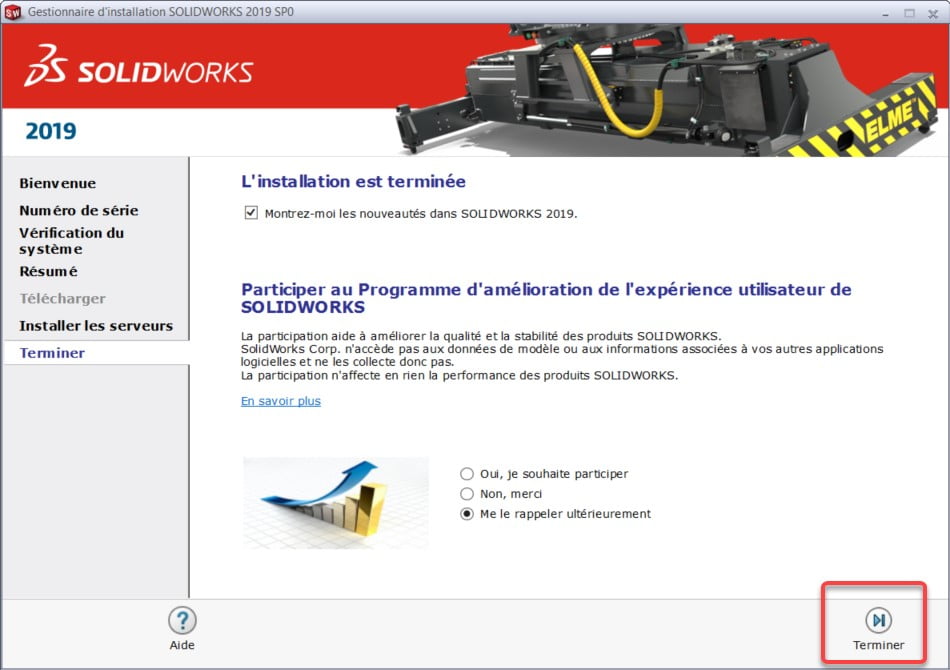
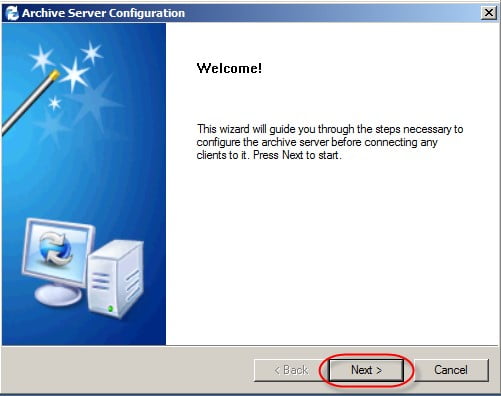
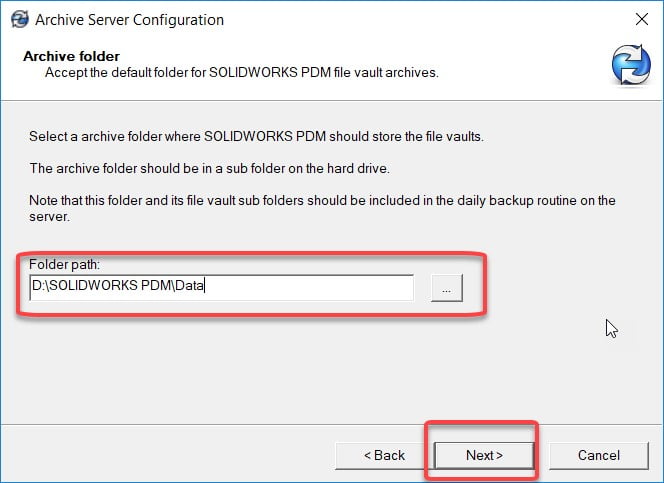
        Once the server component installation is complete, the Archive Server Configuration tool starts automatically to continue configuration.

        3.1. You must change the location of the archive server files so that they are located on the disk intended for the data (as prepared in the first section “Server Preparation”).


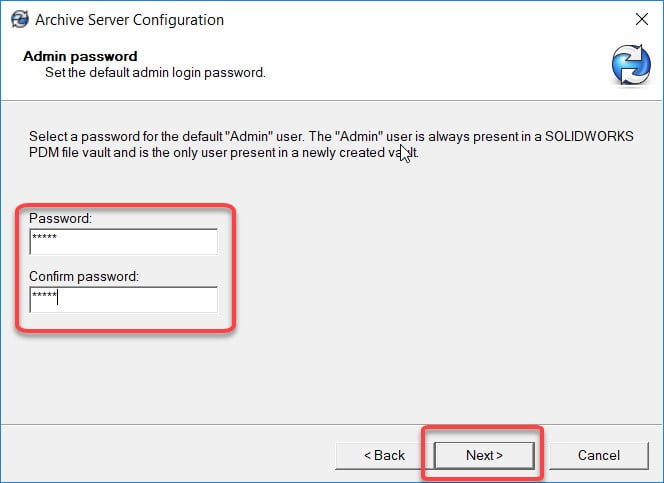
        3.2. Choose a password for the default Admin user


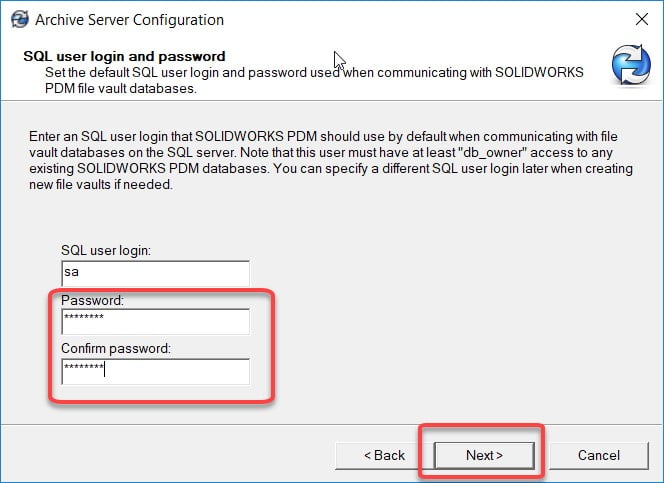
        3.3. Choose a password the SA user will need to connect to SQL.

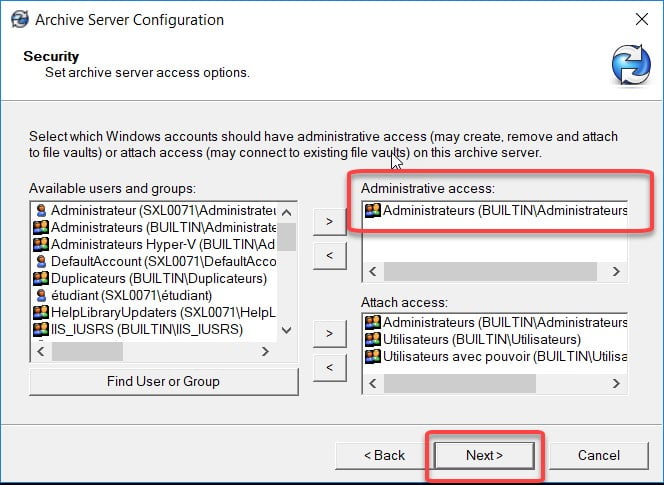
        3.4. Keep administrators only for “Administrative access” and keep the default options for “Attach access”.

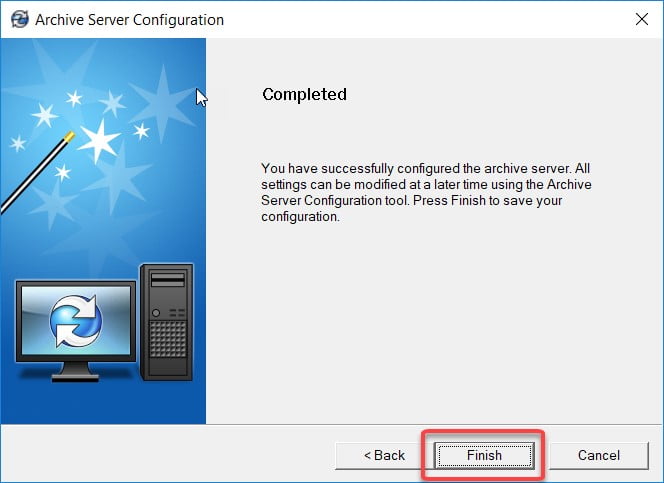
        The Archive Server configuration is complete.

        License Activation

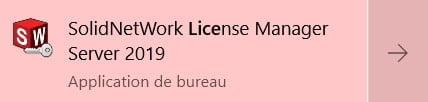
        4.1. Start SolidNetWork License Manager


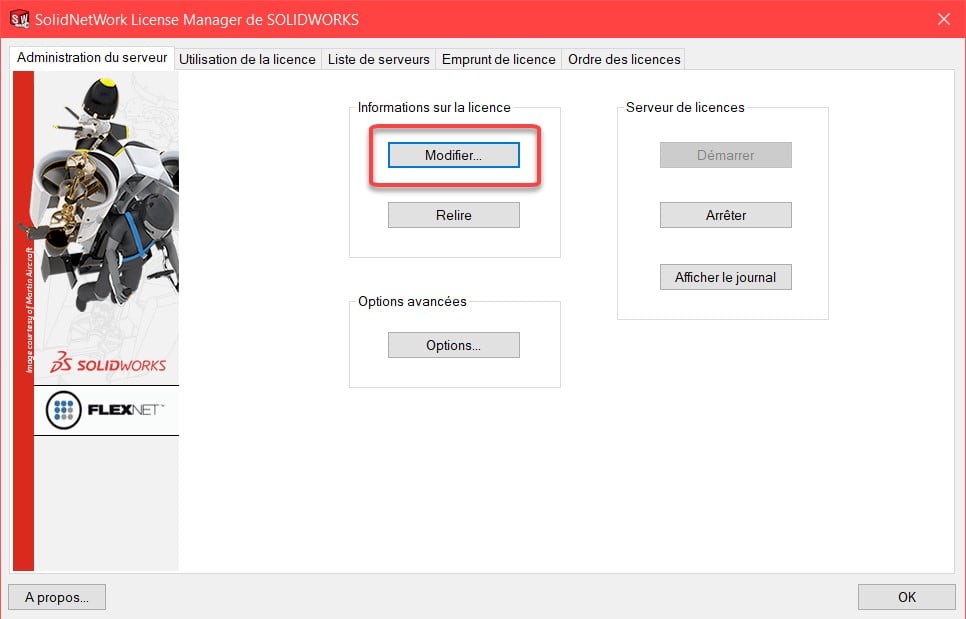
        4.2. In the “Server Administrator” tab, choose “Edit”


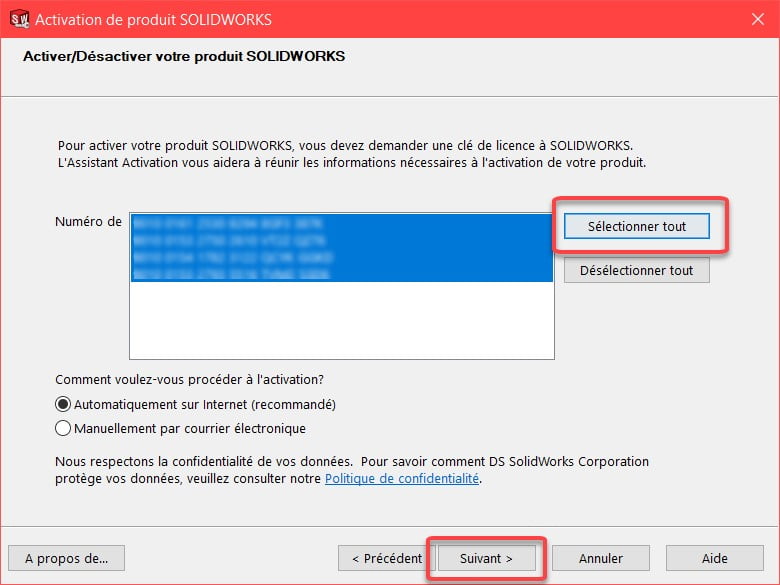
        4.3. Choose “Select All”


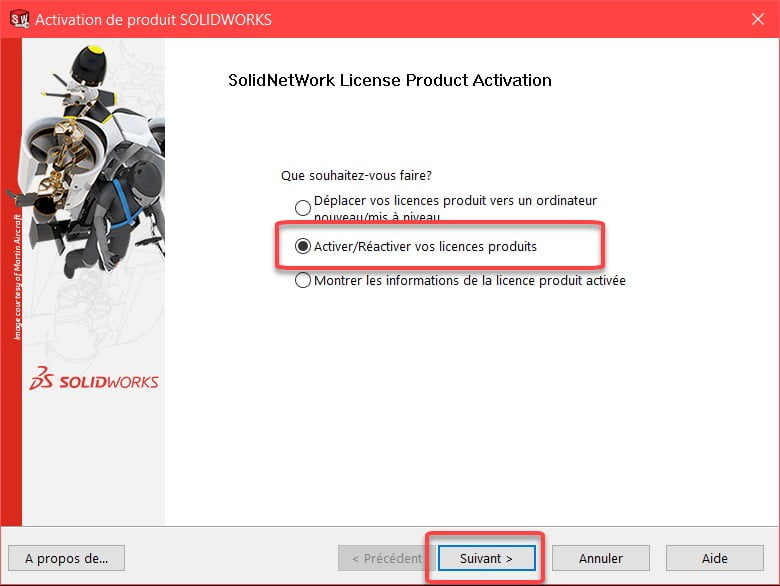
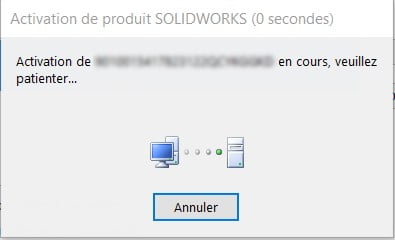
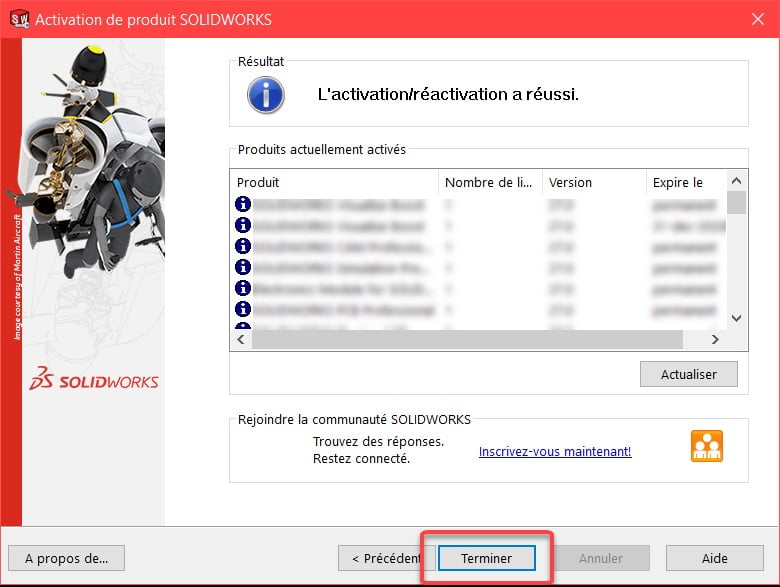
        4.4. Choose “Activate/Reactivate” your product licenses


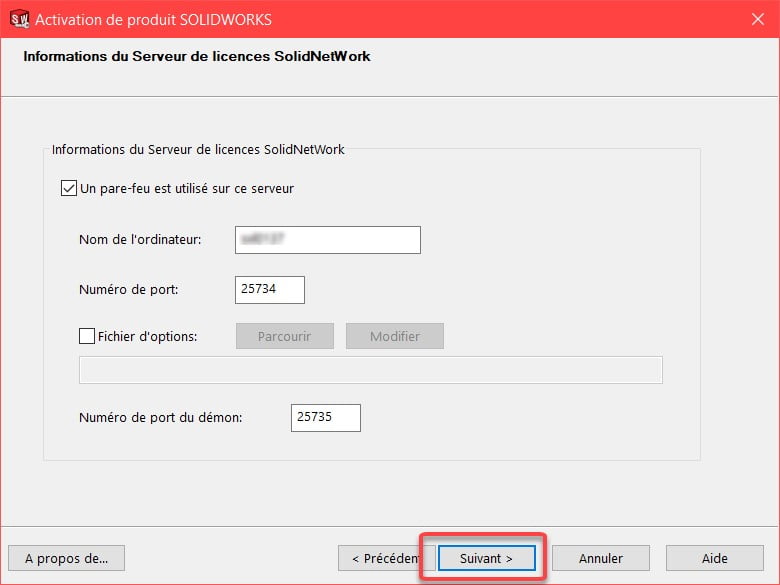
        4.5. Validate the information of your License Server

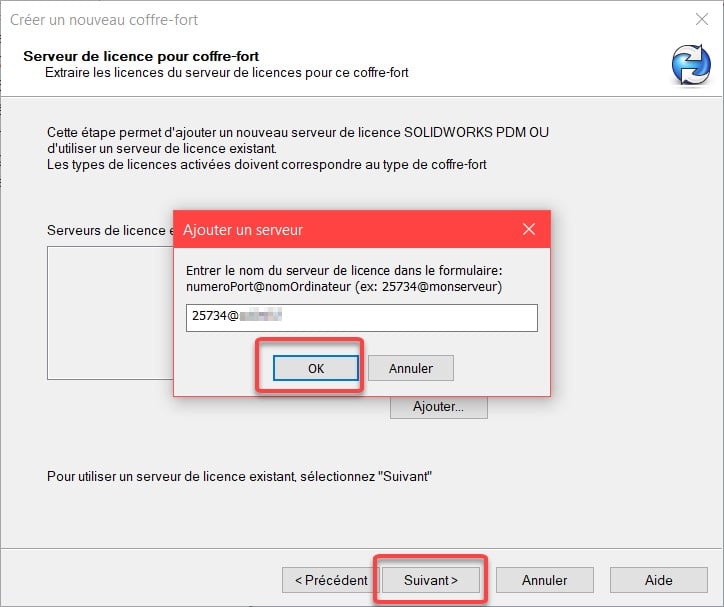
        • The ports are: 25734 and 25735

        Create a Safe

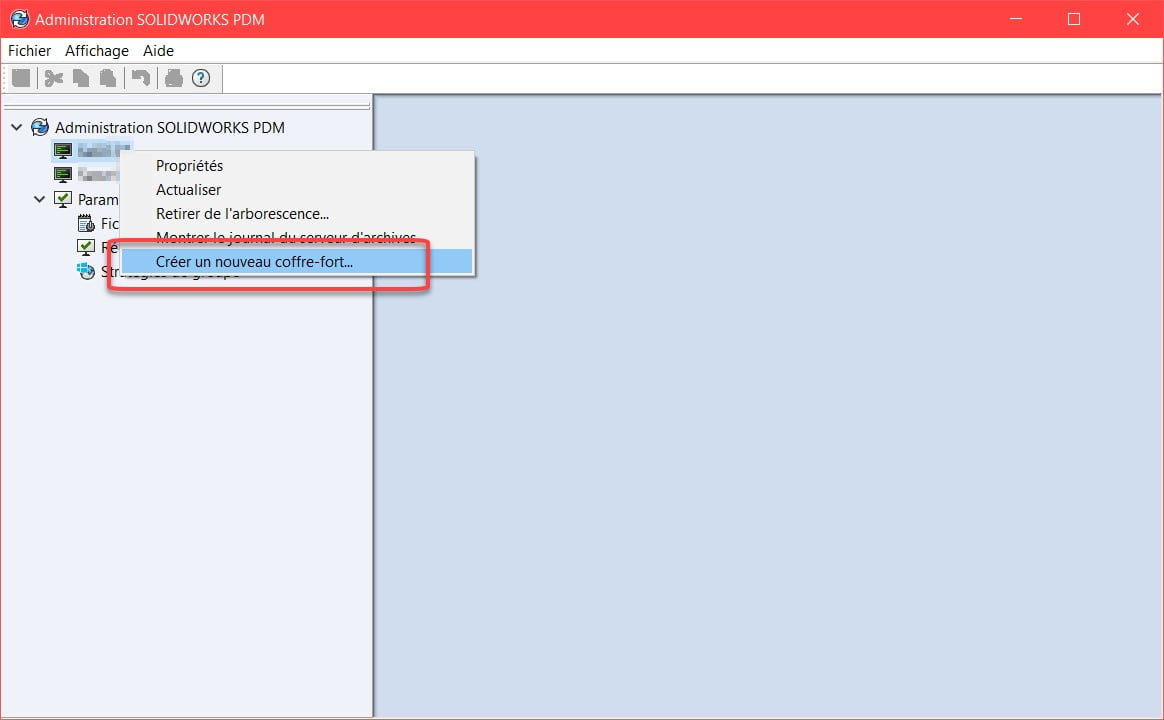
        5.1. Start the PDM Administration tool


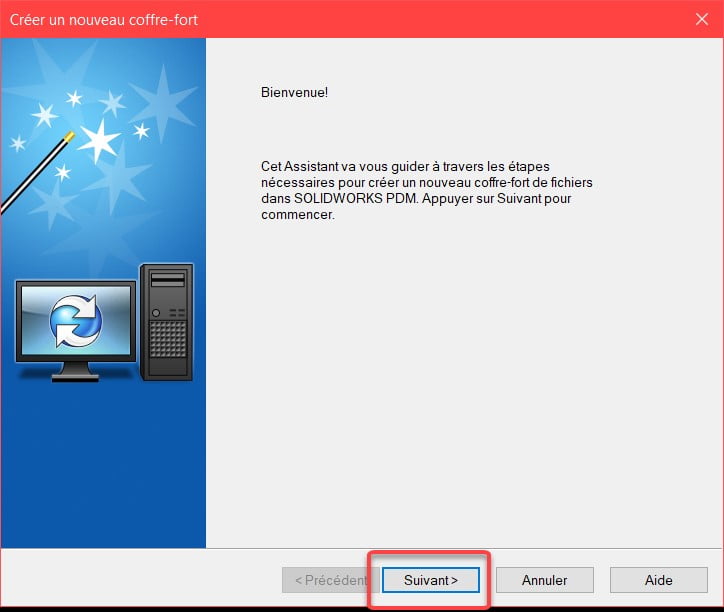
        5.2. Right click on the server name – Create a new safe


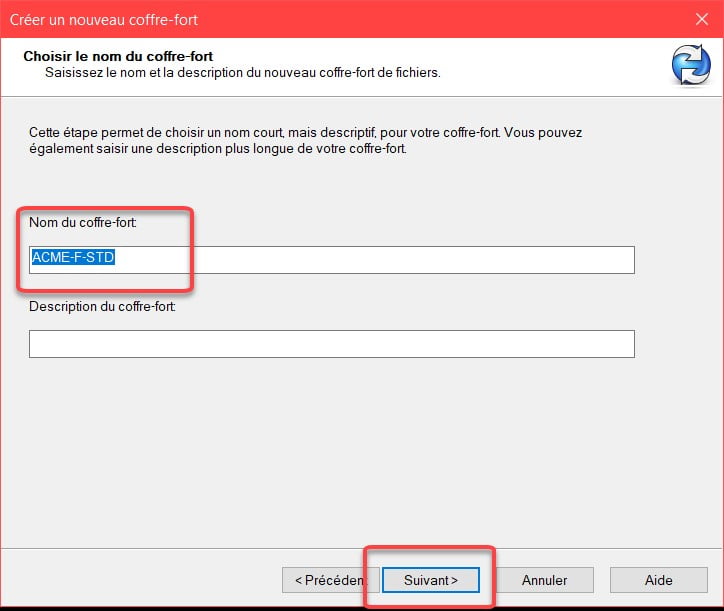
        5.3. Enter a name for the safe


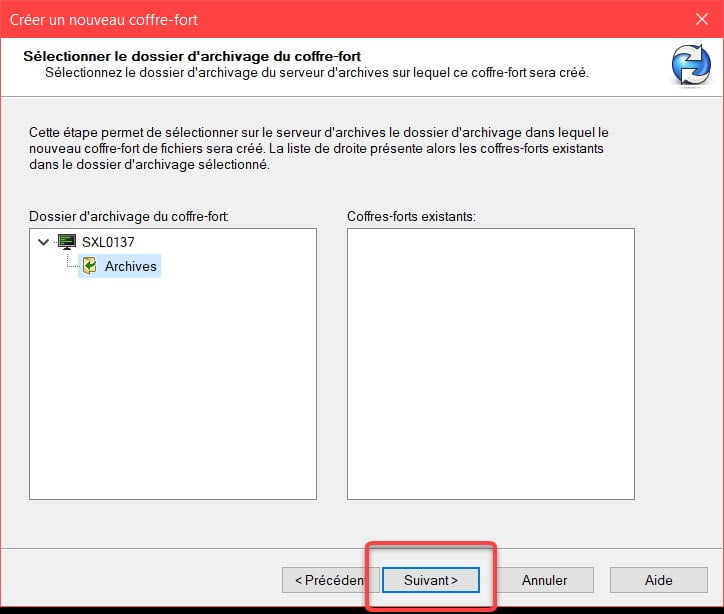
        5.4. Keep the default values for the location of the archive files.


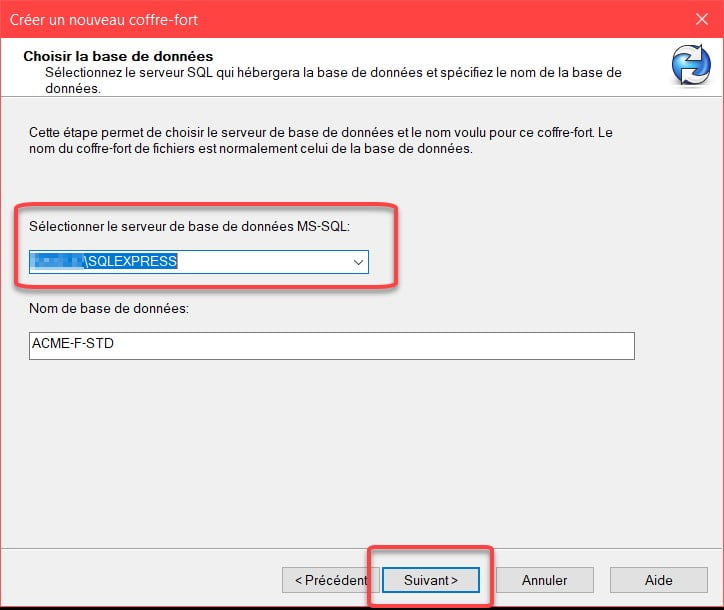
        5.5. Select the SQL instance created for PDM Standard installation, leave the suggested name for the database.


        5.6. Add the License Server: Enter Port 25734@”name of your server”


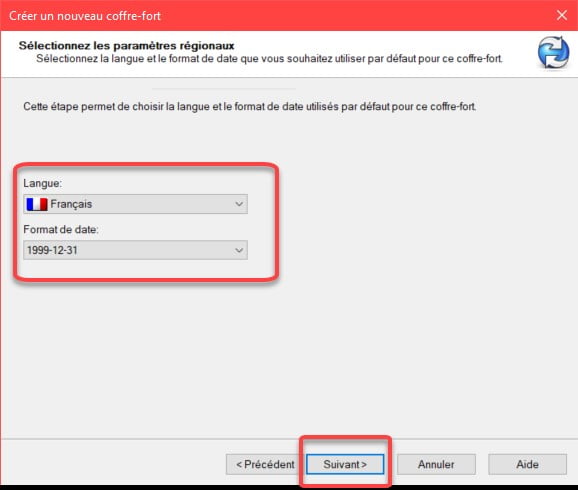
        5.7. Choose a default language


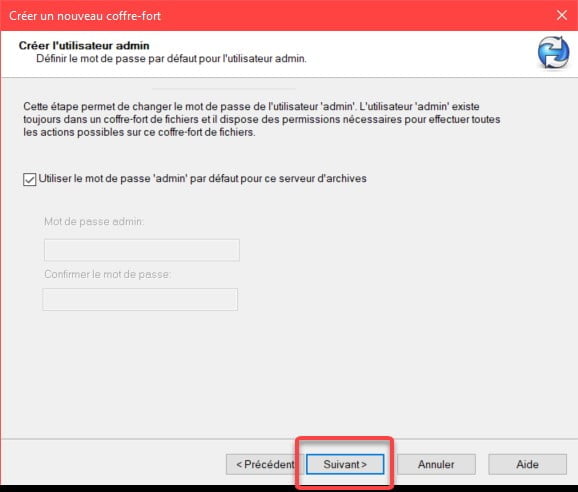
        5.8. Check the default password (the password used will be the one set when installing the PDM Archive Server).

        (Uncheck the option and choose a new password if you do not want to use the default password)

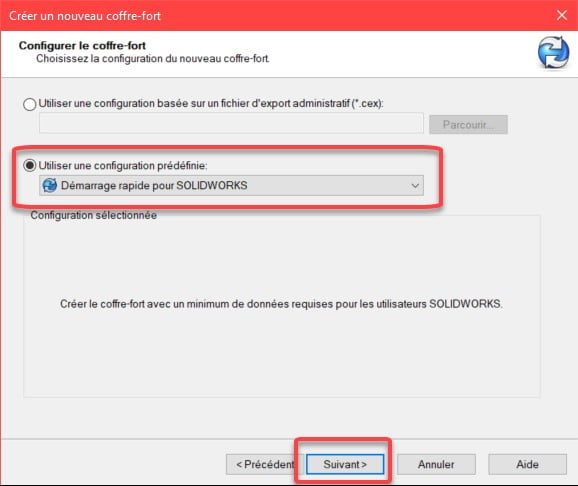
        5.9. Choose Quick Start for SOLIDWORKS

        • You will have data cards and a basic workflow among others.

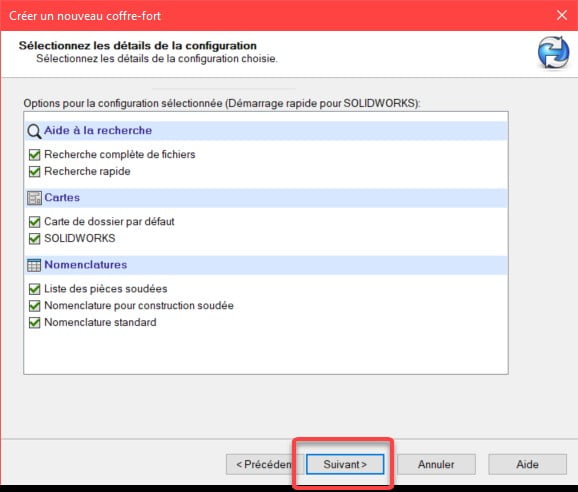
        5.10. Leave all the options checked by default

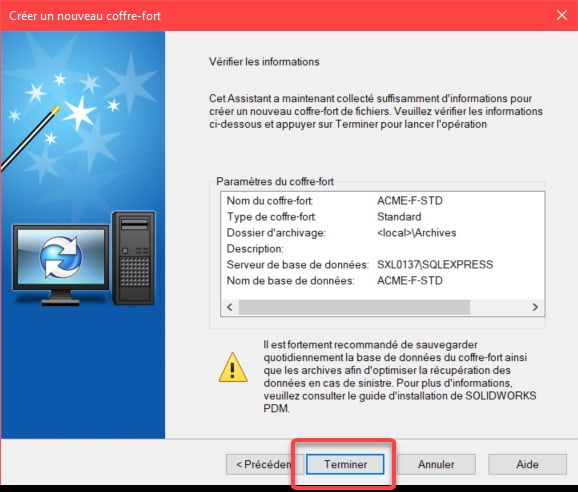
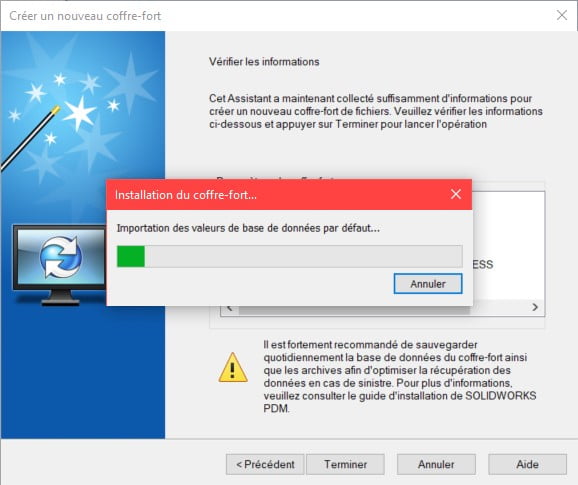
        5.11. Click on “Finish” to create the safe.

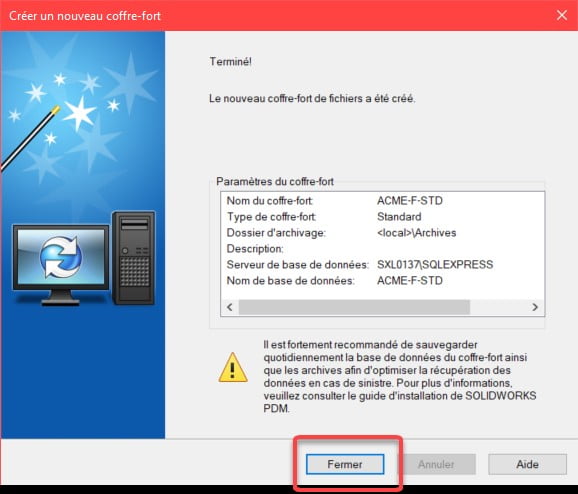
        The creation of the safe is finished.

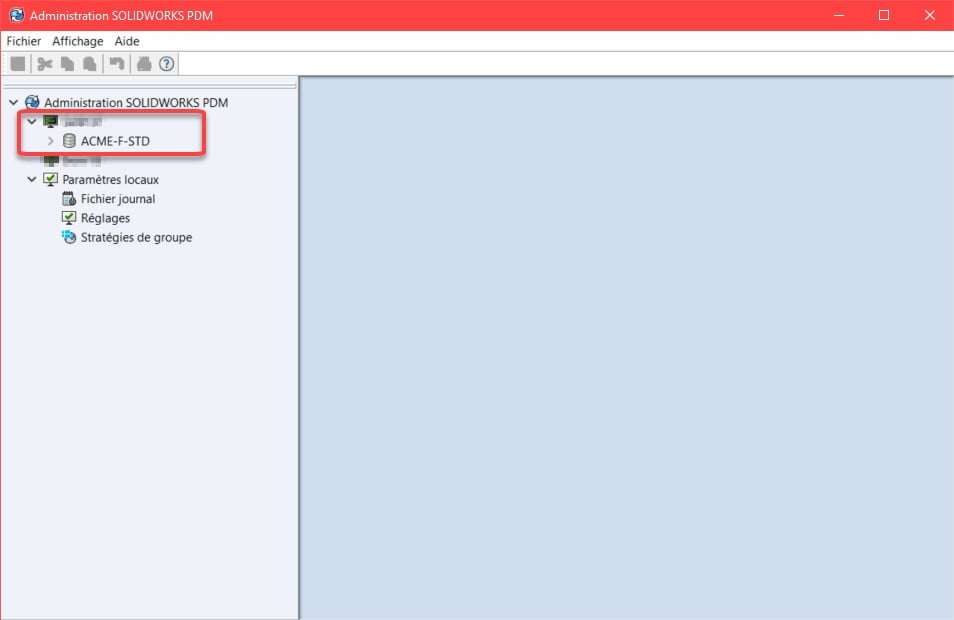
        5.12. The name of the vault now appears in the PDM Administration Tool. Right-click on the server name and refresh if the name does not appear.

        For a standard PDM vault, the vault symbol appears in grey.

        You are now ready to create a local view on the client workstation and start working with your new PDM Standard vault.

        X_green_halo

        Any questions? Need help? Ask one of our experts.

        Whether you’re ready to get started or just have a few more questions, you can contact us toll-free:

          SQL Express Installation and Configuration Guide

          BLOG

          SQL Express Installation and Configuration Guide

          By Elene Teolis – PDM Application Specialist at SolidXperts

          How to Install SQL Express in Preparation for Installing SOLIDWORKS PDM Standard
          *Your windows and menus may vary slightly depending on the server operating system.

          1. Server Preparation
          1.1. Make sure the server meets the technical requirements: View SOLIDWORKS and SW PDM System Requirements
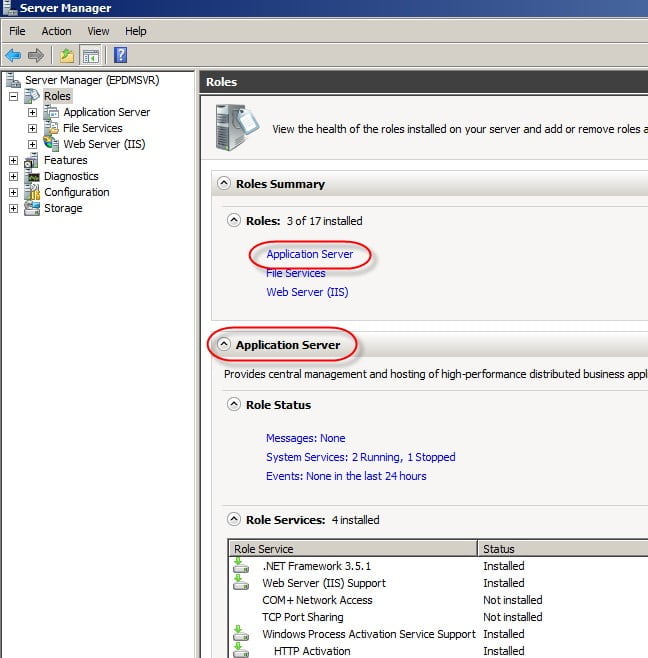
          Make sure that .NET Framework 3.5 and 4.0 are installed, if necessary, configure the “Application Server” role on the server:

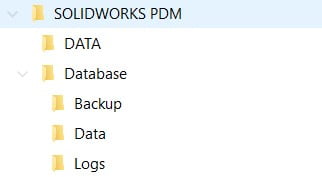
          1.2. Prepare file structure
          – If possible, create 2 partitions. Reserve the C: drive for applications and another for the data.
          – Create a folder structure in the disk to receive the data as specified below:


          Suggested file structure

          *SQL cannot save its data to an external disk or hard disk storage (NAS or SAN).

          2. SQL Server Express Installation
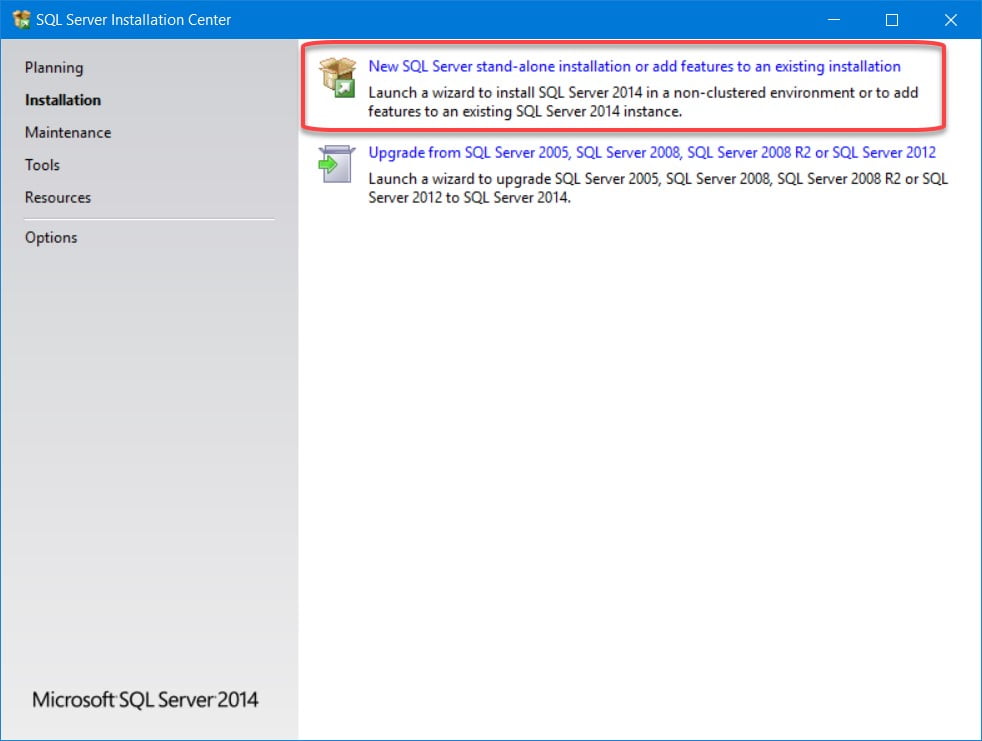
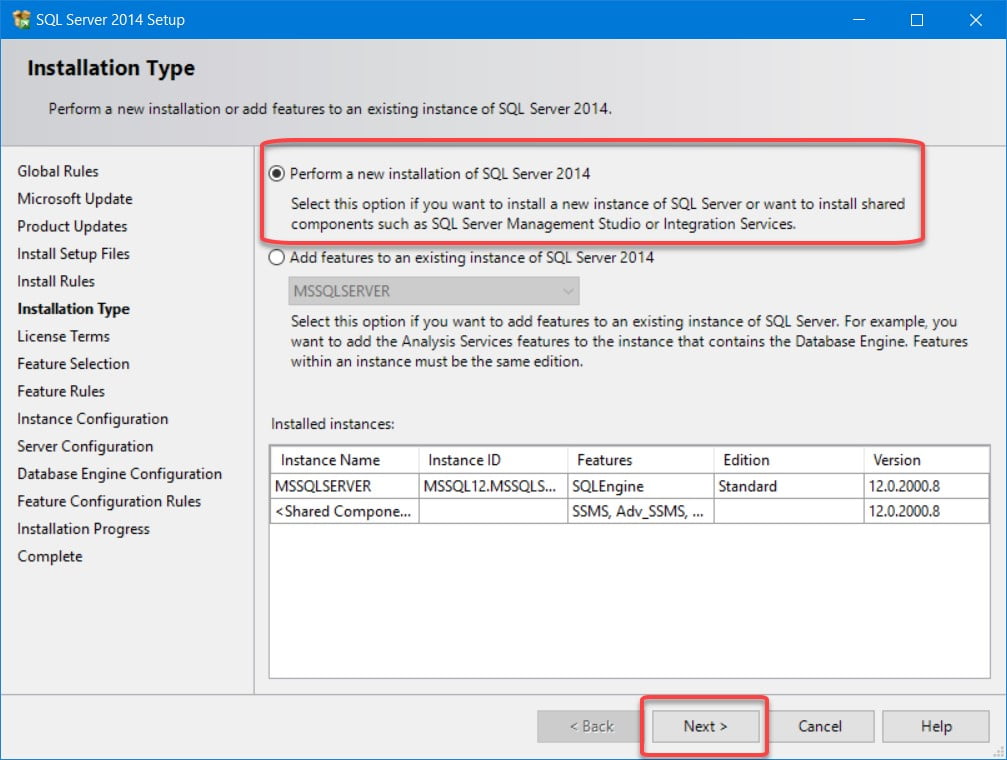
          The installation of SQL Server Express is done by following the instructions in the PDM installation guide. Here are the steps followed for a typical SolidXperts installation.
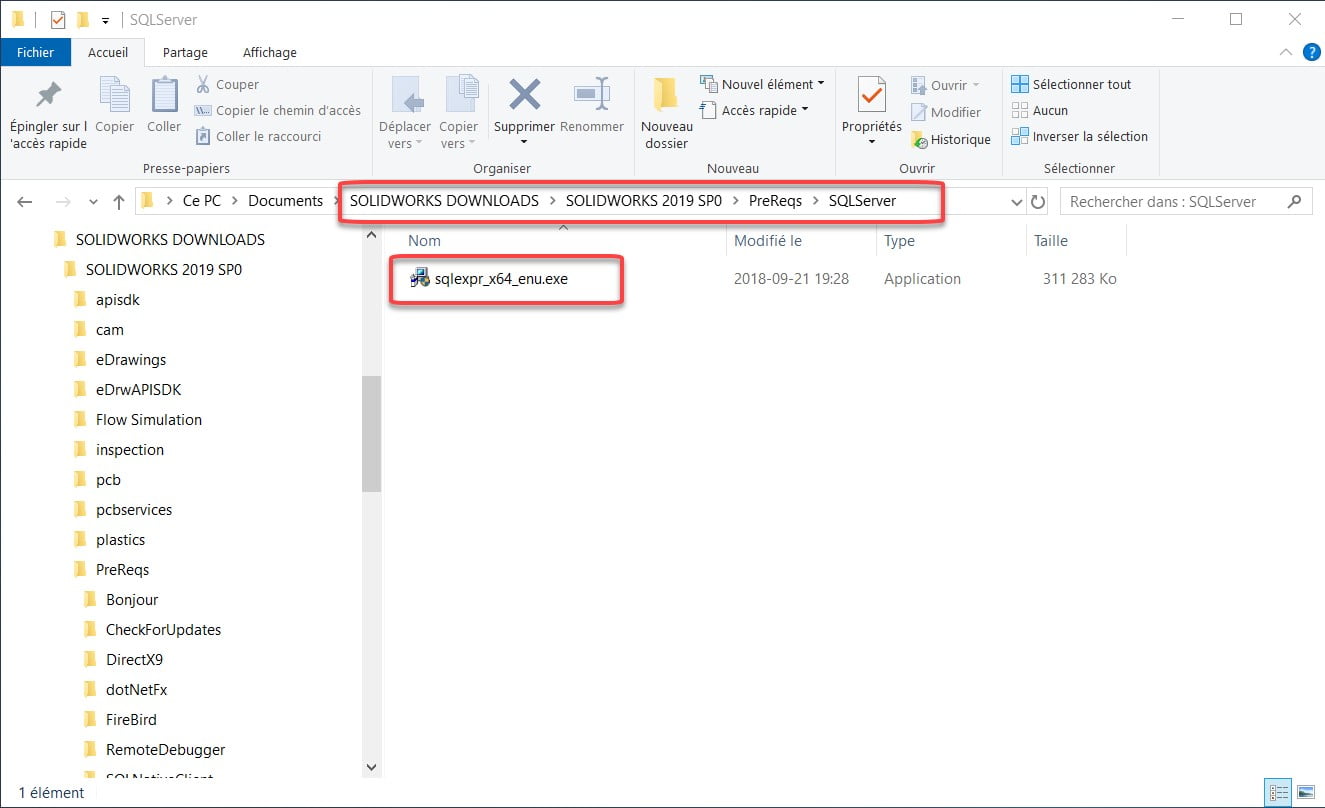
          – SQL Express can be found on the DVD or in SOLIDWORKS downloaded files.

          2.1. Start the installation as an administrator.

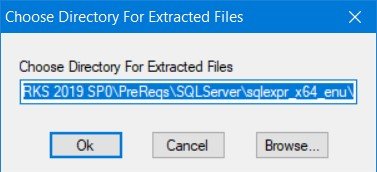
          \SOLIDWORKS 2019 SP0\PreReqs\SQLServer\sqlexpr_x64_enu.exe

          2.2. Choose a new installation.


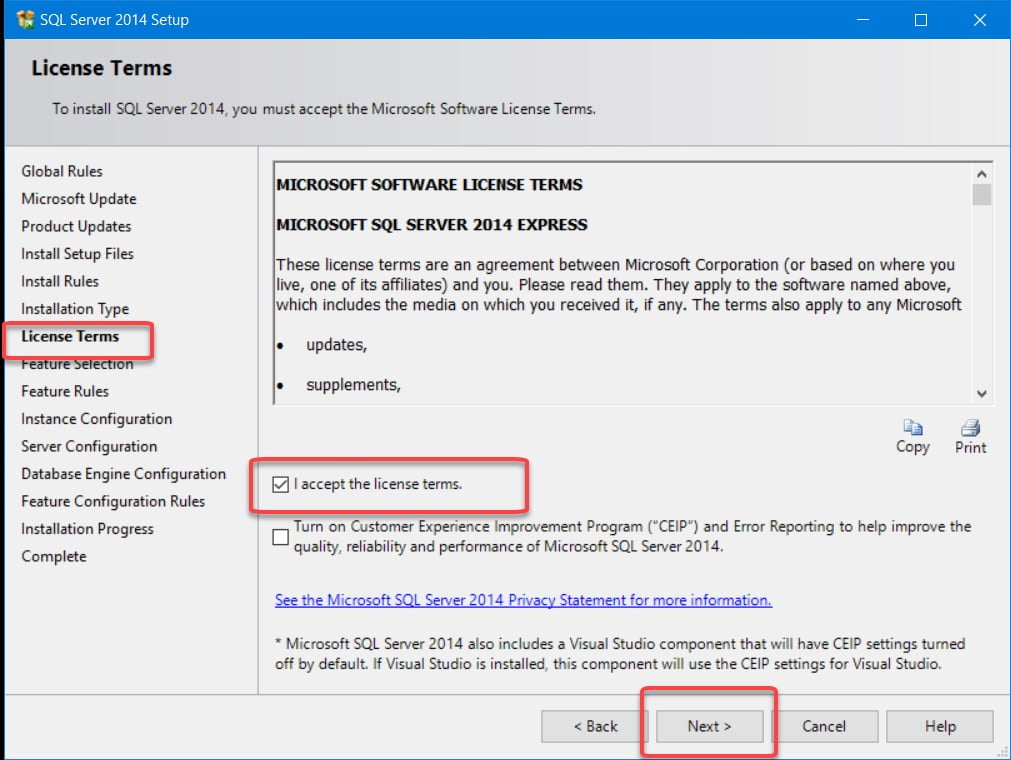
          2.3. Accept the license terms.


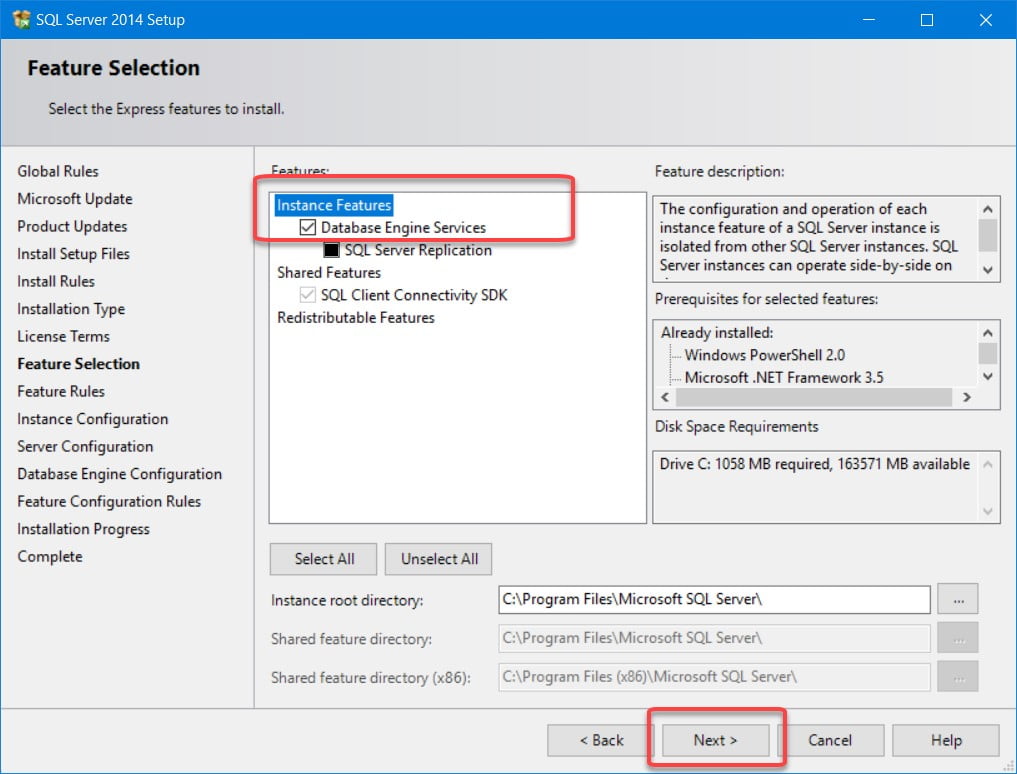
          3. Option Selection: Choose Database Engine Services.


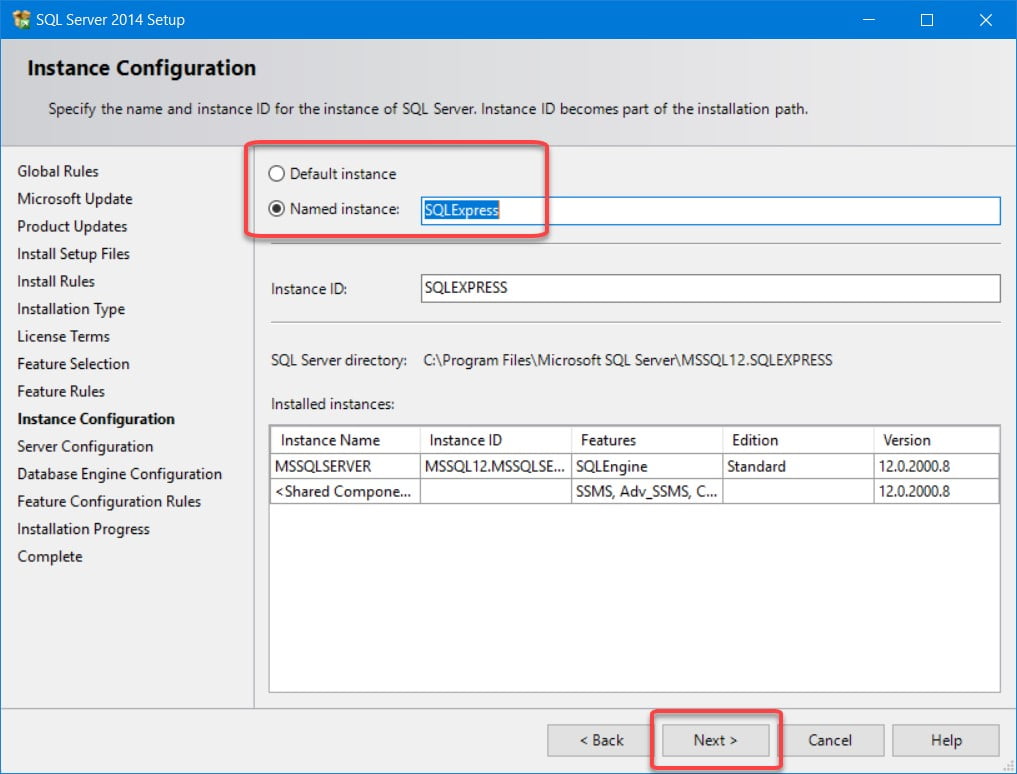
          4. Instance Configuration
          – If it is a new installation, choose Default instance.
          – If SQL is already installed, choose Named Instance and enter a name.


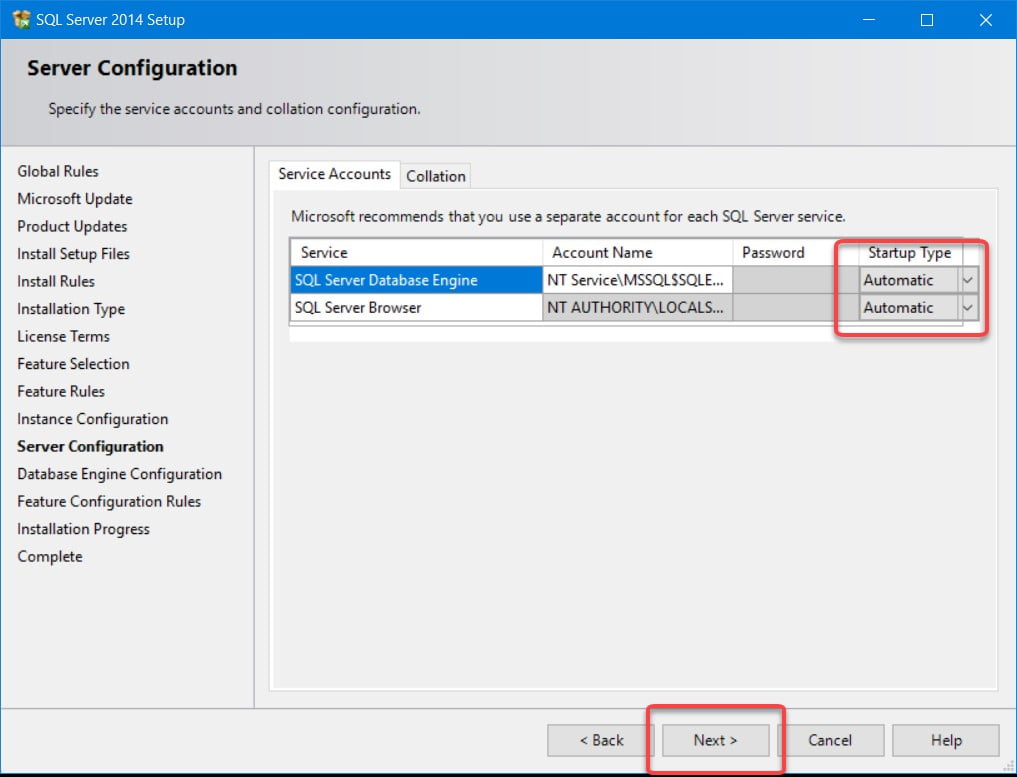
          4.1. Server Configuration: Leave default values for service account names.


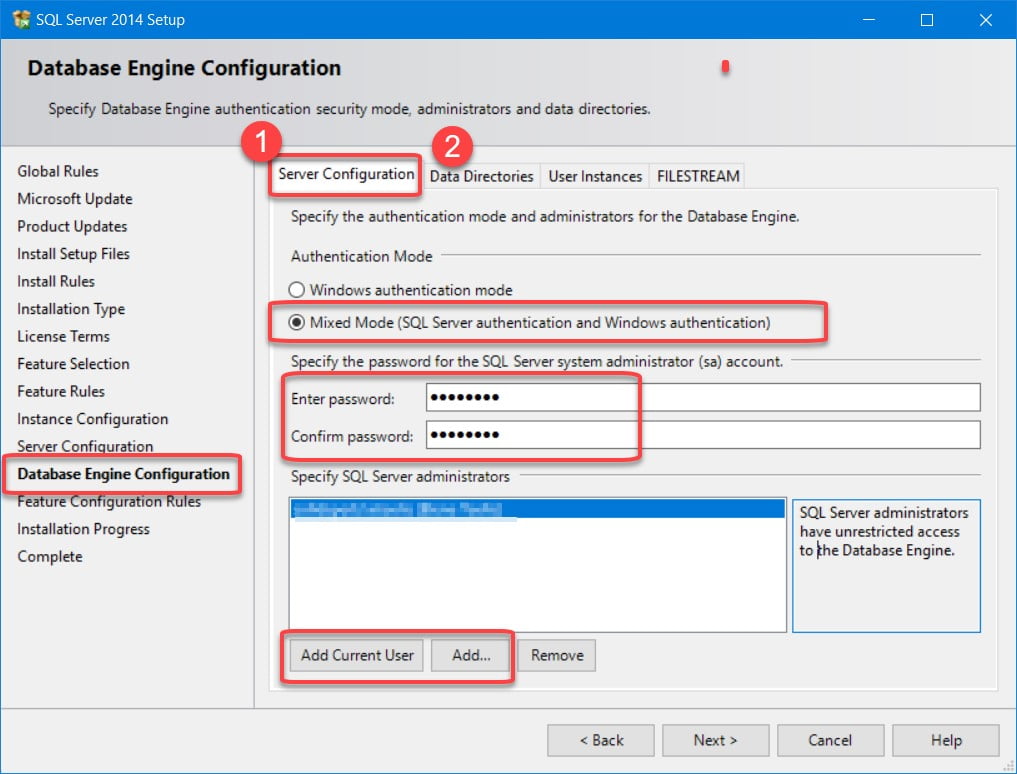
          4.2. Database Engine Configuration
          – Select Mixed Mode.
          – Create a password for the SQL System Administrator.
          – Specify the SQL Administrator à Click Add Current User and add the Domain Administrators group (domain admin) and/or the local Administrators group.


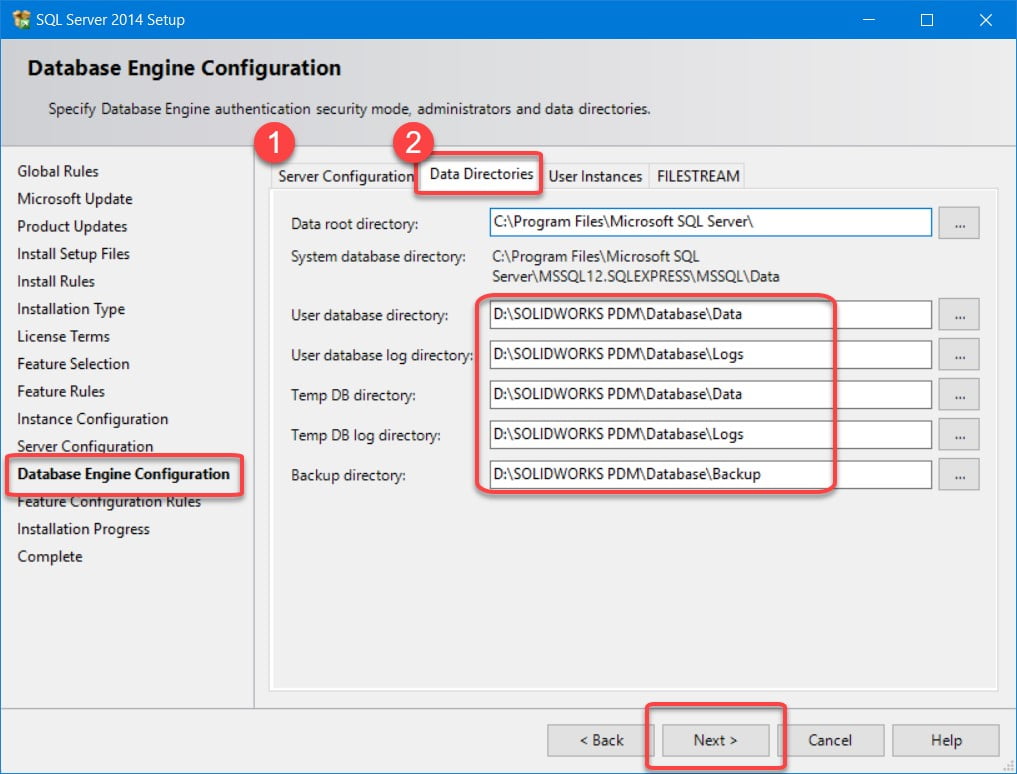
          – Change the following directories to conform to the file structure created in the server preparation step.


          – Start the installation by clicking on Next.

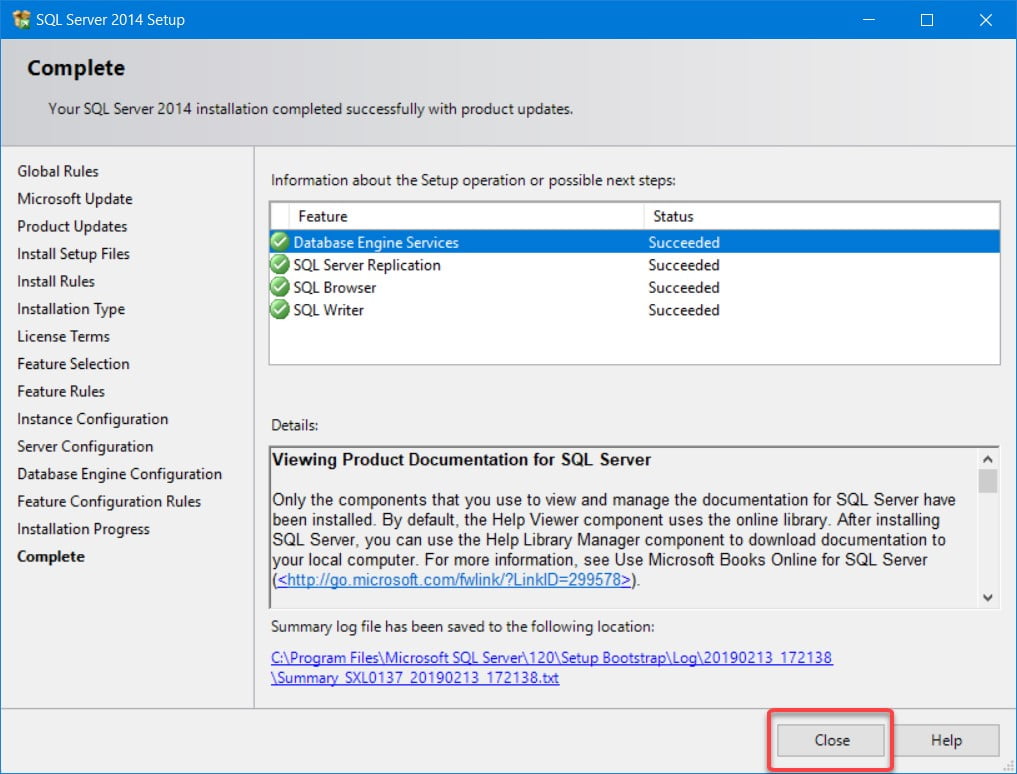
          Installation complete


          5. SQL Express Configuration
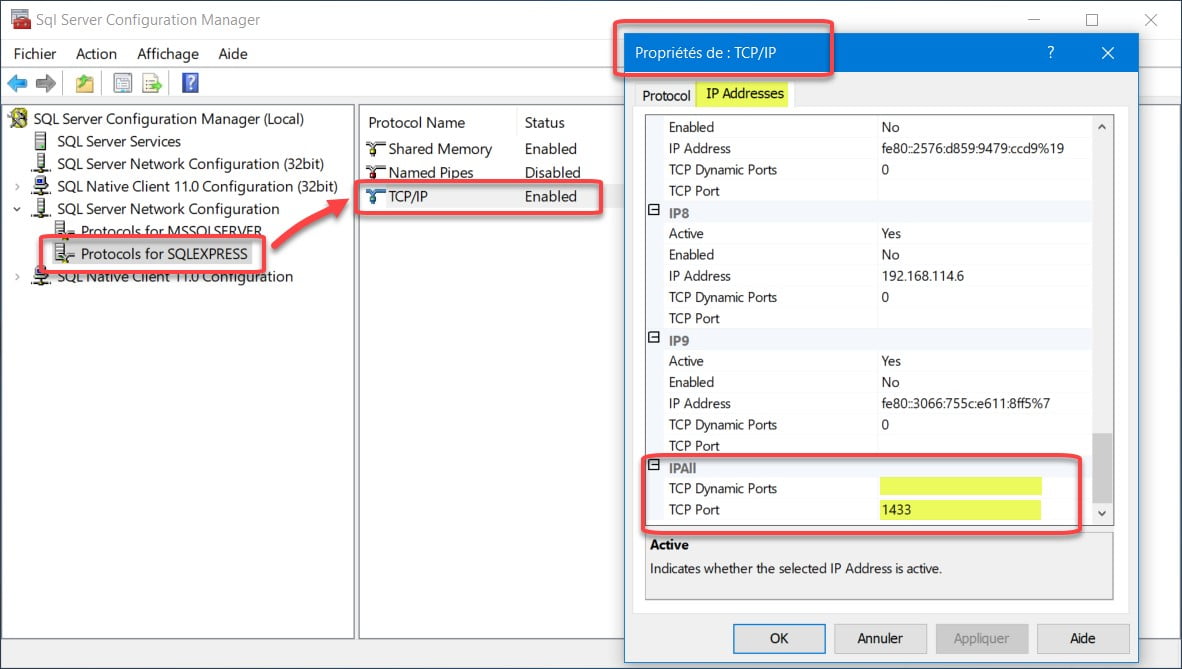
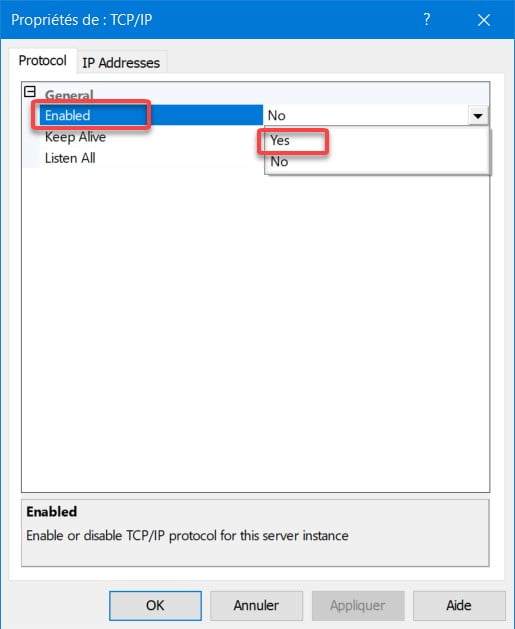
          5.1. Launch ‘SQL Express Configuration Manager’

          – In IPAll, clear the value in Dynamic TCP Ports.
          – Set the TCP Port to the static port number that you want the SQL Server Express instance to follow:

          • If SQL Express is the only SQL Server instance on the system, set the port to 1433.
          • If there are other SQL Server instances on the system, set the port to a single value, for example 1440.

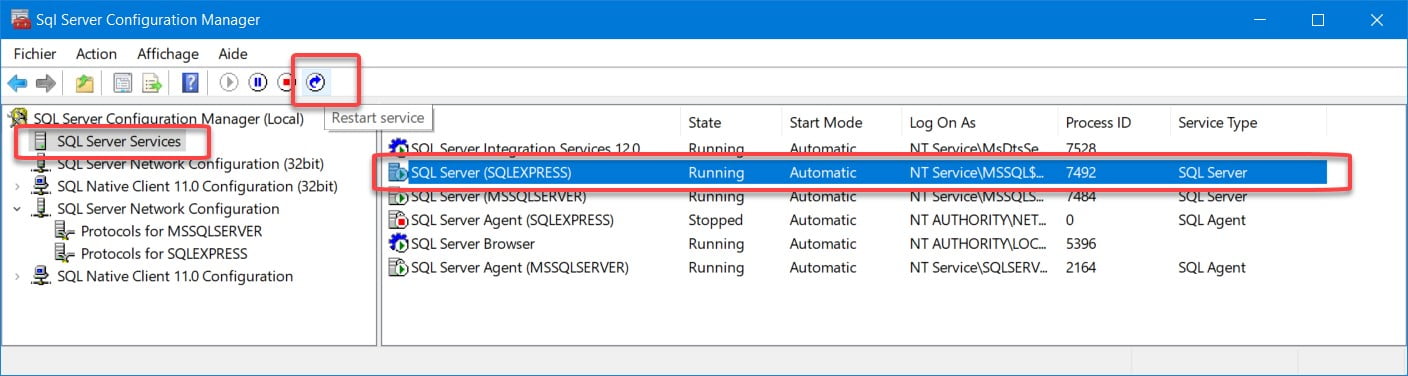
          – Restart the SQL Server Service for the new instance.


          The server is ready to install SOLIDWORKS PDM Standard.


          With 25 years of experience and more than 250 certifications, SolidXperts teams can help you become true 3D experts! An additional question? Need information?

          Contact us! 

          SolidXperts team is always there for you!

          X_green_halo

          Any questions? Need help? Ask one of our experts.

          Whether you’re ready to get started or just have a few more questions, you can contact us toll-free:

            Broken-Out Section View in a Drawing

            BLOG

            Broken-Out Section View in a Drawing

            When creating a broken-out section view of a drawing, it is possible to set the depth of the cut according to a numerical value. But did you know that it’s possible to select an edge on another view to define the depth? Or that you can put your 3D drawing in temporary 3D view mode and select the depth on this one? Continue reading “Broken-Out Section View in a Drawing”

            How to create a multi-body sheet metal part from a solid geometry

            BLOG

            How to create a multi-body sheet metal part from a solid geometry

            The sheet-metal module included in SolidWorks allows us to create different types of consumer products that are part of our daily lives.

            Continue reading “How to create a multi-body sheet metal part from a solid geometry”

            With SOLIDWORKS PDM, it is possible to export the results of a search.

            BLOG

            With SOLIDWORKS PDM, it is now possible to export the results of a search.

            1. Just do a search: Using the built-in search in the SOLIDWORKS PDM file explorer, search from the root of the vault or according to your needs.
            2. In the left menu of the SOLIDWORKS PDM File Explorer window, you have two new options (previously only available in the SOLIDWORKS PDM Professional search tool).
              a) Option 1: Open search result

            The results open in Microsoft Excel in a .tmp file.
            From Microsoft Excel, you can (Save As) in the format of your choice.

            b) Option 2: Export search result

            This will export to a .csv file (Type: Comma-Separated Files).

            The .csv file will open by default in Microsoft Excel.

            It is possible to open the .cvs file with Microsoft Bloc-Notes or any other note editor.

            With 25 years of experience and more than 250 certifications, SolidXperts teams can help you become true 3D experts! An additional question? Need information?

            Contact us! 

            SolidXperts team is always there for you!

            X_green_halo

            Any questions? Need help? Ask one of our experts.

            Whether you’re ready to get started or just have a few more questions, you can contact us toll-free:
              How to Insert Sheet Metal Bend Notes within SOLIDWORKS MBD

              BLOG

              How to Insert Sheet Metal Bend Notes within SOLIDWORKS MBD

              by Steven Murphy – Application Specialist at SolidXperts

              Engineers are always looking for faster and more efficient means of providing manufacturing information for their models. SOLIDWORKS 2019 expansion of Model-Based Definition to sheet metal components allows for designers to integrate the necessary product manufacturing information (PMI) directly into their sheet metal parts.

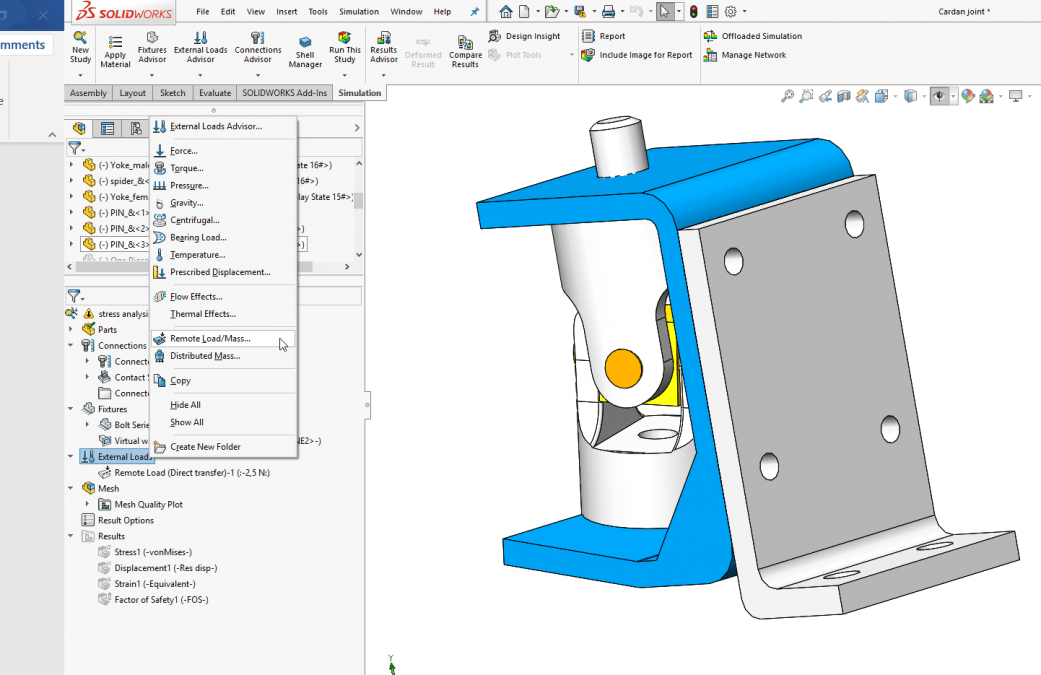
              In any sheet metal part, right-click on the flattened pattern and select ‘Insert bend notes.’ The flattened pattern includes all of the bend notes on the flattened view. This includes the bounding box in the 2D view for easy reference.

              Once the bend notes have been created, simply add a bend table from the tables drop-down menu. The bend table can be used to consolidate all of the directions, radii, and bend angles into one location. As with any SOLIDWORKS table, the bend table can be exported as a separate table.

              After creating the bend table, the final step of the process is to generate a 3D view with the derived flattened pattern configuration. This 3D view can be used to export to a 3D PDF, Edrawings, or just saved in SOLIDWORKS for anyone to access.

              And just like that, SOLIDWORKS MBD has removed an extra step from the design to fabrication workflow. Even if the 3D views are used in conventional 2D engineering drawings, all of the PMI is localized within the SOLIDWORKS part model.

              With 25 years of experience and more than 250 certifications, SolidXperts teams can help you become true 3D experts! An additional question? Need information?

              Contact us! 

              SolidXperts team is always there for you!

              X_green_halo

              Any questions? Need help? Ask one of our experts.

              Whether you’re ready to get started or just have a few more questions, you can contact us toll-free:
                  Download

                    Download

                      Download

                      All search results