How to Insert Sheet Metal Bend Notes within SOLIDWORKS MBD

BLOG

How to Insert Sheet Metal Bend Notes within SOLIDWORKS MBD

by Steven Murphy – Application Specialist at SolidXperts

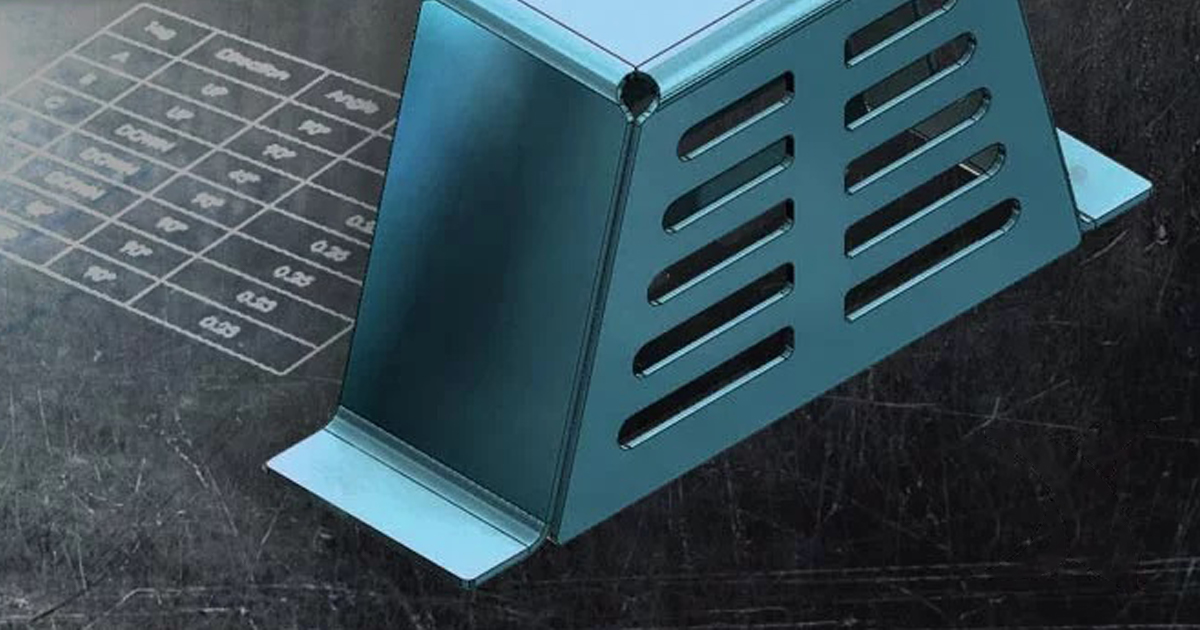
Engineers are always looking for faster and more efficient means of providing manufacturing information for their models. SOLIDWORKS 2019 expansion of Model-Based Definition to sheet metal components allows for designers to integrate the necessary product manufacturing information (PMI) directly into their sheet metal parts.

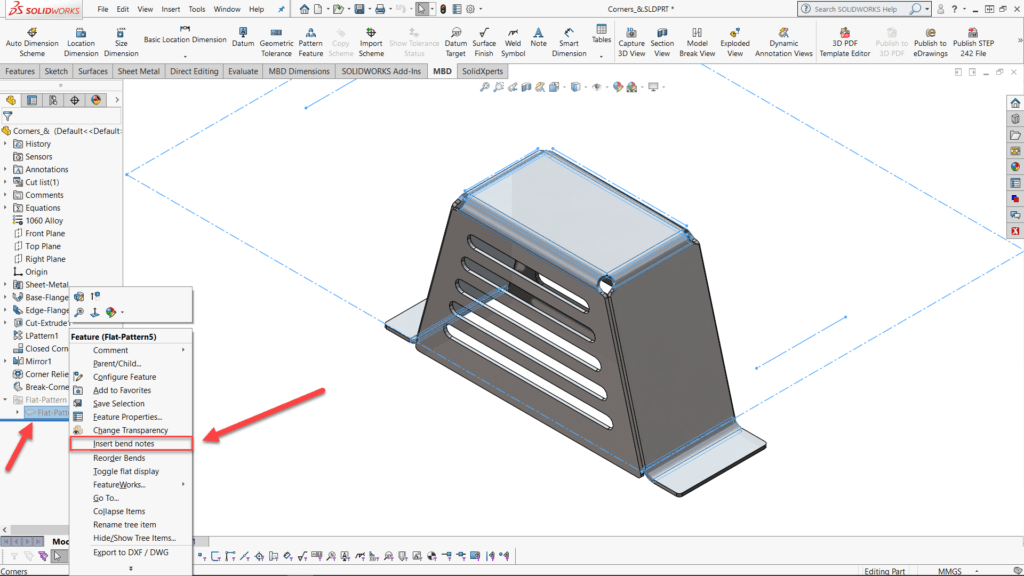
In any sheet metal part, right-click on the flattened pattern and select ‘Insert bend notes.’ The flattened pattern includes all of the bend notes on the flattened view. This includes the bounding box in the 2D view for easy reference.

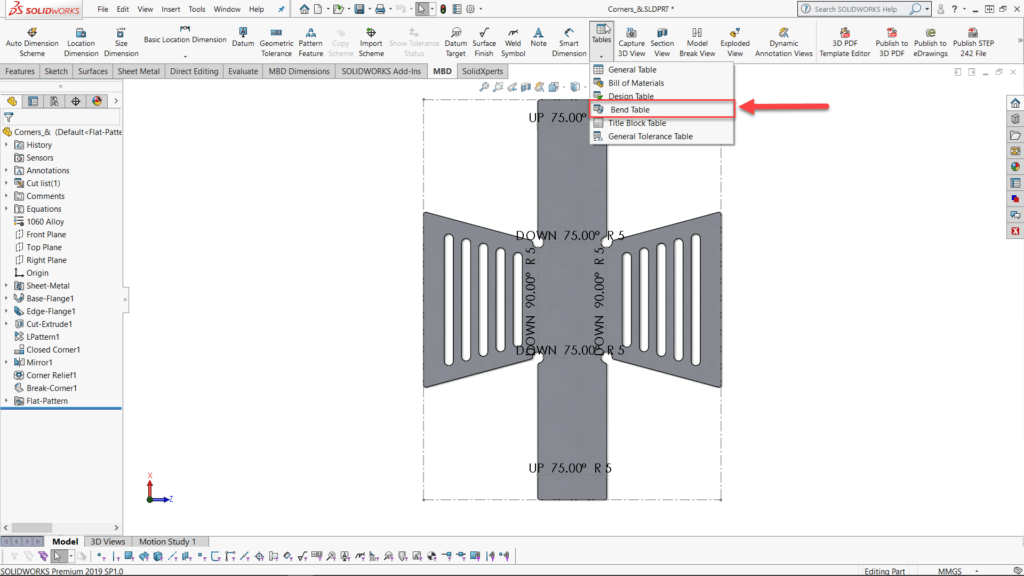
Once the bend notes have been created, simply add a bend table from the tables drop-down menu. The bend table can be used to consolidate all of the directions, radii, and bend angles into one location. As with any SOLIDWORKS table, the bend table can be exported as a separate table.

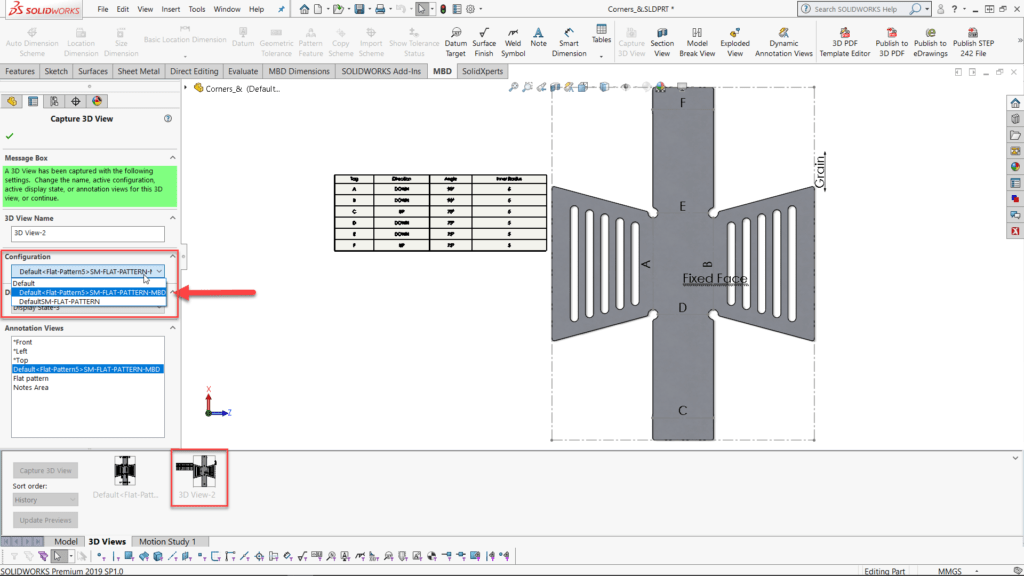
After creating the bend table, the final step of the process is to generate a 3D view with the derived flattened pattern configuration. This 3D view can be used to export to a 3D PDF, Edrawings, or just saved in SOLIDWORKS for anyone to access.

And just like that, SOLIDWORKS MBD has removed an extra step from the design to fabrication workflow. Even if the 3D views are used in conventional 2D engineering drawings, all of the PMI is localized within the SOLIDWORKS part model.

With 25 years of experience and more than 250 certifications, SolidXperts teams can help you become true 3D experts! An additional question? Need information?

Contact us! 

SolidXperts team is always there for you!

X_green_halo

Any questions? Need help? Ask one of our experts.

Whether you’re ready to get started or just have a few more questions, you can contact us toll-free:

    How to open Windows Firewall ports for SOLIDWORKS PDM

    BLOG

    How to open Windows Firewall ports for SOLIDWORKS PDM

    By Elene Teolis – PDM Application Specialist at SolidXperts

    To establish a connection between the different components of a PDM installation, it must be ensured that communication is possible via the following ports:

    PDMWorks Enterprise Archive Server Uses TCP and UDP 3030 Ports

    SQL Server uses TCP port 1433 and UDP port 1434

    Web server uses HTTP port 80 and HTTPS port 443

    SolidNetWork License Server Uses TCP Port 25734


    1- Start Windows Firewall

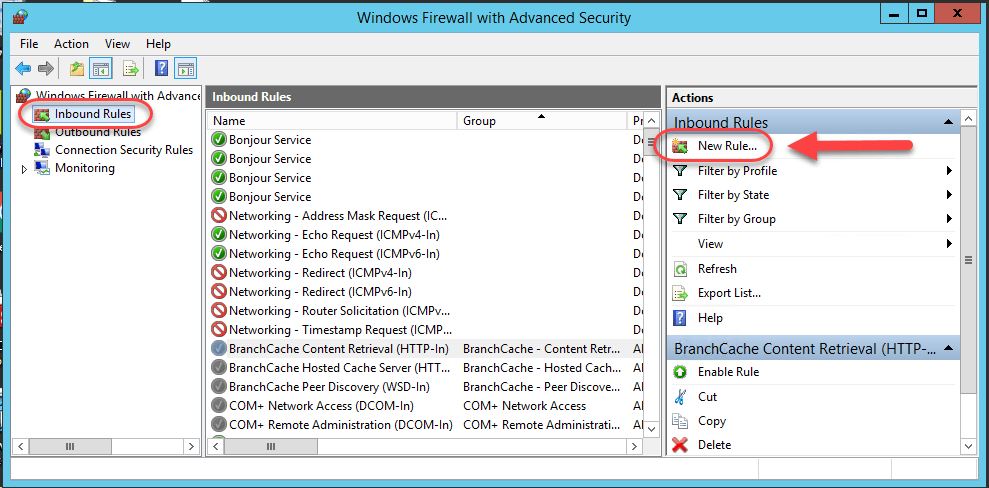
    2- Select Inbound Rules and click New Rule

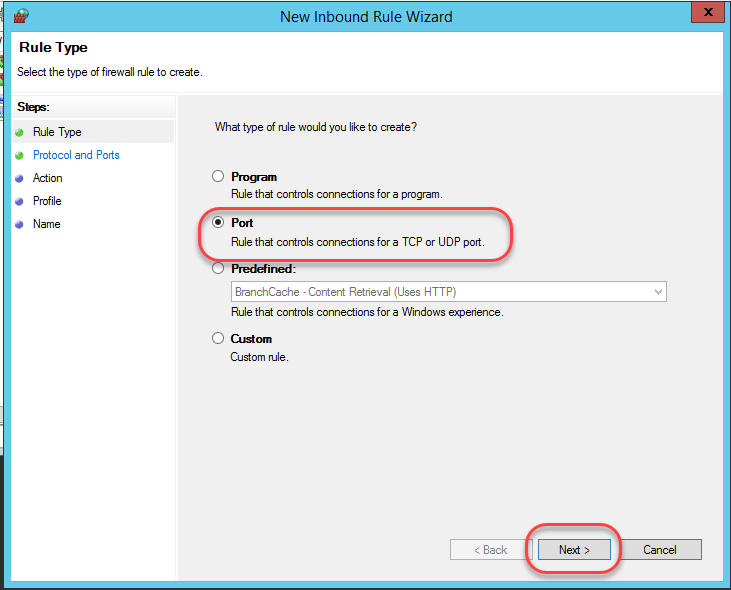
    2.1. – Rule type

    – Select Port ˃ Next

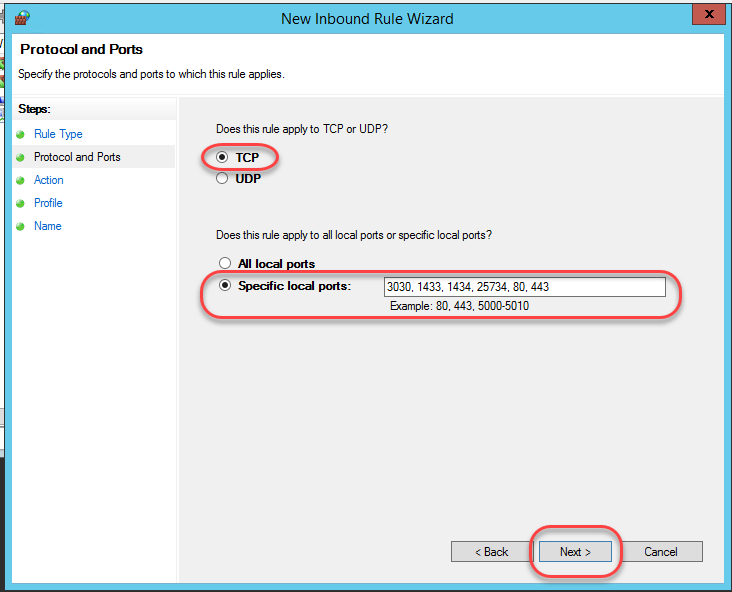
    2.2. – Protocol and ports

    – Choose TCP
    – Enter the ports to allow ˃ Next

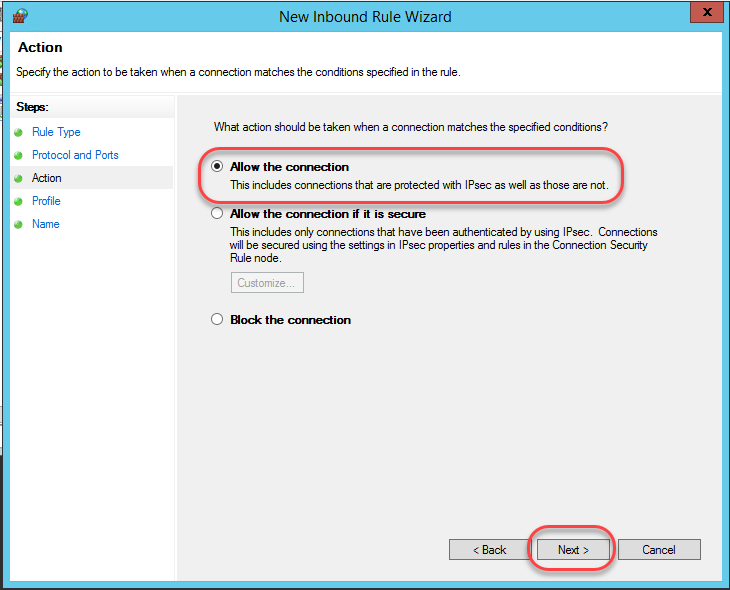
    2.3. – Action

    – Allow the connection ˃ Next

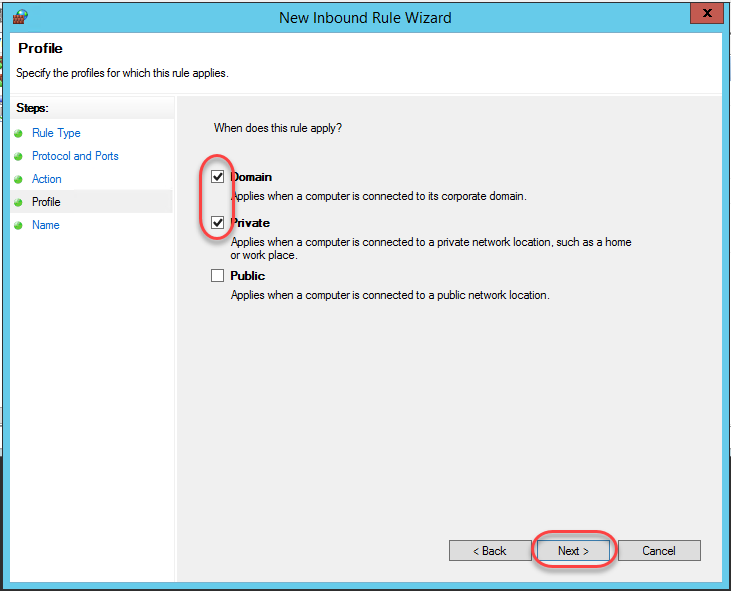
    2.4. – Profile

    – Check Domain and Private ˃ Next

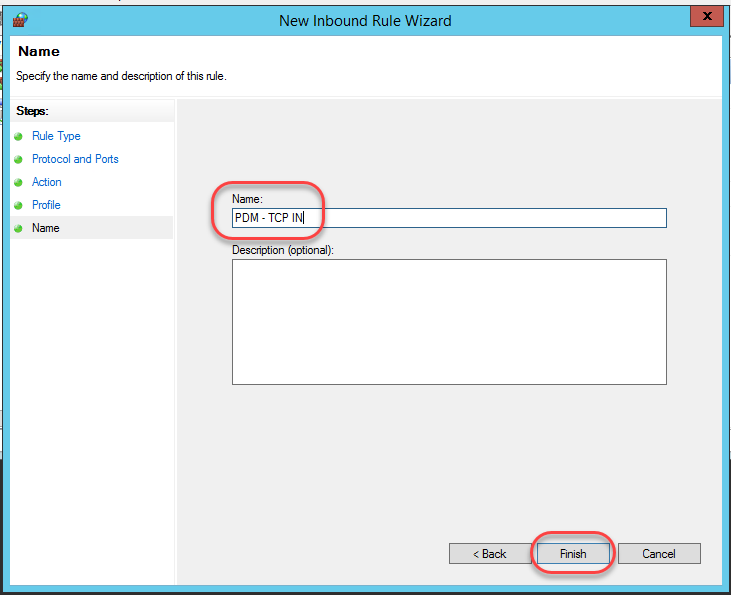
    2.5. – Name

    – Enter a descriptive name for the rule ˃ Next

    PDM – TCP IN

    PDM – TCP OUT

    PDM – UDP IN

    PDM – UDP OUT

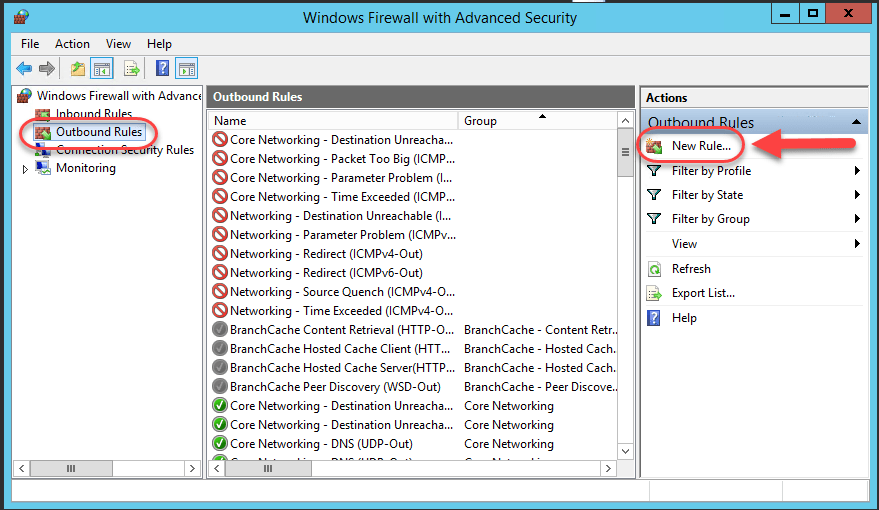
    3- Select Outbound Rules and click on New Rule


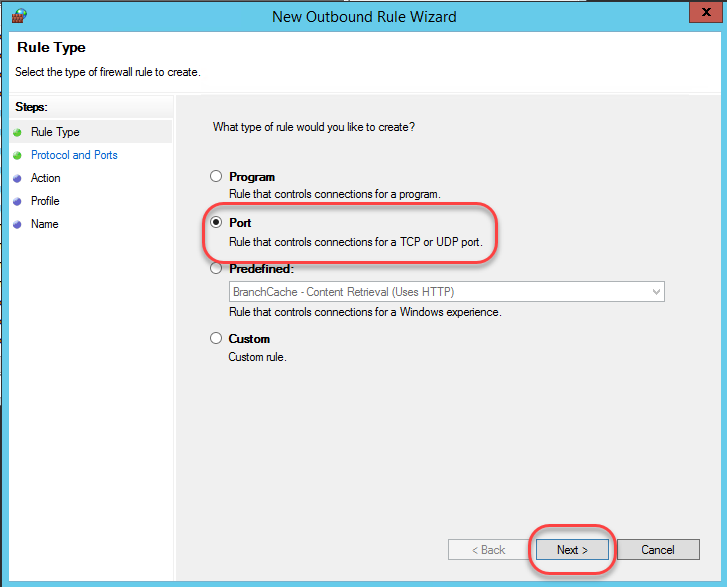
    3.1. – Rule type

    – Select Port ˃ Next

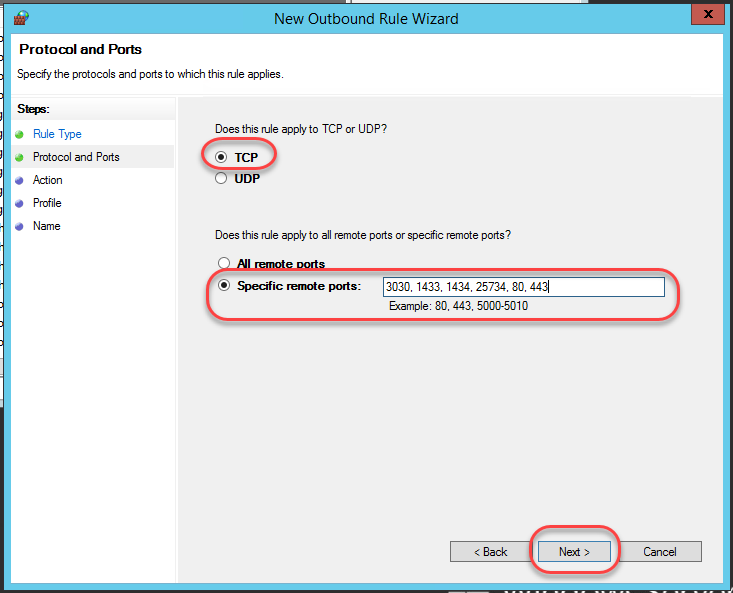
    3.2. – Protocol and ports

    – Choose TCP
    – Enter the ports to allow ˃ Next

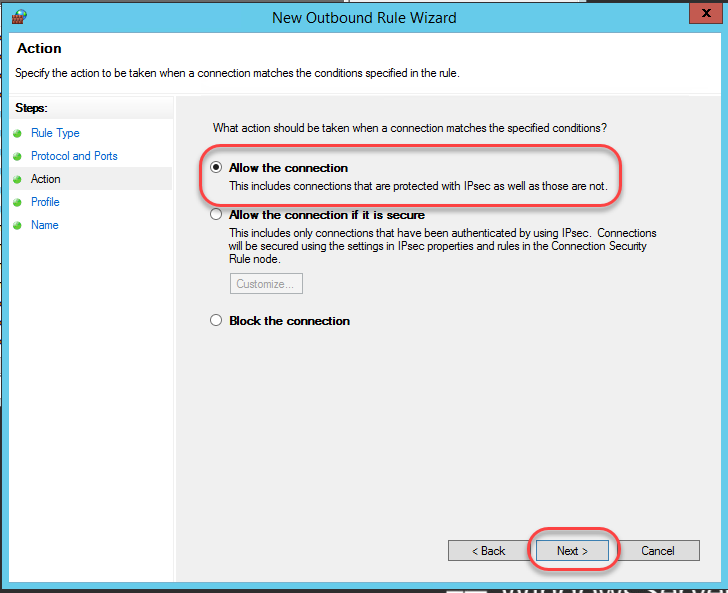
    3.3. – Action

    – Allow the connection ˃ Next

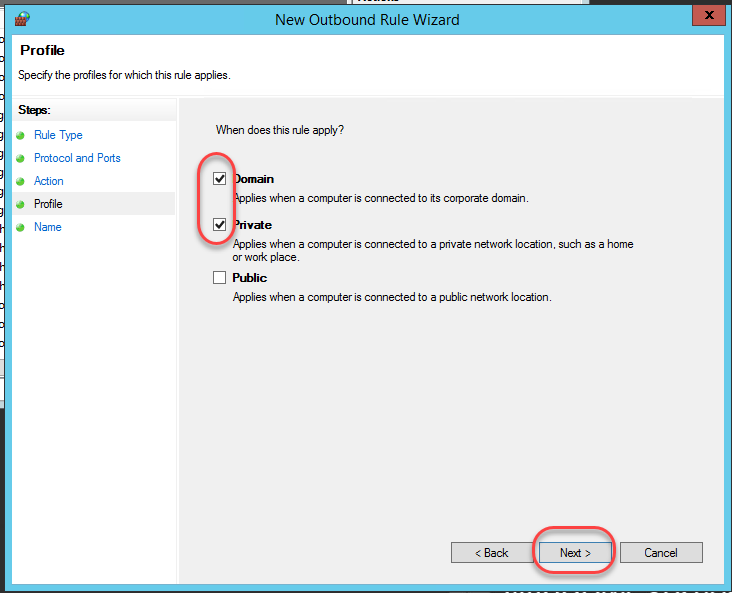
    3.4. – Profile

    – Check Domain and Private ˃ Next

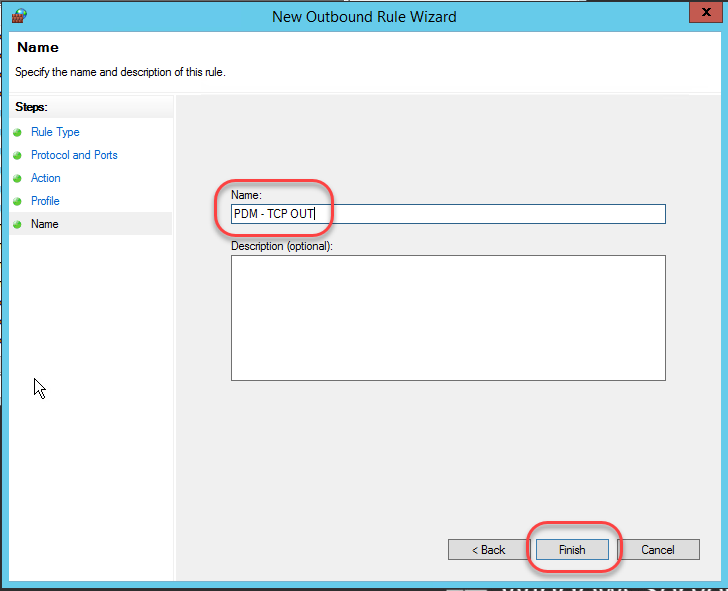
    3.5. – Name

    – Enter a descriptive name for the rule ˃ Next      

    PDM – TCP IN

    PDM – TCP OUT

    PDM – UDP IN

    PDM – UDP OUT

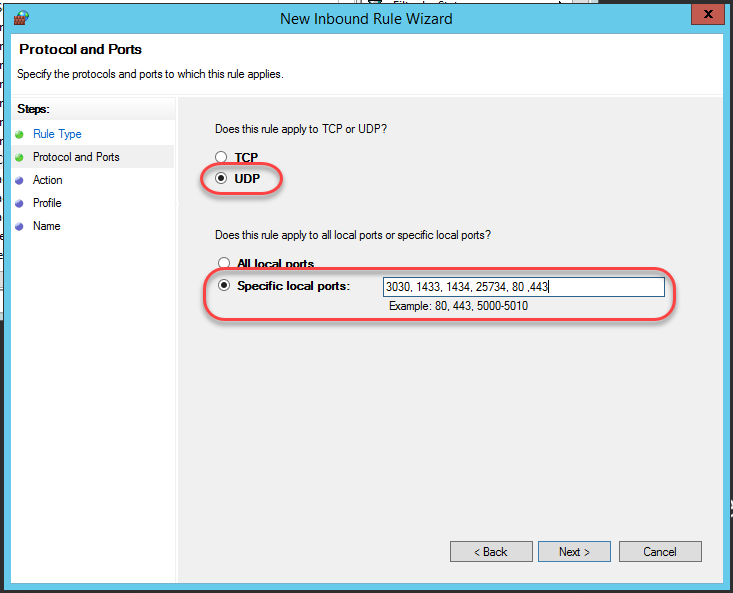
    4- Define the Incoming Traffic Rule for the UDP protocol by following the steps in point 2.

    – Protocol and ports: choose UDP

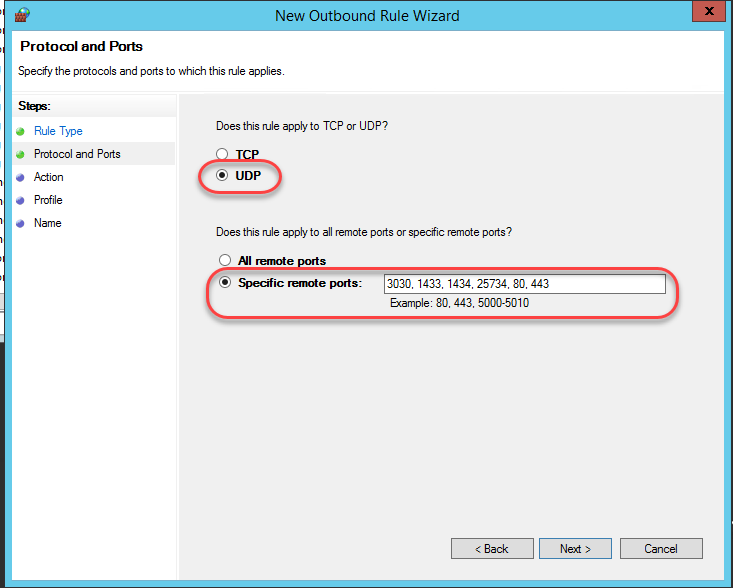
    5- Define the Outgoing Traffic Rule for the UDP protocol by following the steps in point 3.

    – Protocol and ports: choose UDP

    You have now successfully opened Windows Firewall ports for SOLIDWORKS PDM! If you want to learn more about new features in SOLIDWORKS from 2015 to 2019, download our White Paper.

    SolidXperts teams can help you become true 3D experts! An additional question? Need information?

    Contact us! 

    SolidXperts team is always there for you!

    X_green_halo

    Any questions? Need help? Ask one of our experts.

    Whether you’re ready to get started or just have a few more questions, you can contact us toll-free:

      A Beginner’s Guide to SOLIDWORKS

      BLOG

      A Beginner’s Guide to SOLIDWORKS

      Steven Murphy – Certified SOLIDWORKS Expert (CSWE)

      So you want to learn SOLIDWORKS? Well, you are in luck- SolidXperts has your back! Whether you are learning SOLIDWORKS as your first Computer-Aided Design (CAD) package or augmenting your software portfolio, this guide will go through the information you need to get you up and running in no time!

      Step 1: Know your Resources

      Good News: you are not the first person to learn the software! SolidXperts is helping people just like you to learn the software on a daily. The SOLIDWORKS community can also provide a ton of valuable material to augment your learning experience. Here is a list of the resources that you should become familiar with:

      In-Person or Online Training

      The most important resource for getting up to speed quickly on SOLIDWORKS is the online and in-person training courses provided by SolidXperts. These classes are designed to teach new users not only how to use SOLIDWORKS, but to understand the thought process behind design intent. You will work with SOLIDWORKS Experts who will personally cater to your learning style.  The “SOLIDWORKS ESSENTIALS” class is the best way to get to where you want to be.

      Tutorials

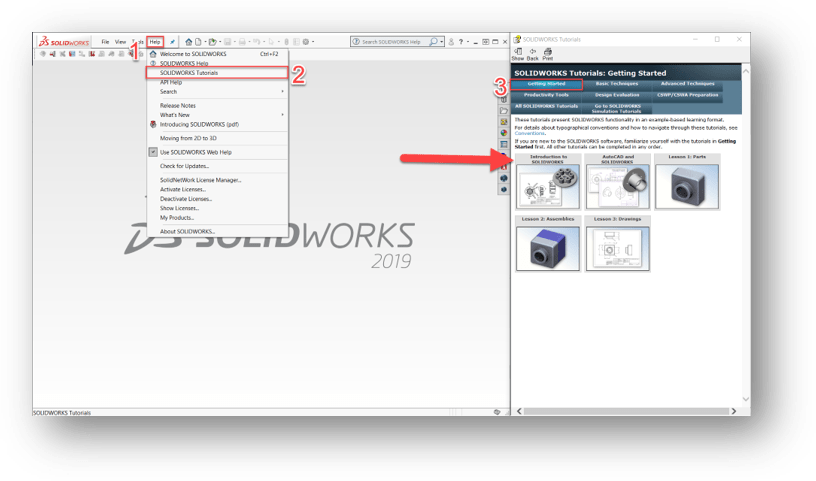
      Did you know that SOLIDWORKS has built-in Tutorials to teach you the software? Located under Help (1)> SOLIDWORKS Tutorials (2) > Getting Started (3), there are a series of hands-on tutorials that will walk you through learning the basics of the program.

      Blogs & Forums

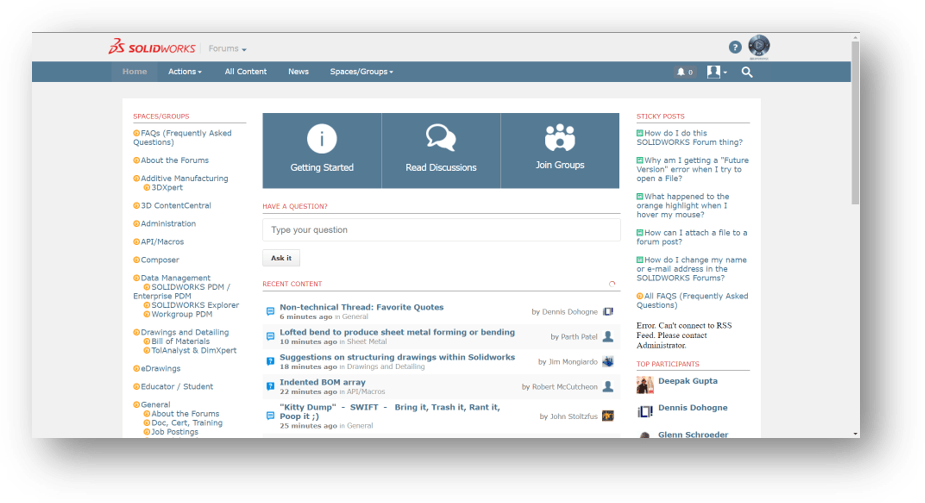
      Well, you already found this blog, so you are on the right track! From walkthroughs to tutorial videos to Q&A threads, the SOLIDWORKS community is here to help you succeed. No matter your skill level, there is tons of value to be gained from interacting with other users who have the same questions as you!

      My.Solidworks.com

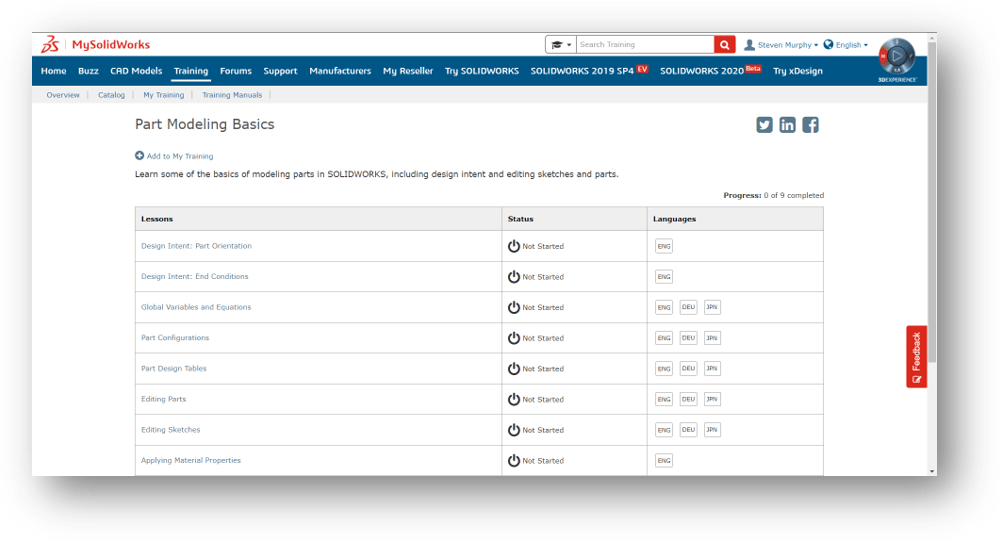
      Provided by SOLIDWORKS, MySolidworks contains many training paths (each training path is composed of many individual topic videos) targeting a specific workflow of the software. Use these to your advantage to learn about areas of the software that is relevant to your profession. I would suggest starting with the “Part Modeling Basics” learning path.

      *Note: online training works best when it is used to augment in-person training! Good modeling habits developed in the classroom have more staying power and will serve you better in learning the software.

      Step 2: Learn the User Interface

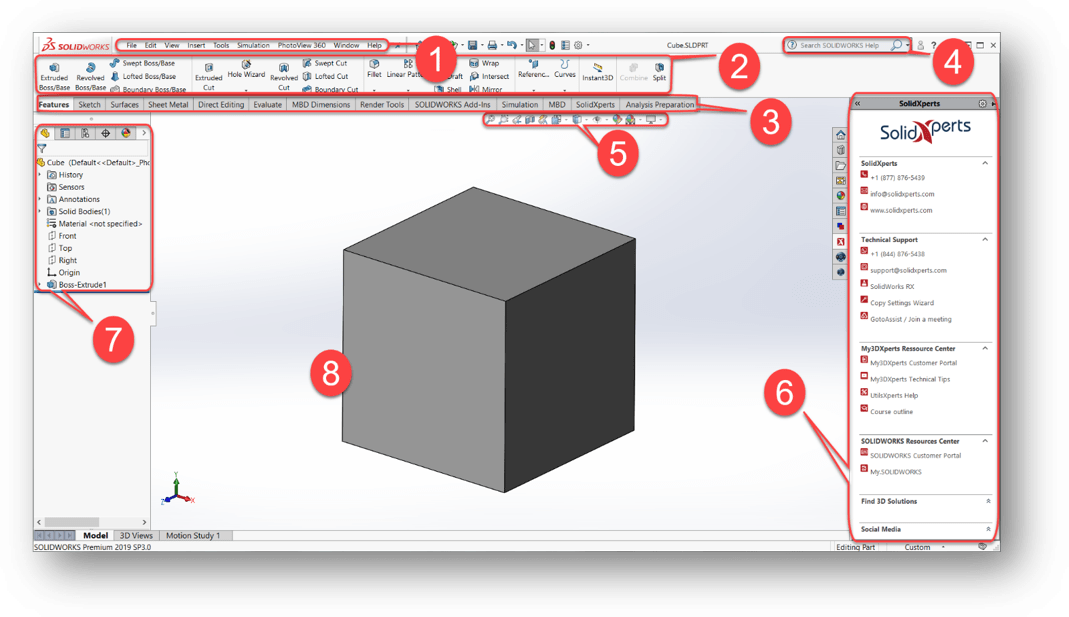
      A key portion of getting used to any new software is learning the user interface (UI). You want to be comfortable navigating through the menus. Here is a brief description of the key UI elements for getting started:

      1. Menu Bar

      The Menu Bar contains a set of the most frequently used tool buttons from the Standard toolbar, the SOLIDWORKS menus, the SOLIDWORKS Search, and a flyout menu of Help options.

      1. CommandManager

      The CommandManager is a context-sensitive toolbar that dynamically updates based on the toolbar you want to access. By default, it has toolbars embedded in it based on the document type.

      1. CommandManager Tabs

      When you click a tab below the CommandManager, it updates to show that toolbar. For example, if you click the Sketches tab, the Sketch toolbar appears.

      1. SOLIDWORKS Search

      You can use SOLIDWORKS Search to find information in documentation and forums. You can also find files and models, and find and run a SOLIDWORKS command with just a few keystrokes.

      1. Heads-Up Toolbar

      A transparent toolbar in each viewport provides all the common tools required for manipulating the view.

      1. Task Pane

      The Task Pane provides access to SOLIDWORKS resources, libraries of reusable design elements, views to drag onto drawing sheets, and other useful items and information. The SolidXperts custom task pane (part of UtilsXperts) has all of our contact information, tools, and custom macros to help our customer base take full advantage of the SOLIDWORKS software.

      1. Feature Manager Design Tree

      The FeatureManager design tree on the left side of the SOLIDWORKS window provides an outline view of the active part, assembly, or drawing. This makes it easy to see how the model or assembly was constructed or to examine the various sheets and views in a drawing.

      1. Graphics Area

      The graphics area displays and lets you manipulate parts, assemblies, and drawings.

      Step 3: Get Comfortable with the Basic Features

      Now it is time to start using the program. As suggested earlier, check out the tutorials as they provide a solid explanation of the primary features used in CAD. Since the majority of CAD work only uses a fraction of all of the features available in SOLIDWORKS, focus on understanding these commands to start. Most people find that once you understand the thought process behind the below features, it is really easy to learn the rest! Focus on:

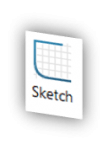
      Sketch

      When you open a new part document, first you create a sketch. The sketch is the basis for a 3D model. You can create a sketch on any of the default planes (Front Plane, Top Plane, and Right Plane), or a created plane.

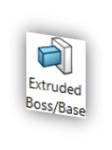
      Boss Extrude

      The primary method of converting 2D sketches into 3D geometry, the Boss Extrude feature allows you to add depending on several conditions to your part. You will need to either have a sketch or create a sketch in order to create an extrusion!

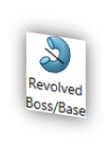
      Revolve

      Revolves add or remove material by revolving one or more profiles around a centerline. Use these to create cylindrical or spherical parts in a single feature! A perfect example of a revolve would be a soda can.

      Extrude Cut

      Want to remove some material? The Extrude Cut features allow you to get rid of material on your part. Be aware that you need to have material before you can activate the extruded cut command.

      Hole Wizard

      If you are looking to make any type of circular hole, look no further! The Hole Wizard contains specifications for the majority of holes, and even lets you bring that information into your 2D drawings automatically. Just select your Hole Type, Size, and Location to make your first hole.


      While using these key features is a good starting point, it is not enough. During the SolidXperts courses, we discuss the ins and outs of these features and how to best apply them. Be you want to avoid picking up bad modeling habits!


      Step 4: Start Modeling

      See that pencil holder on your desk? Model it. What about your phone? Model that too! The more you work to understand completed parts as a combination of extrudes and cuts, the easier it is to CAD. There is no “secret” to getting good at modeling besides practice. At the end of the day, it takes time and a positive attitude to go from a casual user to a  master modeler.

      So that is it! If you follow this outline, you will have all of the tools you need to start modeling like a champ. Remember that you are only limited by your own creativity, so have fun and continue to grow. If you need help, feel free to give us at SolidXperts a call (we are the Experts!).

      1. Know your Resources
      2. Learn the UI
      3. Get Comfortable with the Basic Features
      4. Start Modeling

      What’s Next? After mastering the above, it is time to explore the more complex features and functions that SOLIDWORKS has to offer. Check out the advanced classes that SolidXperts has to offer like Surfacing, Weldments, Sheet Metal, and more!


      SolidXperts teams can help you become true 3D experts! An additional question? Need information?

      Contact us! 

      SolidXperts team is always there for you!

      X_green_halo

      Any questions? Need help? Ask one of our experts.

      Whether you’re ready to get started or just have a few more questions, you can contact us toll-free:

        Welded Constructions with the SOLIDWORKS Structure System

        BLOG

        Welded Constructions with the SOLIDWORKS Structure System

        From the 2004 version of SOLIDWORKS onward, the welded construction function speeds up the creation of assemblies because it allows the representation of assemblies without having to create multiple individual files. But, there is more since version 2019.

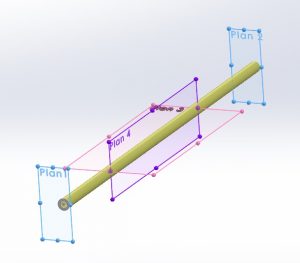
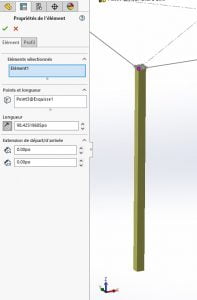
        The new “Structure” function allows the creation of welded constructions in a different way. It is not necessary to draw a path for each profile. For example, it is possible to create a starting profile (“Primary Element”) from:

        – From 4 planes;


        – Of a path element (a bit like welded construction);

        – By defining a length by selecting only one point (note the absence of a sketch in the requested selection);


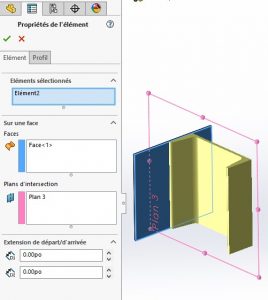
        – By defining an intersection between a face and a plane.


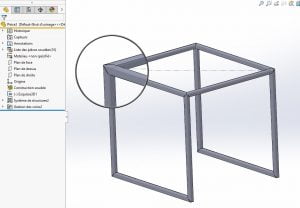
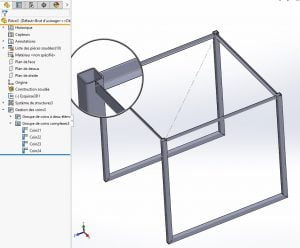
        So, with a few clicks, you can define a structure, including corner treatment:


        You can then modify the created structure (in one function!) to change the profiles of certain elements:


        Following the creation of the external shape of the frame, reinforcements or other elements must generally be attached to it. As mentioned above, creation methods using entities other than sketch segments can be used. For so-called “secondary” elements, using the selection of two existing profiles, two methods are possible:

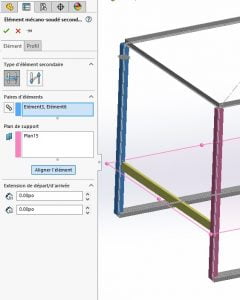
        – Supporting Plan Element” uses an existing plan to position the newly created profile.


        Activating chain selection allows the automatic creation of element pairs when two entities are selected.

        – Between point elements.

        This method has two ways of working, using either distance or length ratio.

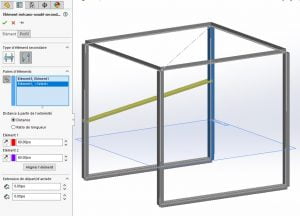
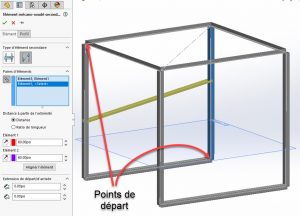
        The first allows the definition of two distances from the starting point of the profiles:


        We can see on the screenshot above that despite the two equally defined distances, the profile is at an angle. The reason for this is that the dimension is defined by the starting point of the profile, which corresponds to the starting point of the sketch, i.e. at the top of the structure for the profile on the left of the screenshot and at the bottom for the profile on the right:


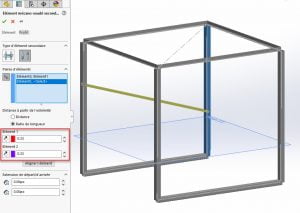
        Just click on the appropriate icons to reverse the directions and thus obtain a secondary profile perpendicular to the primary profiles.

        Ratios (whose value must vary between 0 and 1) of length relative to each previously selected element can also be used. In this way, always taking the direction into account, it is easy to create a spacer that would be on one side at the upper third of a profile and at the lower third on the other.


        As for the creation of a drawing, the operation is the same as for a welded construction.

        All in all, even if you are already using welded construction, this new working method can be confusing at first, but you quickly get used to it and learn to appreciate the lightness of the creation tree it produces. Moreover, just like the welded construction, the result produced is compatible with the BeamCutXperts beam optimization tool.

        For more information visit our SOLIDWORKS product page, or consult an Xpert!

        X_green_halo

        Any questions? Need help? Ask one of our experts.

        Whether you’re ready to get started or just have a few more questions, you can contact us toll-free:

          3D modeling for additive manufacturing

          BLOG

          3D modeling for additive manufacturing

            Repair Resolution –
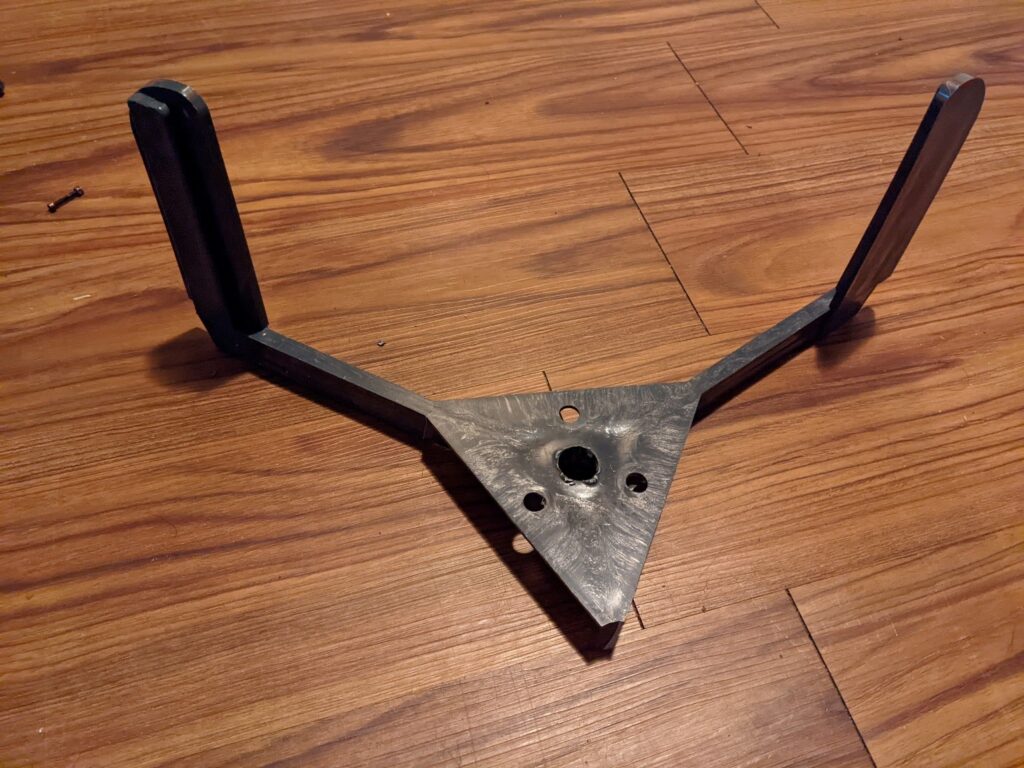
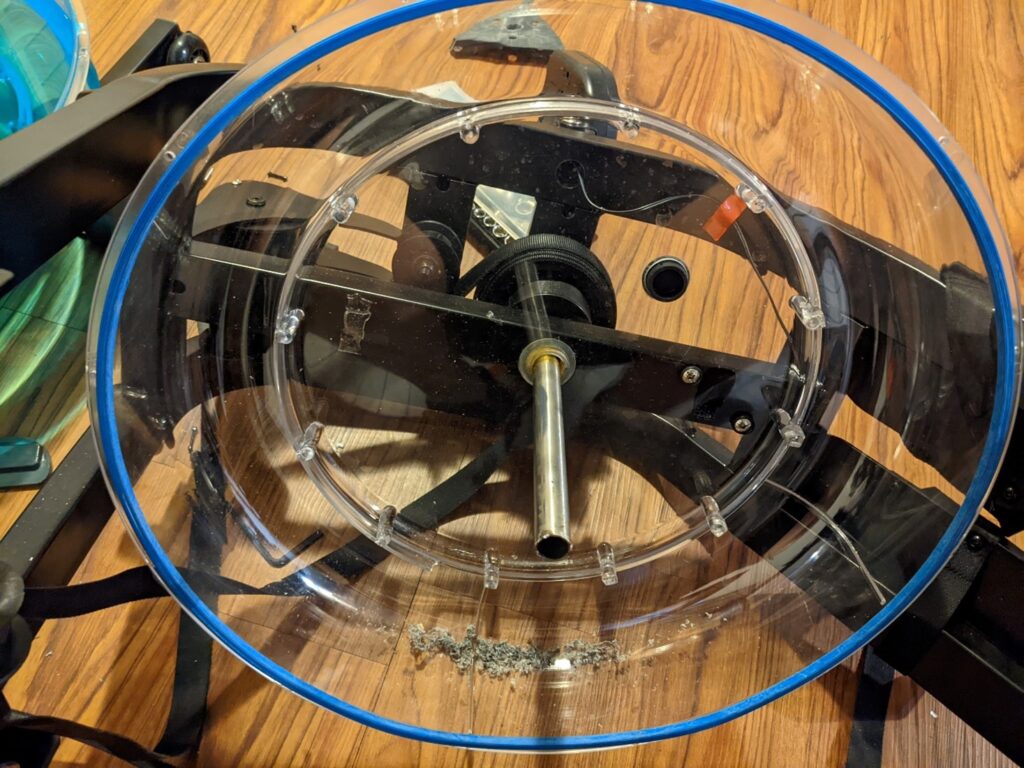
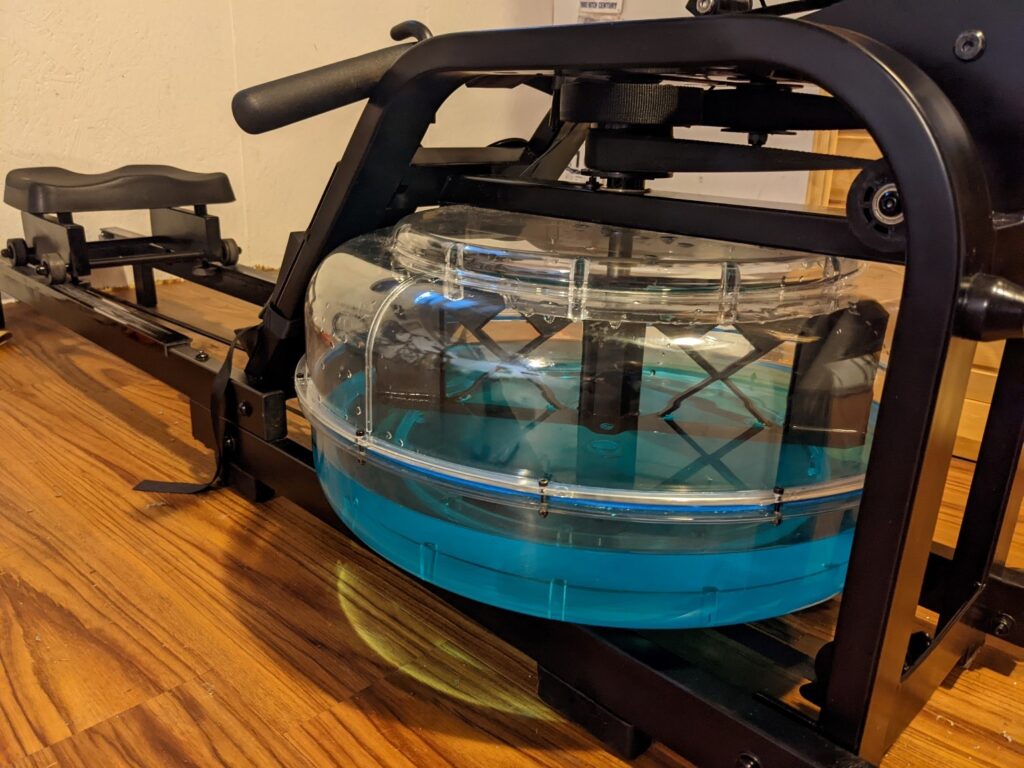
           You might be an engineer – if, you fix broken fitness equipment with CAD and 3D printing. This case study shows just how that was done. It starts with a budget water rower exercise machine that had arm failures in the resistance paddle which spins inside the water tank. The machine had been purchased early in the year and the paddle arms failed by December.

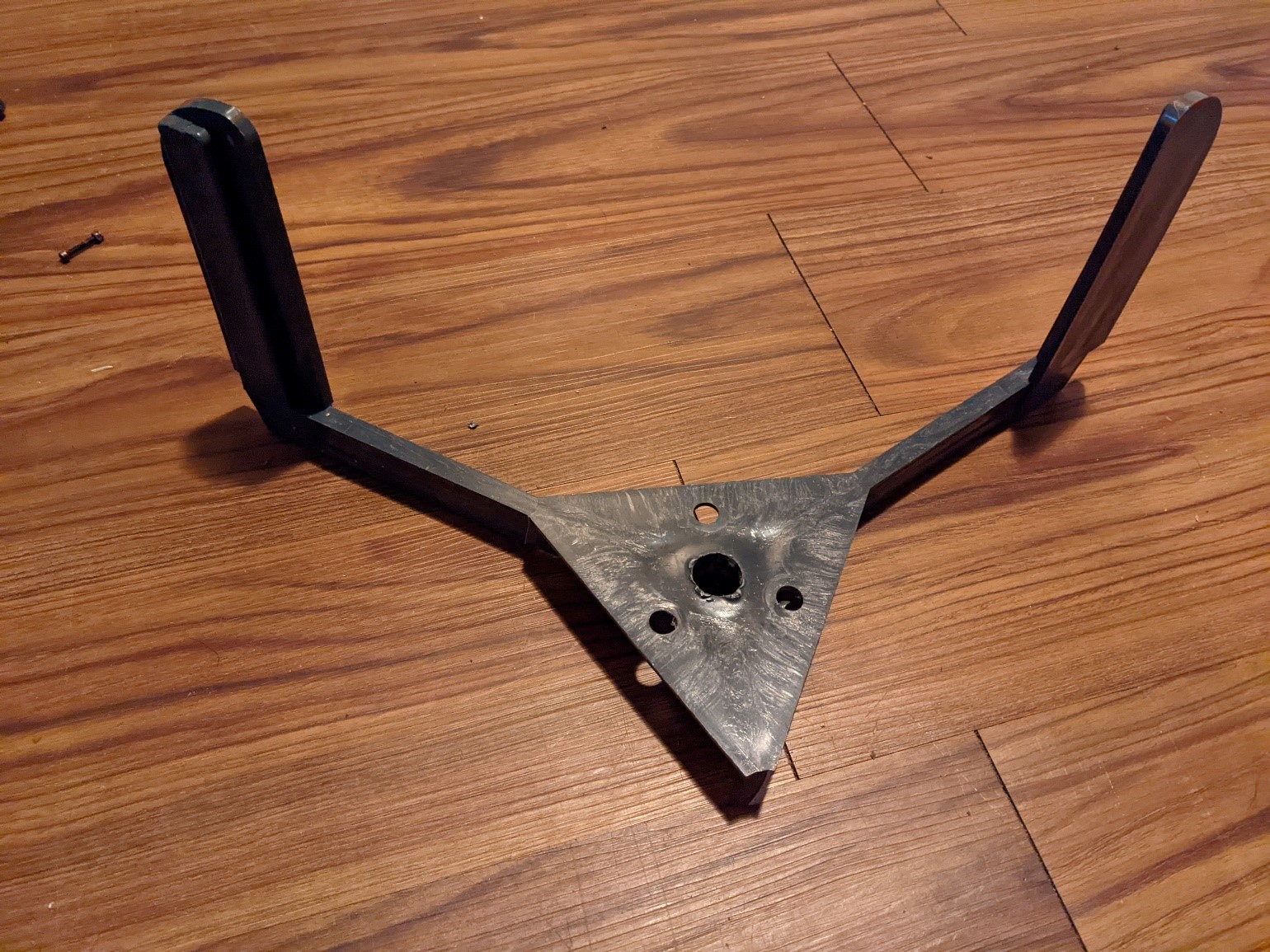
          Note that the arms of the original paddle broke off where the plastic transitions from a thinner beam profile to the larger hub. Of course, it could have been predicted by using SOLIDWORKS Flow, Plastics, or Simulation software, but that discussion will be saved for another article.

          For the moment we will focus on designing and producing a 3D printed replacement paddle that is more similar to the design used  in expensive health club water rower machines.

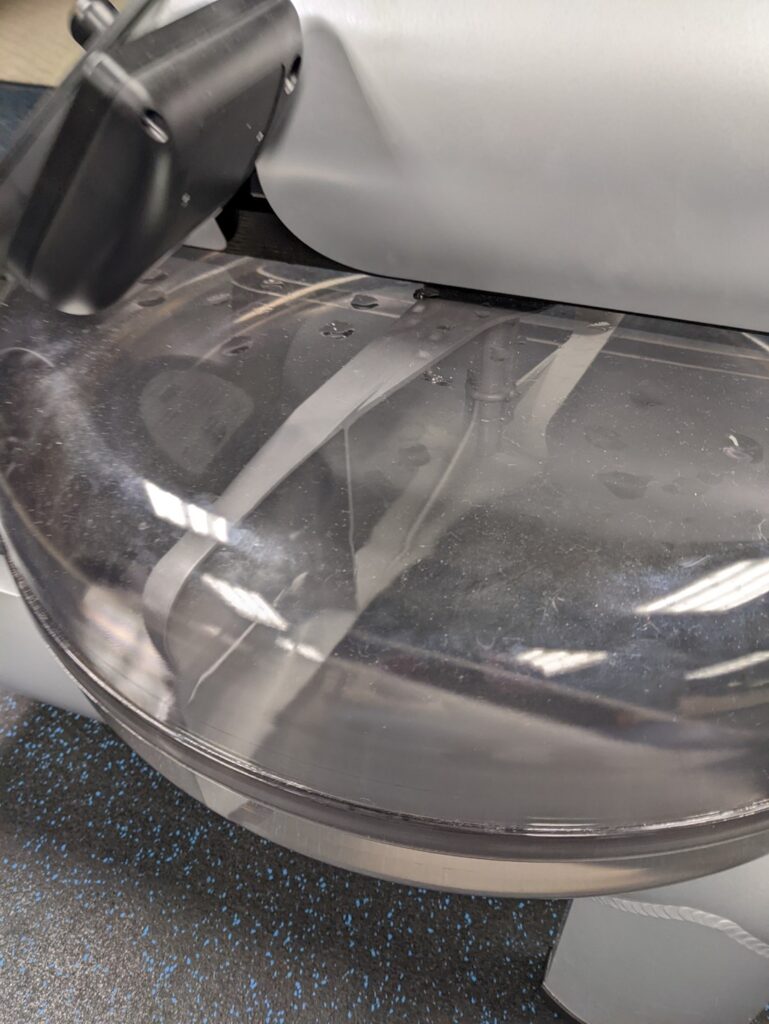
          The commercial grade water rower has single mixing paddle design that extends across the diameter of the tank. There are openings between the shaft hub and the scoop ends, but the paddle has solid plastic arms at the top and bottom of the water tank. The budget rower was connected only at the bottom of the water tank leading to increasing offset dynamic loads as athlete exertion increases.

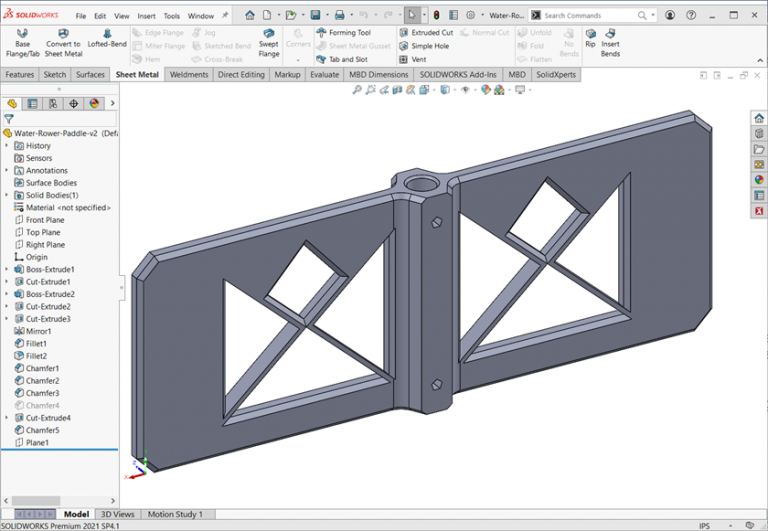
          Although the original design paddle diameter of 18 inches is larger than many 3D printer print volume dimensions, it was possible to get 16 inches diagonally across the build plate. Adjusting the width of the working portion of the paddle and having the solid section on top allows the surface area displacing the water to be similar between the 3D printed design and the injection molded paddle.

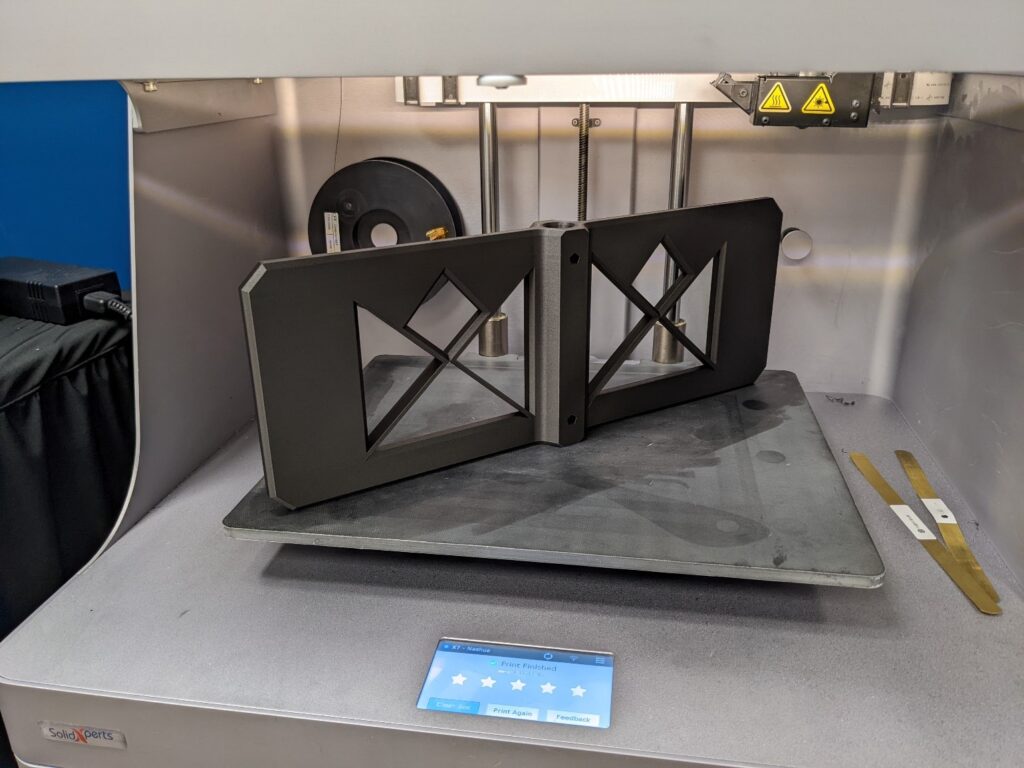
          By using a pattern of triangle and diamond shapes for the open section, the replacement paddle can be printed without support.Chamfers are used for edge breaks around the edges and openings for better flow characteristics while still being easy to print.

          The original paddle had a pressed and brazed connection between the paddle and rower shaft, and this has been replaced with a pentagon shaped hole to allow for screw fastening to the shaft.

          For strength Markforged Onyx filament is used which is a carbon and nylon blend. The wall passes are increased and gyroid infill is used along with maintaining the full paddle width through the paddle cross section.

          Disassembly of the original paddle from the rower was a bit involved, requiring drilling and a gear puller to get the shaft clear to accept the printed replacement.


          Some additional drilling and bolting allowed the new paddle to be installed on the rower shaft.

          With a slight adjustment of water volume in the tank, the 3D printed replacement paddle provides the same resistance and workout as the when the machine was new.

          Water flow is different with the replacement paddle but the workout is the same. And the repair is done in time for a new year of health resolutions.

          John Nolin

          Senior Applications Engineer

          SolidXperts

          X_green_halo

          Any questions? Need help? Ask one of our experts.

          Whether you’re ready to get started or just have a few more questions, you can contact us toll-free:

            What’s New SOLIDWORKS 2022 – Hit List

            BLOG

            What’s New SOLIDWORKS 2022 – Hit List

            Installation –

            Admin Image types (option) Standard, Remote, Compressed

            Remote – allows users to download image from internet / SOLIDWORKS Customer Portal instead of from company VPN

            Compressed – smaller download, but must use full package at each service pack upgrade

            SOLIDWORKS Electrical – new client or server specific installation options (easier for multi-user environments)

            PDM – vault views can now be deployed as part of an Admin Image

            Copy Settings wizardcan now adapt to System Options distributed and locked with Admin Image


            User Interface –

            New message bar pop-up at top of graphics window

            Quick Copy utility for Measure tool – allows 1 click copy of values or values + units

            Command Search now integrated in Shortcut toolbar (and can be directly added to toolbar)

            Drawings saved to PDF can now include the sheet / paper color

            Reference Geometry display and selection during Mate, Measure or Pattern.

            While in the command hover mouse over faces or cylinders press [Q] to momentarily display reference geometry for selection.

            Additional options for Component Tree display to show various combinations of Component Name, Description, Configuration, and Display State.


            Sketching –

            Linear sketch entity is now usable for direction reference in patterns

            Sketch textnow works in patterns


            Parts –

            Coordinate systems – can be set with exact values in 3D space (independent of a geometry reference to select)

            Coordinate systems – can be referenced or selected by its origin, an axis or plane

            Cosmetic Threads – better display, retains proper depth and edge attachment

            Draft Across Parting Lines – now draft can be applied in both directions from a parting line as 1 feature

            External Threaded Stud Wizard – an extension of detailed Thread Feature that builds the stud with threads at 1 time

            Hole Wizard Slots – dimension to arc center option added, hit [Tab] to rotate 90deg while placing feature.

            Hybrid Modeling – allows mesh bodies (after BREP conversion) to be edited with surface features and combined with solid features

            Segmented Mesh bodies – converted mesh bodies can have faces turned into classic BREP

            Mirror about 2 planes – with 1 feature creation

            Rotate Section View– around a hole or axis

            Thickness Analysis – now offers Resolution control with Low, Med, High tessellation sizes


            Model Display –

            Performance improvement for 3D textures and silhouette edges


            Sheet Metal –

            Edge flanges on curves can now apply edit profile to limit the feature extents

            Etched contours on bends (sketch text or split lines) retain display in flattened state


            Structure System & Weldments –

            Structure Systems now supports end caps

            Custom Properties of older version weldments (2017 or earlier) can be upgraded to newer property architecture

            Improvements in Complex Corner property manager

            Ability for multiple secondary members (using between points, or up to member methods)

            Connector Elements for Structure Systems now supported

            Can include cut features as connector is placed.

            ImprovedCustom Properties dialog for Structure Systems and Weldments bodies


            Assemblies –

            (x) Automatically optimize resolved mode, hide lightweight mode

            Improves performance by letting system control lightweight use behind the scenes (behaves as resolved to the user)

            Open Subassemblies in Different Mode– right click option to load subassembly as LDR or Resolved (independent of upper assembly current mode)

            Exclude from BOM – custom configuration property for components

            Configuration Table – Design Table functionality without needing the embedded Excel sheet  (file size / performance / no excel ???)

            Section View – option toexclude failed componentsand still create section view

            Assemblies and components with equations will auto resolveas needed, if loaded lightweight

            Move with Triad– automatically appears when more than 1 component selected

            AdditionalQuick Mates options on In Context Toolbar


            Detailing & Drawings –

            Alternate Position Viewsnow allow cropping

            Predefined Drawing Viewsnow support trimetric, dimetric, or flat pattern types

            Detailing Modeimprovements – available for any version file, Save model data and include standard views performance options added

            Geometric Tolerance frames now build dynamically on screen 

            Radius / Diameter dimension display toggle now on incontext bar for easier access

            Sheet Metal flat pattern views can now show bend lines when sketch display is hidden

            Handling of detailed cut lists within BOMtables is improved

            Symmetric Linear Diameter Dimension is added 


            Import / Export –

            Performance improvements forimport of large DXF/DWG and STEP files

            Ability to select specific IFC Entity types from the files for import

            Assigned colors of entities properly support in DXF/DWG export


            PDM –

            Improvements with Windows AD integration: additional user data fields, profile import, login validation tools

            Improved configuration property managementand control

            Archive Server and User log export capabilities added

            Preview Tab now shows full eDrawings viewer controls

            Performance improvementsfor file operations even when database has higher latency


            Manage –

            UI improvements for BOM, Project Properties, Process Tab and more

            Additional user rights controls over check out of items

            Replace User capability added

            Performance improvements for BOM and Project display as well as PDM check in/out


            Simulation –

            Blended Curvature Based Mesher is now default for new studies

            Bonded and Contactperformance improvements

            Linkage Rod Connector item

            Improved solver performance and automatic solver selection


            Visualize 

            Tools to set camera perspective to matchbackplate

            Shadow catcher property can be assigned to scene elements

            Scenes Tab UI improvements

            Animations improvements for motion studies, key frames and more

            Render Output Viewer – in project viewing, control, and management of renders

            Pattern Tool – replaces and improves prior Formation function (Vee, Circle, Scatter, Grid)


            CAM 

            Toolpath endpointscan be set for a custom color for easier viewing

            Filter for Mill & Turn tools containing specified text string


            Composer –

            Ability to import SOLIDWORKS appearance decals

            Import file versionextensions: ACIS up to 2021 , Creo 7, SOLIDWORKS 2022


            Electrical –

            Links in BOM cells – allows multiple items to reference 1 mfg part

            PDF data file support for Project PDF exports (bind PDF function)

            Multiple UI improvements

            Attribute capability added to Origin & Destination arrows (shows mark of connected component)

            Electrical Content Portalcan now be set as dockable panel in UI

            Improved Connection Point creation


            Inspection –

            New API– auto open SOLIDWORKS files, Balloon drawings, create reports and more

            Standalone now supportsall native SOLIDWORKS files and NX/Unigraphics *.prt files (MBE)

            Smart Extract in standalone has improved recognition and parsing of PDF file content


            MBD 

            HTML(5) exportoption on 3D PDF creation

            Angle Dimension manual annotation for DimXpert added

            Geometric Tolerancingimprovement including ANSI Y14.5 or ISO 1101 release selection


            eDrawings –

            Support for SOLIDWORKS custom file properties when saved as eDrawings files

            Components list UIimprovements


            Flow Simulation –

            Scene Plot utility – stores all displayed plots and model display

            Compare Tool improvements

            Range Function – for handling of transient effects (such as power derating due to temperature calculation)

            Flux Plot – now available within Transient Explorer


            Plastics –

            Symmetric & Cyclic Cavity and Runner Layout tools

            Injection Location Advisor – based on part geometry software selects up to 4 recommended injection locations

            Polymer materials data updates (using latest manufacturer properties)

            SABIC, Polyplastics, Solvay Specialty Polymers, Radici Group, LANXESS

            Improved UI of Plastics Manager Tree

            4K and higher displayresolution support

            Solver performance improvement – cooling calculation time reduced 34%, Fill & Pack reduced 60%


            Routing –

            Flatten Routeimprovements for horizontal selection, and line only output

            Connector backshellsupport added

            Replace Connectorcapability added – preserves line connection where possible  

             

            SolidXperts teams can help you become true 3D experts! An additional question? Need information?

            Contact us! 

            SolidXperts team is always there for you!

            X_green_halo

            Any questions? Need help? Ask one of our experts.

            Whether you’re ready to get started or just have a few more questions, you can contact us toll-free:

              How to Produce an Adaptive Form with DriveWorks

              BLOG

              How to Produce an Adaptive Form with DriveWorks

              By Marco Chery – SolidXperts Application Specialist

              What is an adaptive form?

              DriveWorks projects created using responsive forms adjust their content regardless of the size and orientation of your device screen, whether it is a computer, tablet, or smartphone. This eliminates the need to swipe the web page from left to right to see content and the user’s browsing experience is more intuitive.

              Why should you use them?

              • For the dissemination of DriveWorks projects on the web;
              • Improved user navigation;
              • Access the project anywhere from any device.

              A Few Tips

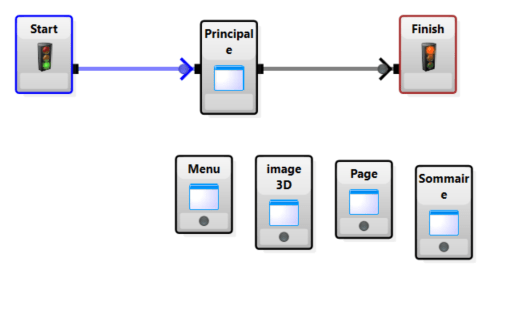
              The easiest way to make your forms responsive is to use Frame Controls on the main page. From this main page, the windows will allow you to see the content of your different forms.

              First, define the location of your viewing windows for the resolution of a desktop computer.

              Second, create a plan to switch these windows to the screen of a phone and tablet.


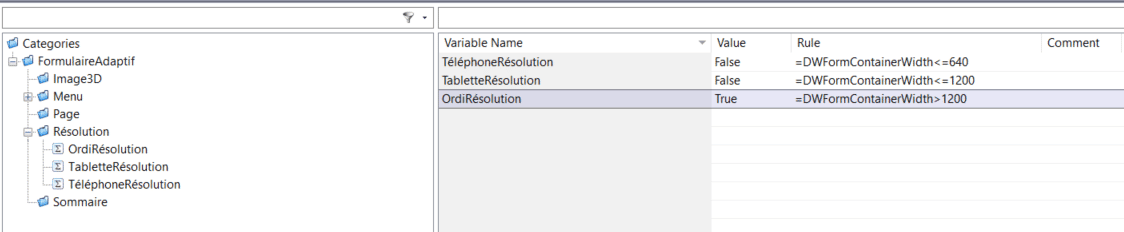
              Third, determine the borders for switching windows between different device resolutions. For this, we use a special DriveWorks variable: FormContainerWidth.

              • Phone Resolution: 320 – 640 pixels
              • Tablet Resolution: 640 -1200 pixels
              • Computer Resolution: 1200+ pixels

              Fourth, for each zone, we can create variables that will position the window taking into account the different resolutions.
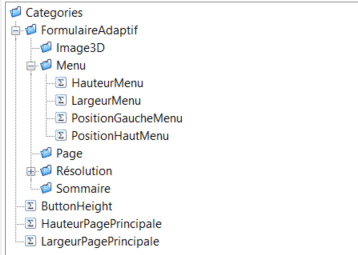
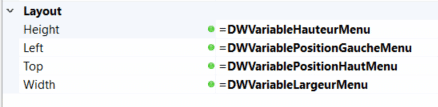
              Finally, we import the variables to the main page, in the layout section for each type of viewing window.
              Conclusion

              This method ensures your DriveWorks project forms are adaptive and attractive, regardless of the device on which they are viewed.

              SolidXperts teams can help you become true 3D experts! An additional question? Need information?

              Contact us! 

              SolidXperts team is always there for you!

              X_green_halo

              Any questions? Need help? Ask one of our experts.

              Whether you’re ready to get started or just have a few more questions, you can contact us toll-free:

                SOLIDWORKS Visualize – Video Decal

                BLOG

                SOLIDWORKS Visualize – Video Decal

                By Nikita Lambert – Certified SOLIDWORKS Expert (CSWE) at SolidXperts

                You may have already said that your rendering is acceptable, but that it seems to be missing something, that your image lacks life. SOLIDWORKS Visualize now has the solution for you: You can now create a video decal and apply it to any surface of your model. For example, a cellphone company could put a clip showing the operating system in action on a newly designed device, an animated background plan outside a window, or even a television playing your favorite series! The possibilities are limited only by your imagination.

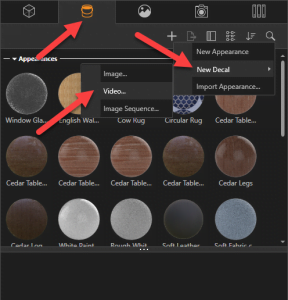
                To take advantage of this 2019 innovation, simply go to your Appearances tab, Add, New Decal, and finally Video. Browse and search for your video file and you need only apply it to your project.

                SolidXperts teams can help you become true 3D experts! An additional question? Need information?

                Contact us! 

                SolidXperts team is always there for you!

                X_green_halo

                Any questions? Need help? Ask one of our experts.

                Whether you’re ready to get started or just have a few more questions, you can contact us toll-free:

                  Exporting SOLIDWORKS Visualize to Nvidia Holodeck

                  BLOG

                  Exporting SOLIDWORKS Visualize to Nvidia Holodeck

                  By Nikita Lambert – Application Specialist at SolidXperts

                  Nvidia has developed a collaboration platform to allow engineering, sales, marketing, and management teams to interact with a design still in the development phase, using virtual reality technology.

                  This platform allows you to transport yourself to the interior of a 3D modeled building, in front of a podium showcasing your newest products, or even into a virtual meeting room with your VR headset.
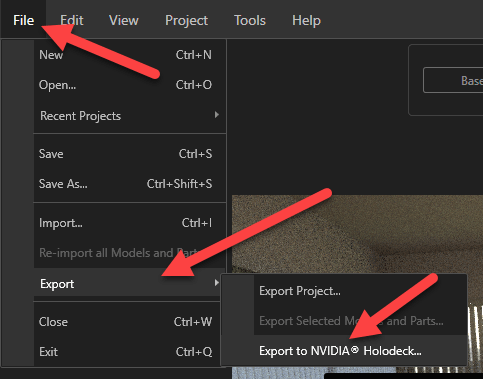
                  SOLIDWORKS Visualize can export your completed project to an Nvidia Holodeck-supported format.

                  All appearances, environments, and lighting will be automatically recorded, all you have to do is explore the almost infinite possibilities of this new mode of communication.


                  SolidXperts teams can help you become true 3D experts! An additional question? Need information?

                  Contact us! 

                  SolidXperts team is always there for you!

                  X_green_halo

                  Any questions? Need help? Ask one of our experts.

                  Whether you’re ready to get started or just have a few more questions, you can contact us toll-free:

                    How to Update PDM Add-in Tasks

                    BLOG

                    How to Update PDM Add-in Tasks

                    By Elene Teolis – SolidXperts PDM Application Specialist

                    If you use tasks in PDM, SW to PDF file conversion for example, during a New Version or Service Pack update the PDM Administrator must also update the add-in tasks to take advantage of new features, improvements, or fixes. The same procedure applies to updating the basic programming add-in, Dispatch.

                    Here’s how to do it:

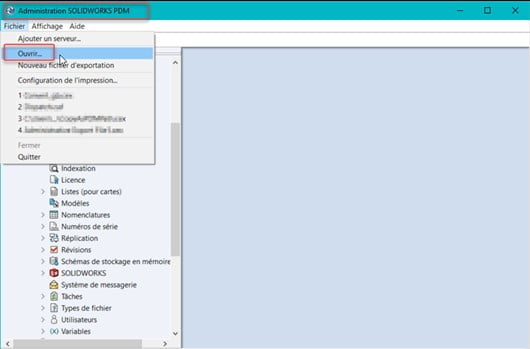
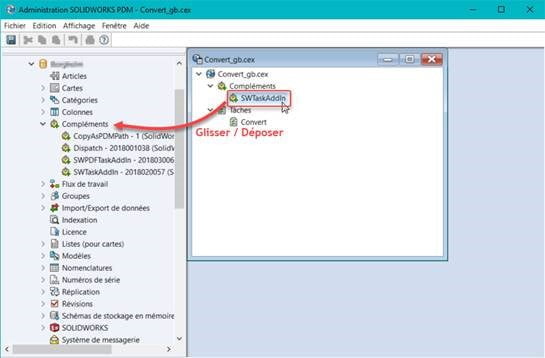
                    • PDM Administration Tool > File > Open:
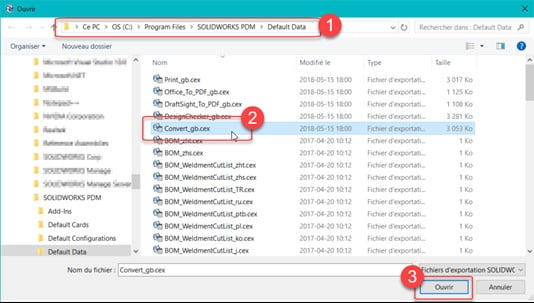
                      Go to > C:\Program Files\SOLIDWORKS PDM\Default Data
                    • Open > C:\Program Files\SOLIDWORKS PDM\Default Data\Convert_gb.cex

                    Here are the complements available and the associated tasks:

                    • To update Dispatch, open Dispatch.caf
                    • Drag and drop SWTaskAddIn (import only the add-in) from the window on the right, in Add-ins on the left:
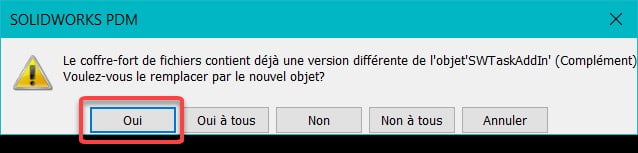
                    Note: If you have a dedicated workstation that performs tasks, you will need to log out and reconnect to PDM to ensure that you have the correct add-in.

                    • Reply Yes to ‘Do you want to replace with the new object?’


                    It’s that simple. The add-in is now up-to-date!

                    SolidXperts teams can help you become true 3D experts! An additional question? Need information?

                    Contact us! 

                    SolidXperts team is always there for you!

                    X_green_halo

                    Any questions? Need help? Ask one of our experts.

                    Whether you’re ready to get started or just have a few more questions, you can contact us toll-free:

                        Download

                          Download

                            Download

                            All search results